If you want to know how to build a WordPress website for your business without wasting months or money, this guide walks you through the whole process in the order a professional would do it: planning, domain and hosting, installation, theme, pages, plugins, SEO, speed, security and launch. It is written for business owners, freelancers and marketers who want a site that looks professional, loads fast, ranks on Google and turns visitors into enquiries or sales.
We build and fix WordPress sites for clients every week at MIVAQ, so everything here reflects what actually works in 2026, not what looked good in a 2019 tutorial. You can follow it step by step and build the site yourself, or use it to understand what a good developer should be doing for you.
Key takeaways
- Use self-hosted WordPress (WordPress.org) on decent hosting: it gives you full ownership, any theme or plugin, and no platform lock-in.
- A solid small-business site costs roughly $100 to $300 a year to run yourself; most of the real cost is your time or a developer’s fee.
- Pick a lightweight, well-maintained theme (Astra, Kadence, GeneratePress, Blocksy or a block theme) and keep plugins to the essentials.
- Set up SEO, speed, security and backups before launch, not after: they are much harder to bolt on later.
- Use the launch checklist in this guide so you do not go live with a “discourage search engines” box ticked or a broken contact form.
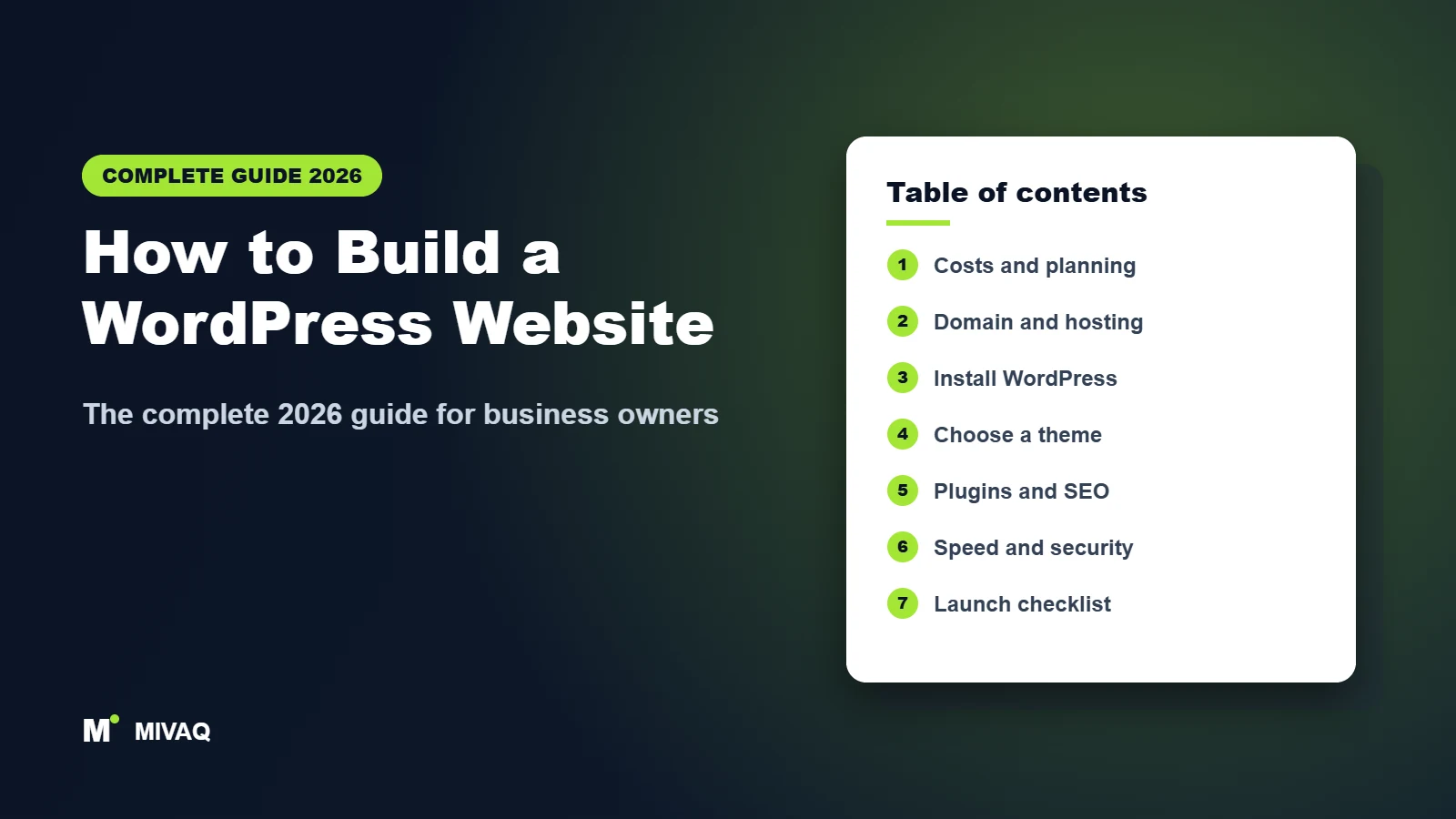
Table of contents
- What is WordPress and is it right for your business?
- How much does a WordPress website cost (and how long does it take)?
- Plan your website before you build it
- How to choose a domain name and WordPress hosting
- How to install WordPress step by step
- How to choose a WordPress theme
- How to design and build your pages
- Essential WordPress plugins for a business website
- WordPress SEO setup: get found on Google
- How to make your WordPress website fast
- Security, backups and maintenance
- Adding an online shop with WooCommerce
- WordPress website launch checklist
- DIY vs hiring a WordPress developer
- More complete guides
- Frequently asked questions
- Start building your WordPress website
What is WordPress and is it right for your business?
WordPress is a free, open-source content management system (CMS). It powers more than 40% of all websites on the internet, from one-page portfolios to large news publishers and online stores. You install it on a web server, then manage your pages, blog posts, images and settings from a browser-based dashboard, without writing code.
For most small and medium businesses it is the most flexible option available: you own your site and your data, you can move it to another host at any time, and there is a theme or plugin for almost any feature you will ever need, from booking forms to multilingual content to a full online shop.
WordPress.org vs WordPress.com: which one do you need?
This is the first point of confusion for most people. They share the same software, but they are different products.
| WordPress.org (self-hosted) | WordPress.com (hosted service) | |
|---|---|---|
| What it is | Free software you install on your own hosting | A paid platform run by Automattic that hosts WordPress for you |
| Ownership and control | Full: your files, database and server settings | Limited on lower plans; full plugin access only on higher plans |
| Themes and plugins | Any theme or plugin | Restricted on cheaper plans |
| Maintenance | You (or your developer/host) handle updates and backups | Handled by the platform |
| Best for | Businesses that want flexibility, SEO control and growth | Simple blogs and people who never want to touch a server |
Everything in this guide assumes self-hosted WordPress.org, because that is what a business website should almost always run on. You can check the current server requirements on the official WordPress requirements page.
When WordPress is the right choice (and when it is not)
WordPress is a great fit if you want a service business website, a portfolio, a blog that brings in organic traffic, a membership area, a booking system or a small to medium online shop. It is especially strong when content and SEO matter, because you control every title, URL, redirect and schema setting.
It is not always the best fit. If you only want to sell physical products and never want to think about hosting or updates, a hosted platform like Shopify may suit you better. If you need a one-page placeholder for a few weeks, a simple builder may be quicker. And if you are already on Wix and wondering whether to move, our comparison of Wix vs WordPress for SEO explains the trade-offs honestly.
How much does a WordPress website cost (and how long does it take)?
The WordPress software is free, but a working business website is not. You pay for a domain, hosting and, optionally, premium themes or plugins. The biggest variable is labour: either your own hours or a professional’s fee. Typical 2026 price ranges (in US dollars; UK and EU prices are broadly similar) look like this:
| Cost item | Typical range | Notes |
|---|---|---|
| Domain name | $10 to $25 per year | .com, .co.uk and most country domains sit in this range; watch for cheap first-year offers that renew higher |
| Shared or entry-level hosting | $3 to $15 per month | Fine for a brochure site with modest traffic |
| Managed WordPress or cloud hosting | $20 to $60+ per month | Better speed, staging, daily backups and support |
| SSL certificate | Free | Let’s Encrypt is included with almost every decent host |
| Theme | Free to about $250 per year | Excellent free themes exist; premium adds templates and features |
| Premium plugins | $0 to $300 per year | Forms, SEO, backups or caching pro versions, only if you need them |
| Professional design and build | About $500 to $5,000+ one-off | Depends on page count, custom design, copywriting and integrations |
| Maintenance (updates, backups, monitoring) | DIY or roughly $30 to $150 per month | Often bundled into a care plan |
So a do-it-yourself brochure site can realistically run on $100 to $300 a year. A professionally built site adds a one-off investment, which usually pays for itself through better conversions and fewer emergency fixes.
How long does it take to build a WordPress website?
- Simple 4 to 6 page site, DIY: two to four weekends if your content (text, logo and photos) is ready.
- Professional brochure or service site: usually 2 to 4 weeks from brief to launch.
- WooCommerce shop or custom functionality: 4 to 8 weeks or more, depending on product count, payments, shipping rules and integrations.
In our experience the slowest part is almost never the build. It is waiting for content. Write your page text and gather images before you start and you will cut the timeline in half.
Plan your website before you build it
Most failed websites fail at the planning stage: they look fine but nobody knows what the visitor is supposed to do. Spend an hour on these questions before you buy anything.
1. Define the goal of the site
Pick one primary action: call, WhatsApp, book, request a quote, buy, or sign up. Every page should lead towards it. A plumber wants calls; a consultant wants discovery bookings; a shop wants checkouts.
2. Know who you are building it for
Write down your ideal customer, the problem they search for and the objections they have (price, trust, location, speed). Your copy and page structure should answer those objections in order.
3. Map your pages (sitemap)
A typical small-business site needs:
- Home: what you do, for whom, why you, and the main call to action.
- Services (one page per main service if you want each to rank in Google).
- About: people, story, credentials and proof.
- Work, portfolio or case studies: real results build trust.
- Contact: form, phone, email, map and opening hours.
- Blog or resources: optional, but the main engine for organic traffic.
- Legal: privacy policy, cookie policy, and terms if you sell online.
4. Do basic keyword research
Find the phrases customers actually type into Google, such as “emergency electrician Leeds” or “bookkeeper for small business”, and assign one main keyword to each page. This prevents two pages competing for the same search later. Our guide to keyword research for small businesses shows how to do this with free tools.
5. Prepare your content
Gather your logo (SVG or high-resolution PNG), brand colours, fonts, photos of your team or work, testimonials and the written copy for each page. Real photos almost always convert better than stock images.
How to choose a domain name and WordPress hosting
Choosing a domain name
- Use your business name where possible; keep it short, easy to spell and easy to say on the phone.
- Choose .com for international audiences, or your country domain (.co.uk, .de, .fr and so on) if you serve one country.
- Avoid hyphens and numbers, and check the name is not a trademark of someone else.
- Register it in your own name and with your own account, not your developer’s. You must always control your domain.
- Turn on auto-renew and domain privacy so it never expires by accident.
Types of WordPress hosting compared
| Hosting type | Best for | Pros | Cons |
|---|---|---|---|
| Shared hosting | New brochure sites, low traffic | Cheapest, one-click WordPress install | Shared resources, speed varies, limited support quality |
| LiteSpeed shared or business hosting | Small businesses that want speed on a budget | Server-level caching with the free LiteSpeed Cache plugin | Still shared; choose a reputable provider |
| Managed WordPress hosting | Businesses that want peace of mind | Staging sites, daily backups, malware scanning, expert support | Higher price, some plugins restricted |
| Cloud VPS (often via a control panel) | Growing sites, WooCommerce, agencies | Dedicated resources, scalable, excellent value | Needs technical skill or a managed panel |
What to look for in a WordPress host
- Current PHP versions (8.2 or newer) and a modern database (MySQL 8 or MariaDB 10.6+).
- Free SSL, automatic daily backups you can restore yourself, and a one-click staging site.
- Server-level caching (LiteSpeed, NGINX FastCGI or similar) and data centres near your customers.
- Real support from people who understand WordPress, available 24/7.
- Honest renewal pricing: many hosts quote a low introductory price that triples on renewal.
If your site will serve customers mainly in one region, host it close to them and put a CDN such as Cloudflare in front for visitors further away.
How to install WordPress step by step
Almost every host now offers a one-click installer (Softaculous, a custom installer, or WordPress pre-installed). Here is the process from a fresh hosting account to a clean, correctly configured WordPress install:
- Point your domain to your host. Change the nameservers at your registrar, or add the A record your host gives you. DNS changes usually apply within a few hours, occasionally up to 48.
- Issue the SSL certificate. In your hosting panel, enable the free Let’s Encrypt certificate so your site loads on https:// from day one.
- Run the WordPress installer. Choose the https:// version of your domain, install in the root (not a /wp folder), and set the site title.
- Create a secure admin account. Use a unique username (never “admin”), a long generated password, and your business email address.
- Log in at yourdomain.com/wp-admin and remove the sample post, sample page and any unused default plugins and themes the installer added.
- Set your permalinks. Go to Settings, then Permalinks, and choose “Post name” so URLs look like yourdomain.com/services/ rather than ?p=123.
- Configure general settings. Under Settings, then General, set the site title, tagline, timezone and date format. Under Settings, then Discussion, decide whether you want comments at all (most business sites switch them off).
- Hide the site while you build. Either use a maintenance or coming-soon plugin, or tick “Discourage search engines from indexing this site” under Settings, then Reading. Write a note to untick it at launch.
- Update everything. Make sure WordPress core, PHP version and any pre-installed plugins are on their latest versions before you add anything else.
Tip: if your host offers a staging site, build there and push to live when you are ready. It keeps half-finished pages out of Google and lets you test updates safely later.
How to choose a WordPress theme
Your theme controls the layout, typography, header, footer and overall look of the site. It also has a big impact on speed and on how easy the site is to edit. In 2026 there are two main types:
- Classic themes with a customiser (for example Astra, Kadence, GeneratePress, OceanWP). These pair well with page builders such as Elementor or with the block editor.
- Block themes that use the Site Editor (full site editing), where headers, footers and templates are built with blocks. Examples include the default Twenty Twenty-Five theme, Ollie and Spectra One.
What makes a good business theme
- Lightweight: loads little CSS and JavaScript by default, which helps Core Web Vitals.
- Actively maintained, with recent updates and good reviews on WordPress.org.
- Works with the block editor and, if you plan to use one, your page builder.
- Has a flexible header and footer builder and good mobile controls.
- Offers starter templates close to your industry so you are not starting from a blank page.
- Comes from WordPress.org or the developer’s own site. Never install “nulled” premium themes from download sites: they are a common way malware gets into WordPress.
Best free WordPress themes for business websites
We have reviewed dozens of free themes in detail. If you want the full shortlist, start with our roundup of the best free WordPress themes, which links to every individual review and safe download. These are the ones we recommend most often:
| Theme | Type | Best for |
|---|---|---|
| Astra | Classic, very lightweight | All-round business sites with hundreds of starter templates |
| Kadence | Classic with header builder | Block-editor sites with strong design control and no page builder |
| GeneratePress | Classic, minimal | Speed-focused sites and developers who want a clean base |
| Blocksy | Classic, block-friendly | Modern designs with a visual header and footer builder |
| Hello Elementor | Blank canvas | Sites designed entirely in Elementor |
| Neve | Classic, mobile-first | Fast small-business and portfolio sites |
| Twenty Twenty-Five | Default block theme | Simple sites and blogs built fully in the Site Editor |
| Ollie | Block theme | Polished SaaS, agency and startup layouts with patterns |
Other well-proven options include OceanWP for feature-rich multipurpose sites, Sydney for corporate and agency layouts, the flexible Zakra theme, and the block-based Spectra One. If you are building a shop, look at the WooCommerce-focused themes covered in the WooCommerce chapter below.
How to install and set up your theme
- Go to Appearance, then Themes, then Add New, search for the theme and click Install, then Activate.
- Install the theme’s companion plugin only if you will use its starter templates.
- Import one starter template that is close to your design, but only the pages you need, so you do not fill the database with demo content.
- Set your global colours, fonts and logo in the customiser or Site Editor (Styles), so every page stays consistent.
- Delete the other default themes except one current default theme, which WordPress can fall back to if something breaks.
How to design and build your pages
Block editor or page builder?
WordPress includes the block editor (Gutenberg), which is now capable enough to build complete business sites, especially with a theme like Kadence or a block theme. Page builders such as Elementor add a drag-and-drop visual editor, a large widget library and more design freedom, at the cost of extra code on every page.
- Choose the block editor if speed matters most, the design is relatively standard, and you want the fewest moving parts.
- Choose Elementor (or a similar builder) if you want pixel-level visual control, complex layouts, or you or your team already know it. Keep it fast by using its performance settings and avoiding dozens of add-on plugins.
What every key page needs
Homepage. A clear headline that says what you do and for whom, a short supporting sentence, one primary button (call, book or get a quote), trust signals (reviews, logos, years in business), a summary of services, a short process section, a featured case study or testimonial, and a final call to action.
Service pages. One page per main service, targeting its own keyword. Explain the problem, your solution, what is included, the process, pricing or “from” prices if possible, FAQs and proof. Thin, two-paragraph service pages rarely rank.
About page. Real people, real photos, your story and qualifications. Visitors buy from people they trust.
Contact page. A short form (name, email, phone, message is usually enough), your phone number and email as clickable links, address and map for local businesses, and response times.
Design principles that improve conversions
- Design for mobile first: well over half of small-business traffic is on phones. Test every page at phone width.
- Use a maximum of two fonts and a small, consistent colour palette with one accent colour for buttons.
- Keep the main call to action visible in the header, and repeat it at the end of every page.
- Use plenty of white space, short paragraphs and descriptive subheadings.
- Compress and resize images before upload (WebP or AVIF, rarely wider than 2000px) and always add descriptive alt text. Our guide to writing image alt text for SEO explains how.
- Meet basic accessibility: sufficient colour contrast, readable font sizes, labelled form fields and keyboard-friendly menus.
Navigation and internal links
Keep the main menu to five to seven items, put legal pages in the footer, and link between related pages in your content (for example from a blog post to the matching service page). A thoughtful internal linking strategy helps both visitors and Google understand which pages matter most.
Essential WordPress plugins for a business website
Plugins add features, but every plugin is extra code to update and a potential security or speed cost. A typical well-built business site needs around 10 to 20 plugins, not 50. Here is a sensible core stack:
| Purpose | Good options | Notes |
|---|---|---|
| SEO | Rank Math or Yoast SEO | Titles, meta descriptions, sitemaps, schema, redirects |
| Caching and performance | LiteSpeed Cache (on LiteSpeed servers), WP Rocket, or your host’s cache | Use one caching plugin only |
| Backups | UpdraftPlus, BlogVault, or host backups | Store copies off the server |
| Security | Wordfence, Solid Security or your host’s firewall | Firewall, login protection, malware scans |
| Forms | WPForms, Fluent Forms, Gravity Forms | Add spam protection (Turnstile, reCAPTCHA or honeypot) |
| Email delivery | An SMTP plugin (for example WP Mail SMTP or FluentSMTP) | Stops form notifications landing in spam |
| Cookie consent | Complianz, CookieYes or similar | Needed for UK/EU visitors when you use analytics or ads; supports Google Consent Mode v2 |
| Analytics | Site Kit by Google, or a GA4 tag via your SEO plugin | Connects Search Console and Analytics |
| Image optimisation | Your cache plugin’s image tools, ShortPixel, or Imagify | Converts to WebP/AVIF and compresses |
Rules for choosing plugins safely
- Install from WordPress.org or the developer’s official site only.
- Check the “last updated” date, active installs, reviews and that it is tested with recent WordPress versions.
- Avoid plugins that duplicate each other (two SEO plugins, two cache plugins, two form plugins).
- Deactivate and delete plugins you no longer use; inactive plugins can still be exploited if their files remain.
WordPress SEO setup: get found on Google
WordPress is very search-friendly out of the box, but a few settings make the difference between a site that ranks and one that nobody finds. Google’s own SEO Starter Guide is worth reading alongside this chapter.
Pick an SEO plugin
Rank Math and Yoast SEO are the two leading choices. Both handle titles, meta descriptions, XML sitemaps, canonical tags and schema. Rank Math includes more features in its free version (such as redirects and multiple focus keywords), while Yoast is famously simple and stable. Our detailed Rank Math vs Yoast comparison helps you choose.
Core on-page SEO for every page
- One H1 per page that contains the main topic, followed by logical H2 and H3 subheadings.
- A unique, compelling SEO title of roughly 50 to 60 characters. See our guide to writing title tags that rank.
- A meta description that sells the click; here is how to write meta descriptions that improve click-through rate.
- Short, readable URLs such as /web-design-manchester/.
- Helpful, original content that fully answers the searcher’s question.
- Internal links to related pages and a few links to trustworthy external sources.
Technical SEO settings to check
- Untick “Discourage search engines” in Settings, then Reading, at launch.
- Make sure only one version of the site resolves (https and either www or non-www), with 301 redirects from the others.
- Enable your SEO plugin’s XML sitemap and noindex thin archive pages (tags, date archives, author archives on single-author sites).
- Verify your site in Google Search Console and submit your sitemap.
- Add structured data: Organization or LocalBusiness schema for your business. Our guide to local business schema markup covers the details.
- If you serve a local area, set up and optimise your Google Business Profile and keep your name, address and phone number consistent everywhere.
New sites rarely appear in Google instantly. It can take from a few days to several weeks; our article on how long Google takes to index a new site explains what is normal and how to speed it up. Once the site is live, run through an on-page SEO audit checklist every few months to catch problems early.
How to make your WordPress website fast
Speed affects rankings, conversions and ad costs. Google measures real-user experience with Core Web Vitals; according to web.dev, a good experience means Largest Contentful Paint (LCP) within 2.5 seconds, Interaction to Next Paint (INP) under 200 milliseconds and Cumulative Layout Shift (CLS) below 0.1.
The biggest speed wins, in order
- Good hosting. No plugin can fix a slow server. A fast host with server-level caching is the foundation.
- Page caching. Serve pre-built HTML instead of building every page on each visit. On LiteSpeed servers, the free LiteSpeed Cache plugin is excellent; our guide on speeding up WordPress with LiteSpeed Cache gives the exact settings we use.
- Optimised images. Resize to display size, convert to WebP or AVIF, lazy-load images below the fold, and do not lazy-load the main hero image (it is usually your LCP element).
- A lightweight theme and fewer plugins. Every slider, animation library and social feed adds weight.
- Minimise CSS and JavaScript. Remove unused CSS, defer non-critical JavaScript, and delay third-party scripts such as chat widgets until interaction.
- Fonts. Host fonts locally, use one or two families, and preload the main one.
- A CDN. Cloudflare or your host’s CDN shortens the distance between your server and visitors.
- Database housekeeping. Limit post revisions, clear expired transients and remove leftover tables from deleted plugins.
Measure before and after each change with PageSpeed Insights and the Core Web Vitals report in Search Console, which uses real visitor data rather than a single lab test.
Security, backups and maintenance
WordPress core is secure and maintained by a large security team. Most hacked sites are compromised through outdated plugins, weak passwords, nulled themes or cheap, poorly isolated hosting. A few habits prevent the vast majority of problems.
Security essentials
- Keep WordPress core, themes and plugins updated; enable automatic updates for minor releases and trusted plugins.
- Use strong unique passwords and two-factor authentication for every administrator account.
- Give each person their own account with the lowest role they need (Editor or Author rather than Administrator).
- Limit login attempts and use a web application firewall from your host, Cloudflare or a security plugin.
- Never use nulled or “free premium” themes and plugins.
- Disable file editing in the dashboard and keep PHP up to date.
Our WordPress security checklist walks through every setting, and the official WordPress hardening documentation covers server-level measures. If something already feels wrong, learn the warning signs of a hacked WordPress site.
Backups
Follow the 3-2-1 rule: three copies of your data, on two different types of storage, with one copy off-site. Back up daily (or more often for shops), keep at least 30 days of history, and test a restore at least once. Our WordPress backup strategy explains how to set this up with free and paid tools.
A simple maintenance routine
| Frequency | Task |
|---|---|
| Weekly | Apply updates (on staging first for big releases), check backups ran, test the contact form |
| Monthly | Review Search Console for errors, check speed, remove unused plugins and users, check uptime reports |
| Quarterly | Test a full restore, review content and prices, check broken links, update PHP if a new version is supported |
| Yearly | Renew domain and hosting, review design and conversion rates, refresh key pages and legal policies |
Adding an online shop with WooCommerce
WooCommerce is the free eCommerce plugin that turns WordPress into a full online store. It handles products, variations, carts, checkout, taxes, shipping zones, coupons and orders, and integrates with payment gateways such as Stripe, PayPal and many local providers.
How to set up a WooCommerce store
- Install WooCommerce from Plugins, then Add New, and run the setup wizard (store address, currency, product types).
- Choose a WooCommerce-ready theme such as the official Storefront theme, the conversion-focused Botiga, or the lightweight Woostify.
- Configure payments (test mode first), shipping zones and rates, and tax settings for each country you sell to.
- Add products with unique descriptions, high-quality images, prices, SKUs and stock levels.
- Set up transactional emails, your terms, returns and privacy policies.
- Place several test orders end to end, including refunds, before switching payments to live mode.
Shops need more server resources than brochure sites, so choose better hosting, exclude cart, checkout and account pages from caching, and add bot and fraud protection to the checkout. To get products found on Google, follow our WooCommerce SEO guide. If you sell across several countries, our overview of eCommerce website design for Europe covers languages, currencies, VAT and local payment methods.
WordPress website launch checklist
Run through this list before you announce your new site. It catches the mistakes we see most often when fixing other people’s launches.
- All pages proofread on desktop and mobile; no placeholder text or demo content left.
- Every form tested: submissions arrive in the inbox (not spam) and the visitor sees a confirmation message.
- Phone numbers, email addresses and WhatsApp links are clickable and correct.
- SSL active, all pages load on https, and http and www variants redirect to one version.
- “Discourage search engines from indexing this site” is unticked and any coming-soon mode is off.
- SEO titles and meta descriptions written for every important page; one H1 per page.
- XML sitemap generated and submitted in Google Search Console; Bing Webmaster Tools added.
- Google Analytics 4 (or a privacy-friendly alternative) installed and recording visits, with cookie consent working.
- Favicon, logo and social sharing images set; Open Graph previews checked.
- Privacy policy, cookie policy and (for shops) terms and returns pages published and linked in the footer.
- Images compressed, caching on, and PageSpeed Insights mobile scores reviewed.
- Automatic off-site backups running and a first full backup stored.
- Security plugin or firewall active, two-factor login on, and the default “admin” user does not exist.
- Broken links checked and a custom 404 page that guides visitors back to key pages.
- If replacing an old site: 301 redirects from every old URL to its new equivalent.
- Google Business Profile and social profiles updated with the new website address.
Replacing an existing site is where most traffic is lost. Before you switch, read our guide to a website redesign without losing SEO.
DIY vs hiring a WordPress developer
You can absolutely build a good WordPress website yourself with this guide. The question is whether it is the best use of your time, and how much a mistake would cost you.
| Do it yourself | Hire a professional | |
|---|---|---|
| Upfront cost | Low: hosting, domain, maybe a theme | One-off project fee |
| Your time | 20 to 60+ hours for a first site, plus learning | A few hours for briefing, content and feedback |
| Design and conversion | Depends on your skills; templates help | Custom design built around your customers and goals |
| SEO and speed | Easy to miss technical settings | Configured correctly from day one |
| Security and backups | Your responsibility | Set up properly, with optional ongoing care |
| Best for | Very small budgets, hobby projects, people who enjoy learning | Businesses that need leads or sales soon and want it done right first time |
When it makes sense to hire help
- Your website is your main source of leads or sales.
- You need a custom design, an online shop, bookings, memberships or integrations with other tools.
- You are moving from another platform or redesigning an old site with existing Google rankings.
- Your current site is slow, hacked, not showing on Google, or keeps breaking after updates.
How MIVAQ can help
At MIVAQ Creative Solutions we design, build and maintain WordPress websites for small businesses, freelancers and growing brands. Every project includes a mobile-first design, on-page SEO setup, speed optimisation, security hardening and backups, so you launch with a site that is ready to rank and convert. Learn more about our WordPress development services and our website design service, browse recent work, or read our client case studies.
We work on a clear, fixed-price quote agreed before we start, so there are no surprise invoices. Start with a free consultation and tell us about your business:
- WhatsApp: message us on WhatsApp
- Email: hello@mivaq.com
- Or use our contact form and we will reply within one business day.
More complete guides
- How to Start a Shopify Store: The Complete Guide (2026)
- SEO for Small Business: The Complete Guide (2026)
- Why Is My Website Not on Google? The Complete Indexing Guide
- WordPress Security and Malware Removal: The Complete Guide
- Wix and Squarespace SEO: The Complete Guide (2026)
Frequently asked questions
Can I build a WordPress website for free?
The software, many excellent themes and most essential plugins are free. You still need a domain name and hosting, which together typically cost around $60 to $250 a year for a small business site. Free subdomain options exist on WordPress.com, but they are not suitable for a professional business.
Is WordPress good for small business websites?
Yes. It is flexible, SEO-friendly, affordable to run and supported by a huge ecosystem of developers, themes and plugins. You own your site and can move hosts at any time, which is not true of most closed website builders.
Do I need to know how to code to use WordPress?
No. You can build and manage a complete site with the block editor or a page builder such as Elementor. Basic HTML and CSS knowledge helps with fine-tuning, but it is not required.
How long does it take to build a WordPress website?
A simple brochure site can be built in a few days of focused work if your content is ready. A professionally designed business site usually takes 2 to 4 weeks, and an online shop 4 to 8 weeks or more.
Is WordPress better than Wix or Squarespace?
For flexibility, SEO control, ownership and scaling, WordPress usually wins. Wix and Squarespace are easier for absolute beginners and include hosting and maintenance, but you are limited to their features and cannot move your site elsewhere.
What is the best WordPress theme for a business website?
There is no single best theme, but Astra, Kadence, GeneratePress and Blocksy are consistently fast, well maintained and flexible. Choose the one whose starter templates are closest to your design, and avoid heavy multipurpose themes you will not fully use.
How many plugins should a WordPress site have?
There is no fixed limit; quality matters more than quantity. Most business sites run well with 10 to 20 well-coded, actively maintained plugins. Remove anything you do not use.
Is WordPress secure?
WordPress core is secure and regularly patched. Problems almost always come from outdated plugins, weak passwords or nulled software. With updates, two-factor authentication, a firewall and off-site backups, a WordPress site is very safe.
Can I move my existing website to WordPress without losing Google rankings?
Yes, if you keep your content, map every old URL to a new one with 301 redirects, keep titles and meta descriptions, and monitor Search Console after the switch. Most ranking losses after a migration come from missing redirects.
Start building your WordPress website
Building a WordPress website for your business comes down to a clear plan, good hosting, a lightweight theme, a small set of trusted plugins, and getting SEO, speed and security right before launch. Follow the steps and the checklist in this guide and you will have a site that looks professional and is built to grow.
If you would rather spend your time running your business, get in touch with MIVAQ for a free consultation and a fixed-price quote. We will plan, design and build a fast, secure WordPress website that brings you customers.