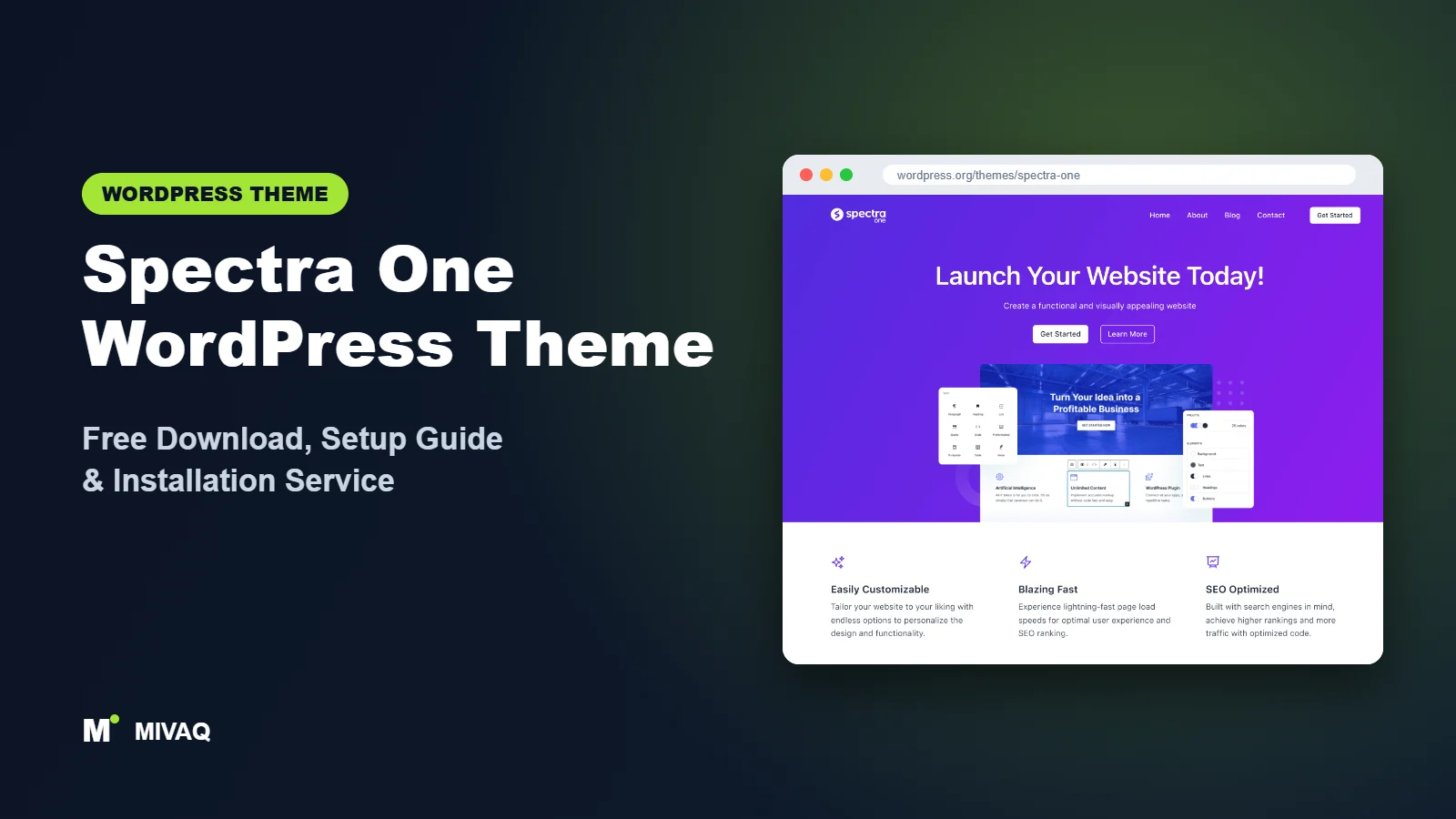
Brainstorm Force is best known for Astra, one of the most installed WordPress themes ever, and for Spectra, a popular blocks plugin for the block editor. Spectra One is what happens when that team builds a theme for full site editing from the ground up. If you are looking for the Spectra One WordPress theme free download, it is 100% free and legal on WordPress.org, and it is designed to work hand in hand with the free Spectra plugin.
This article is part of our complete guide: How to Build a WordPress Website for Your Business (2026 Guide).
The idea is simple: the theme provides a clean, modern frame for your site in the Site Editor, while Spectra adds the advanced blocks that core WordPress lacks, such as forms, sliders, modals and info boxes. In this guide we explain what Spectra One offers, how it differs from Astra, how to download and install it safely, and how to set it up properly.
What is the Spectra One WordPress theme?
Spectra One is a block theme built for full site editing. According to its WordPress.org description, it is a versatile theme for blogs, portfolios and businesses with a sleek, professional design. Headers, footers, page templates and global styles are all controlled in Appearance › Editor. Unlike Astra, there is no large Customizer panel; the design lives in blocks and theme.json.
| Detail | Spectra One |
|---|---|
| Developer | Brainstorm Force |
| Latest version | 1.2.6 |
| Active installs | 7,000+ |
| Rating | 4.8/5 (28 reviews) |
| Requires WordPress | 6.1 or higher |
| Requires PHP | 7.4 or higher |
| Last updated | 25 August 2026 |
| Theme type | Block theme (Full Site Editing) |
| Price | Free (no Pro theme; the Spectra plugin has an optional Pro version) |
Spectra One is much less widely installed than Astra, which is understandable: most of Brainstorm Force’s users still run classic workflows. For people who have moved to the Site Editor, though, it offers the same team’s polish in a modern format.
Key features of Spectra One
- Full site editing: header, footer, archive, single and page templates are editable with blocks.
- Designed for Spectra blocks: the theme’s styles are tuned to the Spectra plugin’s containers, buttons and advanced blocks.
- Full-width template: ideal for landing pages that need edge-to-edge sections.
- Clean, modern default design: sensible spacing and typography that looks professional before you change anything.
- Patterns for common sections: heroes, features, testimonials and calls to action ready to customise.
- Theme options: it carries the theme options tag, with settings to complement what the Site Editor offers.
- RTL and translation ready: suitable for multilingual sites.
- Backed by a large company: Brainstorm Force maintains it alongside Astra and Spectra.
Spectra blocks fill the gaps in core
Core WordPress still lacks some blocks that business sites need. The free Spectra plugin adds a flexible Container block, a Form block, Modal, Slider, Tabs, Info Box, Countdown, Table of Contents and more. With Spectra One, these blocks inherit your global colours and fonts so they look native rather than bolted on.
Container-based layouts
Spectra’s Container block gives you flexbox controls such as direction, alignment, gaps and responsive settings. Combined with the full-width template, it is close to the layout freedom of a page builder, but the output stays lighter.
A familiar company behind it
If you already trust Astra, Spectra One gives you a path into block themes from the same developer, with consistent documentation and design language.
Spectra One free vs Pro: what do you get?
There is no paid “Spectra One Pro” theme. The theme itself is entirely free. What is sold separately is Spectra Pro, a premium add-on for the Spectra blocks plugin that unlocks more advanced blocks and features, such as dynamic content and extra form and login functionality. Feature lists and prices change, so check the developer’s site for current Pro pricing and what is included.
For most brochure sites, the free Spectra One theme plus the free Spectra plugin is plenty. Consider Pro only if you need features like dynamic loops of posts or advanced forms that the free plugin does not cover.
Who should use Spectra One?
- Astra users moving to block themes who want a familiar developer and support ecosystem.
- Small businesses and freelancers who want contact forms, sliders and info boxes without a page builder.
- Bloggers who want a clean, modern layout with a table of contents block for long articles.
- Agencies that already use Spectra on client sites and want a matching theme.
Choose something else if you want the classic Customizer with hundreds of toggles (Astra itself suits that), if you need a feature-rich WooCommerce theme, or if your host runs PHP below 7.4. If you prefer to avoid block plugins entirely, a theme that relies only on core blocks may suit you better.
Spectra One or Astra: which should you pick?
Both come from Brainstorm Force, so this is a common question. Astra is a classic theme controlled through the Customizer, with a header and footer builder and close integration with Elementor and other page builders. Spectra One is a block theme where the header, footer and templates are edited visually in the Site Editor. If your team already builds with Elementor, or you need a large library of starter sites today, Astra is the practical pick. If you are starting a new site and want to build with native blocks for better long-term speed and fewer dependencies, Spectra One is the more modern route. Switching later is possible, but it usually means rebuilding headers, footers and page layouts, so choose deliberately at the start.
Spectra One WordPress theme free download (official and safe)
- Official theme page: wordpress.org/themes/spectra-one
- Direct ZIP file: downloads.wordpress.org/theme/spectra-one.zip
Get the theme and the Spectra plugin only from WordPress.org, and Spectra Pro only from the developer. “Nulled” copies of Pro plugins circulate widely and are a well-known source of malware, spam redirects and hidden admin users. They also cannot be updated safely. If you have used one, our guide to WordPress malware removal explains how to clean up. MIVAQ does not distribute theme or plugin files.
How to install Spectra One in WordPress (step by step)
Method 1: install from the dashboard
- Go to Appearance › Themes › Add New Theme.
- Search for “Spectra One”.
- Click Install, then Activate.
- Go to Plugins › Add New Plugin, search for “Spectra” and install and activate the free Spectra blocks plugin.
Method 2: upload the ZIP file
- Download spectra-one.zip from the official link.
- Go to Appearance › Themes › Add New Theme › Upload Theme.
- Choose the file, click Install Now and Activate, then install Spectra as above.
Child theme tip: Site Editor changes are stored in the database and survive updates. Use a child theme only if you plan to add PHP functions, custom templates or theme.json changes in code.
How to set up Spectra One after installation
Open Appearance › Editor:
- Set global colours: in Styles › Colors, apply your brand palette. Spectra blocks will pick up these colours.
- Set typography: choose heading and body fonts and base sizes in Styles › Typography.
- Edit the header: open the Header template part, add your logo, refine the Navigation block and add a call-to-action button.
- Build the home page: create a page, assign the full-width template, then build sections with Spectra Containers or the theme’s patterns. Set it as the homepage in Settings › Reading.
- Add a contact form: use the Spectra Form block on your contact page and test that emails arrive.
- Configure blog templates: edit the single post template and add a Table of Contents block for long articles.
- Finish the footer: add contact details, menus and social icons.
- Check responsive settings: Spectra blocks have separate desktop, tablet and mobile controls, so review each breakpoint.
Example: a consultant site in five pages
A typical Spectra One build for a consultant: a home page with a hero, three Info Box services, a testimonial slider and a booking button; a services page using Tabs for each package; an about page with a photo and story; a blog with a table of contents on every post; and a contact page with the Form block and a Modal for a downloadable guide. Everything stays inside the block editor, so the client can edit text without risk of breaking the layout.
WooCommerce can run on Spectra One using block templates, but this is a general-purpose theme, so plan extra styling for larger stores.
Spectra One speed and SEO checklist
- In Spectra settings, disable blocks you do not use to keep assets lean.
- Add caching and image optimisation; our LiteSpeed speed guide covers LiteSpeed hosts.
- Use one SEO plugin, chosen with our Rank Math vs Yoast comparison.
- Keep one H1 per page and use Spectra heading blocks for logical H2 and H3 structure; our title tag SEO guide helps with titles.
- Avoid hiding important text inside sliders; search engines and visitors may miss it.
- Follow our security checklist, especially for form spam protection.
Common mistakes when setting up Spectra One
- Not installing Spectra: the theme works without it, but you miss the blocks it was designed for.
- Styling each block separately: set global colours first so every block stays on brand.
- Forgetting mobile settings: Spectra blocks need responsive checks for padding and font sizes.
- Running old PHP: the theme requires PHP 7.4 or newer.
- Overusing animations and sliders: they slow pages and distract visitors.
Spectra One vs similar free WordPress themes
Ollie relies only on core blocks and offers a large set of polished patterns. Pick Ollie if you want no extra plugins; pick Spectra One if you need forms, sliders and modals.
Neve FSE is Themeisle’s experimental block theme with style variations. Pick it if you prefer Themeisle’s ecosystem and the Otter Blocks plugin.
Twenty Twenty-Four provides full-page designs with no plugins. Pick it for the simplest, most future-proof setup. From another group, Astra is the better choice if you want the Customizer and Elementor.
Spectra One pros and cons
What we like
- Free block theme from the team behind Astra
- Seamless pairing with the free Spectra blocks plugin
- Full-width template for landing pages
- Clean, professional default design
- Strong 4.8/5 rating and regular updates
What to consider
- Best results depend on an extra plugin
- Smaller user community than Astra
- Requires PHP 7.4 or newer
- Limited shop-specific features
Our verdict: Spectra One is a smart choice for business sites that want block-based building with the extra blocks core WordPress still lacks. If you like Brainstorm Force’s products and are ready for the Site Editor, it is well worth trying.
Website design with Spectra One: our design service
Spectra One is a clean foundation, but a clean foundation is not yet a finished website. MIVAQ designs complete websites on Spectra One as part of our website design service: we plan the pages, create a colour and typography system that matches your brand, build custom patterns and templates in the WordPress editor, and hand over a site you can update without a page builder.
What our Spectra One website design package includes:
- Custom style variation: colours, typography and spacing set in Global Styles
- Page templates and reusable patterns for home, services, blog and contact pages
- Navigation, header and footer designed in the Site Editor
- Contact forms, newsletter sign-up and essential plugins only
- On-page SEO, image optimisation and analytics at launch
You can see examples in our recent work and case studies, and read more about our WordPress development and SEO services. Every project starts with a free consultation and a fixed price, so you know exactly what you get before we begin.
Want a website designed with Spectra One? Contact MIVAQ: WhatsApp +880 1723-189847, email hello@mivaq.com or use our contact form. We usually reply the same day.
Spectra One installation and setup service
MIVAQ installs and customises Spectra One for you: installation from WordPress.org, Spectra plugin setup, a child theme where needed, brand colours and fonts, header and footer, home, services, about and contact pages with working forms, WooCommerce if required, and speed and SEO basics, at a fixed quote. Visit our WordPress services page or contact us:
- WhatsApp: message us about Spectra One
- Email: hello@mivaq.com
- Form: send your project details
Related WordPress theme guides
- Ollie WordPress theme guide
- Neve FSE WordPress theme guide
- Raft WordPress theme guide
- Twenty Twenty-Four WordPress theme guide
- 50 best free WordPress themes
Frequently asked questions
Is Spectra One free?
Yes. The theme is completely free on WordPress.org. Only the optional Spectra Pro plugin is paid.
Is Spectra One good for SEO?
Yes. It is a lightweight block theme with clean markup. Pair it with an SEO plugin and keep a logical heading structure.
Does Spectra One work with Elementor?
It is built for the block editor and Spectra. Elementor users will get more from Astra or another Elementor-focused theme.
Can I use Spectra One for WooCommerce?
Yes, for small stores using WooCommerce block templates. It is not a specialist shop theme.
Can MIVAQ install Spectra One for me?
Yes. We install and set up Spectra One and Spectra, build your pages and handle speed and SEO basics for a fixed price.


