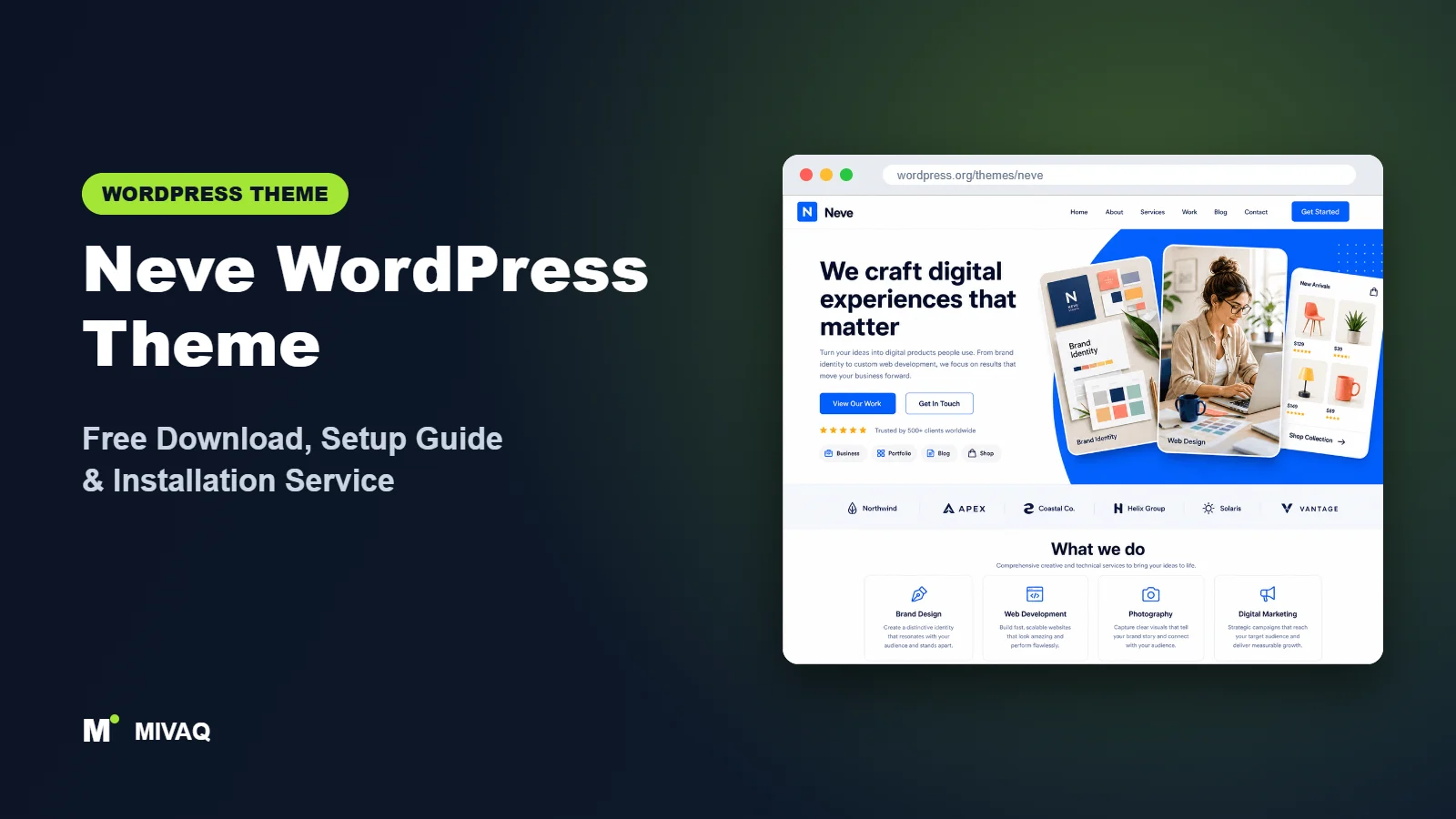
Most visitors to a small business website arrive on a phone, often on a patchy mobile connection. Neve was designed with exactly that visitor in mind: a mobile-first, lightweight theme from Themeisle that loads quickly and stays simple to manage. In this guide you will find the official Neve WordPress theme free download, step-by-step installation, a setup routine built around its starter sites and header builder, and the mistakes that commonly slow Neve sites down.
This article is part of our complete guide: How to Build a WordPress Website for Your Business (2026 Guide).
Neve is 100% free and legal to download from WordPress.org. Themeisle sells an optional Neve Pro add-on, but the free theme is a complete, actively maintained theme you can use on as many sites as you like.
At MIVAQ we like Neve for quick launches: a consultant, a local clinic or a new startup that needs a credible, fast site within days. The advice below is drawn from those projects.
What is the Neve WordPress theme?
Neve is a classic, Customizer-based multipurpose theme by Themeisle, the company behind Hestia, Otter Blocks and several popular plugins. Its WordPress.org description focuses on performance, SEO and Core Web Vitals, with a small codebase and compatibility with the block editor, Elementor, Bricks, Oxygen and WooCommerce. It also carries the “Accessibility ready” tag and supports block editor patterns and styles. Note that this guide covers the classic Neve theme; Themeisle also offers a separate block theme called Neve FSE.
| Detail | Neve |
|---|---|
| Developer | Themeisle |
| Latest version | 4.2.15 |
| Active installs | 200,000+ |
| Rating | 4.7/5 from 1,283 reviews |
| Requires WordPress | 5.5 or higher |
| Requires PHP | 7.0 or higher |
| Last updated | 1 October 2026 |
| Theme type | Classic theme (Customizer based) |
| Price | Free (Neve Pro add-on optional) |
These details are from the WordPress.org listing at the time of writing and will change as new versions are released.
Key features of Neve
- Mobile-first, lightweight code: small CSS and JavaScript footprint aimed at good Core Web Vitals scores.
- Header and footer builder: drag-and-drop rows and components with separate mobile layouts.
- Starter sites: ready-made website designs imported through Themeisle’s free starter sites plugin.
- Global colours and typography: palettes, including light and dark palette presets, and font controls applied across the site.
- Page-builder compatibility: works with Elementor, Beaver Builder, Brizy, Bricks and the block editor.
- Blog layouts: grid, list and covers styles with control over meta and excerpts.
- WooCommerce support: styled shop pages, with deeper store features available in Pro.
- Accessibility and translation ready, including RTL support.
Starter sites that suit real businesses
Neve’s starter sites lean towards practical business niches: consultants, lawyers, restaurants, fitness coaches, web agencies, photographers and online shops. Many are available for both Elementor and the block editor. You can import an entire site or just individual templates, which is handy if you only need a ready-made “About” or “Services” layout.
Palettes made for quick rebranding
Neve lets you define palette colours (site background, text, primary and secondary accents) and switch between saved palettes. If a client wants a darker look or a seasonal campaign colour, you can change the palette instead of editing pages one by one.
Lean by default
Neve avoids loading jQuery on the front end and keeps its own assets small. On budget hosting this translates into noticeably quicker first loads compared with heavier multipurpose themes, which is especially valuable for mobile visitors.
Neve free vs Pro: what do you get?
The free version covers the header and footer builder, palettes, typography, layouts, blog options, starter sites (a good share are free) and WooCommerce compatibility. Neve Pro is a plugin with modules you enable individually. These include additional header components and sticky or transparent header options, a Custom Layouts module for inserting content into hooks or building custom headers and footers, extra blog layouts and reading time, a WooCommerce booster with shop features such as quick view, wishlist and product page layouts, white labelling and more premium starter sites.
Pricing and module lists change, so check the developer’s site for current Pro pricing. For a standard business site with a few pages and a blog, the free version usually covers everything you need.
Who should use Neve?
- Small businesses and consultants who want a quick, professional site with minimal setup time.
- Mobile-heavy audiences such as local services, restaurants and event pages.
- Startups and landing pages that value speed and a clean design.
- Elementor and block editor users who need a theme that stays out of the way.
- Freelancers building several similar sites from starter templates.
Who should look elsewhere? Large WooCommerce stores that need advanced shop features for free may prefer OceanWP. If you want to design every template in the Site Editor, try the separate block theme Neve FSE or another block theme instead.
Neve WordPress theme free download (official and safe)
Get Neve only from WordPress.org:
- Official page: Neve on WordPress.org
- Direct ZIP file: downloads.wordpress.org/theme/neve.zip
Avoid “Neve Pro nulled” or “free Neve Pro download” offers. These files frequently contain hidden scripts that can hijack your site, send spam or steal data, and they will not update when security issues are fixed. If something already looks wrong, read our WordPress malware removal guide. MIVAQ does not distribute theme files; always download the free theme from WordPress.org.
How to install Neve in WordPress (step by step)
Method 1: from the dashboard
- Go to Appearance › Themes › Add New Theme.
- Search for “Neve”.
- Click Install on the Neve card by Themeisle, then Activate.
- Use the welcome notice to install the starter sites plugin if you want a template.
Method 2: upload the ZIP
- Download neve.zip from the official link.
- Go to Appearance › Themes › Add New Theme › Upload Theme.
- Choose the ZIP, click Install Now, then Activate.
Child theme tip: Themeisle provides a Neve child theme on its documentation site. Use it if you plan to change templates or add custom functions; it keeps your changes safe through updates.
How to set up Neve after installation
Neve is set up through its dashboard page (Appearance › Neve) and the Customizer. A reliable order of work:
- Pick a starter site or go blank. From Appearance › Starter Sites, filter by builder (Elementor or Gutenberg) and category, preview, then import on a fresh site.
- Colours. In Customize › Colors & Background, choose or edit a palette and set your primary and secondary accent colours.
- Typography. Set font family, size and line height for body and headings; consider a system font to keep things fast.
- Layout. Under Layout set container width, content and sidebar defaults, and blog archive style.
- Header builder. Place the logo, primary menu, button and search; then switch to mobile and arrange the mobile header and menu.
- Footer builder. Add widgets for contact information and quick links, and edit the copyright component.
- Homepage and menus. Set the homepage under Settings › Reading and create menus for header and footer.
- WooCommerce (optional). Install WooCommerce and adjust shop columns and product appearance in the Customizer.
Example: a one-week Neve launch for a consultant
For a typical solo consultant we import a business starter site built for the block editor, then strip it down to five pages: Home, Services, About, Insights (blog) and Contact. The palette is changed to the client’s brand colours in one step, and a single font family is used throughout. The header holds the logo, four menu links and a “Book a call” button; the mobile header keeps the button visible next to the menu icon because that is where enquiries come from. The blog uses the grid layout with three columns, and the contact page combines a simple form with a map. The result is a light site that is easy for the client to update in the block editor, launched in days rather than weeks.
Neve speed and SEO checklist
- Remove demo pages, posts and images you do not use after importing a starter site.
- Limit fonts to one or two families and a few weights.
- Use caching, minification and image optimisation, as explained in our LiteSpeed speed guide.
- Pick one SEO plugin after reading our Rank Math vs Yoast comparison.
- Write unique titles with our title tag SEO guide.
- Protect the site using our WordPress security checklist and keep backups with our backup strategy.
Common mistakes when setting up Neve
- Choosing a starter site for its photos. Choose one whose page structure fits your content; photos will be replaced anyway.
- Mixing builders. Importing an Elementor starter site and then building new pages in blocks creates an inconsistent site.
- Leaving the default palette. Many Neve sites look alike because the palette was never changed.
- Ignoring the mobile header. Neve is mobile-first, so give the mobile layout as much care as desktop.
- Installing Pro too early. Confirm you need a specific Pro module before buying.
Neve vs similar free WordPress themes
| Theme | Best for | Key difference |
|---|---|---|
| Neve | Fast business and startup sites | Mobile-first, lean code and practical starter sites |
| Hestia | One-page business sites | Material design style from the same developer |
| Astra | Template-led builds | Bigger template library and community |
| GeneratePress | Speed-focused blogs | Even more minimal, hooks-based approach |
Choose Neve for a fast multipage business site with practical templates. Choose Hestia if you want an all-in-one scrolling homepage. Choose Astra if you need the widest template choice, and GeneratePress if you are a developer who prefers a minimal base.
Neve pros and cons
What we like
- Fast, mobile-first and lightweight.
- Free header and footer builder.
- Practical starter sites for real business niches.
- Regular updates from an established developer.
What to consider
- Some popular header and shop features need Pro.
- Default designs look similar unless you customise them.
- Smaller community than Astra.
Our verdict: Neve is an excellent choice when you want a quick, modern, mobile-friendly website without complexity. Customise the palette and header, and it feels tailor-made.
Website design with Neve: our design service
Installing Neve takes minutes; turning it into a website that wins customers takes design, copy and strategy. MIVAQ offers a complete website design service built on Neve: we plan your pages, design a layout that matches your brand and set up everything so you can edit it yourself afterwards. Neve gives us a fast, flexible base, and we add the structure, content and conversion details that turn visitors into enquiries.
What our Neve website design package includes:
- Brand-matched design: logo, colours, fonts and a consistent style across every page
- Homepage, about, services, blog and contact pages written and laid out for conversions
- Header, footer and mobile menu built with the theme settings, no bloated extras
- Contact forms, WhatsApp button, Google Maps and booking or quote forms
- On-page SEO, speed optimisation and Google Search Console setup at launch
You can see examples in our recent work and case studies, and read more about our WordPress development and SEO services. Every project starts with a free consultation and a fixed price, so you know exactly what you get before we begin.
Want a website designed with Neve? Contact MIVAQ: WhatsApp +880 1723-189847, email hello@mivaq.com or use our contact form. We usually reply the same day.
Neve installation and setup service
Need your Neve site live quickly? MIVAQ installs and customises Neve for you: installation from WordPress.org, child theme, starter site import and clean-up, your branding, key pages, WooCommerce setup if needed, and speed and SEO basics. We agree a fixed quote up front. Explore our WordPress services or contact us:
- WhatsApp: message us about Neve
- Email: hello@mivaq.com
- Form: send your project details
Related WordPress theme guides
- Hestia WordPress theme free download and setup
- Astra WordPress theme free download and setup
- Kadence WordPress theme free download and setup
- GeneratePress WordPress theme free download and setup
- 50 best free WordPress themes
Frequently asked questions
Is Neve free?
Yes. Neve is free on WordPress.org under the GPL and can be used on unlimited personal and client sites. Neve Pro is an optional add-on.
Is Neve good for SEO?
Neve’s lightweight, mobile-first code supports good Core Web Vitals, which helps SEO. Rankings still depend on content quality, links and on-page optimisation.
Does Neve work with Elementor?
Yes. Neve is fully compatible with Elementor, and many of its starter sites are built with Elementor.
Can I use Neve for WooCommerce?
Yes. The free theme supports WooCommerce with styled shop pages; Neve Pro adds advanced store features if you need them.
Can MIVAQ install Neve for me?
Yes. We set up, brand and optimise Neve websites. WhatsApp us or email hello@mivaq.com for a fixed quote.


