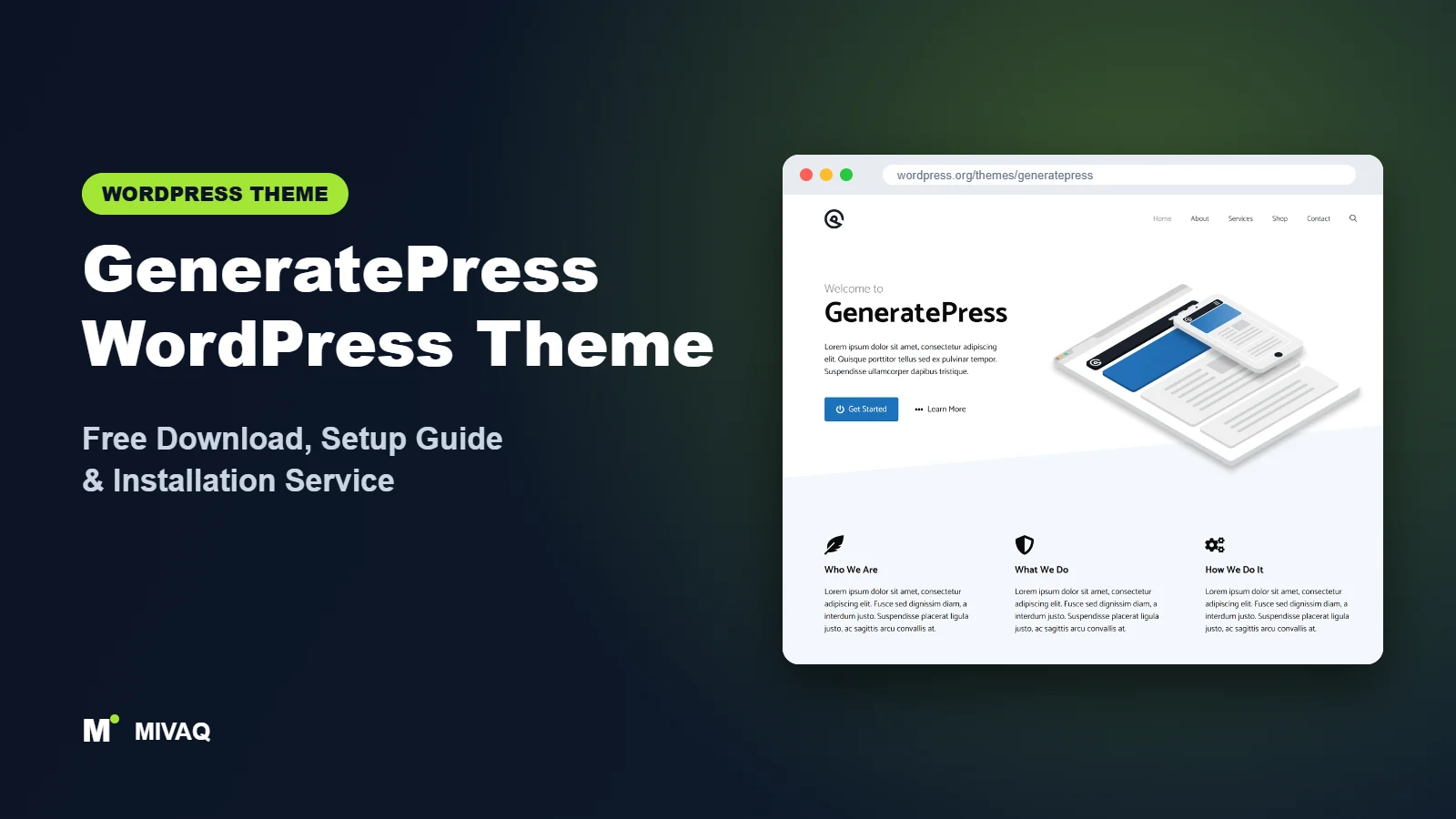
Some themes try to impress you with dozens of demo sites and flashy options. GeneratePress does the opposite: it gives you a tiny, rock-solid base and gets out of your way. That restraint is exactly why bloggers, affiliate publishers and developers have trusted it for years. In this guide we cover the GeneratePress WordPress theme free download from the official directory, how to install it, and how to set it up so your site stays fast as it grows.
This article is part of our complete guide: How to Build a WordPress Website for Your Business (2026 Guide).
GeneratePress is 100% free and legal on WordPress.org. There is a paid plugin called GP Premium that adds modules, but the free theme is a full, stable theme that you can use on unlimited sites, including client projects.
At MIVAQ we often move slow, bloated sites onto GeneratePress when a client’s main complaint is page speed. The advice below reflects that kind of real-world rebuild.
What is the GeneratePress WordPress theme?
GeneratePress is a lightweight classic theme created by Tom Usborne and his small team. The official description notes that a fresh install adds less than 10kb (gzipped) to your page size, which is remarkably small. It is designed around performance, usability and stability: updates are careful rather than frequent, and backwards compatibility is taken seriously. It works with the block editor, Elementor, Beaver Builder and other page builders, and pairs naturally with GenerateBlocks, a free block plugin from the same developers.
| Detail | GeneratePress |
|---|---|
| Developer | Tom Usborne (GeneratePress) |
| Latest version | 3.6.1 |
| Active installs | 500,000+ |
| Rating | 4.9/5 from 1,427 reviews |
| Requires WordPress | 6.5 or higher |
| Requires PHP | 7.4 or higher |
| Last updated | 1 December 2025 |
| Theme type | Classic theme (Customizer based) |
| Price | Free (GP Premium plugin optional) |
All figures are from the WordPress.org listing at the time of writing. A longer gap between updates is normal for GeneratePress; it reflects a mature, stable codebase rather than abandonment.
Key features of GeneratePress
- Tiny footprint: minimal CSS and no jQuery dependency, so pages start fast before you add anything.
- Global colours: define reusable colour variables in the Customizer and use them in blocks.
- Dynamic typography system: add typography rules for specific elements (body, headings, buttons, menus) rather than wading through fixed panels.
- Flexible layout controls: container width, content and sidebar layouts, and separate or one-container styles.
- Hooks everywhere: a well-documented set of action hooks lets developers add content to almost any theme location.
- Page-builder friendly: per-page options to remove the title, sidebars and padding for full-width builder pages.
- Accessibility and clean markup: semantic HTML and sensible heading structure.
- Translation and RTL ready: translated into many languages by the community.
Why the small size matters
Every theme adds some weight before your own content loads. Because GeneratePress adds so little, you have more “performance budget” left for the things that actually earn money, such as images, analytics or a booking widget. On shared hosting this often makes the difference between passing and failing Core Web Vitals.
GenerateBlocks as a design partner
GenerateBlocks is a separate free plugin with a deliberately small set of building blocks: container, grid, headline, button, image and query loop. Instead of dozens of widgets, you combine a few flexible blocks to build anything. It keeps CSS output small and gives you page-builder-like layouts inside the normal editor.
Stability you can rely on
GeneratePress has a reputation for updates that do not break sites. For publishers with hundreds of posts, that predictability is worth more than any new feature.
GeneratePress free vs Pro: what do you get?
The free theme covers layout, colours, typography, navigation position, sidebars and blog basics. GP Premium is a plugin that activates modules you can switch on individually, so you only load what you use. Modules include the Site Library of ready-made sites, Elements (hooks, block elements for custom headers, footers, page heroes and archive layouts), Menu Plus (sticky navigation, off-canvas panel and a dedicated mobile header), extra blog layouts such as masonry and columns, a WooCommerce module, secondary navigation, background images, spacing controls and more.
The big difference compared to many themes is that the free version has no drag-and-drop header builder; header layout is set with Customizer options, and advanced custom headers come from GP Premium Elements. Pricing changes from time to time, so check the developer’s site for current Pro pricing. If you simply need a fast blog with a logo, menu and sidebar, the free theme is enough.
Who should use GeneratePress?
- Bloggers and content publishers who care about speed, readability and long-term stability.
- Affiliate and niche sites where Core Web Vitals and ad performance matter.
- Developers who prefer hooks and child themes over heavy option panels.
- Page-builder users who want the lightest possible canvas under Elementor or Beaver Builder.
- Businesses replacing a slow theme without changing their page builder.
Who should not use it? Beginners who want to click “import” and have a finished designed site may find the free version too plain, because ready-made sites are a Premium feature. If you want a visual header builder for free, Kadence or Blocksy will feel more comfortable.
GeneratePress WordPress theme free download (official and safe)
Download GeneratePress only from WordPress.org:
- Official page: GeneratePress on WordPress.org
- Direct ZIP file: downloads.wordpress.org/theme/generatepress.zip
Stay away from “GP Premium nulled” downloads. Modified premium plugins are a classic malware delivery method and can quietly inject spam links that damage your SEO for months. If your site has been infected, our WordPress malware removal guide explains the clean-up process. MIVAQ never distributes theme files; your free download comes straight from WordPress.org.
How to install GeneratePress in WordPress (step by step)
Method 1: dashboard install
- Go to Appearance › Themes › Add New Theme.
- Search for “GeneratePress”.
- Click Install, then Activate.
Method 2: upload the ZIP
- Download generatepress.zip from the official link above.
- Open Appearance › Themes › Add New Theme › Upload Theme.
- Choose the file, click Install Now and then Activate.
Child theme tip: GeneratePress offers an official blank child theme in its documentation. Developers who add functions or hook code should use it, though many small customisations can also be done safely with a code snippets plugin.
How to set up GeneratePress after installation
Free GeneratePress is configured in Appearance › Customize. Because it starts plain, a little planning goes a long way:
- Site Identity. Upload your logo and site icon, and decide whether to show the site title and tagline.
- Colors. In the global colours section create named colours for your brand, text and backgrounds; these then appear in the block editor palette.
- Typography. Add rules for body, headings and buttons. Choosing system fonts keeps the site extremely fast.
- Layout › Container. Set container width (around 1100 to 1200px suits most sites) and choose separate containers or one container.
- Layout › Header and Primary Navigation. Position the menu beside or below the logo, set alignment and dropdown behaviour.
- Layout › Sidebars. Choose sidebars for posts and archives, and no sidebar for pages if you design them with blocks.
- Blog settings. Decide on excerpts versus full content and the “read more” label.
- Build key pages. Install GenerateBlocks and build the homepage, services and contact pages, then set the homepage in Settings › Reading.
For any full-width design page, open the Layout panel in the editor sidebar and disable the content title and sidebar, and choose a full-width content container.
Example: a fast GeneratePress blog setup
Here is a configuration we have used for content sites that need to load quickly on mobile. Container width is set to 1140px with the “one container” style, so posts sit on a single clean background. Body text uses a system font stack at 18px with a line height of 1.7 for comfortable reading, and headings use the same stack in a heavier weight, which means zero font files to download. The primary navigation sits to the right of the logo on desktop and collapses to a simple toggle on phones. Single posts have a right sidebar with a short author box, a search field and a list of popular guides, while pages have no sidebar at all.
Archives show excerpts with featured images rather than full posts, which keeps category pages light and encourages clicks. Finally, GenerateBlocks is used for the homepage only: a headline, a short introduction, a grid of latest posts built with the query loop block, and a call-to-action container. This approach keeps the whole site consistent, easy to update and quick, without a single premium plugin.
GeneratePress speed and SEO checklist
- Keep the advantage: avoid adding a heavy page builder unless you truly need it.
- Use system fonts or locally hosted fonts to avoid third-party requests.
- Configure caching and image compression using our LiteSpeed speed guide.
- Choose your SEO plugin with our Rank Math vs Yoast comparison.
- Optimise titles with the title tag SEO guide and images with the image alt text guide.
- Harden the site with our WordPress security checklist.
Common mistakes when setting up GeneratePress
- Judging it by the default look. It is intentionally plain; ten minutes with colours and typography transforms it.
- Undoing the speed gains by stacking sliders, multiple builders and many font weights.
- Editing parent theme files. Use a child theme or snippets so updates do not wipe changes.
- Expecting a free header builder. Plan your header with Customizer options or GP Premium Elements instead.
- Leaving sidebars on landing pages. Disable them per page for focused designs.
GeneratePress vs similar free WordPress themes
| Theme | Best for | Key difference |
|---|---|---|
| GeneratePress | Speed-first blogs and developers | Smallest footprint, very stable, hooks-based |
| Astra | Template-based business sites | Free header builder and large template library |
| Kadence | Visual block-based builds | Richer free design options |
| Hello Elementor | Elementor Pro users | Bare canvas designed for Elementor Theme Builder |
If you want maximum performance and predictable updates, choose GeneratePress. If you prefer visual controls and imported designs on day one, Astra or Kadence will be quicker to start. If every part of your site will be designed in Elementor Pro, Hello Elementor is the natural partner.
GeneratePress pros and cons
What we like
- Exceptionally light and fast out of the box.
- Very stable updates and excellent documentation.
- Clean code and a rich set of hooks for developers.
- Pairs perfectly with the free GenerateBlocks plugin.
What to consider
- Plain default design needs styling.
- No drag-and-drop header builder in the free version.
- Site Library and advanced layouts require GP Premium.
Our verdict: GeneratePress is the theme we recommend when speed and long-term reliability matter more than flashy demos. Spend a little time on styling and you get a site that stays quick for years.
Website design with GeneratePress: our design service
Installing GeneratePress takes minutes; turning it into a website that wins customers takes design, copy and strategy. MIVAQ offers a complete website design service built on GeneratePress: we plan your pages, design a layout that matches your brand and set up everything so you can edit it yourself afterwards. GeneratePress gives us a fast, flexible base, and we add the structure, content and conversion details that turn visitors into enquiries.
What our GeneratePress website design package includes:
- Brand-matched design: logo, colours, fonts and a consistent style across every page
- Homepage, about, services, blog and contact pages written and laid out for conversions
- Header, footer and mobile menu built with the theme settings, no bloated extras
- Contact forms, WhatsApp button, Google Maps and booking or quote forms
- On-page SEO, speed optimisation and Google Search Console setup at launch
You can see examples in our recent work and case studies, and read more about our WordPress development and SEO services. Every project starts with a free consultation and a fixed price, so you know exactly what you get before we begin.
Want a website designed with GeneratePress? Contact MIVAQ: WhatsApp +880 1723-189847, email hello@mivaq.com or use our contact form. We usually reply the same day.
GeneratePress installation and setup service
Want the speed of GeneratePress without the learning curve? MIVAQ installs and customises it for you: theme installation from WordPress.org, child theme setup, a starter design (or a Site Library import if you own GP Premium), your branding, page building with GenerateBlocks, WooCommerce configuration, and speed and SEO basics. You get a fixed quote before work starts. See our WordPress services or contact us:
- WhatsApp: message us about GeneratePress
- Email: hello@mivaq.com
- Form: send your project details
Related WordPress theme guides
- Astra WordPress theme free download and setup
- Kadence WordPress theme free download and setup
- Neve WordPress theme free download and setup
- Hello Elementor WordPress theme free download and setup
- 50 best free WordPress themes
Frequently asked questions
Is GeneratePress free?
Yes. GeneratePress is free on WordPress.org under the GPL. GP Premium is an optional plugin that adds modules such as the Site Library and Elements.
Is GeneratePress good for SEO?
Yes. Its tiny size, clean markup and fast loading give your content a strong technical base. You still need good content, internal linking and an SEO plugin.
Does GeneratePress work with Elementor?
Yes. Set Elementor pages to full width with the title disabled in the Layout panel, and GeneratePress acts as a lightweight canvas.
Can I use GeneratePress for WooCommerce?
Yes. The free theme displays WooCommerce pages correctly; the GP Premium WooCommerce module adds layout controls, sticky add-to-cart and other store options.
Can MIVAQ install GeneratePress for me?
Yes. We set up and style GeneratePress sites, including migrations from slower themes. Email hello@mivaq.com or WhatsApp us for a fixed quote.


