Built your website on Wix or Squarespace and wondering why it is not bringing in customers from Google? You are not alone. Both platforms make it easy to launch a good-looking site, but a beautiful site and a site that ranks are two different things. This guide covers Wix SEO and Squarespace SEO from start to finish: what the platforms do for you automatically, which settings you must change yourself, and the step-by-step work that actually moves rankings in 2026.
It is written for small business owners, freelancers and marketers who run a Wix or Squarespace site and want more organic traffic without rebuilding on another platform. You will learn how to set up both platforms correctly, write titles that get clicks, speed up your pages, add local SEO and structured data, fix indexing problems, handle redirects and decide when it is worth handing the job to a specialist.
Key takeaways
- Wix and Squarespace can both rank well in 2026. The platform is rarely the reason a site does not rank; missing settings, thin content and weak local signals usually are.
- Connect Google Search Console on day one. Both platforms can verify your site and submit your sitemap for you in a few clicks.
- Every important page needs a unique SEO title, a meta description, one clear H1, a short readable URL and descriptive alt text on its images.
- Never change a URL without a 301 redirect. Wix has a URL Redirect Manager; Squarespace uses URL Mappings.
- Local businesses gain the most from a complete Google Business Profile, consistent name, address and phone details, and dedicated service and location pages.
Table of contents
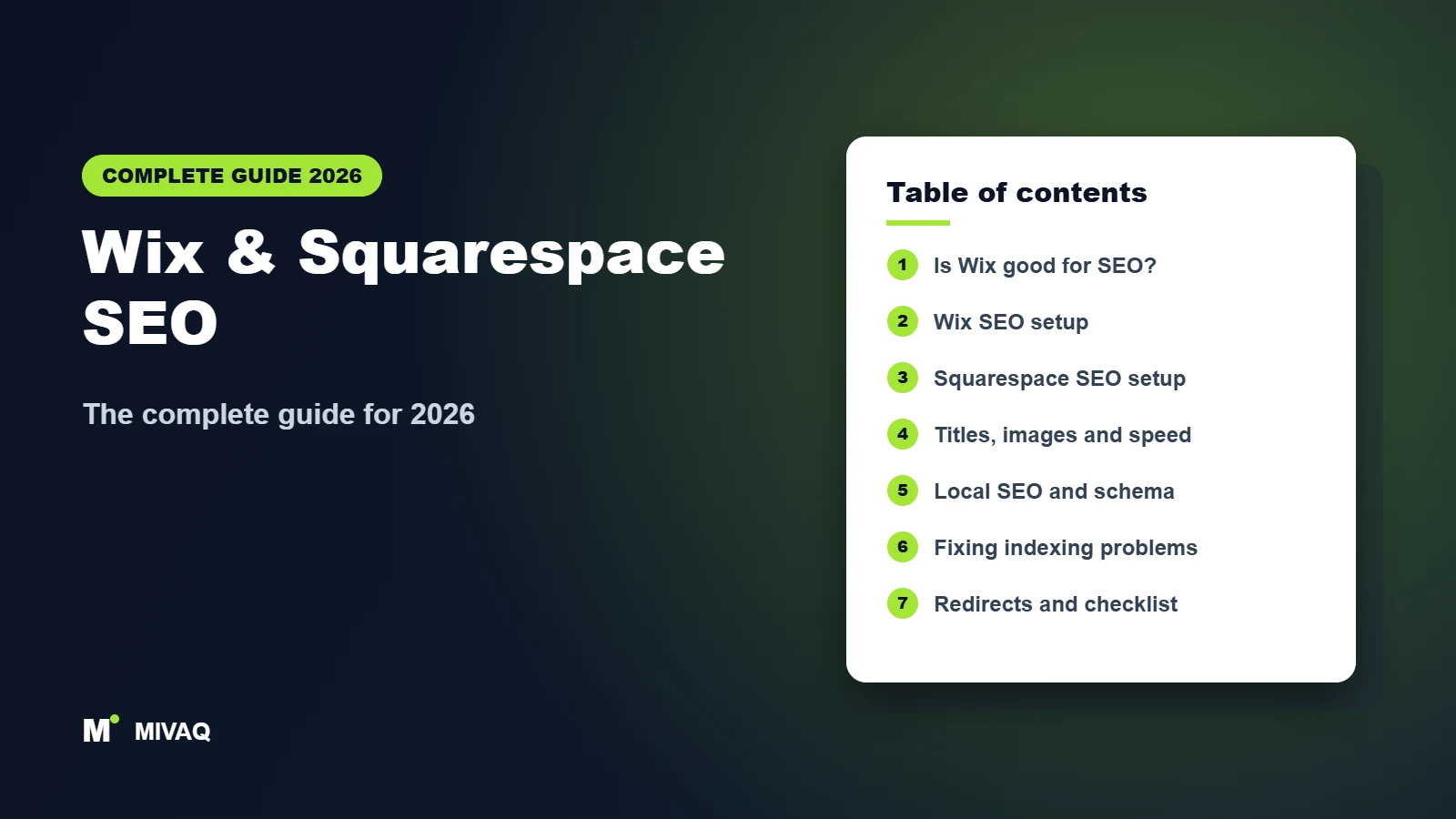
- Is Wix good for SEO? (And is Squarespace?)
- Wix vs Squarespace vs WordPress for SEO
- How to set up Wix SEO step by step
- How to set up Squarespace SEO step by step
- On-page SEO: keywords, titles, meta descriptions and headings
- Image SEO and site speed on Wix and Squarespace
- Local SEO and structured data (schema)
- Blog SEO on Wix and Squarespace
- Why is my Wix or Squarespace site not showing on Google?
- 301 redirects, URL changes and platform migration
- Wix and Squarespace SEO checklist
- How much does Wix or Squarespace SEO cost and how long does it take?
- DIY vs hiring a Wix or Squarespace SEO expert
- More complete guides
- Frequently asked questions
- Conclusion
Is Wix good for SEO? (And is Squarespace?)
Short answer: yes, both are good enough for SEO for the vast majority of small business websites. The reputation problem is historical. Early Wix sites were built in Flash and later relied heavily on JavaScript, which made them hard for search engines to read. That has not been true for years. Modern Wix sites are rendered on the server, load over HTTPS, generate an XML sitemap automatically and give you control over titles, descriptions, URLs, redirects, canonical tags, structured data and even the robots.txt file. Squarespace has always produced clean, crawlable HTML, with automatic sitemaps, SSL, mobile-friendly templates and built-in SEO fields on every page.
Google has repeatedly said it does not favour or penalise any website builder. It ranks pages, not platforms. What it cares about is whether a page answers the searcher’s question, whether it can be crawled and indexed, whether it loads reasonably fast on mobile and whether other sites trust it enough to link to it.
Where the platforms genuinely limit you
The honest picture is that hosted builders trade some flexibility for convenience:
- Less control over code and performance. You cannot choose your server, fine-tune caching or strip out platform scripts. Speed work is about images, fonts, apps and page design rather than server tweaks.
- Fixed URL structures for some content. Wix blog posts and store products sit under platform prefixes (such as /post/ and /product-page/ by default), and Squarespace collections use their own folder slugs. You can change many of these, but not as freely as on WordPress.
- Fewer advanced SEO tools. There is no equivalent of the large WordPress plugin ecosystem. Squarespace, for example, does not let you edit robots.txt at all.
- Lock-in. Wix redirects and settings only work while your site lives on Wix. If you ever move platform, you need a careful migration plan.
None of these stop a local plumber, photographer, salon, consultant or small online shop from ranking on page one. They matter more for large sites with thousands of pages, complex international setups or heavy content marketing. If you want the longer argument with real examples, read our breakdown of how SEO for Wix websites really works.
Wix vs Squarespace vs WordPress for SEO
People often ask which builder is “best for SEO”. In practice, all three can rank; the differences are in control, convenience and how much you can fix when something goes wrong. Here is how they compare on the features that affect search performance.
| SEO feature | Wix | Squarespace | WordPress (self-hosted) |
|---|---|---|---|
| Custom SEO title and meta description per page | Yes | Yes | Yes (via an SEO plugin such as Rank Math or Yoast) |
| Site-wide title templates | Yes, per page type | Yes, title formats with variables | Yes, via plugin |
| Editable URL slugs | Yes (some page types have prefixes) | Yes (collections use folder slugs) | Yes, fully flexible |
| Automatic XML sitemap | Yes | Yes | Yes (core or plugin) |
| Edit robots.txt | Yes, robots.txt editor | No | Yes |
| 301 redirects | URL Redirect Manager, bulk import | URL Mappings | Plugin or server rules |
| Custom structured data (JSON-LD) | Yes, per page and per page type | Via code injection on eligible plans | Yes, plugin or custom code |
| Canonical tags | Automatic, customisable | Automatic | Automatic, customisable |
| Speed control | Moderate | Limited | Full (hosting, caching, code) |
| Ease for beginners | High | High | Medium |
For most small businesses the right answer is to stay where you are and do the SEO work properly. Rebuilding on another platform costs time and money and carries its own SEO risk. Switching makes sense when you have outgrown the platform, for example you need multilingual e-commerce at scale, very custom functionality or a large content operation. Compare the details in Wix vs WordPress for SEO and Squarespace vs Wix SEO.
How to set up Wix SEO step by step
Wix puts most SEO controls in two places: the site dashboard (site-wide settings and tools) and each page’s own SEO settings inside the Editor or Wix Studio. Menu names change from time to time, so if a label below looks slightly different in your account, search the Wix dashboard for the feature name or check the Wix Help Center.
Before you start
- Upgrade to a paid plan and connect your own domain. A free site lives on a username.wixsite.com address and shows Wix branding. A custom domain looks more trustworthy to people and is essential for building a brand in search.
- Make sure the site is published. Unpublished changes and unpublished sites cannot be crawled.
- Choose your primary domain version. Wix handles the redirect between www and non-www versions, but pick one and use it everywhere (Google Business Profile, social profiles, directories).
Wix SEO setup in 10 steps
- Run the Wix SEO Setup Checklist. In the dashboard, open the Marketing and SEO area and start the SEO setup checklist. It asks for your business name, location and main keywords, then walks you through key tasks.
- Connect Google Search Console. The checklist can verify your site with Google and submit your sitemap automatically. If you prefer to do it manually, use the site verification tool in the SEO settings to add Google’s verification meta tag.
- Set SEO patterns for each page type. In the SEO settings, set default title and meta description templates for blog posts, product pages, booking services and other dynamic pages, using variables such as the item title and your business name. This stops hundreds of pages from sharing the same generic title.
- Write custom titles and descriptions for your main pages. In the Editor, open the Pages panel, choose a page’s settings and go to the SEO basics tab. Set the URL slug, title tag and meta description. Do this at minimum for the home page, every service or category page, the about page and the contact page.
- Check the indexing toggle on every page. The SEO basics tab has an option that lets search engines index the page. Make sure it is on for pages you want found and off for thank-you pages, test pages and duplicates.
- Clean up URL slugs. Short, descriptive, lowercase, hyphen-separated: /plumbing-repairs rather than /copy-of-services-2. If you change a live URL, Wix will usually offer to create a 301 redirect; accept it.
- Use one H1 per page. In the Editor, check the text style of your main heading. Many templates use decorative text as H1 and the real page title as a paragraph; fix the heading tags in the text settings.
- Add alt text to every meaningful image. In each image’s settings, fill in the field that describes the image to Google.
- Set up social share settings. On the Social share tab, set the Open Graph title, description and image so links shared on Facebook, LinkedIn and WhatsApp look professional.
- Review site-wide tools. Look at the robots.txt editor (only change it if you know why), the URL Redirect Manager, the sitemap and, if your plan includes it, the site speed dashboard and bot log reports.
Our printable Wix SEO setup checklist takes you through these settings in order, and the broader Wix SEO checklist covers ongoing tasks once the basics are in place.
Wix Advanced SEO settings: what they are for
Each page also has an Advanced SEO tab. It lets you add or edit the canonical tag, set robots meta tags (such as noindex or nofollow), add structured data markup in JSON-LD and add other custom meta tags. Most small sites never need to touch this, but it is useful for fixing duplicate content, adding FAQ or LocalBusiness markup, or verifying ownership with other tools.
How to set up Squarespace SEO step by step
Squarespace keeps SEO simpler than Wix, with fewer switches and more done automatically. Site-wide settings live in the SEO panel (under Marketing or Settings depending on your version), and each page, blog post and product has its own SEO tab. If a menu name has moved, the Squarespace Help Center has current screenshots. Squarespace 7.1 is the current version; older 7.0 templates have slightly different menus but the same principles.
Squarespace SEO setup in 9 steps
- Remove the site password and go live. A trial site, a private site or a site behind a password or “coming soon” page cannot be indexed. Check your site availability settings.
- Connect a custom domain. Use your own domain as the primary domain so the built-in squarespace.com address is not the one Google indexes.
- Fill in business information and site title. Squarespace uses your business name, address and contact details to generate structured data, so keep them accurate and consistent with your Google Business Profile.
- Set your search appearance formats. In the SEO panel, set the title format for the home page, pages, collection items and products. Squarespace uses variables such as %p (page title), %i (item title) and %s (site title), so a format like “%p | %s” produces titles like “Wedding Photography | Rose Studio”. Add a site meta description for the home page.
- Write SEO titles and descriptions for each important page. Open a page’s settings, go to the SEO tab and enter the SEO title and SEO description. The preview shows roughly how the result will look in Google.
- Set clean URL slugs. In the page settings, edit the URL slug. Blog posts and products get their slug from the title by default, which often produces long URLs; shorten them before publishing.
- Hide pages that should not rank. The SEO tab includes an option to hide a page from search results (this adds a noindex tag). Use it for thank-you pages, landing pages for ads and internal pages.
- Connect Google Search Console. From the analytics area (the Search Keywords panel) or the SEO panel, connect Search Console. Squarespace verifies the site and submits your sitemap for you, and then shows your Google search queries inside Squarespace.
- Add alt text to images. Set alt text in each image block or gallery image’s settings. In some older blocks Squarespace uses the image caption or file name, so rename files descriptively before uploading too.
What Squarespace does automatically
Squarespace generates your sitemap at /sitemap.xml, adds canonical tags, serves every site over SSL, uses responsive templates and adds basic structured data for your business, blog posts and products. The robots.txt file is generated for you and cannot be edited, which is rarely a problem for small sites. For a deeper walkthrough with screenshots and examples, read our Squarespace SEO guide.
On-page SEO: keywords, titles, meta descriptions and headings
Settings get your site indexed. On-page SEO gets it ranking. This is where most Wix and Squarespace sites fall short: a home page that tries to rank for everything, service pages with 80 words of text, and titles that just say “Services”.
Start with keyword research
Before you write titles, decide what each page should rank for. Work out the phrases your customers type, for example “emergency electrician Leeds”, “wedding photographer Lake District” or “handmade ceramic mugs”. Use Google’s autocomplete and “People also ask” boxes, the queries report in Search Console, and a keyword tool if you have one. Then map one main keyword to one page. Two pages chasing the same keyword compete with each other, a problem known as keyword cannibalisation. Our keyword research guide for small businesses shows the full process.
How to write SEO titles that get clicks
The title tag is the blue headline in Google results and still one of the strongest on-page signals. Good titles:
- Put the main keyword near the start.
- Stay roughly within 50 to 60 characters so Google does not cut them off.
- Include a location for local services and your brand name at the end.
- Are unique on every page.
- Give a reason to click: a benefit, a price point, a year, or a credential.
Example: instead of “Home | Smith Plumbing”, use “Emergency Plumber in Bristol | 24/7 Callouts | Smith Plumbing”. Google may rewrite titles it thinks do not match the page, so keep the title honest and aligned with the H1.
Meta descriptions
Meta descriptions are not a ranking factor, but they influence whether people click. Write 140 to 160 characters that summarise the page, include the keyword naturally (Google bolds matching words) and end with a reason to act. The detailed rules, with Squarespace-specific examples, are in our guide to Squarespace SEO titles and descriptions, and the general principles are covered in how to write title tags and how to write meta descriptions.
Headings and content
Both builders let you choose heading levels for any text. Use one H1 per page that states what the page is about, then H2s and H3s for sections. Builders often make it tempting to style headings by look rather than meaning, so check the actual heading tag. Multiple H1s or a missing H1 will not destroy rankings, but it is an easy fix covered in fixing missing or multiple H1 tags.
Content depth matters more than any setting. A service page that ranks typically explains what you do, who it is for, where you work, how the process runs, what it costs or what affects the price, common questions and proof such as reviews, photos and case studies. On a template-driven site it is easy to end up with thin pages that look nice but say little; see how to fix thin content for a practical approach.
Internal links
Link between your pages with descriptive text: from the home page to each service, from blog posts to the relevant service, and from service pages to related case studies. Internal links help Google discover pages and understand which ones matter most. Both Wix and Squarespace let you link any text or button to another page; make sure important pages are no more than two or three clicks from the home page.
Image SEO and site speed on Wix and Squarespace
Visual platforms attract visual businesses, so images are often the biggest SEO opportunity and the biggest speed problem at the same time.
Image SEO basics
- Descriptive file names before upload: oak-dining-table-handmade.jpg, not IMG_4821.jpg.
- Alt text that describes the image for someone who cannot see it, using a keyword only where it fits naturally. Decorative images can be left without alt text.
- Right-sized files. Both platforms compress and serve images in modern formats, but uploading a 6,000-pixel, 12 MB photo still slows things down. Resize large photos to around 2,500 pixels on the long side or less before upload.
- Avoid text baked into images. Headlines and prices inside an image are invisible to search engines and hard to read on mobile.
Wix-specific tips, including how Wix handles image formats and galleries, are in Wix image SEO, and the general rules for writing good alt text are in our image alt text guide.
Core Web Vitals and speed
Google measures real-user experience through Core Web Vitals. The “good” thresholds are a Largest Contentful Paint (LCP) of 2.5 seconds or less, an Interaction to Next Paint (INP) of 200 milliseconds or less and a Cumulative Layout Shift (CLS) of 0.1 or less. Wix shows Core Web Vitals data in its site speed dashboard; for Squarespace, use PageSpeed Insights and the Core Web Vitals report in Search Console.
Because you cannot change the server, focus on what you control:
- Simplify the first screen. Replace autoplay background videos and heavy sliders with a single optimised hero image.
- Remove unused apps and embeds. Every chat widget, review feed, Instagram embed and third-party app adds scripts. Keep only what earns its place.
- Limit custom fonts. Two font families with a few weights is plenty.
- Reduce animations. Scroll effects and entrance animations can hurt INP and CLS, especially on mobile.
- Shorten very long pages. Split huge galleries into separate pages or collections.
- Re-test on mobile. Check PageSpeed Insights after each change rather than doing everything blind.
Our step-by-step Wix website speed optimisation guide goes through each of these with Wix-specific settings.
Local SEO and structured data (schema)
Most Wix and Squarespace sites belong to local businesses: trades, salons, clinics, restaurants, photographers, studios and consultants. For them, the map pack (the three businesses shown with a map) often brings more calls than the normal results.
Local SEO essentials
- Google Business Profile. Claim and verify it, choose the most accurate primary category, add services, photos, opening hours and your website link, and ask every happy customer for a review. Our Google Business Profile optimisation guide covers each field.
- Consistent NAP. Your business name, address and phone number should match exactly on your website footer, contact page, Google Business Profile and directories.
- Service and location pages. One strong page per main service, and location pages only for areas you genuinely serve, each with unique content, not copied text with the town name swapped.
- Embed a map and clear contact details on the contact page, and make the phone number tappable on mobile.
- Local links and mentions. Local associations, suppliers, sponsorships, press and trade directories.
The Wix version of this playbook, including Wix’s business info settings, is in Wix local SEO.
Structured data on Wix and Squarespace
Structured data (schema markup) is code that tells search engines exactly what a page represents: a business, a product, an article, an event, a FAQ. It does not guarantee rich results, but it helps Google understand and present your content.
| Schema type | Wix | Squarespace |
|---|---|---|
| Business / organisation | Generated from business info; customisable | Generated from business information |
| Blog posts (Article) | Automatic for Wix Blog posts | Automatic for blog posts |
| Products | Automatic for Wix Stores products | Automatic for commerce products |
| Events, bookings, other | Automatic for several Wix apps | Limited |
| Custom JSON-LD (FAQ, LocalBusiness, Service) | Add in a page’s Advanced SEO tab or in SEO settings per page type | Add via page header code injection on plans that include it |
Always test your markup with Google’s Rich Results Test after adding it, and only mark up content that is actually visible on the page. Templates and examples you can paste into Wix are in Wix structured data and schema, and the LocalBusiness fields that matter most are explained in local business schema markup.
Blog SEO on Wix and Squarespace
A blog is the easiest way to rank for the questions your customers ask before they are ready to buy, and both platforms include a capable built-in blog. The mistake most owners make is writing company news nobody searches for.
How to write blog posts that rank
- Pick a real question. Use “People also ask”, customer emails and Search Console queries. “How much does a kitchen extension cost in Manchester?” beats “Our latest project”.
- Check what already ranks. Search the phrase and look at the format of the top results: a list, a guide, a comparison, a price breakdown. Match the format and do it better.
- Write the answer first, then the detail. Answer the question in the first paragraph, then cover the sub-topics with H2s and H3s.
- Set the SEO title, description and slug in the post settings before publishing. Shorten the auto-generated slug.
- Add internal links to the related service page and to two or three related posts.
- Use categories sparingly. A handful of clear categories is better than dozens of near-empty tag pages.
- Update, do not just add. Refresh your best posts every year with new information, prices and examples.
Platform specifics
Wix Blog posts sit under a URL prefix (/post/ by default), which you can change in the SEO settings for blog posts; make sure redirects are in place if you change it on an established blog. Wix Blog also lets you set the SEO title, description, slug and social image per post. Squarespace blog posts live under the blog page’s slug (for example /blog/post-title), and each post has its own SEO tab. The full workflow, including how to set up blog post SEO patterns in Wix, is in Wix blog SEO.
Why is my Wix or Squarespace site not showing on Google?
This is the most common question we get from Wix and Squarespace owners. Before assuming a penalty, work through the usual causes in order.
Quick diagnosis
- Search site:yourdomain.com in Google. If nothing appears, the site is not indexed at all. If pages appear but not for your keywords, it is a ranking problem, not an indexing problem.
- Check the site is live and public. Paid plan active, site published, no password, not set to private, no “coming soon” page.
- Check page-level noindex. On Wix, the indexing toggle in SEO basics; on Squarespace, the hide-from-search option on the SEO tab. One wrong switch on the home page can hide the whole site’s main entry point.
- Open Google Search Console. Use the URL Inspection tool on the home page and the Page indexing report to see exactly why pages are excluded.
- Submit the sitemap (yourdomain.com/sitemap.xml) if it has not been submitted, then request indexing for the most important pages.
- Be patient with new sites. A brand-new domain can take from a few days to several weeks to be crawled and indexed, and longer to rank.
Common reasons pages stay out of the index
| Search Console status | Typical cause on Wix or Squarespace | Fix |
|---|---|---|
| Excluded by “noindex” tag | Indexing toggle off or page hidden from search | Turn indexing back on, then request indexing |
| Crawled, currently not indexed | Thin or near-duplicate pages, such as template service pages | Add unique, useful content and internal links |
| Discovered, currently not indexed | New or low-priority site; few internal links | Strengthen internal linking, earn links, be patient |
| Duplicate without user-selected canonical | Copied pages, old wixsite.com or squarespace.com URLs, tag pages | Remove or merge duplicates; set canonicals and redirects |
| Page with redirect / Not found (404) | Changed slugs, deleted pages, old URLs from a previous site | Add 301 redirects to the closest live page |
For platform-specific troubleshooting, follow why your Wix site is not showing on Google or how to fix a Squarespace site that is not indexed. To understand every status in the report, see the Page indexing report explained, and for the request step itself, how to request indexing with the URL Inspection tool. Our complete Google indexing guide covers every scenario in depth.
301 redirects, URL changes and platform migration
Every URL that has ranked or earned links carries SEO value. Change it or delete it without a redirect and that value is lost, and visitors land on a 404 page. A 301 redirect tells Google the page has moved permanently and passes most of that value to the new address.
How to add 301 redirects on Wix
- Open the URL Redirect Manager from the SEO tools in your Wix dashboard.
- Add a new redirect, enter the old path (for example /old-services) and choose the new destination page or URL.
- For many redirects at once, use the bulk import option with a CSV file of old and new URLs.
- Test each old URL in a private browser window to confirm it lands on the right page.
How to add 301 redirects on Squarespace
- Go to the developer tools section of your settings and open URL Mappings (in older versions it sits under Advanced settings).
- Add one redirect per line in the format: /old-page -> /new-page 301
- Save, then test each old URL.
Moving to or from Wix or Squarespace
A platform move is the riskiest SEO moment in a site’s life. The essentials:
- Crawl and export every current URL before you change anything, including blog posts, products and images that get traffic.
- Keep URLs the same where possible. Where the new platform forces a different structure (for example Wix’s /post/ prefix versus Squarespace’s /blog/), map each old URL to its new equivalent.
- Set the redirects up on the new platform. Redirects created in Wix or Squarespace only work while the domain points to that platform. Once you move, the old platform’s redirects stop working.
- Carry over titles, descriptions, headings and content for pages that rank, rather than rewriting everything at once.
- Monitor Search Console for 404s and indexing drops for at least eight weeks after launch.
Full instructions, including how to build a redirect map, are in Wix 301 redirects and how to redesign a website without losing SEO.
Wix and Squarespace SEO checklist
Use this checklist when you launch a new site or audit an existing one. Work top to bottom; the early items have the biggest impact.
| # | Task | Where to do it |
|---|---|---|
| 1 | Paid plan active, custom domain connected, site published and public | Plan and domain settings, site availability |
| 2 | Google Search Console connected and sitemap submitted | Wix SEO setup checklist / Squarespace SEO or analytics panel |
| 3 | Home page title, description and H1 written around the main service and location | Page SEO settings |
| 4 | Every service, product and category page has a unique title and meta description | Page SEO settings, SEO patterns or title formats |
| 5 | Short, clean URL slugs; no “copy-of” or numbered slugs | Page settings |
| 6 | One H1 per page, logical H2/H3 structure | Editor text settings |
| 7 | Alt text on meaningful images; large images resized | Image settings |
| 8 | No important page set to noindex; thank-you and test pages hidden | Page SEO settings |
| 9 | Broken links fixed and old URLs redirected with 301s | URL Redirect Manager / URL Mappings |
| 10 | Business name, address and phone consistent everywhere | Business info, footer, contact page |
| 11 | Google Business Profile complete and linked to the site | Google Business Profile |
| 12 | Structured data present and valid | Rich Results Test |
| 13 | Mobile speed checked; heavy apps, videos and animations reduced | PageSpeed Insights, Wix site speed dashboard |
| 14 | Social share titles and images set | Social share / page settings |
| 15 | Internal links from home page and blog posts to key service pages | Editor |
| 16 | Content plan for monthly blog posts or page improvements | Your calendar |
If your site has been live for a while and traffic is flat or falling, run a structured review using our Wix SEO audit guide. The same method works for Squarespace, and the technical side is covered in more depth in our technical SEO audit checklist.
How much does Wix or Squarespace SEO cost and how long does it take?
Cost
The tools you need to start are free: Google Search Console, Google Business Profile, Bing Webmaster Tools, PageSpeed Insights and the Rich Results Test. You do need a paid Wix or Squarespace plan to use a custom domain, and on Squarespace some features such as code injection are limited to certain plans, so check your plan before you rely on custom code. Optional costs include a keyword research tool, professional photography and copywriting.
If you hire help, the cost depends on scope: a one-off setup and audit for a small brochure site is a fixed project, while ongoing content and link building is usually a monthly retainer. Be wary of anyone promising guaranteed number-one rankings or charging for “submitting your site to 500 search engines”; neither is real SEO.
Time
| Task | Typical DIY time for a 5 to 15 page site |
|---|---|
| Basic setup (Search Console, sitemap, settings) | 1 to 2 hours |
| Titles, descriptions, slugs and headings for all pages | 2 to 5 hours |
| Image renaming, alt text and resizing | 1 to 4 hours |
| Google Business Profile setup and optimisation | 1 to 3 hours, plus verification wait |
| Rewriting thin service pages | 2 to 4 hours per page |
| One well-researched blog post | 3 to 6 hours |
Results take longer than the work. Google’s own guidance says that when you hire an SEO, you should expect it to take time, typically four months to a year from the start of changes to seeing the benefit. Fixing a noindex or indexing problem can show results within days; building rankings for competitive keywords takes months of steady content and links.
DIY vs hiring a Wix or Squarespace SEO expert
You can do everything in this guide yourself, and for a small site with a little time and patience that is a perfectly good choice. Hiring a specialist makes sense when the cost of your time, or of getting it wrong, is higher than the fee.
DIY makes sense when
- Your site is small, new and has no indexing problems.
- You enjoy writing and can publish content regularly.
- You are in a low-competition niche or a small town.
Hire help when
- Your site is not showing on Google and you cannot work out why.
- Traffic dropped after a redesign, URL change or platform move.
- You are in a competitive market where competitors are actively doing SEO.
- You run a Wix or Squarespace store with many products, or a multilingual site.
- You simply want it done properly once, so you can focus on running the business.
At MIVAQ we specialise in Wix and Squarespace SEO services: full setup, audits, indexing fixes, page rewrites, local SEO, schema and redirect plans, all done inside your existing platform without a rebuild. For broader campaigns, see our SEO services and our Google indexing fix service for sites that are stuck out of the index. You can look at our recent work and case studies to see the kind of results we deliver.
We work on a fixed-price quote, so you know the cost before we start, and the first consultation is free. Send us your site address and what you want to rank for:
- WhatsApp: message us on WhatsApp
- Email: hello@mivaq.com
- Or use our contact form
Choosing between a freelancer and an agency? Our guide on how to choose an SEO freelancer or agency lists the questions to ask before you sign anything.
More complete guides
- How to Build a WordPress Website for Your Business (2026 Guide)
- How to Start a Shopify Store: The Complete Guide (2026)
- SEO for Small Business: The Complete Guide (2026)
- Why Is My Website Not on Google? The Complete Indexing Guide
- WordPress Security and Malware Removal: The Complete Guide
Frequently asked questions
Is Wix bad for SEO?
No. That reputation comes from older versions of Wix. Modern Wix sites are server-rendered, crawlable and give you control over titles, descriptions, URLs, redirects, canonicals, robots.txt and structured data. Most Wix sites that do not rank are missing content, settings or links, not suffering from the platform.
Is Squarespace or Wix better for SEO?
Both can rank equally well for small business sites. Wix offers more technical controls, such as a robots.txt editor, bulk redirect import and per-page structured data. Squarespace is simpler, with fewer settings to get wrong. Choose based on design and workflow, then do the SEO work properly.
How do I get my Wix site on Google?
Upgrade to a paid plan, connect your domain, publish the site and complete the Wix SEO setup checklist, which connects Google Search Console and submits your sitemap. Then use the URL Inspection tool in Search Console to request indexing for your home page and main service pages.
How long does it take for a Wix or Squarespace site to show on Google?
Indexing usually takes a few days to a few weeks for a new site once Search Console is connected and the sitemap is submitted. Ranking well for competitive keywords typically takes several months of consistent work. Our article on how long Google takes to index a site explains the factors involved.
Can I edit robots.txt on Squarespace?
No. Squarespace generates the robots.txt file automatically and does not let you edit it. To keep a page out of search results, use the hide-from-search option on the page’s SEO tab instead. Wix, by contrast, has a robots.txt editor.
Do I need a plugin or app for SEO on Wix or Squarespace?
No. The core SEO features are built in on both platforms. Apps can help with reviews, keyword research or reporting, but every extra app adds scripts that can slow your site, so install only what you will actually use.
Does changing a page URL on Wix or Squarespace hurt SEO?
It can if you do not redirect the old URL. Always add a 301 redirect from the old address to the new one, using Wix’s URL Redirect Manager or Squarespace’s URL Mappings, and update internal links to point to the new URL.
Can I add schema markup to Wix and Squarespace?
Yes. Both platforms add basic structured data automatically for things like business details, blog posts and products. Wix lets you add custom JSON-LD in a page’s Advanced SEO settings. On Squarespace you can add it through code injection on plans that include that feature.
Should I move my Wix or Squarespace site to WordPress for better SEO?
Only if you have outgrown the platform, for example you need advanced functionality, large-scale content or full control over speed and code. A move carries real SEO risk and cost. For most small businesses, fixing on-page SEO, content and local signals on the current platform delivers results faster.
Conclusion: make your Wix or Squarespace site work for you
Wix and Squarespace are perfectly capable SEO platforms. The sites that win are the ones whose owners connect Search Console, write clear titles and genuinely useful pages, keep images light, build local signals and redirect every changed URL. Start with the checklist above, fix the biggest gaps first and keep publishing content your customers are searching for. Google’s own SEO Starter Guide is a good companion reference.
If you would rather have an expert handle it, get a free consultation and fixed-price quote from MIVAQ and we will show you exactly what is holding your Wix or Squarespace site back.