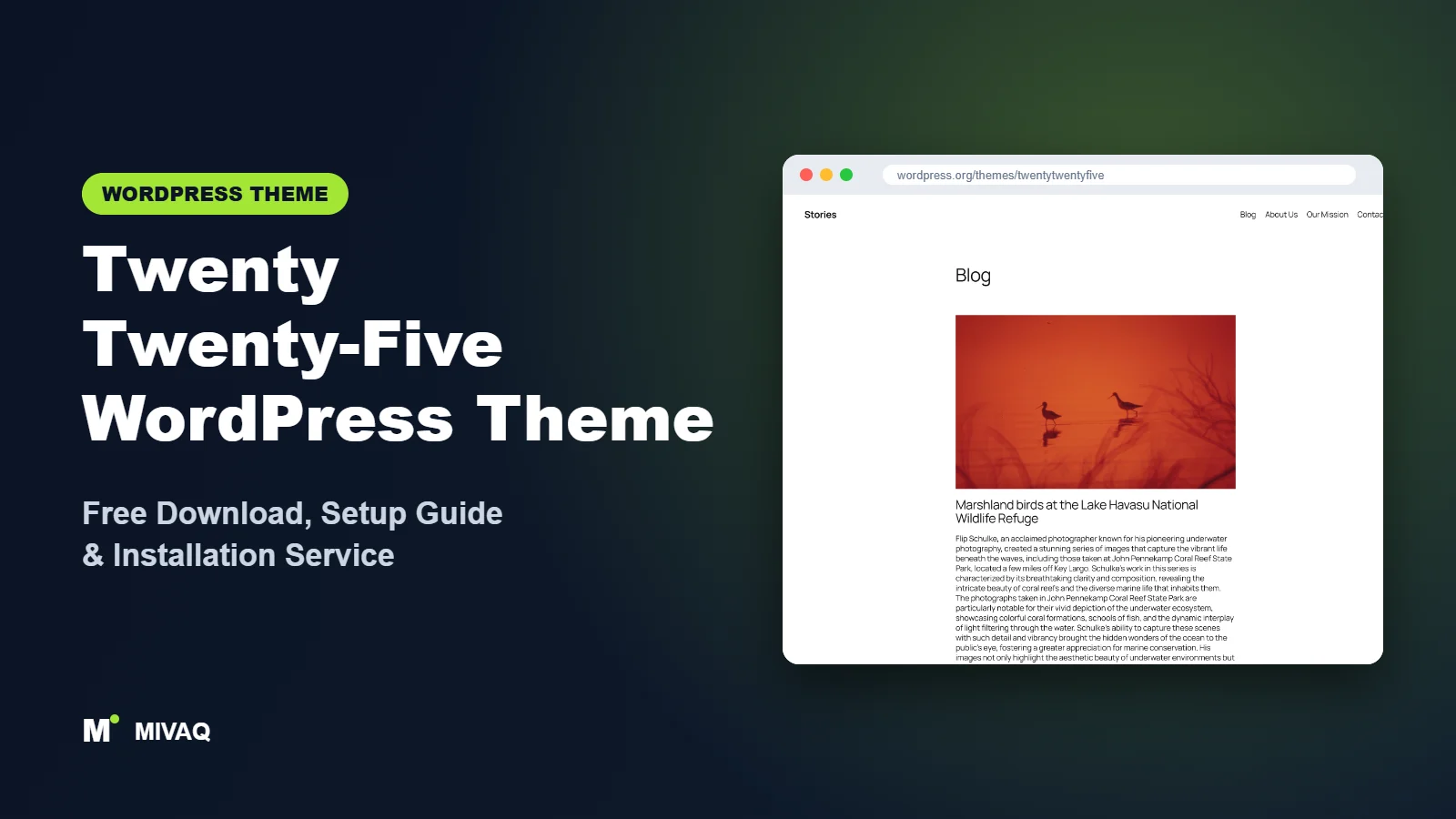
Every year the WordPress core team ships a new default theme, and that theme quietly becomes the first thing millions of people see after installing WordPress. Twenty Twenty-Five is the current one. If you are searching for a Twenty Twenty-Five WordPress theme free download, the good news is simple: it is 100% free, it is legal to use on any number of sites, and the official copy lives on WordPress.org. Many new installs already have it activated out of the box.
This article is part of our complete guide: How to Build a WordPress Website for Your Business (2026 Guide).
Being the default does not make it boring. Twenty Twenty-Five was built to show off what modern block themes can do: a library of ready-made patterns, several style variations, carefully chosen font pairings and templates for very different kinds of blogs. In this guide we look at what the theme really offers, who it suits, how to download and install it safely, and how to set it up properly in the Site Editor so it looks like your brand rather than a fresh install.
What is the Twenty Twenty-Five WordPress theme?
Twenty Twenty-Five is the default theme bundled with WordPress 6.7 and later. It is a pure block theme, which means there is no Customizer panel full of options. Instead, everything from the header to the single post layout is built from blocks and edited visually in Appearance › Editor. The theme description on WordPress.org says it emphasises simplicity and adaptability, with patterns for services pages, landing pages, portfolios, magazines and business sites.
| Detail | Twenty Twenty-Five |
|---|---|
| Developer | WordPress.org (core team) |
| Latest version | 1.5 |
| Active installs | 1+ million |
| Rating | 4.0/5 (14 reviews) |
| Requires WordPress | 6.7 or higher |
| Requires PHP | 7.2 or higher |
| Last updated | 20 May 2026 |
| Theme type | Block theme (Full Site Editing) |
| Price | Free (no Pro version) |
The small number of reviews is normal for default themes: most people never visit the theme page because the theme simply arrives with WordPress. The active install count is a better signal of how widely it is used.
Key features of Twenty Twenty-Five
- Full Site Editing: headers, footers, archive pages and single post templates are all editable with blocks, no code required.
- Large pattern library: ready sections for heroes, services, pricing, testimonials, team members, calls to action and event listings.
- Style variations: one click changes the whole colour and typography system of the site.
- Separate colour and typography presets: you can mix a colour palette from one variation with a font pairing from another.
- Several blog layouts: templates and patterns for text-led blogs, photo blogs and news-style home pages.
- International typography: font choices and spacing were tested with a range of languages, and the theme is RTL and translation ready.
- Accessibility ready: it carries the accessibility-ready tag, so contrast, focus states and keyboard navigation have been reviewed.
- Wide and full-width blocks: images, galleries and cover blocks can break out of the text column for magazine-style pages.
Mix-and-match colour palettes and fonts
Older block themes forced you to accept a whole style variation at once. In Twenty Twenty-Five, the Styles panel lists colour palettes and typography presets separately, so you can keep a calm serif heading font while switching to a darker palette. For small businesses this is the fastest way to get a branded look without touching any CSS.
Templates for different kinds of blogs
The theme ships patterns for home pages that list posts as text only, as large images, or as a news grid. A food photographer, a technical writer and a local news site can all start from the same theme and end up with very different front pages.
Page patterns that save hours
Instead of designing a services page from scratch, you insert a full-page pattern and replace the text and images. Because patterns are just blocks, nothing is locked: you can delete, reorder or restyle any part.
Is Twenty Twenty-Five completely free?
Yes. There is no Pro version, no upsell screen and no locked feature. Twenty Twenty-Five is developed by WordPress contributors and released under the GPL, the same licence as WordPress itself. Every pattern, template and style variation you see in the preview is included in the free download.
The trade-off is that there is no premium support desk. Help comes from the WordPress.org support forums and the official documentation. If you need features such as a mega menu, sliders or advanced WooCommerce product layouts, you add them with plugins or custom blocks rather than buying an upgrade.
Who should use Twenty Twenty-Five?
Twenty Twenty-Five is a strong fit for:
- Writers and bloggers who want clean reading typography and a fast site without a heavy theme framework.
- Portfolios for photographers, illustrators and designers who want full-width images.
- Small business brochure sites with five to ten pages: home, services, about, contact and a blog.
- People learning the Site Editor, because the default theme always follows WordPress best practice and is the reference most tutorials use.
- Agencies building lightweight sites that will be maintained for years, since default themes receive long-term updates.
It is less suitable if you already depend on Elementor for every page and want a theme with Customizer options and starter template imports, or if you are building a large WooCommerce store and want shop-specific features such as off-canvas filters and quick view out of the box. In those cases a dedicated multipurpose or shop theme is usually quicker.
Twenty Twenty-Five WordPress theme free download (official and safe)
The only download you need is the official one:
- Official theme page: wordpress.org/themes/twentytwentyfive
- Direct ZIP file: downloads.wordpress.org/theme/twentytwentyfive.zip
Because the theme is free, there is no reason to download it from a third-party site. Unofficial bundles and “premium edition” copies of free themes are a common way to hide backdoors, spam links and crypto miners. They also never receive updates. If you have ever installed a theme or plugin from a “nulled” or cracked source and the site now behaves strangely, read our guide to WordPress malware removal. MIVAQ does not distribute theme files; we always point clients to WordPress.org.
How to install Twenty Twenty-Five in WordPress (step by step)
Check first: if your site runs WordPress 6.7 or newer, Twenty Twenty-Five may already be installed. Look in Appearance › Themes before downloading anything.
Method 1: install from the dashboard
- Log in to wp-admin and go to Appearance › Themes.
- Click Add New Theme.
- Type “Twenty Twenty-Five” in the search box.
- Hover over the theme and click Install.
- Click Activate. Your site now uses the theme.
Method 2: upload the ZIP file
- Download twentytwentyfive.zip from the official link above. Do not unzip it.
- Go to Appearance › Themes › Add New Theme › Upload Theme.
- Choose the ZIP, click Install Now, then Activate.
Child theme tip: most changes in a block theme are saved in the database through the Site Editor, so updates will not wipe them. You only need a child theme if you plan to edit theme files directly, for example adding custom template parts or a functions.php snippet. The free Create Block Theme plugin from the WordPress team can generate a child theme for you.
How to set up Twenty Twenty-Five after installation
All setup happens in Appearance › Editor, not the Customizer. Follow this order so you do not redo work later:
- Choose a style: open Styles, browse the variations, then fine-tune with the separate colour palette and typography presets.
- Set brand colours: in Styles › Colors › Palette, replace the primary and accent colours with your brand values so buttons and links update everywhere.
- Add your logo and site title: open the Header template part and select the Site Logo block. Upload a logo and set its width.
- Build the menu: select the Navigation block in the header, add your pages and choose whether the mobile menu opens as an overlay.
- Create the home page: make a page called Home, insert full-page or section patterns, then set it as the homepage in Settings › Reading.
- Pick a blog layout: edit the Blog Home or Index template and swap the query pattern for a text, image or grid layout.
- Edit the footer: add contact details, a short about line and legal links to the Footer template part.
- Check mobile: use the device preview at the top of the editor and adjust spacing on stacked columns.
If you add WooCommerce, the plugin provides block-based shop, cart and checkout templates that inherit the theme colours. They work well for small catalogues, though you may want extra styling for product pages.
Twenty Twenty-Five speed and SEO checklist
- Keep plugins lean. The theme loads very little CSS on its own, so most slowdowns come from plugins, not the theme.
- Use a caching plugin that matches your server. On LiteSpeed hosting, follow our guide to speed up WordPress with LiteSpeed.
- Install one SEO plugin and configure it fully. Not sure which? Compare Rank Math vs Yoast.
- Write clear, unique page titles, especially for pages built from patterns that still carry demo headings. Our title tag SEO guide explains how.
- Replace pattern placeholder images with your own compressed images and add descriptive alt text.
- Before going live, run through our WordPress security checklist and set up a backup strategy.
Common mistakes when setting up Twenty Twenty-Five
- Looking for the Customizer: the theme does not use it. Go to Appearance › Editor.
- Leaving demo text in patterns: placeholder headings and testimonials can end up indexed by Google.
- Editing one page instead of the template: changes to single post layout belong in the Single Posts template, not in an individual post.
- Too many fonts: stick to the pairing in your chosen preset. Each extra font adds weight and slows the page.
- Deleting other default themes too early: keep one fallback theme installed so WordPress has something to switch to if a problem occurs.
Twenty Twenty-Five vs similar free WordPress themes
Twenty Twenty-Four is its predecessor and leans more towards business and portfolio pages, with full-page designs aimed at companies and creatives. Twenty Twenty-Five feels lighter and more editorial, with more blog layouts. Pick Twenty Twenty-Four for a company site and Twenty Twenty-Five for content-led sites.
Ollie is a community block theme with a larger collection of polished marketing patterns and an optional Pro pattern library. Choose Ollie if you want SaaS-style landing pages quickly.
Twenty Twenty-One is a classic theme that uses the Customizer. It is the better pick if you are not ready for full site editing or rely on widget areas.
Twenty Twenty-Five pros and cons
What we like
- Completely free, maintained by the WordPress core team
- Very light, so good Core Web Vitals are easy to reach
- Flexible colour and font presets that can be combined
- Many blog and page patterns for different site types
- Accessibility ready and translation ready
What to consider
- No Customizer, so there is a learning curve if you are used to classic themes
- No starter site importer or dedicated support desk
- Basic WooCommerce styling compared with shop-focused themes
- Needs WordPress 6.7 or newer
Our verdict: Twenty Twenty-Five is the best place to start if you want a fast, future-proof block theme for a blog, portfolio or small business site and are happy to learn the Site Editor. It will not replace a page builder for complex marketing sites, but for clean content sites it is hard to beat at the price of zero.
Website design with Twenty Twenty-Five: our design service
Twenty Twenty-Five is a clean foundation, but a clean foundation is not yet a finished website. MIVAQ designs complete websites on Twenty Twenty-Five as part of our website design service: we plan the pages, create a colour and typography system that matches your brand, build custom patterns and templates in the WordPress editor, and hand over a site you can update without a page builder.
What our Twenty Twenty-Five website design package includes:
- Custom style variation: colours, typography and spacing set in Global Styles
- Page templates and reusable patterns for home, services, blog and contact pages
- Navigation, header and footer designed in the Site Editor
- Contact forms, newsletter sign-up and essential plugins only
- On-page SEO, image optimisation and analytics at launch
You can see examples in our recent work and case studies, and read more about our WordPress development and SEO services. Every project starts with a free consultation and a fixed price, so you know exactly what you get before we begin.
Want a website designed with Twenty Twenty-Five? Contact MIVAQ: WhatsApp +880 1723-189847, email hello@mivaq.com or use our contact form. We usually reply the same day.
Twenty Twenty-Five installation and setup service
Do not have time to learn the Site Editor? MIVAQ Creative Solutions installs and customises Twenty Twenty-Five for you. We handle installation from WordPress.org, a child theme where it makes sense, your colours, fonts and logo, a custom header and footer, your key pages built from patterns, menus, contact forms, WooCommerce setup if you sell online, plus speed and SEO basics. You get a fixed quote before we start. See all our WordPress services or contact us directly:
- WhatsApp: message us about Twenty Twenty-Five
- Email: hello@mivaq.com
- Form: send your project details
Related WordPress theme guides
- Twenty Twenty-Four WordPress theme guide
- Twenty Twenty-Three WordPress theme guide
- Ollie WordPress theme guide
- Extendable WordPress theme guide
- 50 best free WordPress themes
Frequently asked questions
Is Twenty Twenty-Five free?
Yes. It is completely free under the GPL with no Pro version. Download it from WordPress.org or install it from your dashboard.
Is Twenty Twenty-Five good for SEO?
Yes. It outputs clean, semantic markup and loads very little CSS and JavaScript, which helps page speed. Pair it with an SEO plugin such as Rank Math for meta tags and schema.
Does Twenty Twenty-Five work with Elementor?
Elementor pages can run on it, but you lose the main benefit of the theme, which is building with blocks. If you prefer Elementor, a theme designed for it is usually a better choice.
Can I use Twenty Twenty-Five for WooCommerce?
Yes, for small shops. WooCommerce block templates inherit the theme styles. Larger stores may want a shop-focused theme with more product layout options.
Can MIVAQ install Twenty Twenty-Five for me?
Yes. We install, brand and set up the theme, build your pages and handle speed and SEO basics for a fixed price. Message us on WhatsApp or use the contact form.


