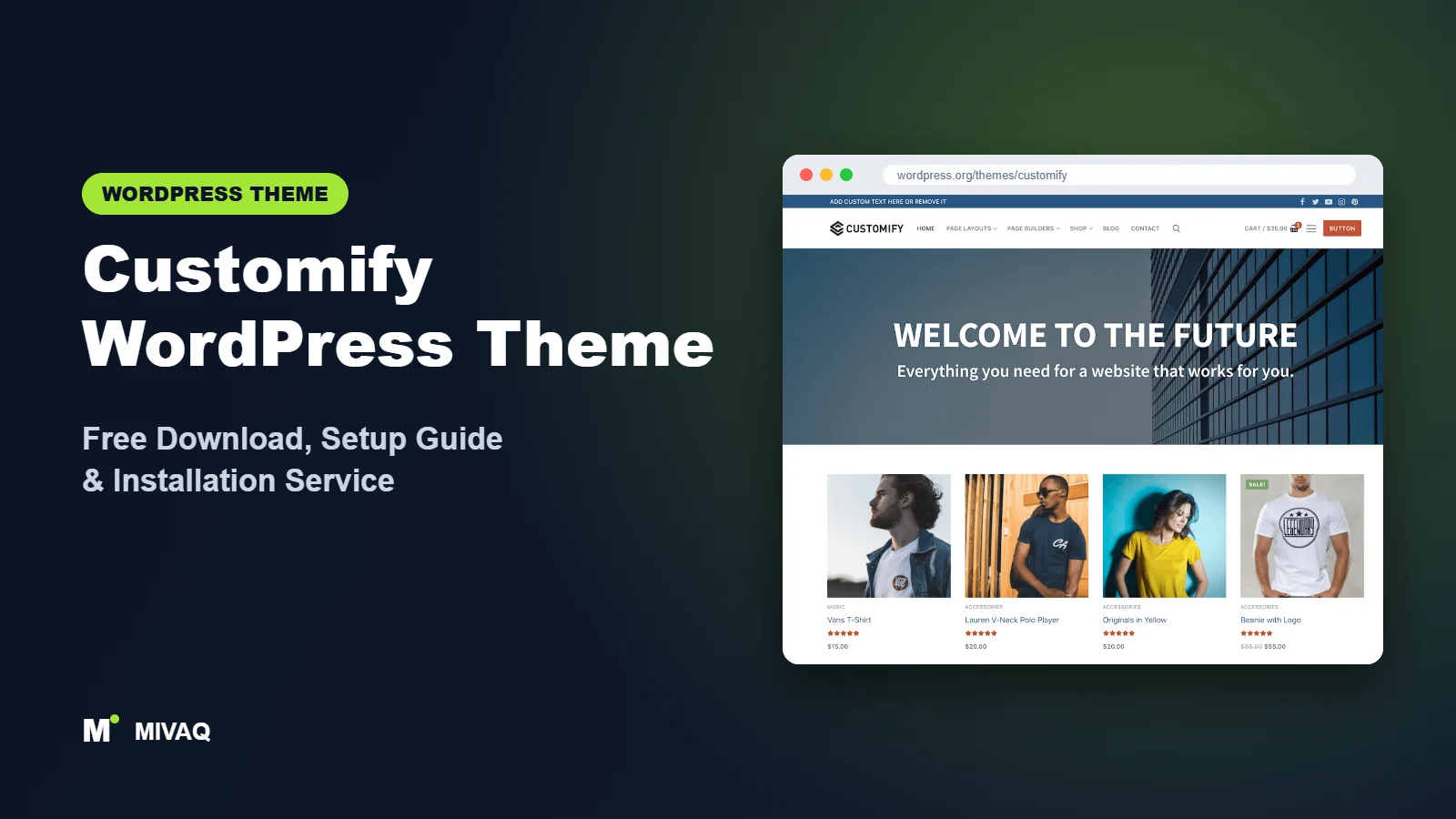
The header is the most-used part of any website. It carries your logo, menu, phone number, search and the button that turns a visitor into a lead, yet many free themes give you just two or three fixed header layouts. Customify is built around the opposite idea: a true drag-and-drop header and footer builder inside the WordPress Customizer. This guide covers the Customify WordPress theme free download, installation, and a practical setup that makes the most of that builder.
This article is part of our complete guide: How to Build a WordPress Website for Your Business (2026 Guide).
Customify is developed by PressMaximum and is 100% free and legal to download from WordPress.org. It is a lightweight multipurpose theme that works with almost any page builder, so it suits people who want control over layout without being locked into one tool. Below you will find official facts, honest comparisons, setup steps and the mistakes we fix most often.
What is the Customify WordPress theme?
Customify is a classic, Customizer-based theme designed for speed, SEO and usability. Its signature feature is a WYSIWYG header and footer builder made exclusively for the theme. Beyond that, it stays deliberately neutral so you can design pages with Elementor, Beaver Builder, SiteOrigin, Thrive Architect, Divi, WPBakery or the block editor. It is compatible with major plugins including WooCommerce, Yoast, BuddyPress and bbPress, which makes it a flexible base for shops, communities and forums as well as business sites.
| Detail | Customify |
|---|---|
| Developer | PressMaximum |
| Latest version | 0.4.27 |
| Active installs | 30,000+ |
| Rating | 4.7/5 (141 reviews) |
| Requires WordPress | 6.0 or higher |
| Requires PHP | 5.3 or higher (use PHP 8.x for speed and security) |
| Last updated | 26 September 2026 |
| Theme type | Classic theme (Customizer with header and footer builder) |
| Price | Free (Customify Pro optional) |
Do not be put off by the 0.4 version number. Version numbering is the developer’s choice, and the theme has been maintained for years, with its latest update in September 2026.
Key features of Customify
- Drag-and-drop header builder: arrange logo, menus, buttons, search, social icons, HTML and cart items across top, main and bottom header rows.
- Footer builder: build multi-column footers with widgets, menus, copyright text and social icons.
- Separate mobile header: design a different header for phones, so mobile users get only what they need.
- Page builder compatibility: works with Elementor, Beaver Builder, SiteOrigin, Divi, Thrive Architect and others.
- Per-page layout controls: choose sidebar position, content width and header or title visibility for individual pages.
- Typography and colour controls: global and element-level settings in the Customizer.
- Plugin compatibility: WooCommerce, BuddyPress, bbPress and popular SEO plugins.
- Importable starter sites: ready-made demo sites from the developer for quick starts.
Why the header builder matters
Different businesses need different headers. A restaurant wants a phone number and “Book a table” button visible at all times. A shop wants search, account and cart icons. A consultant wants a clean menu and one call-to-action. With Customify, you drag those items into place and see the result live, without writing CSS or buying a separate header plugin.
A dedicated mobile header
Most mobile traffic arrives on phones where space is tiny. Customify lets you build a separate mobile header with, say, the logo, a call button and the menu icon, while the desktop header shows full navigation. This is one of the most practical features for local businesses whose customers tap to call.
Builder-neutral by design
Because Customify does not push its own page builder, you can choose the tool your team already knows and even switch later. The header and footer stay in the theme, so they remain consistent no matter how you build the pages in between.
Customify free vs Pro: what do you get?
Customify Pro is a premium plugin that adds modules on top of the free theme. You keep the same theme and switch on extra features as needed.
| Area | Customify (free) | Customify Pro |
|---|---|---|
| Header and footer builder | Full builder with core items | Extra header items and more styling options |
| Sticky and transparent header | Limited | Additional header behaviours |
| WooCommerce | Compatible, styled shop | Extra shop layout and product page options |
| Typography and colours | Global controls | More granular control |
| Support | WordPress.org forum | Premium support from PressMaximum |
The module list changes over time, so check the developer’s site for current Pro pricing and modules. Many sites work perfectly well on the free version.
Who should use Customify?
- Businesses that care about the header: restaurants, trades, clinics and services where a visible phone number or booking button matters.
- Page builder users who want a lightweight, neutral theme underneath Elementor, Beaver Builder or Divi.
- Community and forum sites using BuddyPress or bbPress.
- Small to medium WooCommerce shops needing cart, account and search in a tidy header.
- Developers and agencies who want a flexible base they can reuse across varied client projects.
Who should not use Customify? Absolute beginners who want a finished design in one click may prefer a theme with a larger niche demo library, such as Zakra. And if you want to build headers inside the Site Editor with blocks, a block theme like Ollie is the modern alternative.
Customify WordPress theme free download (official and safe)
- Official page: wordpress.org/themes/customify
- Direct ZIP download: downloads.wordpress.org/theme/customify.zip
MIVAQ does not distribute theme files. If a website offers Customify Pro “for free” or “nulled”, do not install it. Tampered premium plugins can hide malicious code that steals data, redirects visitors or creates hidden admin users, and they never receive updates. Concerned about an existing install? Read our WordPress malware removal guide.
How to install Customify in WordPress (step by step)
Method 1: from the dashboard
- Go to Appearance › Themes › Add New Theme.
- Search for “Customify”.
- Click Install on the theme by PressMaximum.
- Click Activate.
Method 2: upload the ZIP
- Download customify.zip from WordPress.org.
- Go to Appearance › Themes › Add New Theme › Upload Theme.
- Choose the file, click Install Now, then Activate.
Tip: Customify requires WordPress 6.0 or newer, so update WordPress first if installation fails on an older site. Use a child theme if you plan to add custom functions or template overrides.
How to set up Customify after installation
- Decide on a starter site or a blank start. The developer offers importable demo sites through its sites plugin. Import one if it is close to your goal; otherwise start blank and build with your preferred page builder.
- Set global layout. In Appearance › Customize › Layouts, choose site width, content layout and default sidebar position.
- Set colours and typography. Define your brand colours, body font and heading font before building pages.
- Build the desktop header. Open Header Builder at the bottom of the Customizer. Drag your logo into the main row, the menu beside it, and a button on the right. Use the top row for phone, email or social links if needed.
- Build the mobile header. Switch the builder to mobile view and keep it simple: logo, menu icon and possibly a call button.
- Build the footer. In the footer builder, set the number of columns and add widgets, menus and copyright text.
- Create pages with your builder. Use the page settings panel to hide the page title or sidebar on landing pages built with Elementor or similar.
- Configure WooCommerce. If you run a shop, add cart and account items to the header and set shop layout in the WooCommerce Customizer panel.
A simple header recipe that converts
For most service businesses, this layout works well: top row with phone number and opening hours on the left and social icons on the right; main row with the logo on the left, a short menu of five or six items in the middle, and a contrasting “Get a quote” button on the right. On mobile, show the logo, a tap-to-call icon and the menu. Resist the urge to put everything in the header; every extra item competes with your main call to action.
Customify speed and SEO checklist
- Keep the header lean. Social icon sets, search and cart all add small amounts of code; include only what users need.
- Cache and optimise assets with our LiteSpeed speed guide.
- Use one SEO plugin. Customify is compatible with the major ones; our Rank Math vs Yoast comparison helps you choose.
- Craft title tags for every page with the title tag SEO guide.
- Optimise shop pages using our WooCommerce SEO guide if you sell online.
- Harden security using our WordPress security checklist.
Common mistakes when setting up Customify
- Designing only the desktop header and leaving the default mobile header untouched.
- Overloading the header with menus, icons, search and two buttons, which clutters small laptop screens.
- Forgetting page-level settings, so builder pages show an unwanted title or sidebar.
- Installing on outdated WordPress, since the theme requires 6.0 or newer.
- Using two page builders because the theme supports many; pick one and stay with it.
Customify vs similar free WordPress themes
| Theme | Main strength | Pick it if |
|---|---|---|
| Customify | Header and footer builder, builder-neutral | Header flexibility and page builder freedom matter most |
| Zakra | Niche starter sites | You want a ready-made niche design |
| Spacious | Simple business layout | You want minimal setup and fewer options |
| Vantage | SiteOrigin integration | You build with SiteOrigin Page Builder |
From the wider series, Blocksy and Kadence also offer header builders and are worth comparing if you want larger ecosystems.
Customify pros and cons
What we like
- Genuine drag-and-drop header and footer builder in the free version.
- Separate mobile header design.
- Works with almost every major page builder.
- BuddyPress and bbPress compatibility.
- Actively updated.
What to consider
- Fewer niche starter sites than some competitors.
- Some header behaviours and shop extras need Pro.
- You still need a page builder or the block editor for page design.
Our verdict: Customify is a smart choice when you want complete control over the header and footer and the freedom to use any page builder. It rewards a little planning with a clean, flexible site.
Website design with Customify: our design service
Many businesses choose Customify because it looks professional out of the box, yet the demo alone rarely says what makes your business different. Through our website design service, MIVAQ turns Customify into a complete, on-brand business website: clear service pages, persuasive landing pages, trust signals and contact paths that make it easy for visitors to get in touch.
What our Customify website design package includes:
- Brand-matched design with your logo, colours and typography
- Service pages, landing pages and a homepage structured around your offers
- Starter site import cleaned of demo content and rebuilt with your text and images
- Lead capture: contact and quote forms, WhatsApp, click-to-call and maps
- On-page SEO, speed tuning and Search Console setup
You can see examples in our recent work and case studies, and read more about our WordPress development and SEO services. Every project starts with a free consultation and a fixed price, so you know exactly what you get before we begin.
Want a website designed with Customify? Contact MIVAQ: WhatsApp +880 1723-189847, email hello@mivaq.com or use our contact form. We usually reply the same day.
Customify installation and setup service
MIVAQ Creative Solutions installs and customises Customify, with special attention to headers that convert on desktop and mobile. We provide:
- Installation from WordPress.org and a child theme
- Starter site import or a clean custom build
- Branding plus desktop and mobile header and footer design
- Home, services, about, contact and blog pages
- WooCommerce, BuddyPress or bbPress setup if needed
- Speed and SEO basics, including caching and Rank Math
We give a fixed quote. Explore our WordPress services or reach us:
- WhatsApp: message us about Customify
- Email: hello@mivaq.com
- Form: send your project details
Related WordPress theme guides
- Zakra WordPress theme guide
- Spacious WordPress theme guide
- Vantage WordPress theme guide
- Royal Elementor Kit WordPress theme guide
- 50 best free WordPress themes
Frequently asked questions
Is Customify free?
Yes. Customify is free on WordPress.org, including its header and footer builder. Customify Pro adds optional extra modules.
Is Customify good for SEO?
Customify is lightweight and built with SEO in mind, which gives you a good foundation. Pair it with quality content, fast hosting and an SEO plugin.
Does Customify work with Elementor?
Yes. Customify works with Elementor and many other builders, and lets you hide titles and sidebars on builder pages.
Can I use Customify for WooCommerce?
Yes. It is WooCommerce compatible, and you can add cart and account items to the header builder.
Can MIVAQ install Customify for me?
Yes. We install and customise Customify at a fixed price. Message us on WhatsApp or email hello@mivaq.com.


