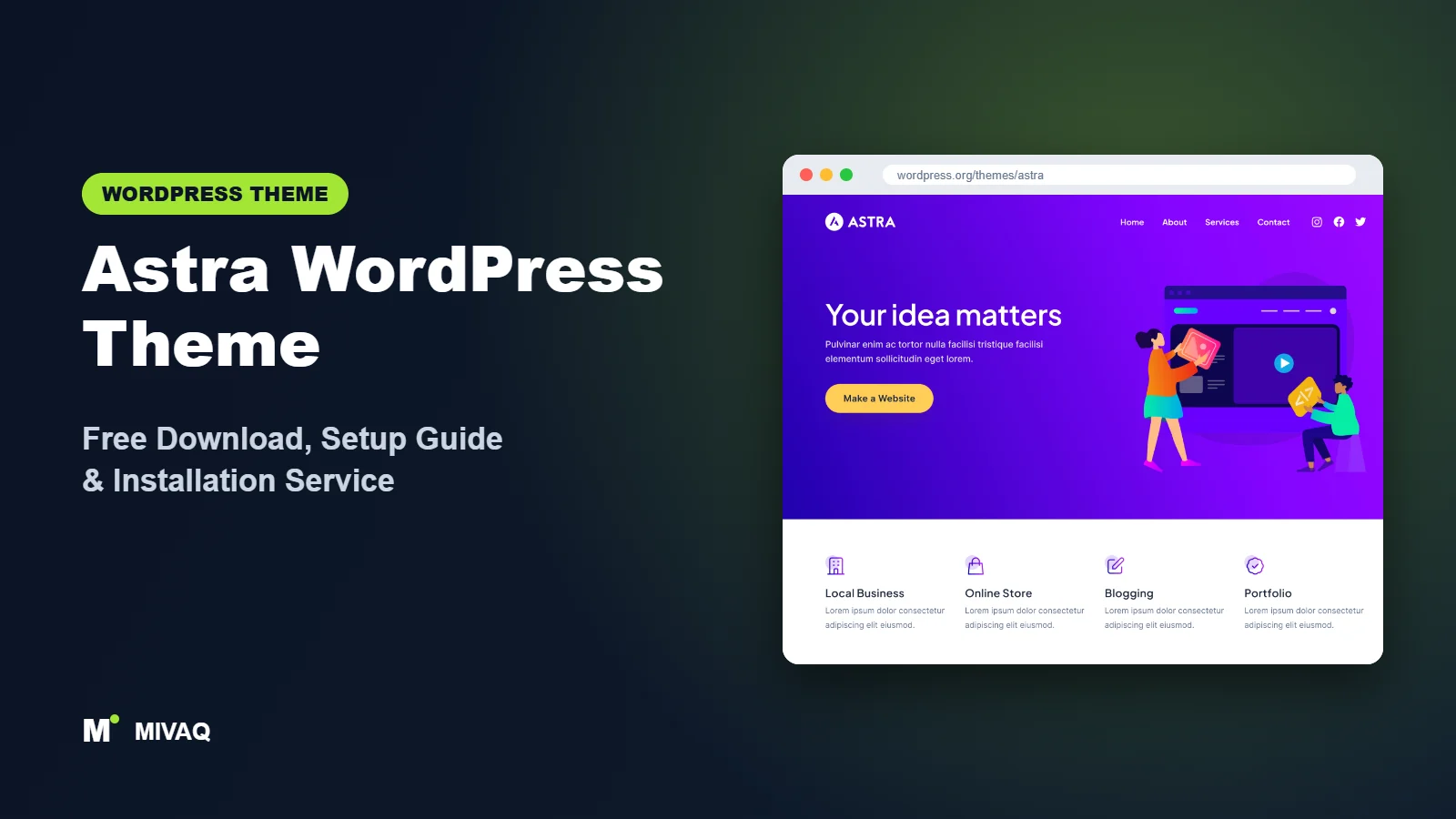
If you have ever searched for a theme that “just works” with every page builder, there is a good chance Astra came up first. It is one of the most installed themes in the WordPress directory, and for good reason: it is light, flexible and friendly to beginners while still giving developers clean hooks to work with. This guide covers the Astra WordPress theme free download from the official source, a careful installation walkthrough, the setup decisions that actually matter, and the mistakes we see most often when clients come to us with a half-finished Astra site.
This article is part of our complete guide: How to Build a WordPress Website for Your Business (2026 Guide).
First, an important point: Astra is 100% free and completely legal to download from WordPress.org. You do not need to pay anyone, sign up for anything or visit a “free themes” site to get it. A paid add-on called Astra Pro exists, but the free theme is a complete, production-ready theme on its own, and thousands of business sites run on it without ever upgrading.
At MIVAQ we build and maintain WordPress sites for small businesses, and Astra is one of the themes we reach for most when a client wants a quick, reliable launch. Everything below is based on real projects, not a copy of the marketing page.
What is the Astra WordPress theme?
Astra is a multipurpose classic theme developed by Brainstorm Force, the same team behind the Spectra block plugin and the Starter Templates library. It is designed to be a lightweight foundation: the theme handles the header, footer, layout and typography, while your content is built with the block editor or a page builder such as Elementor, Beaver Builder or Spectra. Its WordPress.org description highlights mobile-first design, schema markup and broad page-builder support, and it is one of the very few themes with more than 6,000 five-star reviews.
| Detail | Astra |
|---|---|
| Developer | Brainstorm Force |
| Latest version | 4.14.0 |
| Active installs | 1+ million |
| Rating | 4.9/5 from 6,536 reviews |
| Requires WordPress | 5.3 or higher |
| Requires PHP | 5.3 or higher (we recommend PHP 8.1+) |
| Last updated | 24 September 2026 |
| Theme type | Classic theme (Customizer based) |
| Price | Free (Astra Pro add-on optional) |
Figures come from the official WordPress.org theme listing at the time of writing; the version number and review count change as the theme is updated.
Key features of Astra
- Drag-and-drop header and footer builder: build your header rows (above, primary, below) and footer columns visually in the Customizer, including mobile-specific headers.
- Global colour palette and typography: set brand colours and fonts once and they flow through buttons, headings, links and blocks.
- Page-builder friendly layouts: per-page options to disable the title, sidebar, header or footer, and to switch to full width or “stretched” content for builder pages.
- Starter Templates support: import complete ready-made websites for Elementor, Spectra and the block editor through the free Starter Templates plugin.
- WooCommerce integration: shop, product and cart pages are styled out of the box, with Customizer options for shop layout and product cards.
- Schema markup: the theme outputs structured data attributes that help search engines understand the page.
- Translation and RTL ready: works for multilingual and right-to-left sites.
- Developer hooks and filters: a large set of actions lets you inject content without editing template files.
Starter Templates: a full site in minutes
The biggest reason beginners pick Astra is the Starter Templates plugin. After activating the theme you are prompted to install it, choose a page builder, and browse hundreds of complete website designs for restaurants, agencies, coaches, shops and more. One click imports the pages, menus, Customizer settings and sample images. Some templates are marked as premium and need a paid plan, but there is a solid collection of free ones. The real skill is choosing a template whose structure matches your business, not just its colours.
Header builder without coding
Older free themes forced you to accept a fixed header. In Astra you can place the logo, menu, button, search, social icons and HTML elements anywhere in the header grid, and design a separate mobile header with its own trigger icon. For most small business sites this removes the need for an Elementor Pro header template.
Per-page layout control
Every page and post has an Astra settings panel in the editor sidebar. You can hide the title for a landing page, remove the sidebar on a sales page, or make one page transparent-header while the rest of the site stays standard. This small panel saves a surprising amount of custom CSS.
Astra free vs Pro: what do you get?
Astra Pro is a plugin installed on top of the free theme, not a separate theme. The free version already includes the header and footer builder, global colours, typography, blog layouts, WooCommerce styling and Starter Templates access. Astra Pro adds modules such as more advanced header elements, a sticky header, mega menus, the Site Builder (custom layouts and hooks to insert content anywhere), extra blog layouts, deeper WooCommerce controls such as off-canvas filters and quick view, and white-label options for agencies.
Pricing and bundles change regularly, so check the developer’s site for current Pro pricing. Our honest advice: launch on the free theme first. Most brochure sites, blogs and small shops never need Pro. Upgrade only when you hit a specific limit, such as needing a sticky header or a custom hook layout, rather than buying it “just in case”.
Who should use Astra?
- Beginners who want a complete site quickly by importing a starter template and replacing the content.
- Elementor and Spectra users who want a light theme that stays out of the way of their page designs.
- Freelancers and agencies who want one familiar theme for many client sites.
- Small WooCommerce stores that need a tidy, responsive shop without heavy custom work.
- Bloggers who want clean reading layouts and good typography controls.
Who should not use Astra? If you want to build everything in the WordPress Site Editor with block templates, a block theme like Twenty Twenty-Five or Ollie fits that workflow better. And if you dislike having a companion plugin prompt you on activation, a minimalist theme such as GeneratePress may feel calmer.
Astra WordPress theme free download (official and safe)
The only place you should download the free theme is the official directory:
- Official page: Astra on WordPress.org
- Direct ZIP file: downloads.wordpress.org/theme/astra.zip
Avoid sites offering “Astra Pro nulled” or “cracked” packages. These copies are a common way to plant backdoors, spam links and redirect scripts, and they never receive security updates. If you have already installed one and the site behaves strangely, see our guide to WordPress malware removal. MIVAQ does not host or redistribute theme files; we always point you to WordPress.org.
How to install Astra in WordPress (step by step)
Method 1: install from the dashboard
- Log in to your WordPress admin area.
- Go to Appearance › Themes › Add New Theme.
- Type “Astra” into the search box.
- Hover over the Astra card (by Brainstorm Force) and click Install.
- Click Activate once the installation finishes.
Method 2: upload the ZIP file
- Download astra.zip from the official link above. Do not unzip it.
- Go to Appearance › Themes › Add New Theme › Upload Theme.
- Choose the ZIP file and click Install Now, then Activate.
Child theme tip: if you plan to edit theme files or add PHP functions, create an Astra child theme before you customise anything. Brainstorm Force offers a free child theme generator on its website, and it means your edits survive every Astra update.
How to set up Astra after installation
Astra is a Customizer-based theme, so most visual settings live under Appearance › Customize. Here is the order we follow on client projects:
- Decide: template or blank? If you want a ready design, install Starter Templates from the Astra dashboard notice, pick your builder and import a template. Import on a fresh site, because the importer adds pages, menus and settings.
- Set global colours. In Customize › Global › Colors, define your brand palette. Use these palette colours in Elementor or blocks instead of hard-coded hex values so a later rebrand takes minutes.
- Set typography. Choose body and heading fonts under Global › Typography. Two fonts is plenty; system fonts or locally hosted fonts load fastest.
- Build the header. Open Header Builder, place the logo and primary menu, add a call-to-action button, then switch to the mobile view and design the mobile header separately.
- Build the footer. Add widget areas for contact details and quick links, plus a copyright row.
- Configure container and layouts. Under Global › Container choose boxed or full width, then set blog and single-post layouts and sidebars.
- Create menus and the homepage. In Settings › Reading set a static homepage, then assign menus under Appearance › Menus.
- WooCommerce (if selling). After installing WooCommerce, a WooCommerce panel appears in the Customizer for shop columns, product card style and cart options.
For each page built in Elementor, open the Astra settings panel and choose “Full Width / Stretched” and disable the title if your design already has a hero heading.
Astra speed and SEO checklist
- Load only the fonts and weights you actually use, and disable Google Fonts if you switch to system fonts.
- Do not import starter template images at full size; compress or replace them with optimised WebP files.
- Use page caching and a CDN. Our guide on speeding up WordPress with LiteSpeed walks through the settings we use.
- Install one SEO plugin only. Compare the options in Rank Math vs Yoast.
- Write a unique title tag for every page; see our title tag SEO guide.
- Add descriptive alt text to every image, especially template images you replace, using our image alt text guide.
- Keep regular off-site backups before updates, following our WordPress backup strategy.
Common mistakes when setting up Astra
- Importing a template on a live site with content. The importer can overwrite settings and add dozens of demo pages. Use a fresh install or staging site.
- Leaving demo content behind. Unused demo pages, posts and images get indexed and look unprofessional. Delete them after launch.
- Installing extra plugins the template suggested but you do not need. Each one adds weight and maintenance.
- Styling everything in Elementor instead of global settings. Fonts and colours set per widget make future changes painful.
- Forgetting the mobile header. Many sites look great on desktop and broken on phones because the mobile header was never configured.
- Buying Pro before knowing what is missing. List the exact feature you need first.
Astra vs similar free WordPress themes
| Theme | Best for | Main difference |
|---|---|---|
| Astra | Template-led builds, Elementor sites | Largest starter template library and user base |
| Kadence | Block editor builds | More design controls in the free version and a strong block plugin |
| GeneratePress | Speed-focused blogs and developers | Extremely lean and stable, fewer bells and whistles |
| OceanWP | Feature-rich shops | Many WooCommerce options, spread across extensions |
Pick Astra if you want the widest choice of ready-made templates and the most tutorials online. Choose Kadence if you prefer building with blocks and want more free header and design options. Choose GeneratePress if raw lightness and code quality matter more than templates. If you want a pure Site Editor workflow, look at Twenty Twenty-Five instead.
Astra pros and cons
What we like
- Fast, stable and updated frequently.
- Huge starter template library and community support.
- Free header and footer builder covers most needs.
- Works smoothly with every major page builder.
What to consider
- Dashboard notices push Starter Templates and other Brainstorm Force products.
- Some popular features, like sticky headers and custom layouts, need Pro.
- Many premium-looking templates require a paid plan.
Our verdict: Astra is the safest all-round choice for a small business or freelancer who wants a professional site fast. Use the free theme with a carefully chosen template, keep plugins lean, and you will have a quick, maintainable website.
Website design with Astra: our design service
Installing Astra takes minutes; turning it into a website that wins customers takes design, copy and strategy. MIVAQ offers a complete website design service built on Astra: we plan your pages, design a layout that matches your brand and set up everything so you can edit it yourself afterwards. Astra gives us a fast, flexible base, and we add the structure, content and conversion details that turn visitors into enquiries.
What our Astra website design package includes:
- Brand-matched design: logo, colours, fonts and a consistent style across every page
- Homepage, about, services, blog and contact pages written and laid out for conversions
- Header, footer and mobile menu built with the theme settings, no bloated extras
- Contact forms, WhatsApp button, Google Maps and booking or quote forms
- On-page SEO, speed optimisation and Google Search Console setup at launch
You can see examples in our recent work and case studies, and read more about our WordPress development and SEO services. Every project starts with a free consultation and a fixed price, so you know exactly what you get before we begin.
Want a website designed with Astra? Contact MIVAQ: WhatsApp +880 1723-189847, email hello@mivaq.com or use our contact form. We usually reply the same day.
Astra installation and setup service
Do not have time to wrestle with templates and Customizer panels? MIVAQ installs and customises Astra for you. Our setup includes installing the theme from WordPress.org, creating a child theme, importing and cleaning a starter template, applying your logo, colours and fonts, building your key pages, setting up WooCommerce if you sell online, and configuring speed and SEO basics. You get a fixed quote before we start, with no surprises. See all our WordPress services, or contact us directly:
- WhatsApp: message us about Astra
- Email: hello@mivaq.com
- Form: send your project details
Related WordPress theme guides
- Kadence WordPress theme free download and setup
- GeneratePress WordPress theme free download and setup
- Blocksy WordPress theme free download and setup
- Hello Elementor WordPress theme free download and setup
- 50 best free WordPress themes
Frequently asked questions
Is Astra free?
Yes. The Astra theme is free on WordPress.org under the GPL licence and can be used on unlimited sites, including client and commercial sites. Astra Pro is an optional paid add-on.
Is Astra good for SEO?
Astra provides a fast, clean foundation with schema markup and proper heading structure, which helps. Rankings still depend on your content, page speed, internal links and an SEO plugin such as Rank Math.
Does Astra work with Elementor?
Very well. Astra is one of the most popular themes for Elementor users, and many starter templates are built for Elementor. Set Elementor pages to full width in the Astra page settings for best results.
Can I use Astra for WooCommerce?
Yes. The free theme styles WooCommerce pages and adds shop options in the Customizer. Pro adds advanced shop features, but many small stores run happily on the free version.
Can MIVAQ install Astra for me?
Yes. We install, configure and customise Astra, import a template if you want one, and hand over a finished, fast site. Message us on WhatsApp or email hello@mivaq.com for a fixed quote.


