This article is part of our complete Wix guide and our list of best Wix apps.
A good sale can bring in a month of orders in a weekend. But on Wix Stores, putting 80 products on sale usually means opening each product, typing a discount, saving, and doing it all again when the sale ends. That is hours of repetitive work, and one wrong number can sell a product at a loss.
This guide shows the best way to run a sale on Wix Stores: how to plan the discount, put many products on sale at once with crossed-out prices, add “Sale” ribbons, promote the offer and end it in one click using Bulk Product & Price Editor by MIVAQ Apps.
Add Bulk Product & Price Editor to your Wix site →
Key takeaways
- A sale price shows the original price crossed out, which converts better than a hidden coupon for most shoppers.
- Bulk Product & Price Editor puts any selection of products on sale by percentage or fixed amount in one step, with a preview.
- Add or remove “Sale” ribbons for the whole selection at the same time.
- End the sale in one click: original prices come back automatically.
- Bulk prices are free for up to 25 products per change. Sales, ribbons and unlimited products are Pro: $4.99 a month, or $3.99 a month billed yearly.
In this guide
- Sale price or coupon code: which is best?
- Plan your sale in 5 questions
- How to put many Wix products on sale at once
- Add Sale ribbons in bulk
- Promote the sale
- End the sale in one click
- Top 8 sale ideas for Wix stores
- Protect your margins
- Install and leave a review
- Frequently asked questions
Sale price or coupon code: which is best?
Wix gives you two main ways to discount: lower the product price (a sale price with the original price crossed out) or create a coupon code. Both are useful.
| Sale price | Coupon code | |
|---|---|---|
| Visible on product and category pages | Yes, crossed-out price | No |
| Best for | Seasonal sales, clearance, launches | Email subscribers, influencers, first orders |
| Effort for shoppers | None | Must find and type the code |
| Effect on conversions | Higher for casual visitors | Good for targeted groups |
| Setup for many products | Slow by hand, fast with a bulk editor | One code for all products |
For public sales, a visible sale price usually wins because shoppers see the saving immediately while they browse. Coupons are great for rewarding specific people. Many stores use both: a sale price for everyone and an extra code for newsletter subscribers. You can show that code in an announcement bar.
Plan your sale in 5 questions
- Which products? A category, a brand, last season’s stock, slow sellers or the whole store.
- How much? 10–15% is a nice nudge, 20–30% feels like a real event, 40%+ is clearance.
- Percentage or fixed amount? Percentages work across mixed prices. “$10 off” feels stronger on cheaper items.
- How long? 48–72 hours creates urgency. A week works for bigger events.
- How will people hear about it? Email, social media, your top bar and a sale collection page.
Write the answers down. It takes five minutes and stops last-minute mistakes.
How to put many Wix products on sale at once
With Bulk Product & Price Editor installed, open it from Apps in your Wix dashboard. Your catalog loads into one table with image, name, SKU, price, sale price, stock, visibility, ribbon and brand.
- Filter the products. Search by name or SKU, or filter by brand, ribbon, stock status or price range.
- Select them. Tick products one by one, or tick the top box to select everything that matches your filters.
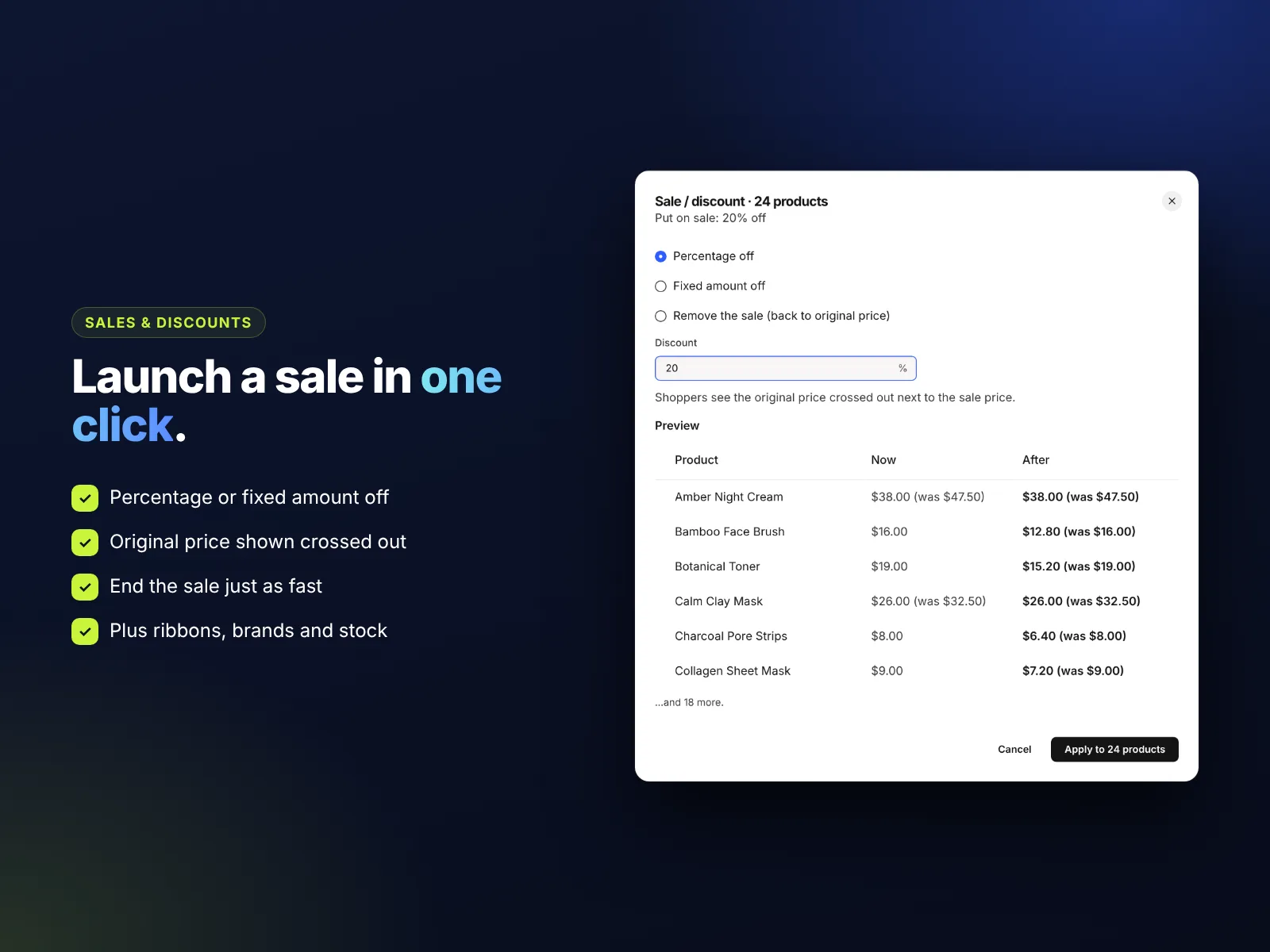
- Click Sale / discount. Choose a percentage (for example 20%) or a fixed amount (for example $5).
- Check the preview. The “Now” and “After” columns show exactly what each product will cost.
- Apply. A progress bar runs and a summary confirms how many products were updated.
Shoppers now see the original price crossed out next to the sale price on product pages, in category pages and in the cart. The discount applies to every variant, so sizes and colors stay consistent.
Add Sale ribbons in bulk
A ribbon is the small label on a product image, such as “Sale”, “New” or “Limited”. Ribbons catch the eye in category pages and search results inside your store. With the same selection still active, choose Ribbon, type “Sale” (or pick an existing ribbon) and apply. When the sale ends, choose Remove ribbon for the same products.
Ribbon ideas: “Sale”, “−20%”, “Last chance”, “Black Friday”, “Clearance”, “Back in stock”.
Promote the sale
- Top bar: add a message and a live countdown with News Ticker & Announcement Bar. See our guide to the Wix countdown timer bar.
- Sale collection: create a category called “Sale” so shoppers can see every discounted product in one place.
- Email: send a short email to your list with the deadline and a link to the collection.
- Social media: post product photos with the sale price and the end date.
- Homepage banner: one clear banner beats three busy ones.
End the sale in one click
Ending a sale is where many stores slip: a few products stay discounted for weeks because someone forgot them. With a bulk editor, filter by On sale, select all, choose Sale / discount → Remove sale and apply. Original prices come back immediately. Then remove the ribbon the same way.
Before a big sale, export a CSV of your catalog from the app. It takes a second and gives you a record of every original price.
Top 8 sale ideas for Wix stores
- Black Friday / Cyber Monday: the biggest shopping weekend of the year. Plan stock and shipping early.
- End of season: clear summer or winter stock before new arrivals.
- Store birthday: celebrate your anniversary with a 48-hour sale.
- Category of the month: discount one category each month to keep regulars coming back.
- Bundle week: discount products that are often bought together.
- Clearance corner: a permanent “Last chance” section for slow sellers.
- Flash sale: 24 hours, one product, a big discount, announced by email.
- Price-rise warning: “Prices go up on the 1st – buy at today’s price.”
For more ideas to turn visitors into buyers, see our Wix store conversion tips and abandoned cart recovery guide.
Quick sale checklist
- Export a CSV backup of your catalog.
- Filter and select the sale products, apply the discount, check the preview.
- Add the “Sale” ribbon to the same selection.
- Create a “Sale” category and a homepage banner.
- Turn on the countdown in your top bar and send the email.
- When the sale ends: remove the sale, remove the ribbon, hide the countdown.
Protect your margins
- Know your cost per product. A 30% discount on a product with a 35% margin leaves almost nothing.
- Watch coupon stacking. Sale prices and coupon codes can combine. Limit codes to full-price items if needed.
- Include shipping. Free shipping plus a discount can make small orders unprofitable.
- Test on a few products first. Apply a new kind of change to 2 or 3 products and check them in your store.
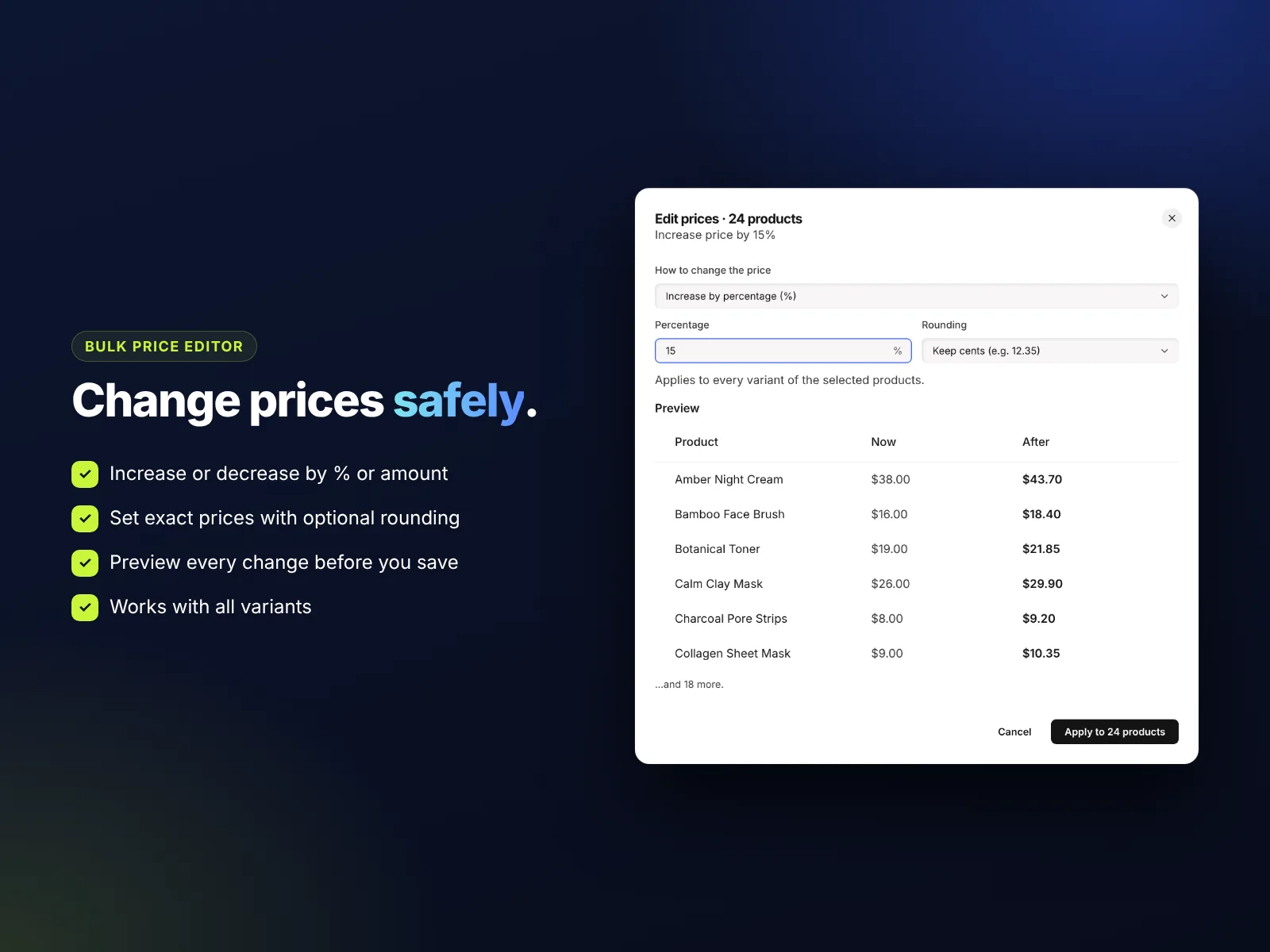
- Round sensibly. The price editor can round to whole numbers, which looks cleaner on sale tags.
| Plan | Price | What you get |
|---|---|---|
| Free | $0 | Bulk prices, stock and visibility for up to 25 products per change |
| Pro | $4.99/month or $3.99/month billed yearly | Unlimited products, sales and discounts, ribbons, brands, bulk SEO, CSV export |
For every feature in detail, read our Bulk edit Wix Store products and prices: the complete guide.
How to install Bulk Product & Price Editor and leave a review
- Open the Bulk Product & Price Editor listing on the Wix App Market.
- Click Add to Site, choose your Wix site and approve the permissions.
- Set it up from your Wix dashboard or the Editor (the steps above take a few minutes).
- Once it is working for you, go back to the app page, scroll to Reviews and click Write a Review. Choose your stars and share one or two sentences about how you use it.
Reviews help other Wix users find tools that work, and they help us, a small team, decide what to build next. If something is not working the way you expect, please tell us first and we will fix it fast.
More top Wix apps from MIVAQ Apps
MIVAQ Apps is the app studio of MIVAQ Creative Solutions. Every app is made for Wix, priced fairly and supported by real people. You can see all of them on our MIVAQ Apps developer page on the Wix App Market and on our Wix apps page.
- News Ticker & Announcement Bar: a scrolling news ticker and announcement bar with countdowns and coupon codes.
- Smart Booking & Payment: a booking calendar with online payments, deposits, Stripe and PayPal.
- Smart Price Table: 50 premium pricing table designs with built-in checkout.
- YMM Parts Finder: a Year / Make / Model parts finder and fit check for any kind of parts store.
Need help with your Wix site?
MIVAQ designs, builds and manages Wix websites and builds Wix apps. If you want help with planning a sale, organising your catalog or improving your store, we are happy to help. See our Wix solutions, then contact us:
- WhatsApp: message us
- Email: hello@mivaq.com
- Form: send your project details
Install Bulk Product & Price Editor →
Related Wix guides
- Bulk edit Wix Store products and prices
- Best Wix product SEO tips: bulk titles and meta descriptions
- Wix countdown timer bar
- Wix Stores product setup
- Wix eCommerce guide
Frequently asked questions
How do I put all my Wix products on sale at once?
Install Bulk Product & Price Editor, select all products (or filter a category), choose Sale / discount, enter a percentage or amount, check the preview and click Apply.
Will the original price show crossed out?
Yes. A sale price makes Wix show the original price crossed out next to the new price.
How do I end a sale on many products?
Filter by On sale, select all, choose Sale / discount and Remove sale. The original prices come back.
Does the discount apply to variants?
Yes. The discount applies to every variant of the selected products.
Can I run a sale for free?
The Free plan edits regular prices for up to 25 products per change. Sale prices, ribbons and unlimited products are part of Pro.
Should I use a sale price or a coupon?
Use a sale price for public sales that everyone should see, and a coupon for targeted groups such as newsletter subscribers.