This article is part of our complete Wix guide and our list of best Wix apps.
If you run a Wix Store with more than a handful of products, you already know the problem. Raising prices by 5%, putting a whole category on sale, marking products out of stock or fixing SEO titles means opening every product, one by one, and saving each change. With 50 products that takes an afternoon. With 500 it takes days, and mistakes slip in.
Bulk Product & Price Editor (BulkFlow) fixes this. It is a Wix App Market app made by MIVAQ that lets you bulk edit Wix Store products from one screen: filter, select and update hundreds of products in a few clicks, with a preview before anything is saved. This guide covers every feature, the pricing, a step-by-step setup and practical ways to save hours every month.
Add Bulk Product & Price Editor to your Wix store for free →
Key takeaways
- Bulk edit prices by percentage, amount or exact value, with optional rounding, across every variant.
- Put products on sale, mark stock, show or hide products, and set ribbons and brands in bulk.
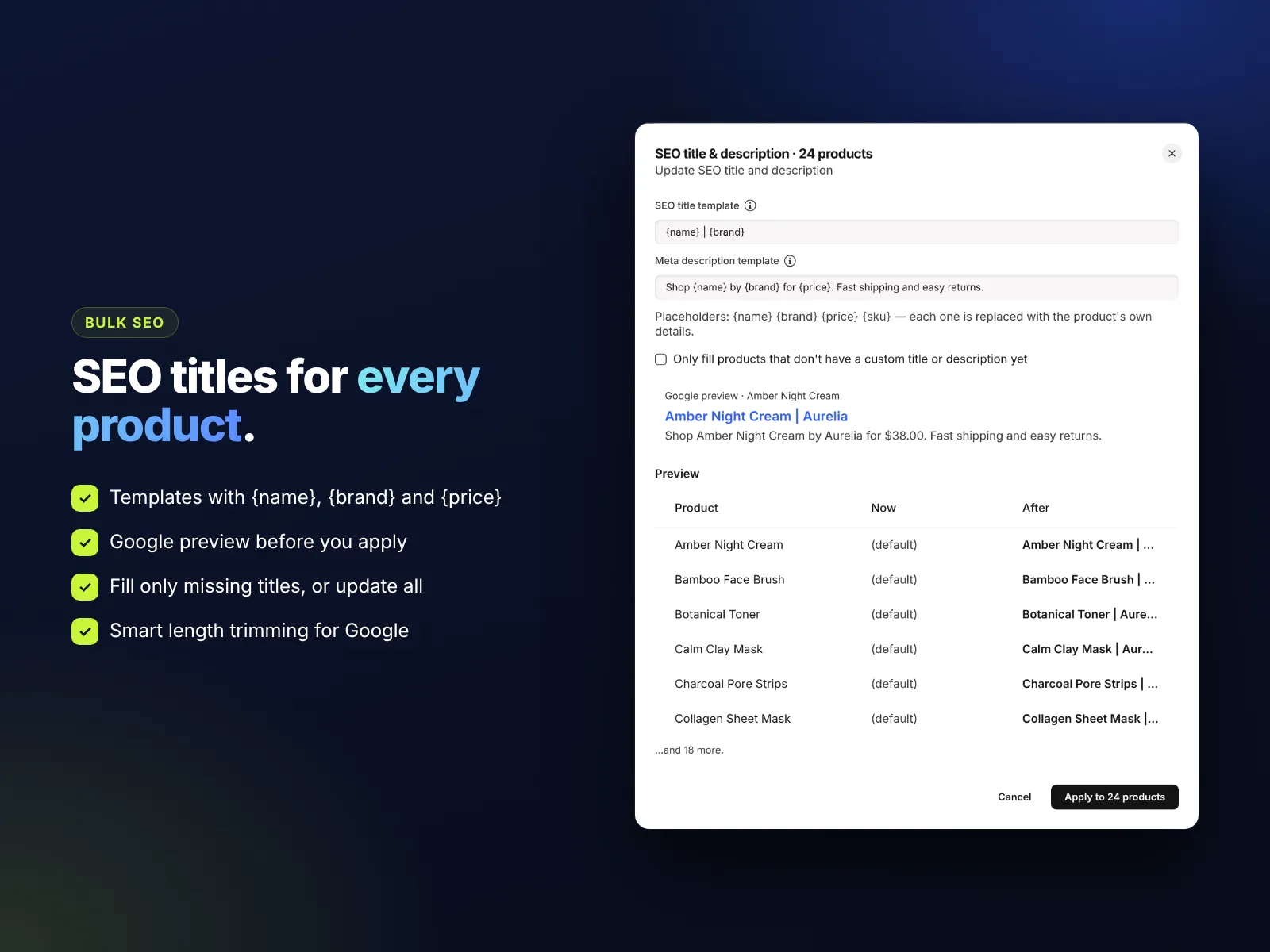
- Write SEO titles and meta descriptions for all products at once from templates, with a Google preview.
- Every change shows a before-and-after preview, and you can export your catalog to CSV as a backup.
- The Free plan edits prices, stock and visibility for up to 25 products at a time. Pro costs $4.99 a month, or $3.99 a month billed yearly.
- It works with both the older and the newer Wix Stores catalog and detects which one your store uses.
In this guide
- Why bulk editing in Wix Stores is hard
- What Bulk Product & Price Editor does
- Features at a glance
- Bulk edit prices and run sales
- Bulk stock, visibility, ribbons and brands
- Bulk SEO titles and meta descriptions
- Preview, history and CSV backups
- Free vs Pro pricing
- How to bulk edit Wix products, step by step
- 8 real ways store owners save time
- Tips for safe bulk changes
- Frequently asked questions
Why bulk editing in Wix Stores is hard
Wix Stores is an excellent platform for selling online, and its product editor is easy to use for one product at a time. Its built-in bulk actions are limited, though, while many everyday store tasks touch dozens or hundreds of products at once:
- Your supplier raises costs and you need to raise every price by 8%.
- Black Friday is coming and a whole range needs 20% off, then back to normal on Monday.
- A seasonal collection must be hidden until launch day, then shown all together.
- A batch of products sold out and needs to be marked out of stock.
- Your products have no custom SEO titles, so Google shows weak, generic results.
Doing this by hand is slow, boring and risky. One typo in a price can sell a product at a loss. Better bulk editing is a common request from Wix store owners, which is why we built a dedicated tool for it.
What Bulk Product & Price Editor does
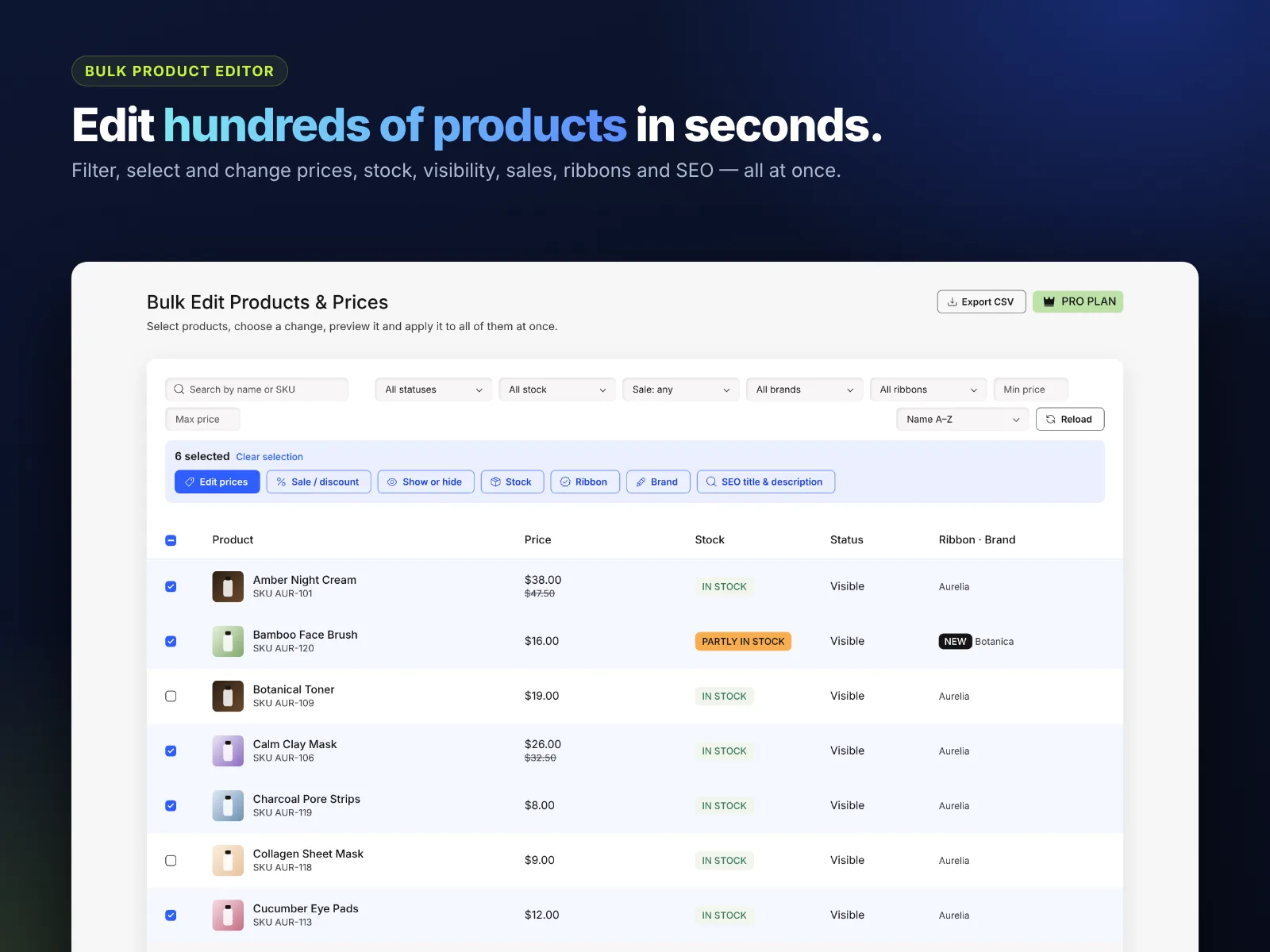
The app adds a page to your Wix dashboard that shows your whole catalog in one table: product image, name, SKU, price, sale price, stock, visibility, ribbon and brand. You search and filter to find exactly the products you want, tick them (or tick the top box to select everything that matches your filters), choose a change and apply it to all of them at once.
Features at a glance
| Feature | What it does |
|---|---|
| Bulk price editor | Increase or decrease by % or amount, or set an exact price, with rounding. |
| Sales and discounts | Put products on sale by % or fixed amount; remove the sale in one click. |
| Stock | Mark in stock or out of stock, or track quantity and set it. |
| Visibility | Show or hide products in your store without deleting them. |
| Ribbons | Add or remove ribbons such as Sale, New, Best seller or Limited. |
| Brands | Set or remove the brand on many products at once. |
| Bulk SEO | SEO titles and meta descriptions from templates, with a Google preview. |
| Search and filters | By name or SKU, status, stock, sale, brand, ribbon and price range. |
| Preview | See “now” and “after” values before anything is saved. |
| CSV export | Download your catalog or a selection as a spreadsheet backup. |
| Change history | A list of your recent bulk changes, with how many products were updated. |
Bulk edit prices and run sales
Change prices safely
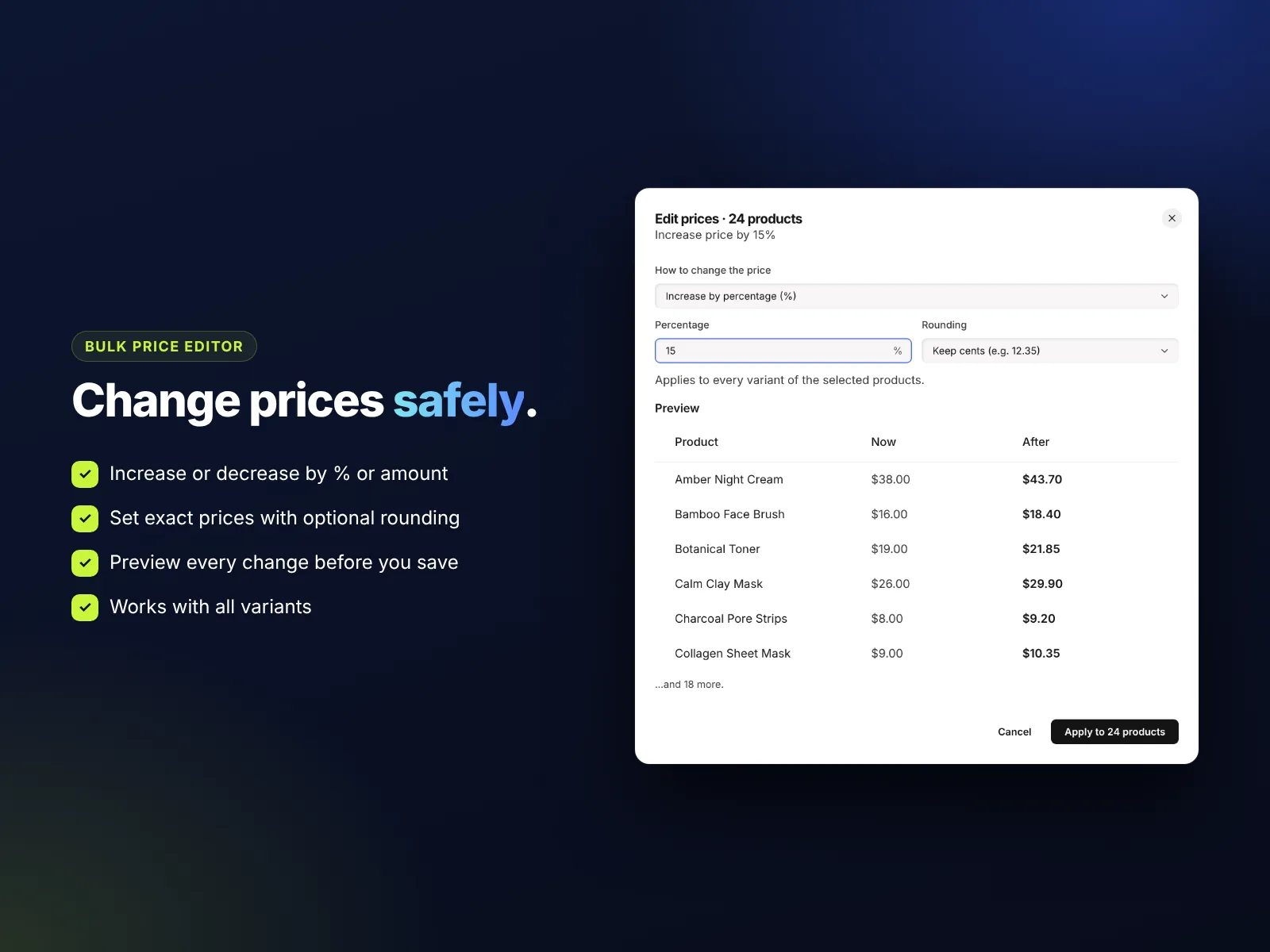
Choose Edit prices and pick how to change them:
- Increase by percentage, for example +10% for a supplier price rise.
- Decrease by percentage, for example −15% for a clearance range.
- Increase or decrease by amount, for example +$2 on every product in a category.
- Set an exact price, for example $19.99 for a whole bundle range.
Choose whether to keep cents or round to whole numbers. The change applies to every variant of the selected products, so sizes and colors stay consistent.
Launch a sale in one click
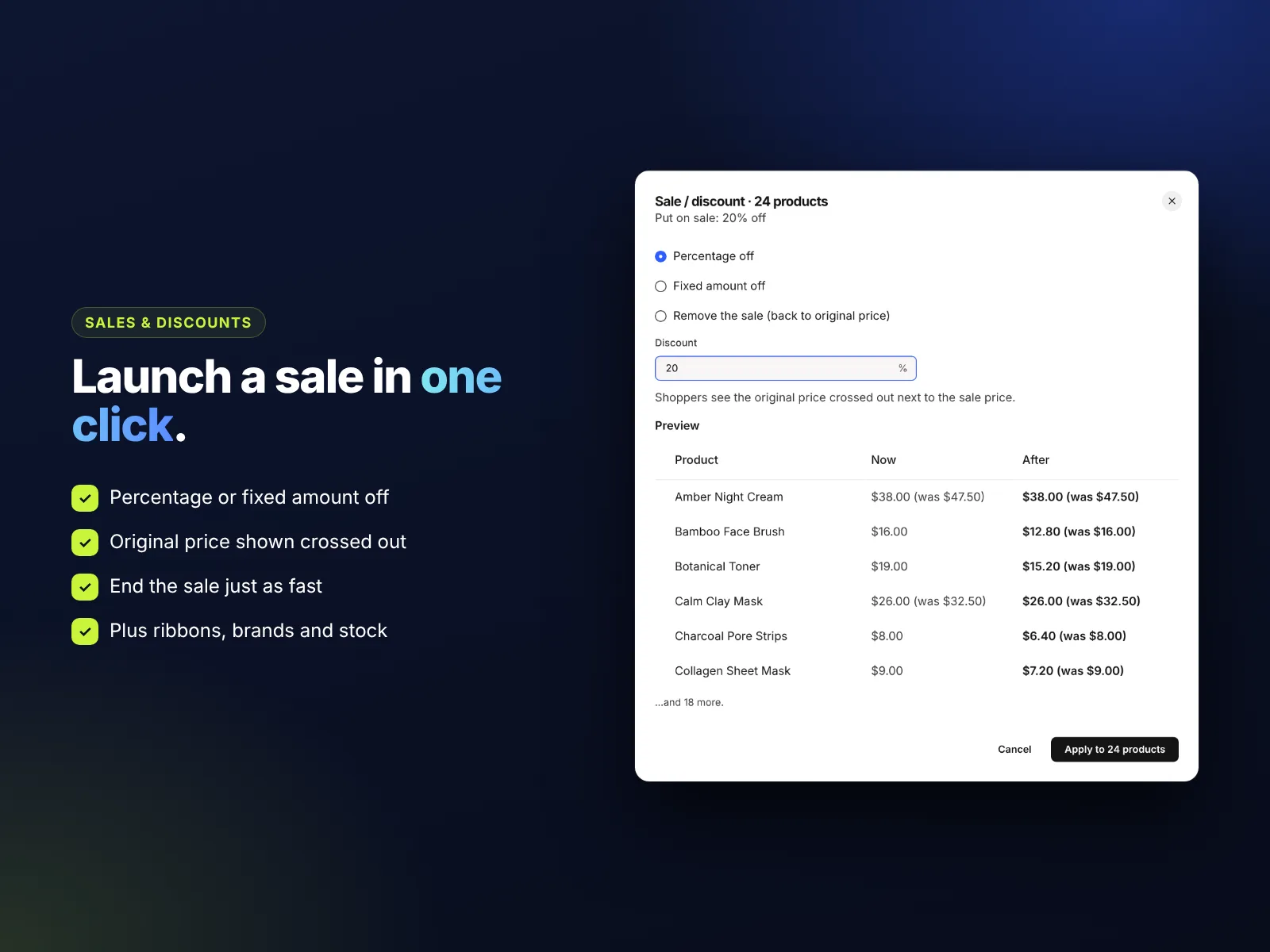
Choose Sale / discount, enter a percentage or fixed amount off, and apply. Shoppers see the original price crossed out next to the new sale price. When the sale ends, choose Remove the sale and prices go back to normal. Pair it with a countdown in our news ticker and announcement bar to create real urgency.
Bulk stock, visibility, ribbons and brands
- Stock: mark a batch as in stock or out of stock, or turn on quantity tracking and set the same quantity for every variant.
- Visibility: hide products until a launch date or remove discontinued items from your store without deleting their data, then show them again in one click.
- Ribbons: add a ribbon like Sale, New, Best seller or Back in stock to every product in a selection, or remove ribbons when a campaign ends.
- Brands: tidy up your catalog by setting the right brand on many products at once, which also helps shoppers filter and helps search engines understand your products.
Bulk SEO titles and meta descriptions
Product SEO is one of the easiest wins for a Wix store, but writing a title and description for every product takes a long time. The bulk SEO tool uses simple templates with placeholders:
{name}: the product name{brand}: the brand{price}: the current price{sku}: the SKU
For example, the title template {name} | {brand} and the description template Shop {name} by {brand} for {price}. Fast shipping and easy returns. become a unique title and description for every product. A Google-style preview shows exactly how the first product will look in search results. Titles are kept under about 60 characters and descriptions under about 160, trimmed neatly at a word boundary.
Tick Only fill products that don’t have a custom title or description yet to keep any SEO you wrote by hand. For more ideas, see our Wix SEO checklist and Wix Stores product setup guide.
Preview, history and CSV backups
Bulk changes are powerful, so the app is designed to prevent mistakes:
- Preview first: every action shows a “Now” and “After” table for your selected products before you click Apply.
- Clear results: after each change you see how many products were updated and, if any failed, which ones and why.
- Change history: your recent bulk changes are listed on the page, so you always know what was done and when.
- CSV export: download your catalog before a big change. If you ever need to check old prices, you have a copy.
Free vs Pro pricing
| Free | Pro | |
|---|---|---|
| Price | $0 | $4.99/month, or $3.99/month billed yearly |
| Products per change | Up to 25 | Unlimited |
| Bulk prices | ✓ | ✓ |
| Bulk stock | ✓ | ✓ |
| Show or hide products | ✓ | ✓ |
| Search, filters and live preview | ✓ | ✓ |
| Sales and discounts | — | ✓ |
| Ribbons and brands | — | ✓ |
| Bulk SEO titles and descriptions | — | ✓ |
| CSV export | — | ✓ |
Billing is handled securely by Wix and you can upgrade or cancel at any time. If bulk editing saves you even one hour a month, Pro pays for itself many times over.
How to bulk edit Wix products, step by step
- Install the app. Open the Bulk Product & Price Editor listing, click Add to Site and approve the permissions so the app can read and update your products.
- Open the editor. In your Wix dashboard, go to Apps and click Bulk Edit Products. Your products load into the table.
- Find your products. Search by name or SKU, or filter by status, stock, sale, brand, ribbon or price range. Sort by name, price or stock.
- Select them. Tick individual products, or tick the top box to select every product that matches your filters.
- Choose a change. Click Edit prices, Sale / discount, Show or hide, Stock, Ribbon, Brand or SEO title & description.
- Check the preview. Review the Now and After columns.
- Apply. Click Apply. A progress bar shows the update, then a summary confirms how many products changed.
Large changes in newer Wix stores finish in the background, so the table may take a few seconds to refresh.
8 real ways store owners save time
- Supplier price rise: filter by brand, increase all prices by 7%, round to whole numbers.
- Black Friday: select the sale range, apply 25% off and add a “Sale” ribbon. On Monday, remove the sale and the ribbon.
- New season launch: hide the new collection while you prepare it, then show it all at once on launch day.
- Sold-out batch: search the SKUs and mark them out of stock in seconds.
- Restock: set quantity 20 on every variant of a product line after a delivery.
- SEO clean-up: generate titles and descriptions for every product that has none.
- Clearance: filter products above $100, decrease by $15 and add a “Limited” ribbon.
- Monthly backup: export a CSV of your catalog as part of your Wix maintenance routine.
Tips for safe bulk changes
- Export first. Download a CSV before big price changes.
- Filter tightly. Make sure the selection count matches what you expect before you apply.
- Test on a few products. For a new type of change, try it on 2 or 3 products and check them in your store.
- Read the preview. Look at the After column, especially with percentage changes and rounding.
- Remember coupons. Sale prices and coupon codes can stack, so check your margins.
Need help with your Wix store?
MIVAQ designs and manages Wix stores and builds Wix apps. If you want help organising your catalog, planning sales or improving product SEO, we are happy to help. See our Wix solutions, then contact us:
- WhatsApp: message us
- Email: hello@mivaq.com
- Form: send your project details
Install Bulk Product & Price Editor free →
Related Wix guides
- Add a news ticker and announcement bar to Wix
- Wix Stores product setup
- Best Wix apps
- Wix SEO checklist
- The complete Wix guide
Frequently asked questions
Can you bulk edit products in Wix?
Wix Stores has only a few built-in bulk actions. With Bulk Product & Price Editor you can update prices, sales, stock, visibility, ribbons, brands and SEO for many products at once from one table.
How do I change all prices in my Wix store at once?
Open the app, select the products (or tick the top box to select all), choose Edit prices, pick increase, decrease or set exact price, check the preview and click Apply.
Does it change variant prices too?
Yes. Price changes apply to every variant of the selected products.
Is there a free plan?
Yes. The Free plan edits prices, stock and visibility for up to 25 products per change. Pro removes the limit and adds sales, ribbons, brands, bulk SEO and CSV export.
Can I undo a bulk change?
There is no one-click undo, which is why the app shows a preview first and offers CSV export. Export before big changes so you have a record of the old values, then reverse a change with another bulk action, for example removing a sale.
Does it work with the new Wix Stores catalog?
Yes. It works with both the older and the newer Wix Stores catalog and detects which one your store uses automatically.
Is my product data safe?
Your products stay in Wix. The app reads and updates them through Wix’s own APIs only when you apply a change, and it does not copy your catalog to outside servers. See our privacy policy.