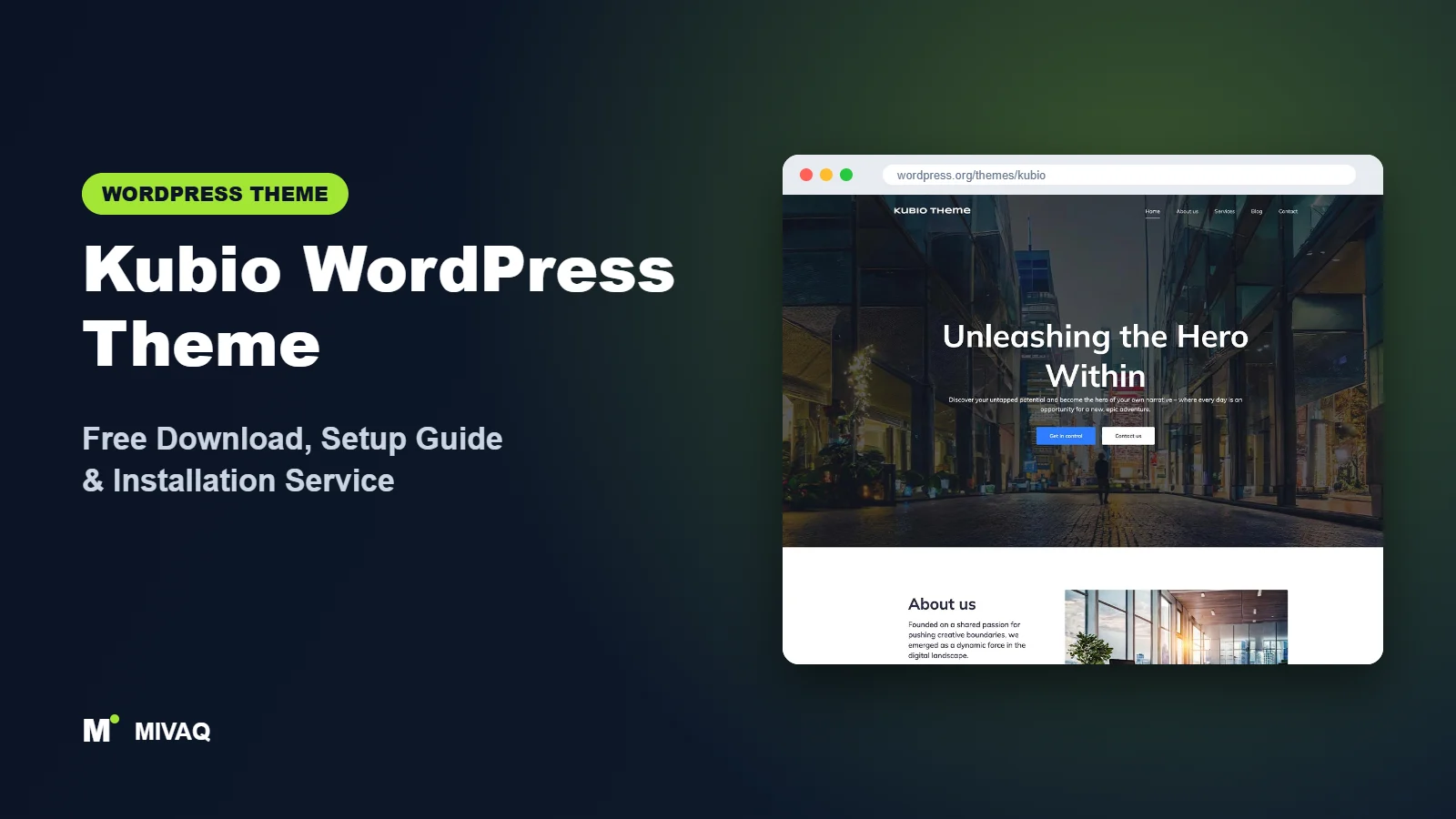
The WordPress block editor is powerful, but on its own many people find it too limited for designing a full business website. Kubio is Extend Themes’ answer to that gap. The Kubio theme is designed to work hand in hand with the Kubio Page Builder plugin, which adds a library of new blocks and advanced styling controls on top of the native editor. If you are looking for the Kubio WordPress theme free download, you can get it 100% free and legally from WordPress.org.
This article is part of our complete guide: How to Build a WordPress Website for Your Business (2026 Guide).
This guide is for small businesses, startups and freelancers who want to design visually but prefer to stay close to WordPress’s own editor rather than adopt a separate page builder ecosystem. We cover what Kubio is, how the theme and plugin split the work, what Kubio PRO adds, and a practical setup process.
What is the Kubio WordPress theme?
Kubio is a multipurpose theme focused on small businesses, startups and personal portfolios. According to its developer, it works perfectly with Kubio Page Builder, which enriches the block editor with a variety of new blocks and advanced styling options to give you design freedom. The current WordPress.org facts are:
| Detail | Kubio |
|---|---|
| Developer | Extend Themes |
| Latest version | 1.0.115 |
| Active installs | 20,000+ |
| Rating | 4.3/5 from 6 reviews |
| Requires WordPress | 5.8.3 or higher |
| Requires PHP | 7.1 or higher |
| Last updated | 8 September 2026 |
| Theme type | Block-based theme designed for the Kubio Page Builder plugin |
| Price | Free (Kubio PRO optional) |
Kubio has 20,000+ active installs but only six reviews on the theme page, so the rating is based on a very small sample. Most feedback about Kubio is found on the page builder plugin rather than the theme itself, which makes sense because the plugin does most of the heavy lifting.
Key features of Kubio
- Built for Kubio Page Builder: the theme and plugin are designed together, so templates, headers and footers can be edited with the same block tools.
- Extra blocks: the plugin adds blocks for things like hero sections, icons, counters, sliders, tabs and more advanced layouts than the core editor offers.
- Advanced styling: spacing, borders, shadows, gradients and responsive settings per block, including hover states.
- Header and footer editing: design site-wide areas visually instead of through Customizer settings.
- Pre-designed sections and templates: start pages from ready-made sections and adjust them.
- Responsive controls: set different values for desktop, tablet and mobile.
- Multipurpose design: tags include portfolio, food and drink and entertainment use cases.
- Translation ready.
A page builder that lives inside the block editor
The biggest difference from themes like Futurio or Woostify is that Kubio does not rely on Elementor. Everything is built from blocks. This keeps you within WordPress’s native content format, which tends to age better: if you ever switch themes, your content is still blocks, not shortcodes from a builder.
Designing headers and templates visually
With Kubio you click on the header in the editor and change it like any other block group: logo position, menu, buttons, background. The same applies to footers and page templates, so you are not jumping between the Customizer and the editor.
Style controls that save CSS
Many design tweaks that normally need custom CSS (box shadows, hover colours, responsive spacing) are available as settings. For non-coders that is a big time saver.
How the theme and the plugin divide the work
It helps to think of Kubio as two layers. The theme provides the base: default typography, layouts for posts and archives, and the template structure WordPress needs. The Kubio Page Builder plugin provides the design tools: the extra blocks, the styling panels and the ability to edit headers, footers and templates visually. You can technically run the theme without the plugin, but you would lose most of what makes Kubio interesting. In practice, plan your site as “Kubio theme plus Kubio Page Builder” from the start, keep both updated together, and test updates on a staging copy, because a builder update can affect every page at once.
Kubio free vs Pro: what do you get?
The free Kubio theme and free Kubio Page Builder plugin are enough to build a complete small business site. Kubio PRO is a paid upgrade from Extend Themes that unlocks additional blocks, more pre-designed sections and templates, and extra styling features, plus premium support. Check the developer’s site for current Pro pricing and the up-to-date comparison table.
| Area | Kubio Free | Kubio PRO |
|---|---|---|
| Theme | Free on WordPress.org | Same theme |
| Page builder blocks | Core Kubio blocks | Additional advanced blocks |
| Sections and templates | Free selection | Larger library |
| Styling options | Extensive | Extra effects and controls |
| Support | WordPress.org forums | Premium support |
Who should use Kubio?
- Small businesses and startups that want a modern site designed visually without Elementor.
- Freelancers who want to hand clients a site built with blocks, which is easier to maintain long term.
- Mesmerize or Colibri users planning a rebuild with a newer approach from the same developer.
- Personal portfolios for designers, consultants and coaches.
Who should not: if you already know Elementor well and have Elementor Pro, a lean Elementor partner like Page Builder Framework or Futurio may suit you better. If you want pure core WordPress without any builder plugin, a default theme like Twenty Twenty-Five is simpler.
Kubio WordPress theme free download (official and safe)
- Official theme page: wordpress.org/themes/kubio
- Direct ZIP file: downloads.wordpress.org/theme/kubio.zip
The Kubio Page Builder plugin should also come from WordPress.org or be installed from the theme’s prompt. Never download “Kubio PRO nulled” files from unofficial sites: pirated builders commonly include backdoors, and because a page builder touches every page of your site, an infected copy can compromise everything. If that has already happened, our WordPress malware removal service can help. MIVAQ does not distribute theme or plugin files.
How to install Kubio in WordPress (step by step)
Method 1: from the dashboard
- Go to Appearance › Themes › Add New Theme.
- Search for “Kubio”.
- Click Install on Kubio by Extend Themes, then Activate.
Method 2: upload the ZIP
- Download kubio.zip from WordPress.org.
- Open Appearance › Themes › Add New Theme › Upload Theme.
- Choose the file, click Install Now, then Activate.
Child theme tip: with Kubio most of your design lives in blocks and plugin settings stored in the database, so a child theme is mainly needed for custom PHP or template files. Keep small CSS changes in the editor’s custom CSS area.
How to set up Kubio after installation
- Install Kubio Page Builder when the theme asks. This is essential: the theme is designed around it.
- Run the onboarding if offered and choose a starting design or begin with the default front page.
- Set global styles: brand colours, font pairs and default button styles. Do this before editing individual pages so everything inherits your choices.
- Edit the header: logo, menu, call-to-action button and, if you want, a sticky behaviour.
- Build the home page from pre-designed sections: hero, services, about, testimonials, contact. Replace text and images as you go.
- Check responsive views: switch to tablet and mobile and adjust spacing and font sizes where needed.
- Design the footer with contact details, social links and legal page links.
- Create inner pages using the same sections so the site stays consistent.
Example: a startup landing page
A small software startup could build its whole site in Kubio in a few days. The hero block holds a headline that states the problem solved, a short supporting line and a “Start free trial” button. A three-column icon block lists the main features, a counter block shows real numbers the startup can verify (such as customers served, never invented figures), a tabs block explains plans, and a testimonials slider adds social proof. Because every part is a block, the founders can later rearrange or duplicate sections themselves as the product evolves, without paying a developer to change a hard-coded template.
Kubio speed and SEO checklist
- Use only the Kubio blocks you need on each page; sliders and animations add weight.
- Enable page caching and image optimisation; our LiteSpeed speed guide explains the settings we use.
- Keep one H1 per page and use headings in order inside your sections.
- Write unique title tags and meta descriptions with help from our title tag guide; choose your plugin via Rank Math vs Yoast.
- Add alt text to hero and section images using our alt text guide.
- Protect the admin area with our WordPress security checklist.
Common mistakes when setting up Kubio
- Deactivating Kubio Page Builder later: pages built with its blocks will lose their design. Treat the plugin as part of the site.
- Mixing several block plugins: combining Kubio with other block libraries makes pages heavier and harder to edit.
- Styling every block individually: set global styles first, then override only when needed.
- Ignoring mobile: large hero text that looks great on desktop can overflow on phones.
- No backups before updates: follow our backup strategy before updating the theme or plugin.
Kubio vs similar free WordPress themes
Kubio vs Mesmerize: both are by Extend Themes. Mesmerize builds pages with Customizer sections; Kubio uses blocks. For new sites, Kubio is the more modern choice.
Kubio vs SaasLauncher: SaasLauncher is a full site editing block theme with SaaS-focused patterns and no required builder plugin. Choose SaasLauncher for a tech product site using core blocks; choose Kubio if you want extra blocks and finer styling controls.
Kubio vs Page Builder Framework: Page Builder Framework is a minimal base for builders like Elementor or Beaver Builder. If you love those builders, pick it; if you prefer blocks, pick Kubio.
Kubio pros and cons
What we like
- Visual design with blocks, no Elementor required.
- Headers, footers and templates editable in the same way as content.
- Rich styling and responsive controls.
- Actively updated in 2026.
What to consider
- Depends on the Kubio Page Builder plugin.
- Only a handful of reviews on the theme page.
- Some advanced blocks and templates are PRO only.
Our verdict: Kubio is a good choice if you want page-builder-style freedom while staying with WordPress blocks. Commit to the Kubio plugin as part of your stack and it offers a fast route to a modern business site.
Website design with Kubio: our design service
Whether you want an online shop, a portfolio or a product landing page, Kubio can carry it, but the results depend on design decisions. MIVAQ offers a full website design service on Kubio: we design your homepage, product or project pages and checkout journey, prepare images that keep the site fast, and set up the details that help visitors buy or enquire.
What our Kubio website design package includes:
- Store, portfolio or landing page design tailored to your products or projects
- Product, category and checkout pages set up for easy buying (WooCommerce where needed)
- Image preparation and layout that keep pages fast on mobile
- Payment, shipping and email setup for shops; galleries and enquiry forms for portfolios
- Product and page SEO, analytics and Search Console at launch
You can see examples in our recent work and case studies, and read more about our WordPress development and SEO services. Every project starts with a free consultation and a fixed price, so you know exactly what you get before we begin.
Want a website designed with Kubio? Contact MIVAQ: WhatsApp +880 1723-189847, email hello@mivaq.com or use our contact form. We usually reply the same day.
Kubio installation and setup service
MIVAQ can set up Kubio for you: installation, child theme if needed, Kubio Page Builder configuration, global styles, header and footer design, home and inner pages, contact forms, WooCommerce basics and speed and SEO setup. We can also migrate an older Mesmerize site to Kubio. Every job comes with a fixed quote. Visit our WordPress services or contact us:
- WhatsApp: message us about Kubio
- Email: hello@mivaq.com
- Form: send your project details
Related WordPress theme guides
- Mesmerize WordPress theme free download and setup
- SaasLauncher WordPress theme free download and setup
- Page Builder Framework free download and setup
- Inspiro WordPress theme free download and setup
- 50 best free WordPress themes
Frequently asked questions
Is Kubio free?
Yes. The Kubio theme and the Kubio Page Builder plugin are free on WordPress.org. Kubio PRO is an optional paid upgrade.
Do I need the Kubio plugin to use the theme?
The theme is designed to work with Kubio Page Builder, and most of its design power comes from the plugin, so we recommend installing it.
Does Kubio work with Elementor?
Kubio is built around blocks rather than Elementor. You could use Elementor on individual pages, but that defeats the purpose of choosing Kubio.
Is Kubio good for SEO?
It outputs block-based content and supports proper heading structure. Combine it with an SEO plugin, fast hosting and good content to rank.
Can MIVAQ install Kubio for me?
Yes. We install, design and configure Kubio sites for a fixed price. WhatsApp us or email hello@mivaq.com.


