This article is part of our complete Wix guide and our list of best Wix apps.
Open almost any Wix store and look at a product with options. You will usually see a small dropdown that says “Color” and another that says “Size”. The shopper has to click, read a list of words, pick one, then do it again. They cannot see the colors, they do not know which sizes are sold out until they try, and on a phone the whole thing feels slow. Small friction like this is one of the quiet reasons people leave a product page without buying.
This guide shows you how to add variation swatches to Wix product pages: real color circles, product photo swatches and clean size buttons, with the live price, stock status and Add to Cart right next to them. We use Variation Swatches & Options, a Wix app by MIVAQ Apps, but the advice works for any store that sells products in several colors, sizes or styles.
Add Variation Swatches & Options to your Wix store →
Key takeaways
- Swatches show every color, pattern and size at a glance, so shoppers choose faster and with more confidence.
- The app finds your store options automatically and recognizes common color names, so most stores are ready in minutes.
- You can show each option as color swatches, photo swatches, buttons, pills, a dropdown or a radio list.
- Shoppers see the live price for every variant, sold-out choices crossed out or hidden and stock messages such as “Only 3 left”.
- The free plan includes color and button swatches, dropdowns, Add to Cart and 3 designs. Pro unlocks image swatches, all 12 designs, a size guide and Buy Now.
In this guide
- Why swatches sell more than dropdowns
- Types of swatches for Wix products
- Variation Swatches & Options for Wix
- 12 designs and how to choose one
- Live price, stock and fast Add to Cart
- Size guide and sold-out choices
- How to add swatches to Wix, step by step
- Free vs Pro
- Tips for better product option pages
- Frequently asked questions
Why swatches sell more than dropdowns
A dropdown hides information. The shopper has to open it to find out what is inside. A swatch shows the information immediately. That simple difference changes how people shop:
- Colors are visual. “Sage”, “Olive” and “Moss” mean nothing until you see them. A color circle answers the question before it is asked.
- Fewer clicks. One tap on a swatch replaces open, scroll, read and select. On mobile, where most store traffic comes from, that matters even more.
- More confidence. When shoppers can see the exact pattern or finish on a photo swatch, they are less worried about getting something different from what they expected, which also helps with returns.
- Clear availability. A crossed-out size tells the shopper straight away that it is sold out, instead of letting them pick it and hit an error.
- A more premium look. Clean swatches and buttons make a small store look as polished as the big brands shoppers compare it with.
None of this changes your products or prices. It simply removes friction at the moment the shopper is deciding.
Types of swatches for Wix products
Different options need different displays. A good swatch setup uses the right style for each option instead of forcing everything into one format.
- Color swatches: round or square color chips for options like Color or Finish. Two-tone colors work for items such as “Black / White”.
- Image swatches: small product photos instead of a flat color. Ideal for prints, patterns, fabrics, wood types and anything a single color cannot describe.
- Buttons: clean boxes for sizes such as XS, S, M, L and XL, or for capacities like 128 GB and 256 GB.
- Pills: rounded buttons that suit longer labels like “Regular fit” and “Relaxed fit”.
- Radio list: a simple list for options with longer descriptions, such as bundles or materials.
- Dropdown: still useful when an option has many values, like 30 ring sizes.
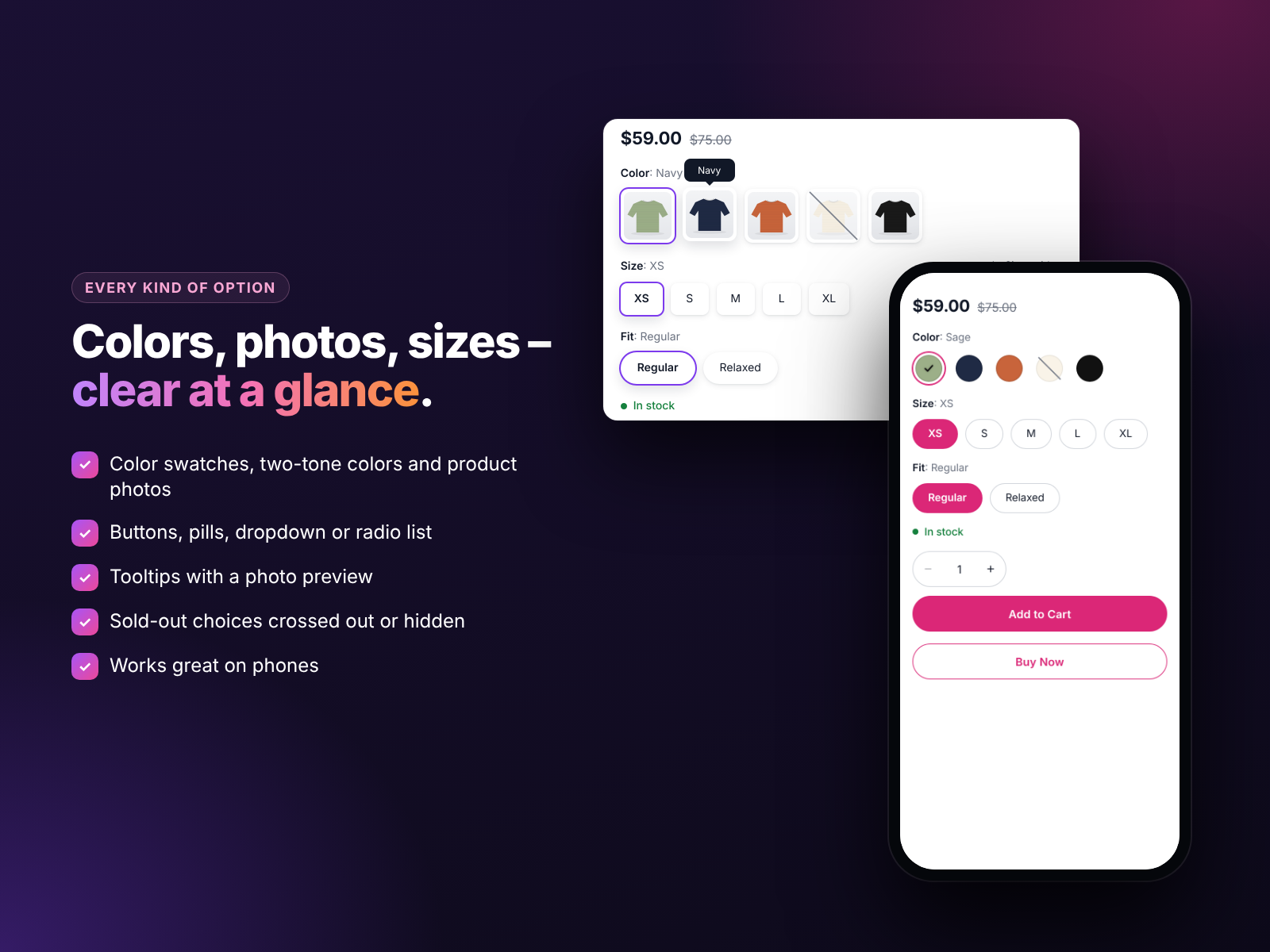
Variation Swatches & Options for Wix
Variation Swatches & Options (also listed as Variation Swatches or Product Options) turns plain option dropdowns into color swatches, image swatches and buttons on your product pages. It works with the options you already have in Wix Stores, so you do not need to rebuild your products.
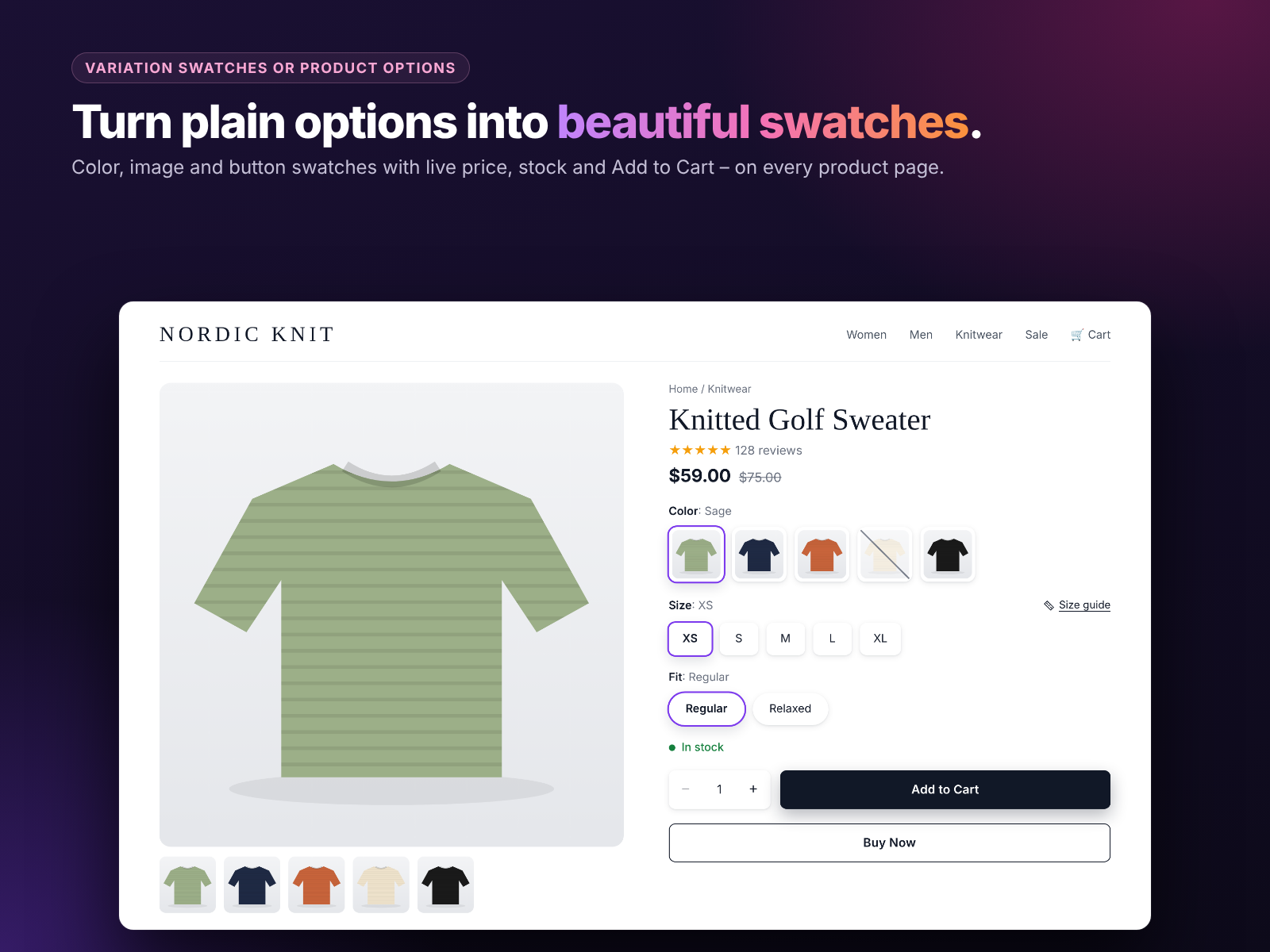
What you get:
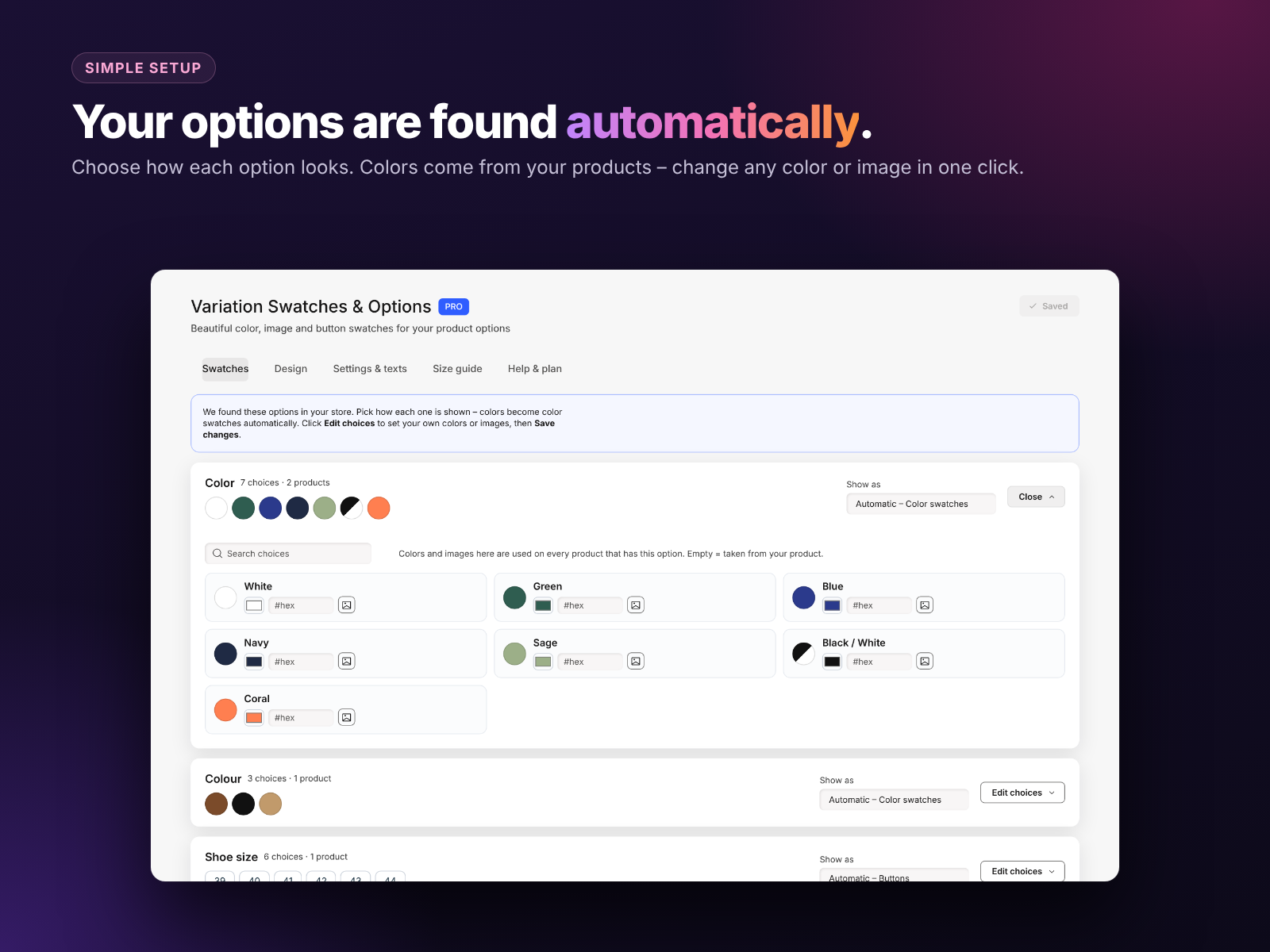
- Automatic option detection. Your store options are found automatically. Colors come from your products and common color names are recognized, so most colors appear correctly without any work.
- A style per option. Show Color as swatches, Size as buttons and Fit as pills on the same product.
- 12 designs. Classic, Rounded, Minimal, Pill, Square, Bold outline, Soft fill, Elevated, Underline, Glass, Midnight and Boutique.
- Your branding. Set colors, swatch size, corners and font.
- Live variant price and stock. The price updates when the shopper picks a variant, with stock messages and sold-out choices crossed out or hidden.
- Fast Add to Cart. Its own Add to Cart with a side cart, plus a Buy Now button on Pro.
- Size guide pop-up. Add your own size table so shoppers can check measurements without leaving the page.
- Any language. Every text can be changed, and everything works well on mobile.
12 designs and how to choose one
The app includes twelve designs so your swatches match your store instead of looking like a plugin was added on top.
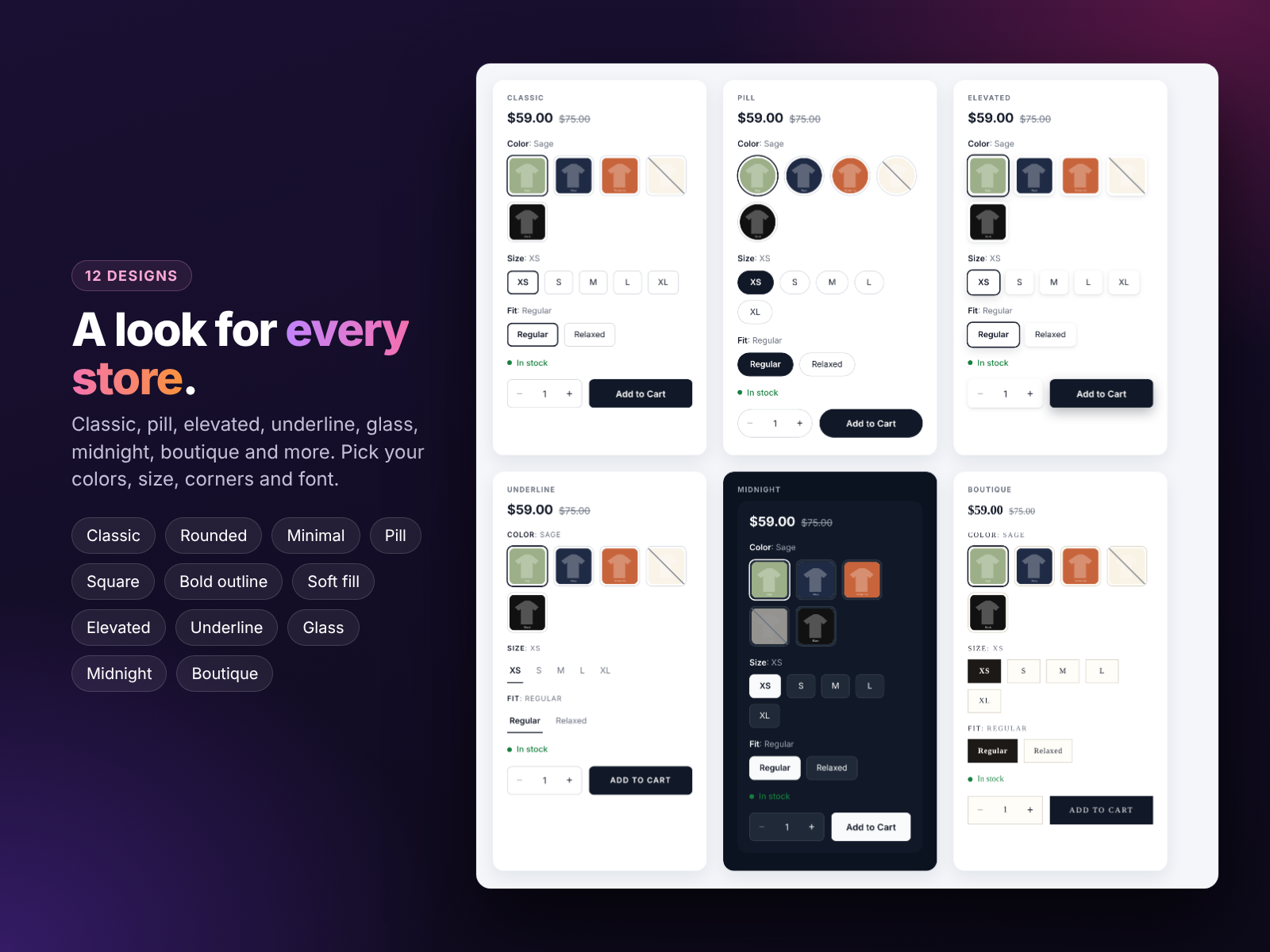
A quick way to choose:
- Fashion and lifestyle: Boutique, Rounded or Soft fill feel gentle and premium.
- Tech and tools: Square, Bold outline or Minimal look sharp and practical.
- Dark themes: Midnight and Glass are designed for dark backgrounds.
- Not sure? Classic works on almost any site.
You can try designs, colors and settings on a sample or on your own products in a live preview before you save, so there is no guessing.

Live price, stock and fast Add to Cart
Many stores sell variants at different prices: a larger size costs more, a premium finish costs extra. If the price on the page does not change when a shopper picks an option, they find out at checkout, which feels like a surprise fee.
With the app, the shopper sees the live price for each variant as soon as they choose it. Stock messages such as “Only 3 left” add honest urgency, and sold-out choices are crossed out or hidden so nobody chooses something you cannot ship. The built-in Add to Cart opens a side cart, so shoppers can keep browsing, and Pro adds a Buy Now button for people who are ready to pay immediately.
Size guide and sold-out choices
Sizing questions are one of the biggest reasons for hesitation and returns in clothing, shoes and accessories. A size guide pop-up placed right next to the size buttons answers those questions at the exact moment they come up.
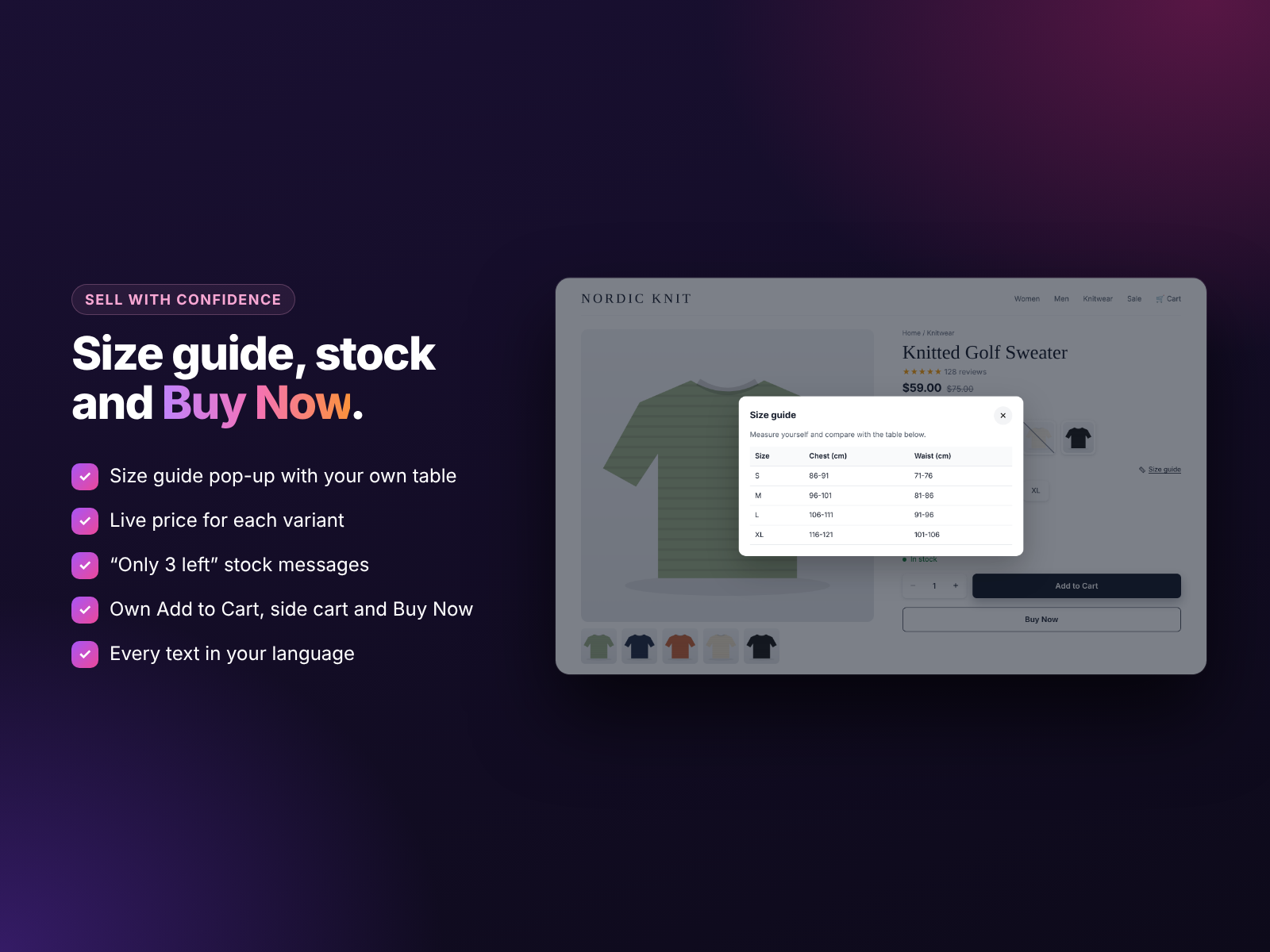
On Pro you add your own size table, and shoppers open it with one click. Combined with crossed-out sold-out sizes, the page tells people exactly what is available and what will fit.
How to add swatches to Wix, step by step
- Install the app. Add Variation Swatches & Options from the Wix App Market and open it from your dashboard.
- Check your options. The Swatches tab lists the options found in your store. Colors are filled in automatically from your products and common color names.
- Choose how each option looks. For example, Color as color swatches, Pattern as image swatches and Size as buttons.
- Fix any colors. If a color name is unusual, such as “Ocean Mist”, pick the exact shade or upload an image in one click.
- Pick a design. Open the Design tab, try a few designs in the live preview and set your colors, size, corners and font.
- Set texts and extras. Translate labels, turn on stock messages, add a size guide and choose whether sold-out choices are crossed out or hidden.
- Save and check your store. Open a few products on desktop and mobile and test choosing variants and adding to cart.
Free vs Pro
- Free plan: color and button swatches, dropdown style, its own Add to Cart with live price and 3 designs. Works on every product page.
- Pro plan: image swatches, pills and radio lists, all 12 designs, photo tooltips, stock messages, the size guide, Buy Now and sold-out cross-out. Pro costs $2.99 a month, or $1.99 a month billed yearly.
Start on the free plan to see the difference on your own products, then upgrade when you want photo swatches and the conversion features.
Tips for better product option pages
- Use real color names. “Forest Green” is clearer than “Color 3”, and it shows in tooltips.
- Use photo swatches for patterns. A flat color cannot show stripes, florals or wood grain.
- Link variants to photos. When a shopper picks a color, the main image should show that color.
- Keep option order logical. Sizes from small to large, colors from light to dark or by popularity.
- Be honest with stock messages. Show low stock only when it is true, so shoppers keep trusting your store.
- Test on a phone. Most shoppers will see your swatches on a small screen. Make sure buttons are easy to tap.
- Write clear product descriptions. Swatches help shoppers choose, but good photos and text still sell the product. Our Wix product SEO guide helps with the text.
Want more ideas for your store? Read our guide to Wix product options that help shoppers buy, or see how to bulk edit Wix product prices when you change many variants at once.
Install and leave a review
Variation Swatches & Options is available worldwide on the Wix App Market. Install it on your store, and if it helps you sell more, please leave a short review. It helps other store owners find the app. Need help with setup or a custom store design? Contact MIVAQ.
Frequently asked questions
Does Wix have built-in color swatches?
Wix Stores can show color options, but many store owners want more control over the look, image swatches, buttons for sizes, live variant prices and stock messages. A swatches app adds these features without rebuilding your products.
Do I have to re-create my product options?
No. The app finds your existing Wix Stores options automatically and recognizes common color names.
Can I use product photos as swatches?
Yes. Image swatches are part of the Pro plan and are ideal for patterns, prints and materials.
Will swatches work on mobile?
Yes. All designs are built for phones as well as desktop.
Can I translate the texts?
Yes. Every text, such as Add to Cart, sold out and stock messages, can be changed to your language.
Is there a free plan?
Yes. The free plan includes color and button swatches, dropdowns, Add to Cart and 3 designs. Pro is $2.99 a month or $1.99 a month billed yearly.