This article is part of our complete Wix guide.
Velo by Wix is the development platform built into Wix that lets you add your own JavaScript to a Wix site. With Velo you can make buttons do things the standard editor cannot, build custom forms, query your own database collections, connect to outside services and run code on the server. If you have ever thought “Wix is great, but I need it to do just one more thing”, Velo is usually the answer. This beginner’s guide explains what Velo is, how to switch it on, where each kind of code lives, and how to avoid the mistakes that slow most people down.
Key takeaways
- Velo adds a code panel, a site structure sidebar and developer APIs to the Wix Editor; in Wix Studio coding tools are built in.
- Front-end page code controls elements with the $w selector; backend code runs on Wix servers and keeps secrets safe.
- The wix-data API lets you read and write CMS collections, which is the heart of most custom Wix features.
- You can install approved npm packages, call external APIs and schedule jobs without managing a server.
- Start small: one page, one feature, tested in Preview before you publish.
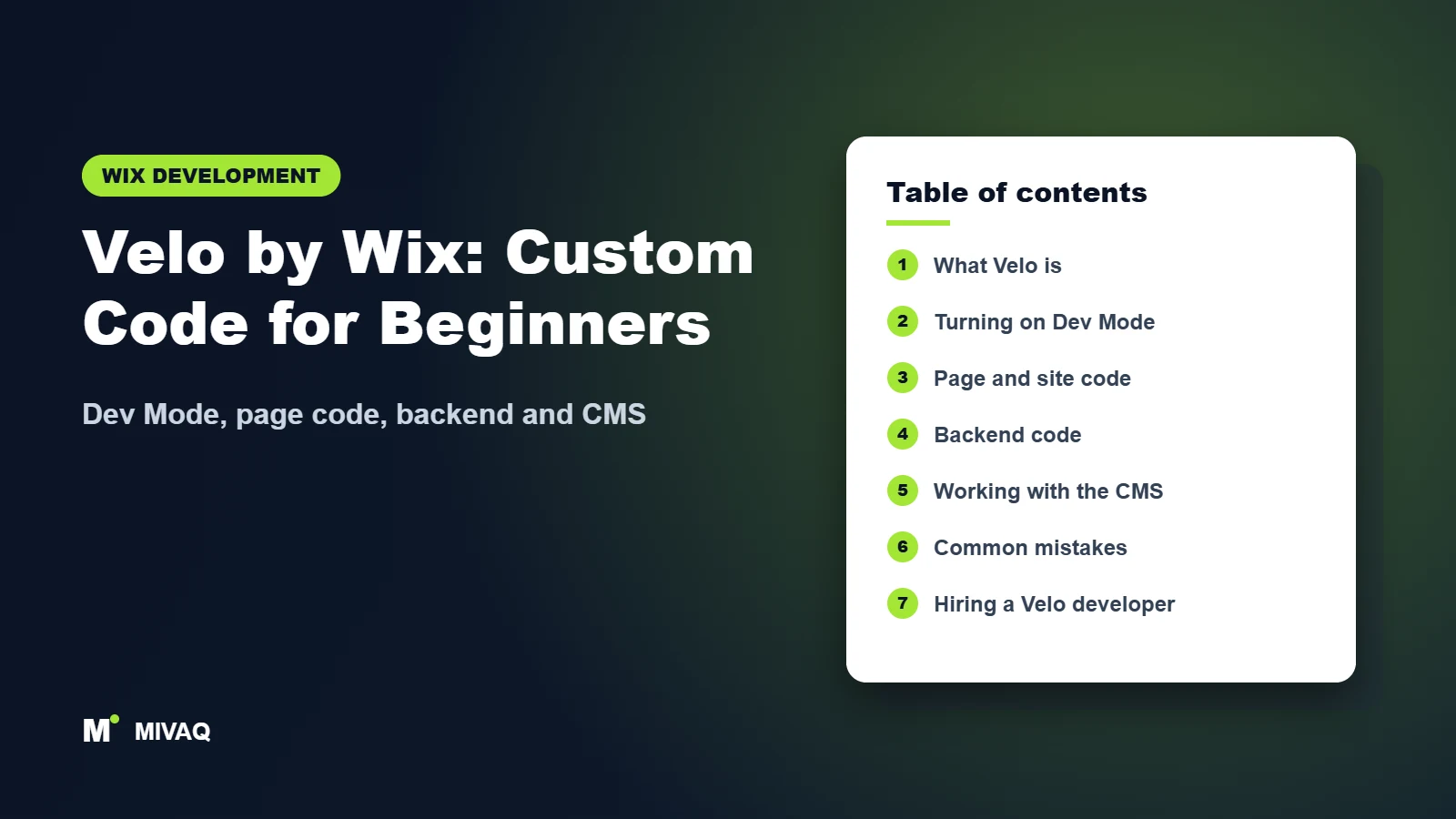
In this guide
- What is Velo by Wix?
- How to turn on Dev Mode in Wix
- Page code, site code and the $w selector
- Backend code: web modules, HTTP functions and jobs
- Using Velo with the Wix CMS
- Your first Velo project, step by step
- Common Velo mistakes
- Need help with Velo? Let MIVAQ do it for you
- Frequently asked questions
What is Velo by Wix?
Velo (earlier known as Corvid) is Wix’s full-stack development environment. It is not a separate product you buy; it is a set of tools that appears inside your site editor once you enable it. You get a code editor under every page, a sidebar showing your page files, public files and backend files, and access to a large library of Wix APIs for data, members, stores, bookings, payments, location, storage and more.
The important idea is that Velo works with the visual editor rather than replacing it. You still design pages by dragging elements onto the canvas. Velo then lets you give those elements behaviour: show a box when a checkbox is ticked, filter a repeater when someone types in a search bar, calculate a quote from form inputs, or redirect members to different pages based on their role.
Velo is a good fit when you need logic, data or integrations that no app or built-in setting provides. It is not the right tool for purely visual changes, which are faster in the editor, or for heavy custom software that would be better as a standalone app. If you are still choosing an editor, our comparison of Wix Editor vs Wix Studio explains how coding works in each.
| You want to… | Best option |
|---|---|
| Change colours, fonts or layout | Visual editor, no code |
| Add a booking system or store | Built-in Wix business solution |
| Show filtered lists of your own data | CMS datasets, plus Velo for advanced filters |
| Custom calculators, multi-step forms, conditional logic | Velo page code |
| Send data to an external API securely | Velo backend code with Secrets Manager |
| Reusable feature for many Wix sites | A Wix app built on the Wix app framework |
How to turn on Dev Mode in Wix
In the classic Wix Editor, open your site, click Dev Mode in the top bar and choose to turn it on. The code panel appears at the bottom of the canvas and a code sidebar opens on the left. In Wix Studio, coding tools are available from the code icon in the left panel, and you can also work in the browser-based Wix IDE or locally with the Wix CLI and a GitHub-connected repository.
Turning on Dev Mode does not change how your site looks to visitors. Nothing runs until you write code and publish. You can switch it off later, although any code you have written stays saved with the site. The official Velo documentation on dev.wix.com is the reference to keep open while you work, because API names and recommended patterns are updated over time.
Page code, site code and the $w selector
Velo front-end code runs in the visitor’s browser. There are two places to put it:
- Page code runs only on the page it belongs to. Most of your work happens here.
- Site code (the masterPage.js file) runs on every page. Use it for things like header behaviour or code shared across the whole site, and keep it light because it loads everywhere.
Every page file starts with an onReady function, $w.onReady. Code inside it runs once the page elements are ready. You select elements with $w and the element ID, for example $w(‘#priceText’), and then read or change their properties: text, value, src, link, hidden or collapsed state, and so on. You attach event handlers such as onClick, onChange, onInput or onMouseIn either in code or from the Properties panel.
Backend code: web modules, HTTP functions and jobs
Backend code runs on Wix servers, not in the browser, so visitors cannot see it. That makes it the right place for anything sensitive: API keys, pricing rules you do not want exposed, or writing to collections with elevated permissions. Backend files live in the Backend section of the code sidebar.
Web modules
Web modules are backend files whose exported functions you can call from page code as if they were local functions. Wix handles the network call for you. Newer sites use .web.js files with webMethod and explicit permissions (anyone, site member or admin); older sites use .jsw files. Always set the narrowest permission that works.
HTTP functions
A file named http-functions.js lets you expose your own API endpoints, for example to receive a webhook from a payment provider or a form tool. Each exported function such as get_orders or post_lead becomes an endpoint under your site’s domain. Validate every incoming request, because these endpoints are public.
Events, scheduled jobs and secrets
Backend event handlers in events.js react to things that happen on the site, such as a new order or a new member. Scheduled jobs, configured in jobs.config, run backend functions on a timetable, for example sending a daily summary or cleaning up old records. The Secrets Manager in your dashboard stores API keys so you never paste them into code. Our guide to connecting Wix with your CRM, Zapier and other tools shows where these features fit in a real integration.
Using Velo with the Wix CMS
Most valuable Velo features involve data. The Wix CMS stores your content in collections, which are like spreadsheet tables with typed fields. You can connect collections to pages without code using datasets, and you can create dynamic pages that generate one page per item. Velo takes this further with the wix-data API: query, filter, sort, insert, update and remove items from code.
Typical examples include a property listing search with price and bedroom filters, a staff directory filtered by department, a members-only document library, or a vehicle compatibility checker. If you are new to collections and dynamic pages, read our explainer on Wix CMS and dynamic pages first, because good collection design makes the code far simpler.
Need a database-driven feature but do not want to code it yourself? Our Wix development services cover CMS architecture, dynamic pages and Velo logic as one fixed-price project.
Your first Velo project, step by step
A good first project is a searchable list, because it touches the editor, the CMS and page code without being complicated. Here is how to build one:
- Create a collection. In the CMS, add a collection called Services with fields for title, category, short description and price.
- Add some items. Enter at least eight to ten so you can see filtering work.
- Add a repeater. Place a repeater on the page and connect it to a dataset that reads from the Services collection. Link the text elements to the fields.
- Add a search input and a category dropdown. Give them clear IDs such as #searchInput and #categoryDropdown.
- Turn on Dev Mode and open the page code panel.
- Write a filter function. Use wix-data’s filter on the dataset, combining a “contains” condition on the title with an “eq” condition on the category when one is selected.
- Trigger it on input. Call the function from the onInput event of the search box and the onChange event of the dropdown. Add a short delay (debounce) so it does not fire on every keystroke.
- Handle no results. Show a friendly “No services found” message by expanding a hidden text element when the dataset count is zero.
- Test in Preview, including on the mobile view, then publish.
Velo tools and a sensible workflow
As your code grows, a few habits make maintenance much easier. Put shared helper functions in public files so you can import them on several pages. Use the developer console in Preview mode to log values and catch errors. For larger projects, the Wix IDE and local development through the Wix CLI with GitHub give you version control, which is a real safety net when several people work on one site.
You can also install npm packages from the Packages section in the code sidebar, subject to Wix’s approval list, and Wix’s own Velo packages for common integrations. Before adding a package, check whether a Wix API already does the job; fewer dependencies usually means fewer breakages.
Performance matters too. Heavy code in masterPage.js, large queries on page load and many sequential API calls all slow pages down. Our article on Wix website speed optimisation covers how to measure and fix this. If you want custom structured data, Velo can also set SEO tags dynamically, which pairs well with our guide to Wix structured data and schema.
Common Velo mistakes
- Putting API keys in page code. Anything in front-end code can be read by visitors. Keep keys in the Secrets Manager and call them from backend code.
- Leaving default element IDs. #text47 means nothing six months later. Rename elements before writing code.
- Ignoring permissions. Open write permissions on a collection or a web method set to “anyone” can let strangers change your data.
- Forgetting mobile. Elements hidden on mobile still exist in code. Test interactions on both layouts.
- No error handling. Wrap backend calls in try/catch and show the visitor a helpful message rather than a silent failure.
- Using Velo for things an app already does. Check the built-in features and the best Wix apps for small businesses before writing custom code.
- Not testing after Wix updates. Re-test key features occasionally, especially if you rely on older APIs.
Quick Velo checklist before you publish
- Element IDs renamed and meaningful
- No secrets in front-end code
- Collection and web method permissions reviewed
- Errors handled with clear messages
- Tested in Preview on desktop and mobile
- Page speed checked after adding code
Need help with Velo? Let MIVAQ do it for you
Velo is powerful, but debugging data permissions, backend calls and mobile layouts can eat weeks when you are learning. MIVAQ builds custom Wix features with Velo every week: calculators and quote builders, advanced search and filters, member dashboards, CMS-driven directories, payment and CRM integrations, and custom code clean-ups on existing sites. When a feature should work across many sites, we can also build it as a proper Wix app through our custom Wix app development service.
You get a clear scope and a fixed-price quote before we start, clean commented code, and a short handover so you know how it works. Start with a free consultation about what you want your site to do. See our full Wix solutions or our web design services if you need a redesign at the same time.
- WhatsApp: message us
- Email: hello@mivaq.com
- Form: send your project details
Frequently asked questions
Is Velo by Wix free to use?
Turning on Dev Mode and writing code is available on Wix sites without a separate fee. Some features you build with it, such as accepting payments or larger storage, depend on your Wix plan. Check the current plan details on wix.com.
What programming language does Velo use?
Velo uses standard JavaScript (modern ES syntax) for both front-end and backend code, plus Wix-specific APIs such as $w for elements and wix-data for the CMS.
Can I use Velo in Wix Studio?
Yes. Wix Studio includes coding tools, the Wix IDE and options for local development with the Wix CLI and GitHub, which suits agencies and developers.
Do I need Velo for SEO on Wix?
No. Most Wix SEO settings work without code. Velo helps with advanced cases such as dynamic meta tags or custom structured data. Start with our Wix SEO checklist.
Can MIVAQ build custom Velo features for my Wix site?
Yes. We scope your feature, give a fixed-price quote and build, test and hand it over. Message us on WhatsApp or by email for a free consultation.
Related Wix guides
- Wix CMS and dynamic pages explained
- How to add custom code, scripts and HTML to Wix
- How to build a Wix app for the Wix App Market
- Wix Forms: contact, quote and lead forms that convert
- Wix CRM and automations
- The complete Wix guide
Conclusion
Velo turns Wix from a website builder into a platform you can genuinely program. Learn the four building blocks (elements, events, data and backend), start with one small feature, and keep security and mobile testing in mind from day one. When you would rather have an expert build it right the first time, tell MIVAQ what you need and we will send a fixed-price plan.


