You launched a website, waited a few weeks, typed your business name into Google, and nothing came up. Or perhaps your homepage shows but half your service pages and blog posts are missing. If you are asking “why is my website not on Google?”, you are not alone: a website not indexed by Google is one of the most common and most frustrating problems small businesses face, and it is almost always fixable once you know where to look.
This guide is written for business owners, marketers and freelancers who run sites on WordPress, Wix, Squarespace, Shopify or custom code. You will learn exactly how Google discovers and indexes pages, how to check what is and is not indexed, what every status in the Google Search Console Page indexing report means, and the step-by-step fix for each one. We also cover how long indexing really takes, what you can do to speed it up, and when it makes sense to hand the problem to a specialist.
Key takeaways
- Google has to discover, crawl, render and index a page before it can rank it. A failure at any one of those stages keeps the page out of search results.
- Google Search Console (free) is the only reliable source of truth. The site: search operator is a rough estimate, not a diagnosis.
- Most indexing problems come from a short list of causes: a forgotten noindex setting, robots.txt blocks, wrong canonical tags, redirects, thin or duplicate content, weak internal linking, or a brand-new domain Google has not trusted yet.
- Google does not index every page it knows about. “Crawled” and “Discovered – currently not indexed” are usually quality and priority signals, not technical errors.
- Requesting indexing helps a page get crawled sooner, but it never forces Google to index a page. Fixing the underlying cause is what gets pages into the index and keeps them there.
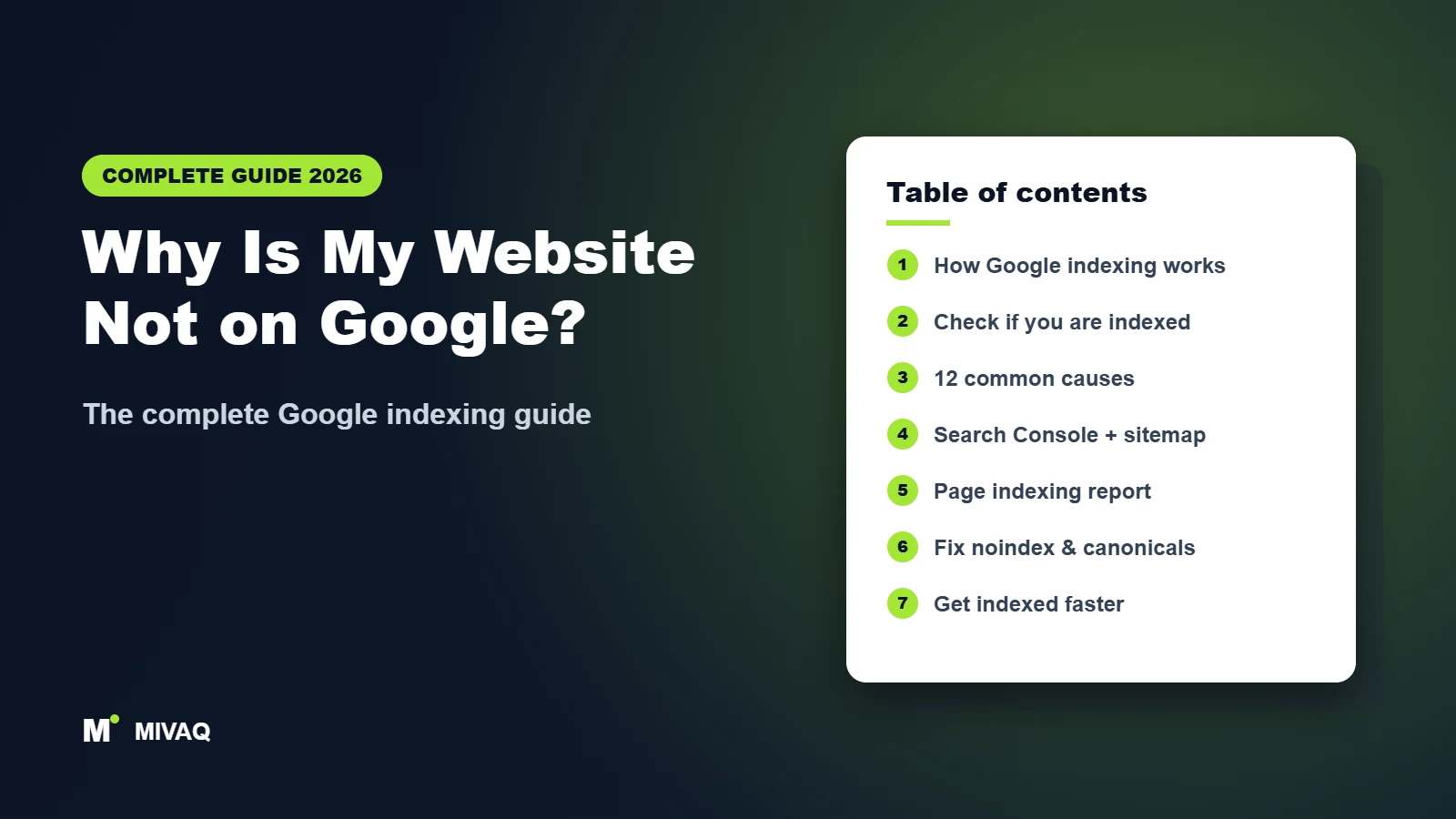
Table of contents
- How does Google index a website?
- How to check if your website is indexed by Google
- Why is my website not indexed by Google? 12 common causes
- How to set up Google Search Console and submit a sitemap
- The Page indexing report explained: every status and what to do
- Discovered vs crawled – currently not indexed: how to fix both
- How to fix noindex, robots.txt and canonical problems
- Redirects, 404s, soft 404s and server errors
- How to get Google to index your website faster (and how long it takes)
- Indexing problems on WordPress, Wix, Squarespace and Shopify (and hacked sites)
- Fixing indexing yourself vs hiring a professional: time and cost
- Google indexing checklist
- More complete guides
- Frequently asked questions
How does Google index a website?
Before you can fix an indexing problem you need to know which stage is failing. Google’s own documentation describes search as a pipeline with three main stages, and we add the rendering step because it causes so many modern problems. You can read Google’s explanation in How Google Search works.
1. Discovery
Google first has to learn that a URL exists. It finds URLs by following links from pages it already knows, by reading XML sitemaps you submit, and from URLs you inspect in Search Console. A page with no internal links pointing to it and no sitemap entry (an “orphan page”) may never be discovered at all.
2. Crawling
Googlebot then requests the URL from your server. Before it does, it checks your robots.txt file. If robots.txt disallows the URL, Google will not fetch it. If your server is slow, returns errors or times out, Google slows its crawling down to avoid overloading you. Since Google completed its move to mobile-first indexing, virtually every site is crawled with the smartphone version of Googlebot, so what matters is the mobile version of your page.
3. Rendering
Google runs the page’s JavaScript in a recent version of Chrome to see the final content, much like a real browser. Sites that load their main text, links or meta tags only through JavaScript can look empty to Google if rendering fails or a script is blocked. Content that is present in the initial HTML is always the safest option.
4. Indexing
Google analyses the rendered page: the text, title, headings, images, structured data, language and links. It groups duplicate and near-duplicate pages, picks one canonical URL to represent the group, and decides whether the page is useful enough to store in its index. This is the stage where noindex tags, canonical tags and content quality come into play, and it is why Google says plainly that it does not guarantee to index every page it crawls.
5. Serving and ranking
Only indexed pages can appear in results. Being indexed is not the same as ranking well: a page can be indexed but sit on page eight. If your pages are indexed but get no traffic, you have a ranking and relevance problem rather than an indexing problem, and our complete guide to SEO for small business is the better starting point.
| Stage | What Google does | Typical failure | Where you see it |
|---|---|---|---|
| Discovery | Finds the URL via links and sitemaps | Orphan pages, no sitemap, brand-new domain | URL is unknown to Google in URL Inspection |
| Crawling | Fetches the page | robots.txt block, server errors, slow hosting | Blocked by robots.txt, Server error (5xx), Discovered – currently not indexed |
| Rendering | Runs JavaScript and builds the page | Blocked scripts, content loaded only on click | Live test screenshot looks empty or broken |
| Indexing | Evaluates, deduplicates and stores | noindex, canonical to another URL, thin or duplicate content | Excluded by noindex, Alternate page, Duplicate, Crawled – currently not indexed |
| Serving | Ranks indexed pages for queries | Weak content, low authority, manual action | Performance report shows few impressions |
How to check if your website is indexed by Google
There are three ways to check, and they differ a lot in accuracy. Use them in this order.
Method 1: The site: search (quick, rough)
Type site:yourdomain.com into Google. If you see zero results, your whole site is almost certainly not indexed. If you see some results, you know at least part of the site is in the index. To check a single page, search site:yourdomain.com/page-slug/. Do not use the result count as a real number: Google itself says the count is an estimate and the operator does not show every indexed URL.
Method 2: URL Inspection in Search Console (exact, per page)
- Open Google Search Console and select your property.
- Paste the full URL (including https:// and the trailing slash if your site uses one) into the search bar at the top.
- Read the verdict: “URL is on Google” means it is indexed; “URL is not on Google” shows the reason, such as a noindex tag or a different canonical.
- Expand “Page indexing” to see how Google discovered the page, the last crawl date, whether crawling and indexing were allowed, and which canonical Google selected.
- Click “Test live URL” to check the current version of the page, then “View tested page” to see the rendered HTML and a screenshot.
The full walkthrough, including what each field means, is in our guide to the URL Inspection tool and Request Indexing.
Method 3: The Page indexing report (exact, site-wide)
Under Indexing then Pages, Search Console shows how many of your known URLs are indexed and groups the rest by reason. This is the report you will use most when fixing a website not indexed by Google. Bear in mind that the data typically lags a few days behind reality, and that the examples list for each reason is capped at 1,000 URLs.
If your business simply does not show up for its own name, start with our focused checklist: why your website is not showing on Google.
Why is my website not indexed by Google? 12 common causes
In our experience fixing indexing for small business sites, the same causes appear again and again. The table below lets you match the symptom to the likely cause and the fix. Each cause is covered in detail later in this guide.
| # | Cause | Typical symptom | Fix |
|---|---|---|---|
| 1 | Site is brand new | No results for site: search, Search Console nearly empty | Verify Search Console, submit sitemap, build a few quality links, wait |
| 2 | Search engines discouraged in the CMS | Every page “Excluded by noindex tag” | Turn off the setting (WordPress: Settings, Reading) and remove site passwords |
| 3 | noindex on individual pages or post types | Specific pages excluded | Change the SEO plugin or page setting to index |
| 4 | robots.txt blocks crawling | “Blocked by robots.txt” | Remove or narrow the Disallow rule |
| 5 | Canonical points elsewhere | “Alternate page with proper canonical tag” on pages you want indexed | Make important pages self-canonical |
| 6 | Duplicate or near-duplicate pages | “Duplicate without user-selected canonical” | Consolidate, redirect or differentiate the content |
| 7 | Thin or low-value content | “Crawled – currently not indexed” | Improve, merge or remove the pages |
| 8 | Weak internal linking or orphan pages | “Discovered – currently not indexed”, or URL unknown | Link important pages from the menu, hub pages and related posts |
| 9 | Redirect chains or wrong redirects | “Page with redirect”, “Redirect error” | Link and list only final URLs; fix loops and chains |
| 10 | Server or hosting problems | “Server error (5xx)”, slow crawling | Fix hosting, firewall or CDN rules that block Googlebot |
| 11 | JavaScript-only content | Live test screenshot is blank or missing text | Render key content in HTML; unblock scripts |
| 12 | Hacked site or manual action | Spam URLs indexed, real pages dropped, warning in Search Console | Clean the site, then request review if needed |
Two extra points worth knowing. First, if Google indexes your homepage but skips many other pages, the cause is rarely a single setting; it is usually a mix of quality, duplication and internal linking. We explain how to untangle that in why Google is not indexing all your pages. Second, migrations are a major trigger: changing domain, platform or URL structure without proper 301 redirects can wipe out years of indexing in weeks. If you are planning a rebuild, read how to redesign a website without losing SEO first.
How to set up Google Search Console and submit a sitemap
You cannot properly diagnose indexing without Google Search Console. It is free, it takes about 15 minutes to set up, and it is the only place Google tells you directly why a page is or is not indexed.
Domain property or URL-prefix property?
A Domain property covers every version of your site in one place: http and https, www and non-www, and all subdomains. It must be verified with a DNS TXT record at your domain registrar. A URL-prefix property covers only the exact prefix you enter (for example https://www.example.com/) and can be verified with an HTML file, an HTML tag, Google Analytics or Google Tag Manager. If you can access your DNS, choose a Domain property; it avoids missing data from other versions of the site.
Step by step setup
- Go to Google Search Console and sign in with the Google account you use for the business.
- Click “Add property”, choose Domain, and enter your domain without https or www.
- Copy the TXT record Google gives you and add it to your DNS at your registrar or DNS host (for example Cloudflare, Namecheap or GoDaddy).
- Wait a few minutes (occasionally up to a day for DNS to update) and click Verify.
- Open Indexing, then Sitemaps, enter your sitemap URL (commonly /sitemap_index.xml for Rank Math and Yoast, /wp-sitemap.xml for WordPress core, /sitemap.xml for Wix, Squarespace and Shopify) and click Submit.
- Check the status shows “Success” and note the number of discovered URLs.
- Add your developer, agency or a colleague as a user under Settings, Users and permissions, rather than sharing your Google password.
What makes a good XML sitemap
- It lists only canonical, indexable URLs that return a 200 status. No redirects, no noindexed pages, no 404s.
- Each sitemap file holds a maximum of 50,000 URLs or 50 MB uncompressed; larger sites use a sitemap index that points to several files.
- The lastmod date is accurate. Google uses lastmod when it is consistently correct, and ignores the priority and changefreq values.
- It is referenced in robots.txt with a Sitemap: line, so other search engines find it too.
Note that Google retired its old sitemap “ping” URL in 2023, so submitting in Search Console and listing the sitemap in robots.txt are the ways to tell Google about it. For screenshots and troubleshooting messages such as “Couldn’t fetch”, see our guide on how to submit a sitemap to Google Search Console.
The Page indexing report explained: every status and what to do
The Page indexing report (it used to be called the Coverage report) splits your URLs into “Indexed” and “Not indexed”, and groups the not-indexed URLs by reason. Seeing thousands of not-indexed URLs is normal and often harmless: tag archives, filtered URLs, old redirects and parameter URLs all appear here. What matters is whether pages you actually want in Google are in the list. Google’s own reference is the Page indexing report help page.
| Status | What it means | Problem? | What to do |
|---|---|---|---|
| Server error (5xx) | Your server failed when Googlebot requested the page | Yes | Check hosting logs, firewall and CDN rules; fix and validate |
| Redirect error | Redirect loop, chain too long, or redirect to an invalid URL | Yes | Make every redirect a single hop to a live page |
| Blocked by robots.txt | robots.txt disallows crawling | Only if the page should be indexed | Remove the Disallow rule for that path |
| Excluded by ‘noindex’ tag | Page has a noindex meta tag or X-Robots-Tag header | Only if the page should be indexed | Remove noindex in the CMS or SEO plugin |
| Not found (404) | The URL returns 404 | Only if the page should exist or has links | Restore the page or 301 redirect to the closest match |
| Soft 404 | Returns 200 but looks like an error or empty page | Usually | Add real content, or return a proper 404/410, or redirect |
| Blocked due to unauthorized request (401) / access forbidden (403) | Login or firewall stops Googlebot | If the page is public | Remove the password or whitelist Googlebot properly |
| Crawled – currently not indexed | Google fetched the page but chose not to index it | Often | Improve quality and uniqueness, strengthen internal links |
| Discovered – currently not indexed | Google knows the URL but has not crawled it yet | Often | Improve internal linking, site quality and server speed |
| Alternate page with proper canonical tag | Page points to another URL as canonical and Google agrees | Usually no | Nothing, unless the page should be indexed on its own |
| Duplicate without user-selected canonical | Google sees duplicates and no canonical is set | Sometimes | Add canonicals, consolidate or differentiate |
| Duplicate, Google chose different canonical than user | Google ignored your canonical and picked another URL | Sometimes | Make signals consistent: links, sitemap, redirects, content |
| Page with redirect | The URL redirects elsewhere | Usually no | Update internal links and sitemap to the final URL |
How to read the report without panicking
- Start with the “Why pages aren’t indexed” table and sort by number of pages.
- Open each reason and look at the example URLs. Ask one question: do I want this URL in Google?
- If the answer is no (filters, tag pages, old redirects, admin URLs), the status is correct. Leave it.
- If the answer is yes, inspect a few example URLs with URL Inspection and run a live test to confirm the current state.
- Fix the cause across the whole template or setting, not page by page.
- Click “Validate fix”. Google will recrawl the affected URLs over the following days or weeks and report the result.
For a status-by-status walkthrough with real examples, read our Page indexing report explained guide.
Discovered vs crawled – currently not indexed: how to fix both
These two statuses cause more confusion than any others because nothing appears to be “broken”. The page works, there is no noindex tag, robots.txt allows it, and yet Google will not index it. The difference between them tells you where to focus.
Discovered – currently not indexed
Google knows the URL exists but has not crawled it yet. Google’s explanation is usually that crawling was postponed, for example because it expected the site to be overloaded. In practice, on small and medium sites this status nearly always means Google does not consider the URL important enough to crawl soon. Typical reasons:
- The page is only linked from the sitemap, or from deep pagination, not from your menu or related content.
- The site is new or has very few external links, so Google allocates little crawling to it.
- The site generates large numbers of low-value URLs (filters, tags, parameters, auto-generated pages) that dilute crawling.
- The server is slow or returns occasional errors, so Googlebot crawls cautiously.
Crawl budget in the strict sense mainly matters for very large sites; Google’s own guidance talks about sites with more than a million pages, or more than 10,000 pages that change daily. For a 50-page business site, “Discovered” is about priority and quality, not a hard limit. Our full guide on fixing Discovered – currently not indexed covers each fix in detail.
Crawled – currently not indexed
Google did crawl the page, looked at it, and decided not to index it for now. This is a quality and value judgement. Common causes:
- Thin content: short pages, location pages that only swap the town name, product pages with a manufacturer description copied from dozens of other shops.
- Content that does not add anything compared to pages already in the index, on your site or elsewhere.
- Several of your own pages competing for the same topic, so Google indexes one and skips the others.
- Pages with very little main content compared with boilerplate (header, footer, sidebars).
- A temporary state: new pages sometimes sit here for days before being indexed.
Step by step fix for both statuses
- Export the affected URLs and sort them into three groups: important pages, pages that could be merged, and pages that should not exist.
- Delete or noindex the third group (and remove them from the sitemap) so Google spends its attention on pages that matter.
- Merge overlapping pages into one stronger page and 301 redirect the others to it.
- Upgrade each important page: answer the searcher’s question fully, add original information (prices, process, examples, photos, FAQs), and make sure the main content is clearly larger than the boilerplate.
- Link to each important page from at least two or three relevant, already-indexed pages using descriptive anchor text, and from a hub page or the main menu where it makes sense.
- Check server response times and error rates in Settings, Crawl stats.
- Request indexing for the most important URLs, then give it two to four weeks before judging.
Read next: how to fix Crawled – currently not indexed, how to fix thin content, fixing keyword cannibalisation and our internal linking strategy for small business sites.
How to fix noindex, robots.txt and canonical problems
These three are technical directives, so unlike quality issues they can usually be fixed in minutes once you find them. The key is understanding what each one actually does, because they are often confused.
| Directive | What it controls | What it does not do | Use it for |
|---|---|---|---|
| robots.txt Disallow | Whether Google may crawl a URL | Does not reliably keep a URL out of the index; a blocked URL can still be indexed from links, without content | Saving crawling on endless filters, internal search and admin areas |
| noindex (meta robots or X-Robots-Tag) | Whether Google may index a crawled page | Only works if Google can crawl the page and see the tag | Thank-you pages, internal search results, thin archives |
| rel=”canonical” | Which URL in a duplicate group should be shown | It is a strong hint, not a command; Google can choose another URL | Parameter URLs, product variants, syndicated or duplicate content |
| 301 redirect | Permanently sends users and Google to a new URL | Does not keep the old URL indexed | Moved, merged or deleted pages |
Excluded by noindex tag
The most common cause of a whole site disappearing is the WordPress option “Discourage search engines from indexing this site” (Settings, Reading) left on after development. Wix, Squarespace and Shopify have equivalents: unpublished or password-protected sites, a page-level “hide from search engines” toggle, or a store password page. SEO plugins such as Rank Math and Yoast can also noindex entire post types, categories or individual posts. A noindex can also be sent in an HTTP header (X-Robots-Tag), which you will not see in the page source, so always check the URL Inspection result. Google’s guide on blocking indexing with noindex explains the rules. Our step-by-step fix is here: Excluded by noindex tag: how to fix it.
Blocked by robots.txt
Open yourdomain.com/robots.txt. A line like Disallow: / under User-agent: * blocks your entire site. Staging sites often ship this way. Also look for rules that block important folders, CSS or JavaScript files that Google needs to render the page. The robots.txt report in Search Console (under Settings) shows the version Google last fetched and any parsing errors. A related warning, “Indexed, though blocked by robots.txt”, means Google indexed a URL it could not crawl; if you want it out of Google, allow crawling and add noindex instead. Details: how to fix Blocked by robots.txt.
Canonical problems
Every indexable page should normally have a self-referencing canonical tag. Problems appear when a theme, plugin or developer sets every page’s canonical to the homepage, when http and https or www and non-www versions both work without redirects, or when URL parameters create duplicate versions. “Alternate page with proper canonical tag” is usually healthy, because it means Google respects your canonical; it becomes a problem only when a page you want indexed points elsewhere. See Alternate page with proper canonical tag explained and how to fix Duplicate without user-selected canonical.
How to make Google respect your canonical
- Use the same preferred URL everywhere: canonical tag, internal links, sitemap, hreflang and redirects.
- 301 redirect the non-preferred host and protocol (for example http and non-www) to the preferred version.
- Make genuinely different pages genuinely different in content; if two pages are 90 percent identical, Google will treat them as duplicates whatever your tags say.
Redirects, 404s, soft 404s and server errors
Page with redirect
A URL that redirects cannot itself be indexed; Google indexes the destination instead. This status is normal for old URLs after a migration or for http to https redirects. It becomes a problem when your sitemap or internal links still point to redirecting URLs, when redirects chain through several hops, or when a page you expect to be indexed is unexpectedly redirecting (often due to a plugin, trailing slash rules or language redirects). Fix internal links and the sitemap to use final URLs and keep every redirect to a single hop. Full guide: Page with redirect in Search Console. On Wix, redirect management has its own quirks, covered in how to set up 301 redirects on Wix.
Not found (404)
404 errors are not a penalty. Google expects deleted pages to return 404 or 410 and will eventually drop them. Act only when a 404 URL used to get traffic, has external links, or is linked from your own site. In those cases restore the page or 301 redirect it to the most relevant live page. Do not mass-redirect every 404 to the homepage, because Google usually treats that as a soft 404 anyway.
Soft 404
A soft 404 is a page that returns a 200 “OK” status but looks like an error or an empty page to Google: an empty category, an out-of-stock product with no content, a search results page with no results, or a “page not found” template that does not send a real 404 status. Either give the page real content, return a proper 404 or 410, or redirect it to a genuinely equivalent page. Step by step: how to fix soft 404 errors.
Server error (5xx), 401 and 403
Repeated 5xx errors make Google crawl less and can eventually drop pages from the index. Common causes on small sites are cheap overloaded hosting, PHP memory limits, a plugin crash, or a security plugin, firewall or CDN bot-protection rule that challenges or blocks Googlebot. Check Settings, Crawl stats in Search Console for the “Host status” and the share of server error responses. If your firewall blocks bots, verify Googlebot properly (Google publishes its IP ranges) rather than allowing anything that claims to be Googlebot in its user agent.
How to get Google to index your website faster (and how long it takes)
There is no button that guarantees indexing, but you can make sure Google finds your pages quickly and has every reason to index them.
How to request indexing for a page
- Publish the page and make sure it is linked from at least one already-indexed page on your site.
- Paste the URL into the URL Inspection bar in Search Console.
- Click “Test live URL” and confirm the page is available, indexable and renders correctly.
- Click “Request indexing”. It takes a minute or two to run.
- Wait. Do not request the same URL again and again; repeat requests do not speed anything up, and there is a limited daily quota per property.
Use Request Indexing for new or significantly updated important pages, not for hundreds of URLs. For bulk discovery, your sitemap and internal links do the job. Note that the Google Indexing API is officially supported only for job posting and livestream (BroadcastEvent) pages; using it for normal pages is not supported and should not be relied on. IndexNow, which some SEO plugins offer, is used by Bing, Yandex and others but not by Google.
What actually speeds up indexing
- Internal links from strong pages. A link from your homepage or a popular article gets a new page crawled far faster than a sitemap entry alone.
- A clean sitemap with accurate lastmod dates. It tells Google which pages are new or changed.
- Quality signals across the whole site. Sites with lots of thin or duplicate pages tend to get new pages indexed more slowly.
- External links and mentions. A brand-new domain with no links anywhere is discovered and crawled slowly. Business directories, your Google Business Profile, social profiles, partners and suppliers all help Google find you.
- Fast, reliable hosting. Healthy servers get crawled more.
How long does Google take to index a website?
Google does not publish a fixed timeline, and it varies a lot by site. These are realistic ranges we see on small business sites when nothing is technically blocking indexing:
| Situation | Typical time to index | Notes |
|---|---|---|
| New page on an established, healthy site | A few hours to a few days | Faster if linked from the homepage or a popular page |
| Brand-new website on a new domain | A few days to several weeks | Homepage usually first; deeper pages follow over weeks |
| Fix validated in the Page indexing report | Days to a few weeks | Validation can take around two weeks or longer on bigger sites |
| Site migration or domain change | Weeks to a few months to settle | Correct 301 redirects are essential |
| Recovery after a hack or manual action | Weeks after cleanup and review | Depends on how fast spam URLs are removed and review is processed |
If a page is still not indexed after four weeks despite being linked and requested, assume there is a cause to fix rather than waiting longer. More detail in how long Google takes to index a page.
Indexing problems on WordPress, Wix, Squarespace and Shopify (and hacked sites)
WordPress
- Check Settings, Reading: “Discourage search engines from indexing this site” must be unticked.
- Use one SEO plugin (Rank Math or Yoast, not both). Review its noindex settings for posts, pages, categories, tags, author archives and media attachment pages. If you are deciding between them, see our Rank Math vs Yoast comparison.
- Maintenance-mode and “coming soon” plugins often send a 503 or noindex long after launch. Turn them off.
- Caching and security plugins can block or challenge Googlebot; check Crawl stats for errors.
- Media attachment pages, tag archives and author archives are classic thin pages; most business sites should noindex or disable them.
Wix
Make sure the site is published on a connected custom domain and that “Let search engines index your site” is enabled in the SEO settings. Individual pages and dynamic pages each have their own indexing toggle. Wix submits a sitemap automatically, but you still need to verify Search Console. See our guide why your Wix site is not showing on Google.
Squarespace
Remove any site-wide password, check that the site is not in trial or private mode, and check each page’s SEO settings for “Hide page from search engines”. Collection pages and tag or category URLs can create many thin duplicates. Full fix list: Squarespace site not indexed.
Shopify
The most common blocker is the store password page, which stays on until you choose a paid plan and remove it. Shopify generates a sitemap and robots.txt automatically. Expect many “Alternate page with proper canonical tag” and “Blocked by robots.txt” entries for collection-filtered product URLs, cart and checkout pages; those are normal by design. Thin product pages with copied supplier descriptions are the main reason products end up “Crawled – currently not indexed”.
Hacked sites and manual actions
If you see thousands of strange URLs in Google (Japanese text, pharmacy or casino spam) while your real pages vanish, your site is probably hacked. Check Security and manual experience, then Security issues and Manual actions in Search Console. Clean the malware first, then remove the spam URLs and, if there is a manual action, submit a reconsideration request. Our guides cover this end to end: signs your WordPress site has been hacked, fixing the Japanese keyword hack and removing hacked spam URLs from Google. If you need it done for you, see our WordPress malware removal service.
Fixing indexing yourself vs hiring a professional: time and cost
Many indexing problems are quick to fix yourself once identified: a noindex checkbox, a robots.txt line, a missing sitemap. Others need someone who can read the evidence across Search Console, server logs, templates and content at the same time. Here is an honest breakdown.
| Problem | DIY difficulty | Typical DIY time | When to get help |
|---|---|---|---|
| Site-wide noindex or password left on | Easy | 10 to 30 minutes | If the setting looks right but URL Inspection still says noindex (header or plugin conflict) |
| Search Console setup and sitemap | Easy | 30 to 60 minutes | If DNS verification fails or the sitemap “couldn’t fetch” |
| robots.txt blocks | Easy to medium | 30 minutes | If rules are complex or generated by a plugin or CDN |
| Canonical and duplicate issues | Medium to hard | Several hours | On e-commerce, multilingual or parameter-heavy sites |
| Crawled / Discovered – currently not indexed at scale | Hard | Days to weeks of content and linking work | Almost always worth a professional audit first |
| Migration fallout, lost rankings | Hard | Days | As soon as possible; every week costs traffic |
| Hacked site, spam URLs, manual action | Very hard | Days, risky | Immediately; partial cleanups usually get reinfected |
The real cost of waiting
Google Search Console and every tool in this guide are free. The real cost of an indexing problem is the leads and sales you lose while your pages are invisible. For a service business that gets most enquiries from search, a few weeks out of the index can cost more than a professional fix.
How MIVAQ fixes Google indexing
At MIVAQ Creative Solutions we fix indexing problems on WordPress, WooCommerce, Shopify, Wix and Squarespace sites every week. A typical engagement looks like this:
- Free consultation. You share your domain and (optionally) Search Console access; we take a first look and tell you honestly whether it is a quick fix you can do yourself.
- Indexing audit. We go through the Page indexing report, URL Inspection, sitemaps, robots.txt, canonicals, redirects, crawl stats, rendering and content quality, and list every cause with its priority.
- Fixed-price quote. You get one clear price for the fixes, no hourly surprises.
- Fixes and validation. We implement the changes, request indexing for key pages, start validation in Search Console and monitor until the important pages are indexed.
- Report. You get a plain-English summary of what was wrong, what we changed and how to avoid it next time.
See our Google indexing fix service, browse recent work and case studies, or if you also need help ranking once you are indexed, our SEO services and Wix and Squarespace SEO. To get a free consultation and fixed-price quote:
- WhatsApp: message us on WhatsApp
- Email: hello@mivaq.com
- Form: contact MIVAQ
Google indexing checklist
Work through this list in order. It catches more than 90 percent of the indexing problems we see, and the first five steps take under an hour.
- Search site:yourdomain.com to get a rough picture of what is indexed.
- Verify a Domain property in Google Search Console.
- Confirm the site is public: no CMS “discourage search engines” setting, no site password, no coming-soon or maintenance mode.
- Open yourdomain.com/robots.txt and make sure nothing important is disallowed and the sitemap is listed.
- Submit your XML sitemap and check it contains only canonical, indexable, 200-status URLs.
- Inspect your homepage and three key pages with URL Inspection; run a live test and look at the rendered screenshot.
- Check that one version of the site is used (https, www or non-www) and the others 301 redirect to it.
- Review the Page indexing report: for each reason, decide whether the listed URLs should be indexed.
- Fix noindex, canonical and redirect issues at template or plugin level, then click Validate fix.
- Identify thin, duplicate and overlapping pages; improve, merge or remove them.
- Link every important page from relevant indexed pages and your menu or hub pages; remove orphan pages.
- Check Crawl stats for server errors and slow response times; fix hosting or firewall issues.
- Check Manual actions and Security issues; clean any hack before anything else.
- Request indexing for your most important new or fixed URLs (a handful, not hundreds).
- Re-check the Page indexing report and Performance report after two to four weeks.
For a deeper technical review beyond indexing, use our technical SEO audit checklist.
More complete guides
- How to Build a WordPress Website for Your Business (2026 Guide)
- How to Start a Shopify Store: The Complete Guide
- SEO for Small Business: The Complete Guide
- WordPress Security and Malware Removal: The Complete Guide
- Wix and Squarespace SEO: The Complete Guide
Frequently asked questions
Why is my website not showing up on Google?
The most common reasons are that the site is too new to have been crawled, a noindex setting or site password is still on, robots.txt blocks Google, or the site has no links pointing to it. Verify Google Search Console, submit a sitemap and inspect your homepage; the URL Inspection result will tell you the exact reason.
How do I get my website indexed by Google for free?
Verify your site in Google Search Console, submit your XML sitemap, make sure every important page is linked from your menu or other pages, and use URL Inspection to request indexing for your key pages. All of this is free. Listing your business in Google Business Profile and reputable directories also helps Google discover the site.
How long does it take for Google to index a new website?
Usually from a few days to a few weeks. Pages on established sites can be indexed within hours, while brand-new domains with no external links often take several weeks for all pages to appear. If nothing is indexed after four weeks, look for a technical block.
Does requesting indexing guarantee my page will be indexed?
No. Request Indexing adds the URL to Google’s crawl queue with priority, but Google still decides whether the page is worth indexing. If a requested page ends up as “Crawled – currently not indexed”, improve the content and internal links rather than requesting again.
Why are only some of my pages indexed?
Google rarely indexes every URL on a site. Pages that are thin, duplicated, poorly linked or set to noindex are often left out. Check the Page indexing report to see the reason for each group of pages and fix the ones you actually want in Google.
Is “Crawled – currently not indexed” a penalty?
No. It is not a penalty or manual action. It means Google crawled the page and decided it was not valuable or distinct enough to index at that time. Improving uniqueness, depth and internal links usually resolves it.
Can robots.txt remove a page from Google?
Not reliably. robots.txt only stops crawling; a blocked URL can still be indexed if other pages link to it. To remove a page, allow crawling and add a noindex tag, return a 404 or 410, or password-protect it. For urgent cases, the Removals tool in Search Console hides a URL temporarily for about six months.
Do I need to resubmit my sitemap every time I publish a post?
No. Once submitted, Google re-reads your sitemap periodically, and SEO plugins and hosted platforms update it automatically. Resubmit only if the sitemap URL changes or after a major restructure.
Does site speed affect indexing?
Indirectly, yes. A slow or error-prone server makes Googlebot crawl fewer pages, which can leave new pages in “Discovered – currently not indexed” for longer. Very slow pages can also fail to render fully.
Why did my pages drop out of Google’s index?
Common causes are an accidental noindex after a plugin or theme update, a site migration without proper redirects, a hack that replaced or hid content, server errors, or Google re-evaluating thin pages. Compare the date of the drop in the Page indexing report with recent changes to the site.
A website that is not indexed by Google is invisible to the people searching for exactly what you offer, but the cause is almost always findable. Start with Search Console, follow the checklist above, and fix causes at their source rather than requesting indexing over and over. If you would rather have an expert find and fix it for a fixed price, get in touch with MIVAQ for a free consultation and we will tell you exactly why your site is not on Google and what it takes to get it there.


