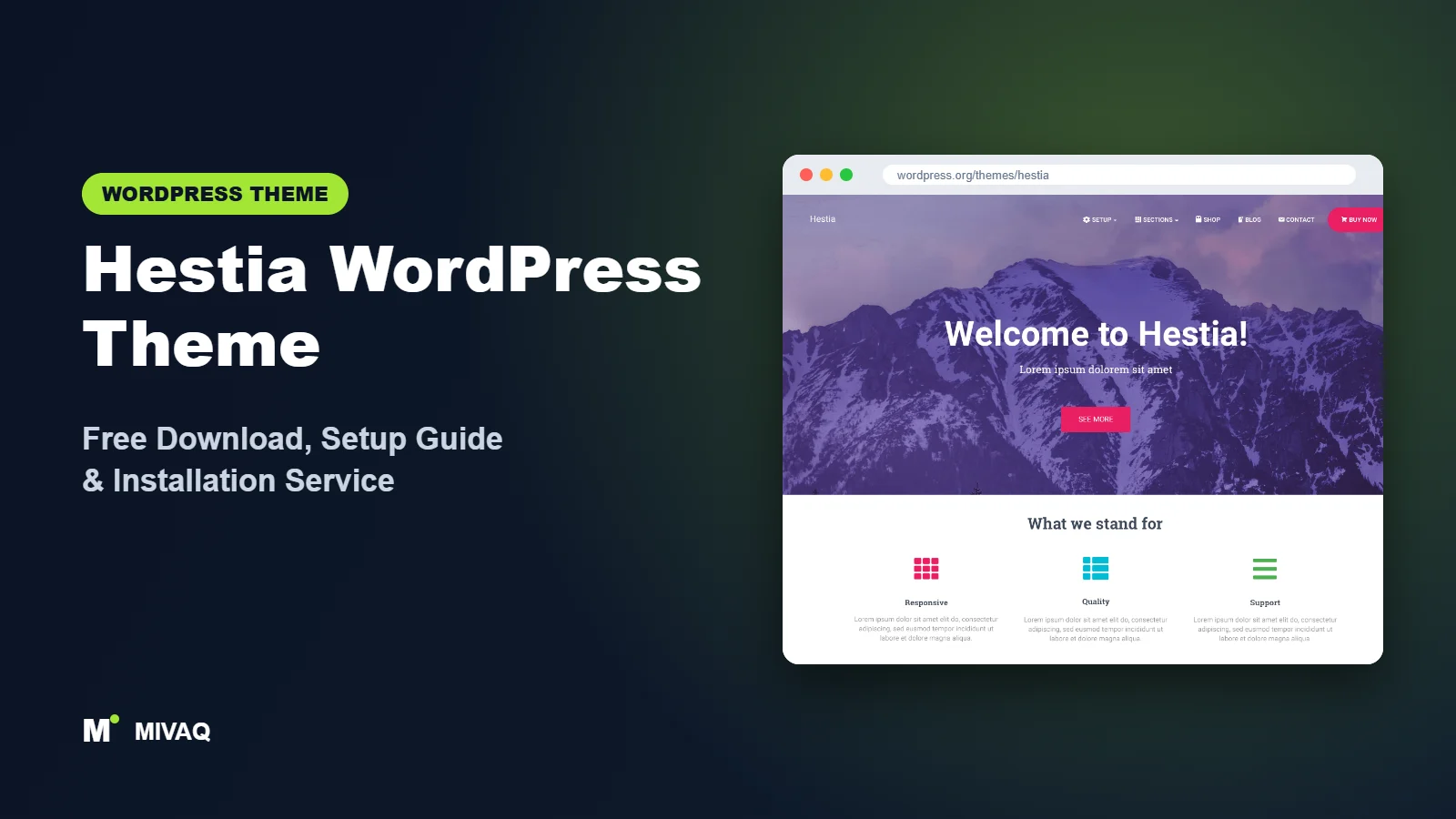
Not every business needs a ten-page website. Many freelancers, restaurants, wedding planners and small agencies do best with one well-organised scrolling homepage that tells the whole story: who you are, what you offer, why people trust you and how to get in touch. Hestia was built for exactly that. In this guide you will find the official Hestia WordPress theme free download, installation steps, and a setup plan for its one-page front page sections, plus honest advice on when a newer theme might suit you better.
This article is part of our complete guide: How to Build a WordPress Website for Your Business (2026 Guide).
Hestia is 100% free and legal to download from WordPress.org. Its developer, Themeisle, offers an optional Hestia Pro upgrade, but the free theme is a complete theme you can use on any number of sites.
At MIVAQ we still meet many clients running Hestia sites built several years ago. Some just need a refresh; others are planning new launches and like its material design. Here is what we tell them.
What is the Hestia WordPress theme?
Hestia is a classic, Customizer-based theme by Themeisle with a modern design inspired by Google’s Material Design: cards, soft shadows and bold colours. Its WordPress.org description presents it as a multipurpose one-page theme for creative businesses, small businesses such as restaurants and wedding planners, startups, agencies, portfolios, online shops and freelancers. It has a widgetised footer, a blog page, and compatibility with Elementor, WPML and WooCommerce, among other plugins.
| Detail | Hestia |
|---|---|
| Developer | Themeisle |
| Latest version | 3.3.7 |
| Active installs | 70,000+ |
| Rating | 4.8/5 from 562 reviews |
| Requires WordPress | Not specified on WordPress.org (works with current versions) |
| Requires PHP | 5.4 or higher (we recommend PHP 8.1+) |
| Last updated | 29 September 2026 |
| Theme type | Classic theme (Customizer based, one-page front page) |
| Price | Free (Hestia Pro optional) |
Details are from the WordPress.org listing at the time of writing. Hestia continues to receive maintenance updates, while Themeisle’s newer development focus is largely on its Neve theme.
Key features of Hestia
- One-page front page: a homepage made of sections you enable, reorder and edit in the Customizer.
- Material design style: card layouts, shadows and bold accent colours give a modern app-like feel.
- Big title hero section: a large headline, background image and buttons at the top of the front page.
- Business sections: areas for features, about, blog posts, shop products and contact-style content.
- WooCommerce ready: shop pages styled in the same material look, with products on the front page.
- Page-builder compatible: works with Elementor and other builders for inner pages.
- Translation ready and WPML compatible, with RTL support.
- Widgetised footer and blog layouts for a complete site beyond the homepage.
Front page sections you control in the Customizer
Instead of designing a homepage in a page builder, you switch on Hestia’s front page sections in the Customizer and fill in headings, text, icons and images. Each section can be hidden if you do not need it. This is fast and very hard to “break”, which makes it ideal for owners who want to update their homepage without design skills.
A distinctive material look
Hestia’s cards with soft shadows, rounded corners and raised content area are recognisable and still look modern. A single accent colour carries through buttons, links and icons, so choosing the right brand colour transforms the whole site.
Simple products on the homepage
If WooCommerce is installed, Hestia can show products in a dedicated front page section. For a small shop, bakery or studio selling a handful of items, this lets visitors see products without leaving the homepage.
Hestia free vs Pro: what do you get?
The free version gives you the one-page front page with its core sections, the big title hero, material styling, colour and typography options, blog layouts, footer widgets and WooCommerce styling. Hestia Pro adds more front page sections and more control over them, such as additional section types, section reordering options, extra header and blog layouts, more WooCommerce options and premium support.
Because the exact Pro feature list and pricing change, check the developer’s site for current Pro pricing. If your homepage needs only a hero, services, an about section, a few posts and contact details, free Hestia is usually enough.
Who should use Hestia?
- Freelancers and consultants who want a single scrolling page that tells their whole story.
- Small local businesses such as restaurants, salons, wedding planners and studios.
- Startups and app landing pages that suit the material design look.
- Owners who will edit their own homepage through simple Customizer fields.
- Existing Hestia sites that need a refresh rather than a rebuild.
Who should choose something else? Content-heavy blogs, large shops and sites that need complex inner page designs will find Hestia limiting. If you are starting from scratch and want Themeisle’s most actively developed option, consider Neve. If you prefer to design everything in a page builder, the Customizer-section approach may feel restrictive.
Hestia WordPress theme free download (official and safe)
Download Hestia only from the official directory:
- Official page: Hestia on WordPress.org
- Direct ZIP file: downloads.wordpress.org/theme/hestia.zip
Avoid “Hestia Pro nulled” or “cracked” copies offered on third-party sites. Modified premium themes are a well-known way of spreading malware, hidden links and redirects, and they cannot be safely updated. If you think your site has been infected, see our WordPress malware removal guide. MIVAQ does not distribute theme files; always download the free version from WordPress.org.
How to install Hestia in WordPress (step by step)
Method 1: from the dashboard
- Go to Appearance › Themes › Add New Theme.
- Search for “Hestia”.
- Click Install on the Hestia card by Themeisle, then Activate.
- Follow the welcome screen to install any recommended companion plugins you want.
Method 2: upload the ZIP
- Download hestia.zip from the official link.
- Go to Appearance › Themes › Add New Theme › Upload Theme.
- Choose the ZIP, click Install Now, then Activate.
Child theme tip: if you plan to change templates or add PHP code, create a Hestia child theme first. Themeisle’s documentation explains how, and it protects your changes when Hestia updates.
How to set up Hestia after installation
Almost everything in Hestia happens in Appearance › Customize. A straightforward order:
- Set a static front page. Create a “Home” page and a “Blog” page, then in Settings › Reading set Home as the front page and Blog as the posts page. Hestia’s sections appear on the static front page.
- Appearance settings. Choose your accent colour, background and typography. One strong accent colour works best with the material style.
- Big title section. Add a background image, headline, short subheading and up to two buttons, for example “View services” and “Contact us”.
- Features section. Add three or four key services with icons and short descriptions.
- About section. Introduce your business; this content can be edited with the block editor or a page builder.
- Remaining sections. Enable or hide sections such as blog, shop and contact-style areas depending on your needs.
- Header and menu. Upload a logo, choose navigation alignment and create a menu, including anchor links to front page sections if you like.
- Footer. Add footer widgets with contact information, opening hours and social links.
Turning one page into a complete small business site
A common Hestia structure for a wedding planner might look like this: the big title section with a romantic hero photo and a “Check your date” button; a features section with three services (full planning, partial planning, on-the-day coordination); an about section with the planner’s story and photo; a blog section showing three recent real weddings; and a closing area with a contact form and service area. Menu items link to each section with anchor links, plus a separate Blog page. The owner can update every piece of text and image in the Customizer, and the whole site stays on one fast, well-organised page.
Hestia speed and SEO checklist
- Compress the big title background image; it is the largest element on the page.
- Disable front page sections you do not use rather than leaving them empty.
- Set up caching and image optimisation using our LiteSpeed speed guide.
- Use a single SEO plugin; compare them in Rank Math vs Yoast.
- Give the front page a strong title tag and meta description, following our title tag SEO guide.
- Write alt text for section images with our image alt text guide.
- Keep regular backups with our WordPress backup strategy.
Common mistakes when setting up Hestia
- Not setting a static front page. Hestia’s sections only appear on a static homepage.
- Too much text in the big title. Keep the headline short and the subheading to one line.
- Enabling every section. A long page full of half-empty sections looks unfinished.
- Running very old PHP. The minimum is low, but use a modern PHP version for speed and security.
- Ignoring inner pages. Service and contact pages need care too, not just the front page.
Hestia vs similar free WordPress themes
| Theme | Best for | Key difference |
|---|---|---|
| Hestia | One-page business sites | Material design and Customizer front page sections |
| Neve | Fast multipage business sites | Newer Themeisle theme with header builder and starter sites |
| Sydney | Service businesses | Hero slider, sticky menu and block patterns |
| OnePress | Simple one-page sites | Another Customizer-section one-page theme |
Choose Hestia if you like the material look and want a homepage you can edit through simple fields. Choose Neve for a modern multipage site from the same developer, Sydney for a bold service homepage, or OnePress if you want a similar one-page approach with a flatter style.
Hestia pros and cons
What we like
- Easy one-page homepage through the Customizer.
- Distinctive, modern material design.
- WooCommerce and Elementor compatible.
- Still maintained with regular updates.
What to consider
- Less flexible than header-builder themes.
- Several sections and options require Pro.
- Newer development focus from Themeisle is on Neve.
Our verdict: Hestia remains a good free choice for one-page business websites that owners want to manage themselves. For more complex sites, a newer header-builder theme will grow with you more easily.
Website design with Hestia: our design service
Installing Hestia takes minutes; turning it into a website that wins customers takes design, copy and strategy. MIVAQ offers a complete website design service built on Hestia: we plan your pages, design a layout that matches your brand and set up everything so you can edit it yourself afterwards. Hestia gives us a fast, flexible base, and we add the structure, content and conversion details that turn visitors into enquiries.
What our Hestia website design package includes:
- Brand-matched design: logo, colours, fonts and a consistent style across every page
- Homepage, about, services, blog and contact pages written and laid out for conversions
- Header, footer and mobile menu built with the theme settings, no bloated extras
- Contact forms, WhatsApp button, Google Maps and booking or quote forms
- On-page SEO, speed optimisation and Google Search Console setup at launch
You can see examples in our recent work and case studies, and read more about our WordPress development and SEO services. Every project starts with a free consultation and a fixed price, so you know exactly what you get before we begin.
Want a website designed with Hestia? Contact MIVAQ: WhatsApp +880 1723-189847, email hello@mivaq.com or use our contact form. We usually reply the same day.
Hestia installation and setup service
MIVAQ installs and customises Hestia for you, or refreshes an existing Hestia site. Our service includes installation from WordPress.org, a child theme, front page section setup, branding, inner pages, WooCommerce if needed, and speed and SEO basics, all with a fixed quote. See our WordPress services or contact us:
- WhatsApp: message us about Hestia
- Email: hello@mivaq.com
- Form: send your project details
Related WordPress theme guides
- Neve WordPress theme free download and setup
- Sydney WordPress theme free download and setup
- Astra WordPress theme free download and setup
- Blocksy WordPress theme free download and setup
- 50 best free WordPress themes
Frequently asked questions
Is Hestia free?
Yes. Hestia is free on WordPress.org under the GPL and can be used on unlimited sites. Hestia Pro is an optional upgrade.
Is Hestia good for SEO?
Hestia is responsive and SEO friendly, but a one-page site has fewer pages to rank. Add separate service pages and blog posts, and use an SEO plugin, to reach more searches.
Does Hestia work with Elementor?
Yes. Hestia is compatible with Elementor, which you can use for inner pages and the about section.
Can I use Hestia for WooCommerce?
Yes. Hestia styles WooCommerce pages and can show products on the front page, which suits small shops.
Can MIVAQ install Hestia for me?
Yes. We install, set up and refresh Hestia sites. WhatsApp us or email hello@mivaq.com for a fixed quote.


