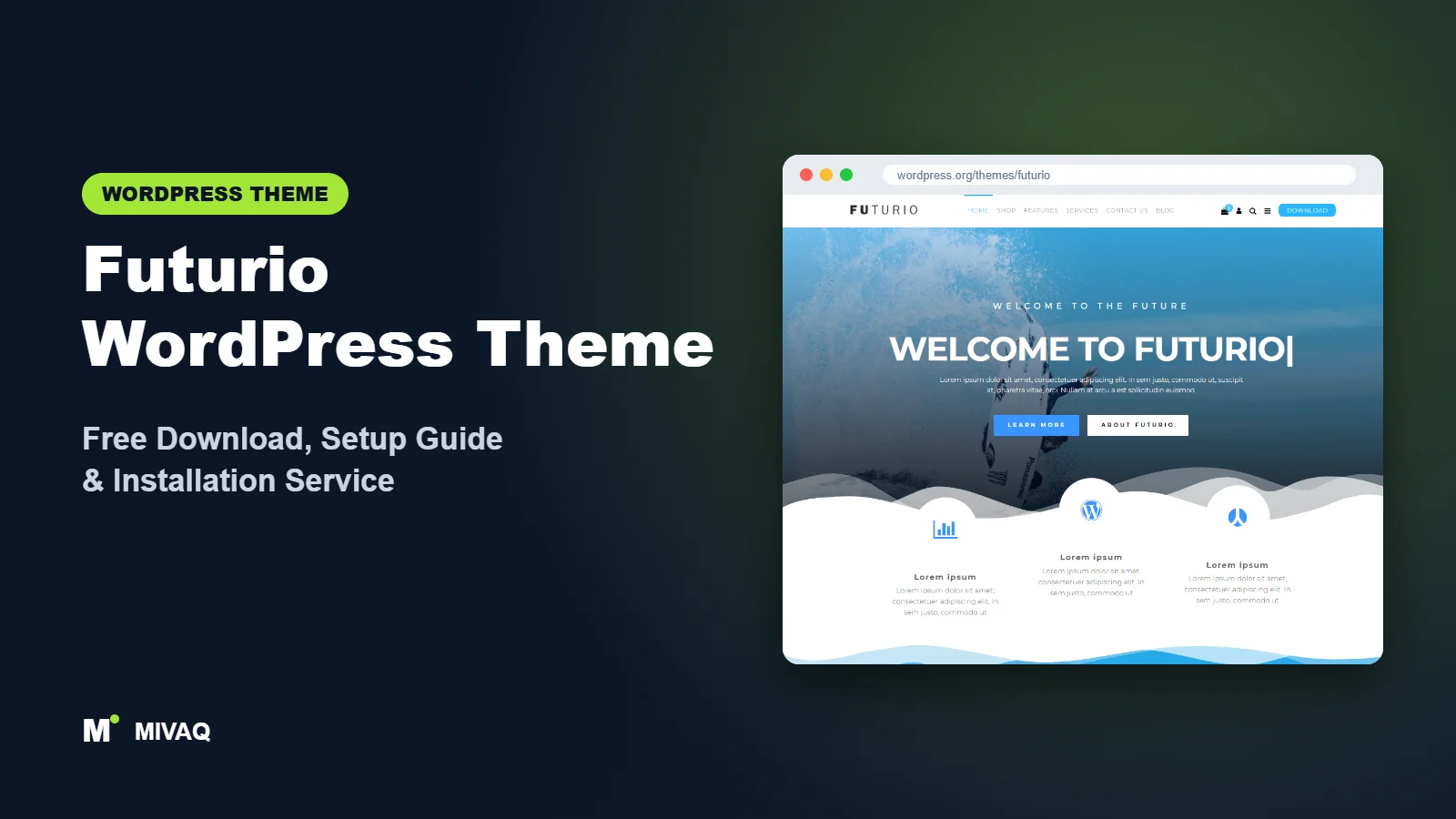
Futurio sits in a useful middle ground. It is light enough to stay fast, but unlike bare-bones builder themes it comes with ready-made demos that you can import in one click and then edit in Elementor. That makes it a favourite for small business owners who want a professional starting point without paying for a premium theme. If you are looking for the Futurio WordPress theme free download, it is 100% free and legal on the official WordPress.org directory.
This article is part of our complete guide: How to Build a WordPress Website for Your Business (2026 Guide).
In this guide we look at Futurio from a business owner’s point of view: which kinds of sites it suits, how its companion plugin and demos work, what the PRO version adds, and the exact steps we follow when we set it up for clients, from importing a demo to tidying up for speed and SEO.
What is the Futurio WordPress theme?
Futurio is a lightweight, fast and customisable multipurpose and WooCommerce theme made by FuturioWP. Its developer lists business, portfolio, creative, photography, e-commerce, landing page and blog sites as typical uses, and highlights compatibility with Elementor, Beaver Builder, Brizy, SiteOrigin, Divi and the block editor, plus a one-click demo import. Here are the WordPress.org facts:
| Detail | Futurio |
|---|---|
| Developer | FuturioWP |
| Latest version | 1.5.7 |
| Active installs | 10,000+ |
| Rating | 4.8/5 from 73 reviews |
| Requires WordPress | Not listed on WordPress.org (use a current version) |
| Requires PHP | 5.6 or higher |
| Last updated | 26 February 2026 |
| Theme type | Classic theme (Customizer) |
| Price | Free (Futurio PRO optional) |
Futurio has a loyal user base and a 4.8 rating. Its most recent update was in February 2026, so we recommend keeping an eye on WordPress.org for compatibility notes before major WordPress upgrades, and always testing on staging first.
Key features of Futurio
- One-click demo import: ready-made demos for different industries that you import and then customise.
- Elementor-friendly: demos are built to be edited in Elementor, and full-width templates give the builder room to work.
- Companion plugin with extra widgets: the free Futurio Extra plugin adds demo import and additional Elementor widgets and features.
- WooCommerce support: shop styling and settings for small and medium online stores.
- Header and layout options: logo, menus, title bar, sidebars and footer widgets controlled in the Customizer.
- Lightweight and responsive: the theme itself stays lean, with good mobile behaviour.
- SEO friendly and translation ready: WPML compatible and RTL ready according to the developer.
- Works with popular plugins: Jetpack, Contact Form 7, Yoast SEO and WooCommerce are listed as compatible.
Demos that are actually editable
Some theme demos look great but are hard to change because they rely on sliders and shortcodes. Futurio’s demos are designed around Elementor, so after import you click a section and edit it like any other Elementor page. For non-designers this means you can keep the structure and spacing of a professional layout while changing the content.
Futurio Extra companion plugin
The free companion plugin unlocks the demo importer and additional widgets and options. It is recommended right after activation. Keep it active if you use the imported demos, since some demo sections depend on it.
Flexible enough for a shop
Futurio can run a WooCommerce store with its shop styling, making it a good choice for a business site that sells a handful of products or services online as well.
Choosing the right Futurio demo
The demo you choose shapes the whole project, so pick it by structure rather than by colours or photos. Colours and images take minutes to change; a layout that does not fit your content takes days to rework. Before importing, list the pages you need (for example Home, Services, About, Pricing, Blog, Contact) and the sections your home page must contain. Then pick the demo whose home page already has those sections in roughly the right order. If two demos are close, choose the simpler one: it is always easier to add a section than to strip out sliders, counters and animations you never wanted.
Futurio free vs Pro: what do you get?
The free theme plus Futurio Extra covers most small business needs. Futurio PRO, sold by FuturioWP, adds extra customisation options, more header and layout features, advanced WooCommerce options and premium support. As always, check the developer’s site for current Pro pricing and the precise feature list.
| Area | Futurio Free | Futurio PRO |
|---|---|---|
| Demo import | Free demos via Futurio Extra | Additional demos |
| Elementor widgets | Extra widgets in the companion plugin | More widgets and options |
| Header and layout | Core Customizer options | Extended options |
| WooCommerce | Supported | Advanced shop features |
| Support | WordPress.org forum | Premium support |
Who should use Futurio?
- Small businesses such as consultants, agencies, clinics and trades that want a professional demo to adapt.
- Elementor users who prefer starting from a finished design rather than a blank page.
- Business sites with a small shop, for example a training company selling courses or a studio selling vouchers.
- Bloggers and creatives who want a clean layout with room to grow.
Who should not: if your site is mainly an online store with hundreds of products, a dedicated shop theme like Botiga or Woostify will give you more store-specific tools. If you prefer designing with blocks rather than Elementor, consider SaasLauncher or Kubio.
Futurio WordPress theme free download (official and safe)
- Official theme page: wordpress.org/themes/futurio
- Direct ZIP file: downloads.wordpress.org/theme/futurio.zip
Please do not download “Futurio PRO nulled” versions. Cracked premium themes are frequently bundled with malware, spam injections and hidden admin accounts, and they cut you off from security updates. If your site has been affected, our WordPress malware removal service can clean it. MIVAQ does not distribute theme files; the free version comes from WordPress.org.
How to install Futurio in WordPress (step by step)
Method 1: install from the dashboard
- Go to Appearance › Themes › Add New Theme.
- Search for “Futurio”.
- Click Install, then Activate.
Method 2: upload the ZIP file
- Download futurio.zip from WordPress.org.
- Open Appearance › Themes › Add New Theme › Upload Theme.
- Select the file, click Install Now, then Activate.
Child theme tip: if you plan to add PHP snippets or override templates, create a Futurio child theme first. For styling changes, the Customizer’s Additional CSS panel or Elementor’s custom CSS is usually enough.
How to set up Futurio after installation
- Install Futurio Extra from the notice shown after activation.
- Install Elementor (the demos are designed for it).
- Import a demo that matches your industry. Use a fresh installation so demo content does not mix with existing pages.
- Branding: in Appearance › Customize upload your logo, set colours and fonts.
- Header and menu: check the menu items created by the demo, rename them and remove pages you do not need.
- Edit pages in Elementor: replace demo text and images with your own, section by section.
- WooCommerce (optional): install WooCommerce, run its setup wizard and adjust shop settings.
- Footer: update contact details, opening hours, social links and legal page links.
- Clean up: delete unused demo pages, images and menu items.
Example: an accountancy firm website
Here is how a small accountancy practice might use Futurio. After importing a business demo, the hero section is rewritten to say who they help (“Accounting for contractors and small companies”), with a “Book a free consultation” button. The demo’s services grid becomes Bookkeeping, Tax Returns, Payroll and Company Formation, each linking to its own page. The team section introduces the partners, and the testimonials section uses real client quotes. A simple blog shares deadline reminders, which is great for local SEO. Because the layout came from a demo, the firm looks polished from day one, and staff can edit text in Elementor without touching code.
After launch: keeping Futurio healthy
Once the site is live, set a simple monthly routine: update WordPress, Futurio, Futurio Extra, Elementor and WooCommerce on a staging copy first, check the home page, a service page and the checkout, then update the live site. Review your contact form submissions to make sure emails still arrive, and look at Search Console for crawl errors. Ten minutes a month prevents most of the emergencies we are asked to fix.
Futurio speed and SEO checklist
- Delete unused demo images and pages; demo imports often add more media than you need.
- Enable caching and CSS/JS optimisation; our LiteSpeed speed guide covers the essentials.
- Use one SEO plugin and set it up properly; see Rank Math vs Yoast.
- Rewrite all demo titles and meta descriptions with our title tag guide.
- Add meaningful alt text to every replaced image using our alt text guide.
- For shops, follow our WooCommerce SEO guide.
Common mistakes when setting up Futurio
- Importing a demo onto an existing site: it can overwrite menus and add dozens of pages. Use a fresh install or staging.
- Keeping placeholder content: demo testimonials and team members must be replaced or removed.
- Deactivating Futurio Extra after import: some sections may stop working.
- Adding many Elementor add-ons: Futurio already provides extra widgets; avoid duplicates.
- Skipping backups: back up before updates using our backup strategy.
Futurio vs similar free WordPress themes
Futurio vs Page Builder Framework: Page Builder Framework is a minimal canvas; Futurio gives you demos and widgets. Choose Futurio if you want a ready design, Page Builder Framework if you design from scratch.
Futurio vs Woostify: Woostify specialises in WooCommerce; Futurio is broader. Store-first projects suit Woostify, business-first projects suit Futurio.
Futurio vs Solace: Solace is minimalist and blog-oriented. Futurio offers more business layouts through its demos.
From another group, OceanWP follows a similar “theme plus extras plugin” model with a much larger user base, if you want more tutorials and extensions.
Futurio pros and cons
What we like
- One-click Elementor demos for many industries.
- Free companion plugin with extra widgets.
- Lightweight, responsive and WooCommerce compatible.
- Good 4.8/5 rating.
What to consider
- Updated less frequently than some competitors in 2026.
- Best results depend on using Elementor.
- Some advanced features require Futurio PRO.
Our verdict: Futurio is a solid free theme for small businesses that want a professional Elementor design quickly. Import a demo, replace the content carefully, and you can launch in days rather than weeks.
Website design with Futurio: our design service
Whether you want an online shop, a portfolio or a product landing page, Futurio can carry it, but the results depend on design decisions. MIVAQ offers a full website design service on Futurio: we design your homepage, product or project pages and checkout journey, prepare images that keep the site fast, and set up the details that help visitors buy or enquire.
What our Futurio website design package includes:
- Store, portfolio or landing page design tailored to your products or projects
- Product, category and checkout pages set up for easy buying (WooCommerce where needed)
- Image preparation and layout that keep pages fast on mobile
- Payment, shipping and email setup for shops; galleries and enquiry forms for portfolios
- Product and page SEO, analytics and Search Console at launch
You can see examples in our recent work and case studies, and read more about our WordPress development and SEO services. Every project starts with a free consultation and a fixed price, so you know exactly what you get before we begin.
Want a website designed with Futurio? Contact MIVAQ: WhatsApp +880 1723-189847, email hello@mivaq.com or use our contact form. We usually reply the same day.
Futurio installation and setup service
MIVAQ installs and customises Futurio for businesses: installation, child theme, Futurio Extra and demo import, branding, page editing in Elementor, WooCommerce setup, demo clean-up and speed and SEO basics, all for a fixed quote. Learn more about our WordPress services or contact us:
- WhatsApp: message us about Futurio
- Email: hello@mivaq.com
- Form: send your project details
Related WordPress theme guides
- Page Builder Framework free download and setup
- Woostify WordPress theme free download and setup
- Botiga WordPress theme free download and setup
- OceanWP WordPress theme free download and setup
- 50 best free WordPress themes
Frequently asked questions
Is Futurio free?
Yes. Futurio and its Futurio Extra companion plugin are free. Futurio PRO is an optional paid upgrade.
Is Futurio good for SEO?
Futurio is lightweight and described as SEO friendly. Combine it with good content, fast hosting and an SEO plugin for the best results.
Does Futurio work with Elementor?
Yes. Its demos are built for Elementor, and the companion plugin adds extra Elementor widgets.
Can I use Futurio for WooCommerce?
Yes. Futurio supports WooCommerce and works well for small and medium stores.
Can MIVAQ install Futurio for me?
Yes. We install, import a demo and brand Futurio for a fixed price. WhatsApp us or email hello@mivaq.com.


