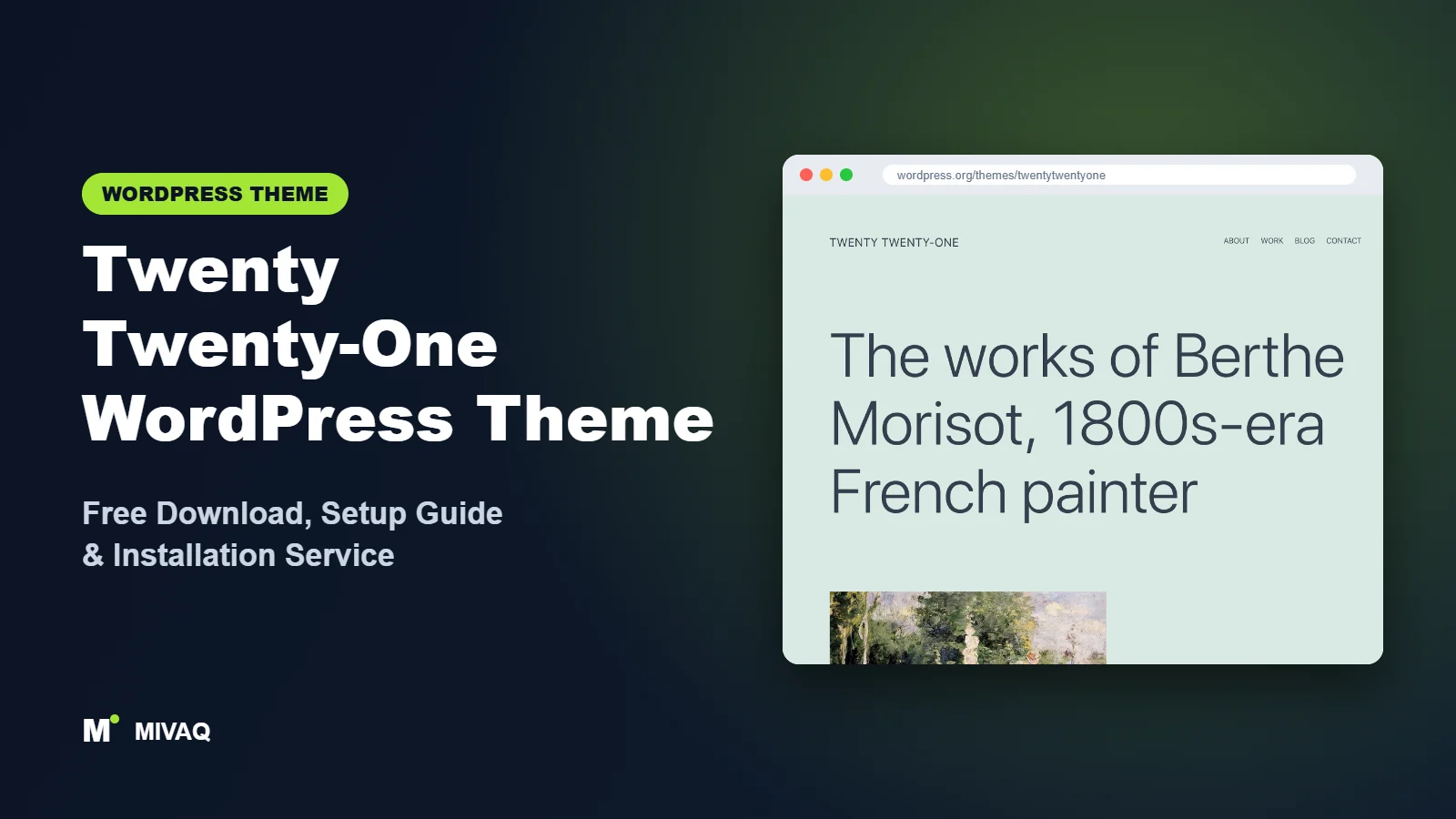
Not everyone wants to learn the Site Editor. If you prefer the familiar Customizer, widget areas and classic menus, Twenty Twenty-One is a very attractive option: it is the last default WordPress theme built as a classic theme, yet it was designed with the block editor at its heart. Searching for a Twenty Twenty-One WordPress theme free download? It is 100% free and legal, distributed on WordPress.org, and still maintained by the WordPress core team years after release.
This article is part of our complete guide: How to Build a WordPress Website for Your Business (2026 Guide).
Twenty Twenty-One is known for its soft pastel backgrounds, generous typography, an optional dark mode switch and a strong focus on accessibility. In this guide we explain what it offers today, who it suits, how to download and install it safely, and how to configure it step by step in the Customizer.
What is the Twenty Twenty-One WordPress theme?
Twenty Twenty-One shipped with WordPress 5.6 as a “blank canvas” for the block editor. It is a classic theme: the header and footer are controlled by PHP templates and settings in Appearance › Customize, while the content of your posts and pages is built with blocks and the theme’s own block patterns. It was based on the Seedlet theme and aimed for very high colour contrast across its default palette.
| Detail | Twenty Twenty-One |
|---|---|
| Developer | WordPress.org (core team) |
| Latest version | 2.9 |
| Active installs | 200,000+ |
| Rating | 4.2/5 (44 reviews) |
| Requires WordPress | 5.3 or higher |
| Requires PHP | 5.6 or higher |
| Last updated | 19 August 2026 |
| Theme type | Classic theme (Customizer and widgets) |
| Price | Free (no Pro version) |
A 4.2 rating is the highest of the recent default themes, which reflects how comfortable many users still feel with a classic setup.
Key features of Twenty Twenty-One
- Customizer controls: site identity, background colour, dark mode, excerpt settings, menus and widgets are all in Appearance › Customize.
- Optional dark mode: visitors can switch between light and dark with a toggle that also respects their device preference.
- Background colour presets: the default pale green plus other soft pastels, with text colours that adapt automatically for contrast.
- Block patterns: theme-specific patterns for large text, image collages, links areas and overlapping images.
- Two menu locations: a primary menu in the header and a secondary menu in the footer, ideal for social or legal links.
- Footer widget area: add text, recent posts, search or a newsletter form in the footer.
- Accessibility ready: high contrast, visible focus styles and well-tested keyboard navigation.
- Wide PHP and WordPress support: runs on WordPress 5.3 and PHP 5.6 or newer.
Dark mode that respects your visitors
Under Colors and Dark Mode in the Customizer you can enable dark mode support. A small toggle button then appears, and if a visitor’s phone or computer is already set to dark mode, the site follows automatically. Because it is optional, you can keep a strictly branded light design if you prefer.
Automatic contrast for any background
Pick a dark background colour and the theme switches the text to light automatically. This is a small detail, but it protects readability when non-designers change colours.
Patterns for editorial layouts
The included patterns lean towards artistic, magazine-like layouts: oversized headlines, overlapping images and collage grids. They make portfolio pages and long-form features look considered with very little effort.
Is Twenty Twenty-One completely free?
Yes. Twenty Twenty-One is part of the WordPress project, released under the GPL with no Pro edition and no upsells. Everything you see in the demo is included. Support is through the WordPress.org forums. If you need extra layouts, use block plugins or patterns from the WordPress pattern directory.
Who should use Twenty Twenty-One?
- Users who prefer the Customizer and classic widgets over the Site Editor.
- Bloggers and writers who want large, readable type and a calm single-column layout.
- Accessibility-conscious organisations such as charities, councils and schools.
- Older sites that need a well-maintained default theme compatible with a wide range of WordPress versions.
- Developers who need a stable classic parent theme for a child theme with PHP templates.
It is not ideal if you need a sidebar on blog posts (the layout is single column), a complex header with multiple rows, or a store with rich product layouts. It also lacks the full template editing of block themes, so changing the header structure requires a child theme and code.
Twenty Twenty-One WordPress theme free download (official and safe)
- Official theme page: wordpress.org/themes/twentytwentyone
- Direct ZIP file: downloads.wordpress.org/theme/twentytwentyone.zip
Never download WordPress themes from random file-sharing or “free premium themes” websites. Modified copies may contain hidden redirects, spam links or backdoors, and nulled files never get security patches. If something already looks wrong on your site, our guide to WordPress malware removal walks you through cleaning it. MIVAQ does not distribute theme files; WordPress.org is always the source.
How to install Twenty Twenty-One in WordPress (step by step)
Method 1: install from the dashboard
- Go to Appearance › Themes and click Add New Theme.
- Search for “Twenty Twenty-One”.
- Click Install.
- Click Activate.
Method 2: upload the ZIP file
- Download twentytwentyone.zip from the official link.
- Go to Appearance › Themes › Add New Theme › Upload Theme.
- Choose the ZIP, click Install Now, then Activate.
Child theme tip: with a classic theme, any edit to PHP files or style.css is lost on update. If you want to add a sidebar, change the header markup or add custom functions, create a child theme first and make all code changes there. Customizer settings are safe without one.
How to set up Twenty Twenty-One after installation
Open Appearance › Customize and work through these steps:
- Site Identity: upload your logo, set the site title and tagline, and add a site icon (favicon). You can choose whether the title and tagline display next to the logo.
- Colors and Dark Mode: choose a background colour from the presets or enter your own, then decide whether to enable dark mode support.
- Excerpt Settings: choose whether blog archives show the full post or a summary. Summaries keep long blogs tidy.
- Menus: create a primary menu for the header and a secondary menu for the footer, then assign them to their locations.
- Widgets: add footer widgets such as an about text, contact details or a newsletter sign-up.
- Homepage Settings: choose a static homepage and a posts page if you are building a business site.
- Build the home page: edit the home page in the block editor and insert Twenty Twenty-One patterns, Cover blocks and Columns for services or features.
- Additional CSS: add small style tweaks here, such as button colours, without touching theme files.
WooCommerce works with the theme and WooCommerce adds its own basic styling. Expect a simple, single-column store rather than a feature-rich shop layout.
A simple home page layout that works well
Because the header and footer are fixed, the home page content does the heavy lifting. A structure we often use with Twenty Twenty-One for small businesses:
- A Cover block with one clear headline, a short sentence and a single button to your main service or contact page.
- A three-column section explaining what you offer, each with a short heading and two lines of text.
- The theme’s overlapping images pattern to show your work, team or premises.
- A testimonial in a large quote block, which suits the theme’s big typography.
- A Latest Posts block showing three recent articles to keep the page fresh.
- A final call to action with your phone number or WhatsApp link.
Save the finished sections as synced patterns so you can reuse the call to action on other pages and update it in one place.
Is a classic theme still a sensible choice in 2026?
Yes, as long as you understand the trade-off. Classic themes such as Twenty Twenty-One remain fully supported, and WordPress has no plans to remove the Customizer for them. You simply will not get template editing in the browser. For a site that needs a reliable blog and a few pages, that is often a fair exchange for a simpler, more familiar admin experience, especially if several non-technical people will update the site.
Twenty Twenty-One speed and SEO checklist
- The theme uses system-friendly fonts and little JavaScript; keep it that way by avoiding heavy slider plugins.
- Add caching and image optimisation. On LiteSpeed hosting, follow our LiteSpeed speed guide.
- Choose an SEO plugin by reading our Rank Math vs Yoast comparison.
- Collage and image patterns need good alt text for accessibility and image search.
- Write unique titles for archives and pages with the help of our title tag SEO guide.
- Run through our WordPress security checklist before launch.
Common mistakes when setting up Twenty Twenty-One
- Looking for the Site Editor: this is a classic theme; use the Customizer, Menus and Widgets.
- Editing theme files directly: changes vanish on update. Use a child theme.
- Choosing low-contrast custom colours: the presets are tested for contrast; custom colours may not be.
- Enabling dark mode without testing: logos with dark text can disappear on a dark background. Upload a version that works on both.
- Expecting a sidebar: the layout is single column by design.
Twenty Twenty-One vs similar free WordPress themes
Twenty Twenty-Five is the modern block-theme default with full site editing and many patterns. Choose it for a new site if you are happy to learn the Site Editor.
Go by GoDaddy is another classic theme with a Customizer, but it adds design styles, colour schemes and several header and footer layouts. Choose Go if you want more visual options without leaving the Customizer.
Twenty Twenty-Three is minimal like Twenty Twenty-One but is a block theme. Choose Twenty Twenty-One when widgets and classic menus matter to you.
Twenty Twenty-One pros and cons
What we like
- Familiar Customizer, menus and widgets
- Optional dark mode with automatic contrast
- Excellent accessibility
- Very wide compatibility and long-term maintenance
- Free with no upsells
What to consider
- Single-column layout with no sidebar
- Limited header and footer customisation without code
- No full site editing
- Pastel default look may need work to fit some brands
Our verdict: Twenty Twenty-One is the safest choice for anyone who wants a free, accessible, well-maintained classic theme. It is ideal for blogs and simple sites; for complex layouts choose a block theme or a more flexible multipurpose theme.
Website design with Twenty Twenty-One: our design service
Twenty Twenty-One is a clean foundation, but a clean foundation is not yet a finished website. MIVAQ designs complete websites on Twenty Twenty-One as part of our website design service: we plan the pages, create a colour and typography system that matches your brand, build custom patterns and templates in the WordPress editor, and hand over a site you can update without a page builder.
What our Twenty Twenty-One website design package includes:
- Custom style variation: colours, typography and spacing set in Global Styles
- Page templates and reusable patterns for home, services, blog and contact pages
- Navigation, header and footer designed in the Site Editor
- Contact forms, newsletter sign-up and essential plugins only
- On-page SEO, image optimisation and analytics at launch
You can see examples in our recent work and case studies, and read more about our WordPress development and SEO services. Every project starts with a free consultation and a fixed price, so you know exactly what you get before we begin.
Want a website designed with Twenty Twenty-One? Contact MIVAQ: WhatsApp +880 1723-189847, email hello@mivaq.com or use our contact form. We usually reply the same day.
Twenty Twenty-One installation and setup service
MIVAQ installs and customises Twenty Twenty-One for you: installation from WordPress.org, a child theme for any code changes, logo, colours and dark mode setup, menus and footer widgets, your home and inner pages built with patterns, WooCommerce if required, plus speed and SEO basics, all at a fixed quote. See our WordPress services or contact us:
- WhatsApp: message us about Twenty Twenty-One
- Email: hello@mivaq.com
- Form: send your project details
Related WordPress theme guides
- Twenty Twenty-Five WordPress theme guide
- Twenty Twenty-Four WordPress theme guide
- Go WordPress theme guide
- Twenty Twenty-Three WordPress theme guide
- 50 best free WordPress themes
Frequently asked questions
Is Twenty Twenty-One free?
Yes. It is a default WordPress theme, free under the GPL, with no premium version.
Is Twenty Twenty-One good for SEO?
Yes. It is fast, accessible and uses clean markup. Combine it with an SEO plugin and well-written titles and content.
Does Twenty Twenty-One work with Elementor?
Yes. As a classic theme it works with Elementor, and you can use Elementor’s canvas or full-width templates for landing pages. A theme designed for Elementor gives more control over headers and footers, though.
Can I use Twenty Twenty-One for WooCommerce?
Yes, for small and simple stores. It has no shop-specific features such as product filters or quick view.
Can MIVAQ install Twenty Twenty-One for me?
Yes. We install, configure and brand Twenty Twenty-One and build your pages for a fixed price. Contact us on WhatsApp, by email or via the form.


