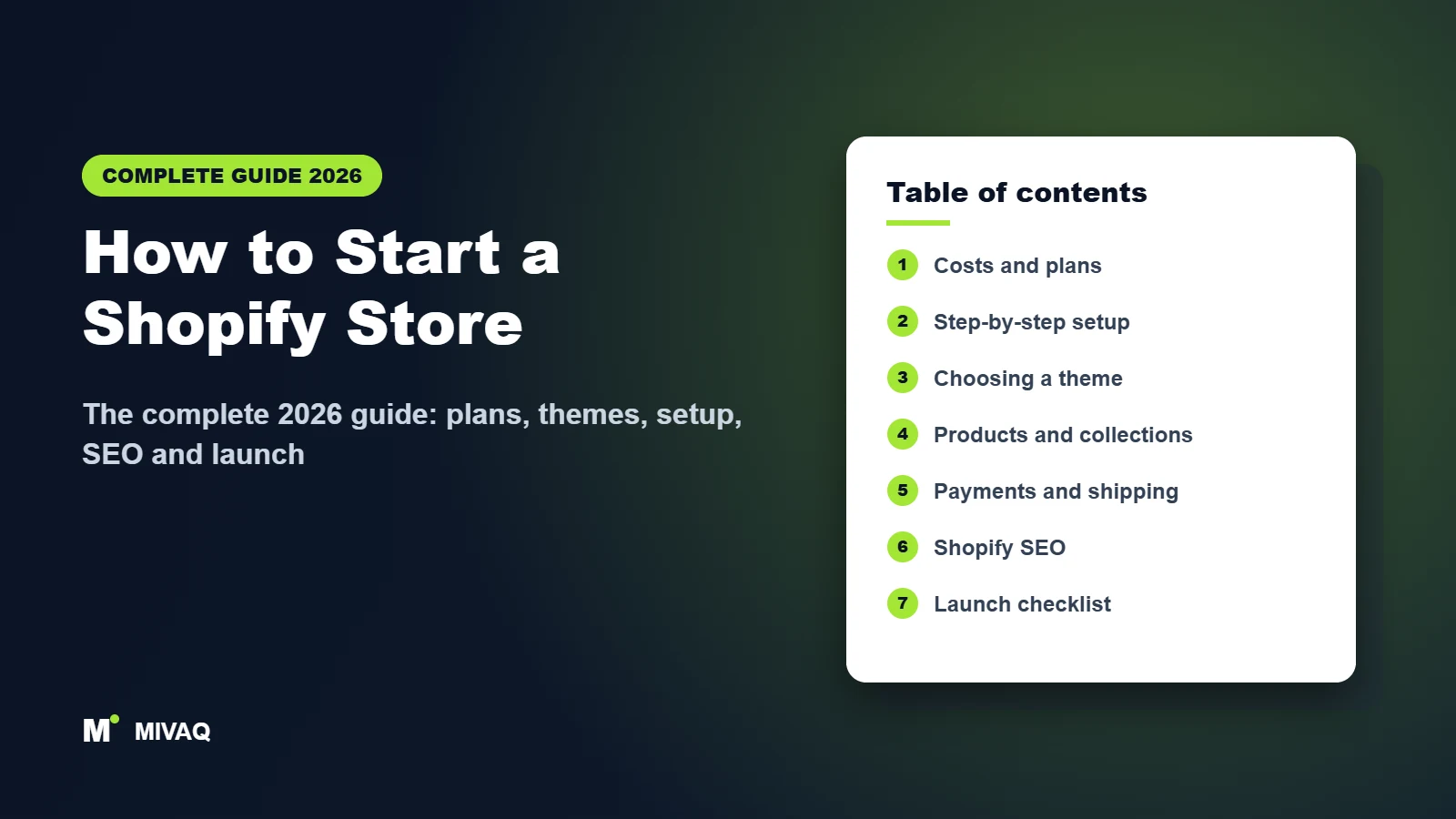
If you want to sell products online without wrestling with servers, plugins and security updates, learning how to start a Shopify store is one of the fastest routes from idea to first order. Shopify handles hosting, checkout, payments and security, so you can focus on products, branding and marketing. But “fast” is not the same as “easy”: the choices you make in the first week, from your plan and theme to your product pages, shipping rules and SEO settings, decide whether the store quietly sells or quietly sits there.
This guide is for first-time founders, small brands moving off marketplaces, and established businesses adding an online shop. You will learn what Shopify really costs, which plan to pick, how to choose and install a theme, how to set up products, payments, shipping, taxes and legal pages, which apps are worth installing, how to get found on Google, and exactly what to check before launch. Every chapter links to a deeper guide if you want more detail.
Key takeaways
- You can launch a simple, professional Shopify store in one to three weeks if your products, photos and copy are ready before you start.
- Your real monthly cost is more than the plan: budget for a theme, a domain, apps, payment processing and marketing.
- Start with a fast, well-supported theme from the Shopify Theme Store; never install nulled or “free download” copies of premium themes.
- Product pages, shipping clarity and trust signals (reviews, policies, contact details) matter more for conversion than fancy design effects.
- Shopify gives you good SEO foundations, but you still need unique titles, descriptions, collection content and a Google Search Console setup to get traffic.
Table of contents
- What is Shopify and is it right for your business?
- How much does it cost to start a Shopify store?
- Which Shopify plan should you choose?
- How to start a Shopify store step by step
- How to choose, install and customise a Shopify theme
- How to add products and collections that sell
- Payments, shipping, taxes and legal pages
- Essential Shopify apps for a new store
- Shopify SEO: how to get your store on Google
- How to get your first sales after launch
- Shopify store launch checklist
- DIY vs hiring a Shopify expert
- More complete guides
- Frequently asked questions
What is Shopify and is it right for your business?
Shopify is a hosted ecommerce platform. You pay a monthly subscription and get everything needed to run an online shop: hosting with a global CDN, an SSL certificate, a secure checkout, product and inventory management, order processing, a theme system, a blog, basic analytics and an app store with thousands of add-ons. You never install software, update a server or patch a plugin; Shopify does that for you.
That convenience comes with trade-offs. You work inside Shopify’s structure (for example, fixed URL patterns such as /products/ and /collections/), many advanced features come from paid apps, and you pay transaction-related fees. For most product businesses those trade-offs are worth it, because uptime, checkout reliability and security are handled by a company that processes payments for millions of merchants.
Who Shopify is best for
- Physical product brands selling clothing, beauty, food, home goods, electronics, sports and pet products.
- Businesses that want to grow without a developer on call: staff can add products, run discounts and manage orders from the admin or mobile app.
- Stores that sell in several channels: online store, in person with Shopify POS, social platforms, Google and marketplaces from one inventory.
- Brands selling across borders: Shopify Markets lets you handle multiple currencies, languages and country-specific pricing.
When another platform may fit better
If your website is mostly content (a blog, a service business, a portfolio) with only a few products, WordPress with WooCommerce often gives you more content flexibility for less money. If you need deep custom functionality and full code ownership, a self-hosted solution may suit you. Our guide to building a WordPress website covers that route in detail.
| Factor | Shopify | WooCommerce (WordPress) | Wix / Squarespace |
|---|---|---|---|
| Hosting and security | Included and managed | You choose and maintain hosting | Included and managed |
| Ease of use | Very easy for store tasks | Moderate, more moving parts | Very easy, fewer ecommerce features |
| Ecommerce depth | Strong: inventory, markets, POS, apps | Strong with extensions | Fine for small catalogues |
| Content and blogging | Basic but usable | Excellent | Good |
| Ongoing costs | Subscription + apps + fees | Hosting + extensions + maintenance | Subscription |
| Best for | Product brands that want to scale | Content-led stores, full control | Small shops attached to a brochure site |
If your business sells mainly to European customers, read our guide to ecommerce website design for European businesses before you commit, because payment methods, languages and legal rules shape the build.
How much does it cost to start a Shopify store?
The subscription is only one line in the budget. Shopify sets plan prices per region and changes them from time to time, and it regularly runs introductory offers for new stores, so always check the current figures on the official Shopify pricing page. What you can plan for with confidence is the structure of the costs.
| Cost item | One-off or recurring | What to expect |
|---|---|---|
| Shopify plan | Monthly or yearly | Higher plans cost more but lower card rates and add features; paying yearly is discounted. |
| Payment processing | Per order | A percentage plus a small fixed fee per card payment. With a third-party gateway instead of Shopify Payments, Shopify adds an extra transaction fee. |
| Theme | One-off | Free official themes cost nothing; premium Theme Store themes are a one-time purchase, usually a few hundred US dollars, with updates included. |
| Domain name | Yearly | Usually a small yearly fee, bought through Shopify or any registrar. |
| Apps | Mostly monthly | Many essential apps have free tiers; reviews, email marketing and subscriptions often grow with usage. |
| Photography and content | One-off | From doing it yourself with a phone and lightbox to a professional shoot. |
| Professional setup | One-off | Optional: theme installation, design, product upload, SEO setup. Fixed-price quotes avoid surprises. |
| Marketing | Ongoing | Ads, influencer seeding, email and content. This is usually the biggest long-term cost. |
A realistic way to budget
A lean launch uses a free official theme, a modest plan, free app tiers and your own photos, so your fixed monthly cost is little more than the subscription plus domain. A more polished launch adds a premium theme, a review app, email marketing and professional setup. The difference between the two is rarely the platform; it is how much time you want to spend versus how much you want to delegate.
How long does it take to set up a Shopify store?
The technical setup can be done in a weekend. What takes time is content: product photos, descriptions, shipping rules and policies. As a rule of thumb, a store with up to 30 products and ready content takes one to three weeks for a beginner, and a few days for an experienced Shopify developer. Large catalogues, migrations from another platform and multi-country setups take longer.
Which Shopify plan should you choose?
Shopify’s main plans are Starter, Basic, a mid-tier plan (named “Shopify” or “Grow” depending on region and time), Advanced and Shopify Plus. Names, prices and limits change, so confirm the details on the pricing page, but the logic of choosing stays the same.
- Starter lets you sell through social media, messaging and simple product links. It does not include a full, customisable online store, so it is not the right choice if you want a proper branded website.
- Basic is the right starting point for most new stores: a full online store, unlimited products, discount codes, gift cards, abandoned checkout recovery and a small number of staff accounts.
- The mid-tier plan adds more staff accounts, better reporting and lower card processing rates. It starts to pay off once your monthly revenue is high enough that the lower rates save more than the price difference.
- Advanced adds custom reporting, more staff accounts, more inventory locations and the lowest standard rates, aimed at fast-growing stores.
- Shopify Plus is the enterprise plan for high-volume brands that need advanced checkout customisation, automation, B2B features and dedicated support.
A simple rule for choosing
- Start on Basic unless you already know you need features from a higher plan.
- After two or three months, export your sales report and compare what you paid in processing fees with what you would pay on the next plan.
- Upgrade when the saving on fees, or a feature you genuinely need, is worth more than the price difference. You can change plans at any time from Settings > Plan.
One more point that catches beginners: if you use a third-party payment gateway instead of Shopify Payments, Shopify charges an additional transaction fee on each order, and that fee is lower on higher plans. Where Shopify Payments is available in your country, it is usually the cheapest and simplest option.
How to start a Shopify store step by step
Here is the full process in the order that saves the most rework. Each step is expanded in the chapters that follow.
- Validate your product and niche. Check that people already search for and buy what you sell. Look at competitors, marketplace reviews and search demand. Our guide to keyword research for small businesses shows how to find real search terms.
- Prepare your content first. Logo, brand colours, product photos (at least three per product), product descriptions, prices, weights, shipping costs and your About page text. Content ready before the build is the biggest time saver.
- Create your Shopify account. Sign up with your business email, answer the setup questions and choose your store country and currency carefully, because they affect payments and taxes.
- Choose a plan. You can explore during the trial, but the storefront stays password-protected until you pick a plan.
- Choose and install a theme. Start with a free official theme or try a premium one from the Theme Store before buying.
- Add products and collections. Create your products with variants, media, prices and SEO fields, then group them into collections.
- Build your key pages. Home page, About, Contact, FAQ, shipping information and your legal policies.
- Set up navigation. Create a clear main menu (usually your main collections) and a footer menu with policies and contact.
- Configure payments. Activate Shopify Payments if available in your country, and add PayPal or local payment methods your customers expect.
- Configure shipping and taxes. Create shipping zones and rates, and set up tax collection for where you are registered.
- Connect your domain. Buy a domain through Shopify or connect one you already own, and set it as the primary domain.
- Install only essential apps. Reviews, email marketing and a Google sales channel are usually enough to start.
- Set up SEO and analytics. Write titles and meta descriptions, connect Google Search Console and submit your sitemap.
- Place test orders. Test checkout, emails, shipping rates, discounts and refunds.
- Remove the password and launch. Then start marketing immediately; launch day is the beginning, not the finish line.
Shopify’s own Help Center manual documents every admin setting if you want the official reference while you work.
How to choose, install and customise a Shopify theme
Your theme controls the design and layout of your storefront and has a big influence on speed, mobile experience and conversion. Modern Shopify themes are built on Online Store 2.0, which means you can add, remove and reorder sections on almost every page using the visual theme editor, without code.
Free vs premium Shopify themes
| Free official themes | Premium Theme Store themes | Third-party marketplace themes | |
|---|---|---|---|
| Price | Free | One-time fee | One-time fee, varies |
| Made by | Shopify | Vetted theme developers | Independent developers |
| Quality review | Built by Shopify | Reviewed by Shopify before listing | Not reviewed by Shopify |
| Updates | From the theme library | From the theme library | Manual, via new zip files |
| Support | Shopify support | Theme developer support | Depends on seller |
| Best for | Lean launches, small catalogues | Brands needing specific layouts and features | Niche designs, with careful vetting |
Shopify’s free themes have improved a lot. The Horizon family and Dawn are fast, clean and flexible enough for many stores. Our guide to official free Shopify themes compares them. Premium Theme Store themes add features such as mega menus, advanced filtering layouts, lookbooks and richer product page sections; you can try any of them in your store before paying, as explained in our guide to trying premium Shopify themes for free.
How to pick the right theme
- Match your catalogue size. Large catalogues need strong filtering, mega menus and quick view; small catalogues need storytelling sections and big imagery.
- Test the demo on your phone. Most of your visitors will shop on mobile. Check menu, product page, cart and search on a real device.
- Check speed. Run the theme demo through PageSpeed Insights and avoid themes that rely on heavy sliders and animations.
- Check updates and reviews. A theme updated recently, with responsive developer support, will save you headaches.
- Look at stores in your niche. Industry-specific themes save customisation time.
To compare options by niche, start with our complete Shopify themes download guide, then browse the category guides: multipurpose Shopify themes, fashion, jewellery and watch themes, beauty and cosmetics themes, food, bakery and grocery themes, electronics and auto parts themes, furniture, home and garden themes and sports, kids and pet themes.
Popular themes we have written detailed setup guides for include Prestige for premium fashion and beauty brands, Impulse for promotion-heavy stores, Impact for bold, high-energy brands, Broadcast for lifestyle brands, Be Yours for clean minimalist shops, Empire and Kalles for large catalogues, Ella for feature-rich multipurpose stores, Symmetry for elegant fashion stores and Shoptimized for conversion-focused single-product shops.
Warning: “free download” copies of premium themes from unofficial sites are usually nulled. They can contain malicious code, break with Shopify updates and violate the licence. Read why nulled Shopify themes are not safe and use the official free trial instead.
How to install a Shopify theme
- In your Shopify admin, go to Online Store > Themes.
- For a Theme Store theme, click to explore themes, open the theme and choose “Try theme” to add it to your theme library without paying, or buy it to unlock publishing.
- For a theme bought from a third-party marketplace, choose Add theme > Upload zip file and upload the theme package (not the whole download folder).
- Click Customize on the new theme to open the theme editor while your live theme stays untouched.
- Set global theme settings first: logo, colours, typography, buttons, social links and favicon.
- Build the home page, product page, collection page and cart templates, then preview on mobile.
- Publish the theme only when products, pages and navigation are ready.
If you prefer not to spend days in the theme editor, our Shopify theme installation and setup service installs, configures and customises your theme to match your brand, with demo-style layouts and your real products.
Customisation tips that improve sales
- Keep the home page focused: a clear headline saying what you sell, a featured collection, trust signals and one strong call to action.
- Use a sticky add-to-cart button and show delivery time and returns information near the buy button.
- Avoid autoplay sliders; a single strong hero image converts better and loads faster.
- Duplicate your theme before big edits so you always have a working backup in the theme library.
How to add products and collections that sell
Products are the heart of your store, and the product page is where buying decisions happen. Go to Products > Add product and complete every field that applies.
Anatomy of a high-converting product page
- Title: clear and descriptive, the way customers search, for example “Linen Bed Sheet Set, King, Sage Green” rather than a creative name alone.
- Media: several high-quality images on a consistent background, lifestyle shots, scale references and, if possible, a short video. Use descriptive file names and alt text that describes each image.
- Description: lead with the main benefit, then specifics: materials, dimensions, care, what is in the box, who it is for. Use short paragraphs and bullet points. Write unique copy instead of pasting manufacturer descriptions.
- Price and compare-at price: use compare-at prices only for genuine discounts; in the EU and UK, price reduction rules require honest reference prices.
- Variants: add options like size and colour so each combination has its own price, SKU, inventory and image.
- Inventory and shipping: track quantity, set the weight accurately (shipping rates depend on it) and add HS codes and country of origin if you ship internationally.
- Product category: choose the closest category from Shopify’s standard product taxonomy; it helps with tax rules and marketplace and Google listings.
- Search engine listing: edit the page title, meta description and URL handle at the bottom of the product form.
Collections: manual vs automated
Collections group products into categories like “Women’s Dresses” or “Gifts Under 50”. Manual collections contain only the products you choose. Automated (smart) collections add products automatically based on conditions such as product type, tag, vendor or price, which saves a lot of time as your catalogue grows. Plan collections around how customers shop and search, give each collection a short unique introduction, and link your main collections in the menu.
Bulk import
For larger catalogues, download Shopify’s sample product CSV, fill it in a spreadsheet and import it from the Products page. Test with five products first, check variants and images, then import the rest. Migrating from another platform? Keep a list of old URLs so you can create redirects later.
Payments, shipping, taxes and legal pages
These settings are not glamorous, but mistakes here cost money and trust. Work through them in Settings in your Shopify admin.
Payments
Shopify Payments is Shopify’s built-in processor. Where it is available, it lets you accept cards, Apple Pay, Google Pay and Shop Pay with no extra Shopify transaction fee, and payouts arrive in your bank account on a regular schedule. You will need to verify your business and bank details. If Shopify Payments is not available in your country, connect a supported third-party provider instead, keeping in mind the additional transaction fee mentioned earlier.
Offer the payment methods your customers expect. PayPal is widely used, and local methods matter a lot in Europe: iDEAL and Wero in the Netherlands, Bancontact in Belgium, BLIK in Poland, Klarna and other buy-now-pay-later options in the Nordics and Germany. Our guide to building a multilingual, multi-currency store for Europe explains how payment methods, languages and currencies fit together.
Shipping
- Go to Settings > Shipping and delivery and confirm your shipping origin address.
- Create shipping zones (for example, domestic, Europe, rest of world).
- Add rates per zone: flat rates, free shipping above an order value, weight-based rates or carrier-calculated rates where your plan and carrier support them.
- Enable local pickup or local delivery if you have a physical location.
- Write a clear shipping information page with delivery times, costs, carriers and tracking, and link it from the footer and product pages.
Free shipping thresholds are one of the most effective ways to increase average order value. Set the threshold a little above your typical order value and mention it in an announcement bar.
Taxes and duties
Shopify can calculate sales tax, VAT and GST automatically in many regions, but it does not register you for tax; that is your responsibility. In Settings > Taxes and duties, add the regions where you are registered, decide whether prices include tax (EU and UK consumer prices must be shown including VAT) and, if you sell internationally, consider collecting duties at checkout so customers are not surprised on delivery. Speak to an accountant about thresholds, the EU One-Stop Shop (OSS) scheme and your local rules.
Legal pages and policies
Every store needs a refund and returns policy, privacy policy, terms of service, shipping policy and contact information. Shopify can generate templates in Settings > Policies; treat them as a starting point and adapt them to your business. If you sell to EU or UK consumers, include the 14-day right of withdrawal, a correct imprint or business details where required, and a cookie consent banner, which you can set up in Shopify’s customer privacy settings. Our EU ecommerce compliance checklist lists the rules that affect store design, and our UK ecommerce website design guide covers British shoppers and selling into the EU from the UK.
Essential Shopify apps for a new store
Apps extend Shopify, but each one adds cost and often extra scripts that slow your store. Install apps to solve a specific problem, not because a list said so, and remove apps you stop using (also delete any code they left in your theme).
| Need | What to use | Why it matters |
|---|---|---|
| Product reviews | A reviews app such as Judge.me, Loox or Okendo | Social proof increases conversion and can show star ratings in Google. |
| Email marketing | Shopify Email or Klaviyo | Welcome series, abandoned cart and post-purchase emails generate repeat sales. |
| Google visibility | Google & YouTube sales channel | Syncs products to Google Merchant Center for free listings and Shopping ads. |
| Search and filters | Shopify Search & Discovery | Free app for filters, synonyms and product recommendations. |
| Translation | Translate & Adapt (Shopify) | Translates your store for international markets. |
| Customer chat | Shopify Inbox | Answer pre-sale questions quickly from the admin or mobile app. |
| Automation | Shopify Flow, where available on your plan | Automates tagging, inventory alerts and fraud checks. |
Before installing any app, read recent reviews, check what data it accesses, look at pricing tiers carefully and test your store speed before and after installation.
Shopify SEO: how to get your store on Google
Shopify handles several technical SEO basics for you: it generates a sitemap at /sitemap.xml, creates a sensible robots.txt (editable through a robots.txt.liquid template), adds canonical tags, serves pages over HTTPS and is mobile-friendly with a modern theme. What it cannot do is decide your keywords, write your content or earn your links. Google’s SEO Starter Guide is a good official overview of how search works.
Shopify SEO setup in 8 steps
- Set your home page title and meta description in Online Store > Preferences, including your main product category and brand name.
- Write unique titles and descriptions for every product, collection and page in the search engine listing section. Our guides to writing title tags that rank and meta descriptions that get clicks include examples.
- Use clean URL handles such as /products/linen-sheet-set-king rather than auto-generated strings, and decide them before launch.
- Add content to collection pages. A short, helpful introduction above or below the products gives Google context; thin collection pages with only a grid rarely rank. See how to find and fix thin content.
- Build internal links from your home page, menus, blog posts and product descriptions to your key collections. Our internal linking strategy explains a simple system.
- Verify your store in Google Search Console and submit your Shopify sitemap.
- Connect Google Merchant Center through the Google & YouTube channel so products can appear in free Shopping listings.
- Start a blog that answers buyer questions: size guides, comparisons, how-to-use guides, gift guides. Link each post to relevant products and collections.
Common Shopify SEO problems
- Duplicate product URLs: products can be reached through collection paths. Shopify adds canonical tags pointing to the main /products/ URL, but make sure your theme links to the canonical URL where possible.
- Changing URLs without redirects: when you edit a handle, tick the option to create a URL redirect. When migrating, map every old URL to its new equivalent; our redesign without losing SEO checklist walks through it.
- Slow pages: oversized images, too many apps and heavy sliders hurt speed and conversions.
- Pages not indexed: new stores often wait days or weeks for Google. If pages still do not appear, read why a website is not showing on Google and check whether your storefront password is still on.
For the full strategy beyond Shopify settings, our SEO for small business guide covers keyword research, content and local SEO, and our SEO services can take it off your plate.
How to get your first sales after launch
A new store has no traffic by default. SEO builds momentum over months, so combine it with channels that bring visitors now.
- Your existing network: email friends, past customers and followers with a launch offer and ask for honest reviews after delivery.
- Google Shopping free listings and ads: product listings with images and prices reach shoppers with high purchase intent.
- Social commerce: connect Facebook, Instagram, TikTok or Pinterest sales channels so posts can link straight to products.
- Email capture: a simple pop-up or footer form with a small welcome incentive builds a list you own.
- Abandoned checkout emails: turn them on and personalise the copy; they recover sales you would otherwise lose.
- Collaborations: micro-influencers, complementary brands and local media are often more cost-effective than broad ads for a new brand.
- Google Business Profile: if you have a shop, studio or local pickup, optimise your Google Business Profile to appear in local results.
Measure everything from the first day. Shopify’s Analytics shows sessions, conversion rate, average order value and top products. A typical conversion rate for a new store is low, so focus on improving one metric at a time: product page clarity, shipping information, trust signals and checkout friction.
Shopify store launch checklist
Run through this checklist before you remove the storefront password. It catches the problems we most often find when auditing new stores.
| Area | Check |
|---|---|
| Domain | Custom domain connected and set as primary; www and non-www both redirect correctly. |
| Products | Every product has a unique description, correct price, variants, weight, images with alt text and inventory tracking. |
| Collections | Main collections exist, have introductions and appear in the menu. |
| Navigation | Main menu, footer menu, search and 404 page work on mobile and desktop. |
| Payments | Shopify Payments or your gateway activated; PayPal and local methods enabled; payout bank account verified. |
| Checkout | Test orders placed with test mode or the Bogus Gateway, then a real low-value order refunded. |
| Shipping | Rates show correctly for each zone; free shipping threshold works; delivery times are stated. |
| Taxes | Tax regions set; prices shown with or without tax as required in your markets. |
| Notifications | Order confirmation, shipping and abandoned checkout emails carry your logo, colours and correct sender email. |
| Legal | Refund, privacy, terms and shipping policies published and linked in the footer; cookie banner active where required. |
| SEO | Home page, products and collections have unique titles and meta descriptions; clean URL handles; Search Console verified; sitemap submitted. |
| Analytics | Google Analytics or your preferred tool connected, with consent handled correctly. |
| Speed | Images compressed, unused apps removed, mobile PageSpeed checked on home, collection and product pages. |
| Trust | About page, contact details, reviews, secure payment badges and clear returns information visible. |
| Launch | Storefront password removed; launch email and social posts ready. |
After launch, check Google Search Console weekly for the first two months. It tells you which pages are indexed and which searches bring impressions. If pages stay out of the index, the complete Google indexing guide explains every status and how to fix it.
DIY vs hiring a Shopify expert
Shopify is designed for do-it-yourself setup, and with this guide you can build a working store on your own. The real question is whether your time is better spent on the store build or on products, suppliers and marketing.
| Do it yourself | Hire a Shopify expert | |
|---|---|---|
| Cash cost | Lowest: plan, theme, apps | Plus a one-off fixed project fee |
| Time to launch | Typically one to three weeks of your own evenings and weekends, longer for large catalogues | Often a few days to two weeks, depending on scope and content readiness |
| Design quality | Depends on your eye and patience with the theme editor | Brand-matched, consistent, tested on all devices |
| Technical setup | Risk of missed settings (taxes, redirects, SEO fields, notifications) | Checklist-driven, nothing forgotten |
| SEO foundations | Basic, unless you research it | Keyword-led structure, titles, descriptions and Search Console from day one |
| Best for | Tight budgets, simple stores, people who enjoy learning the platform | Busy owners, brand launches, migrations, multi-country stores |
When hiring pays for itself
- You are migrating from WooCommerce, Wix, Etsy or another platform and cannot afford to lose rankings or customer data.
- You bought a premium theme and want it to look like the demo, with your products, quickly.
- You sell in several countries and need languages, currencies, payment methods and legal pages set up correctly.
- You have launched but traffic or conversions are low and you need an audit.
How MIVAQ can help
At MIVAQ Creative Solutions we build and improve Shopify stores for small businesses and growing brands: theme installation and customisation, full store setup, product upload, payments and shipping configuration, Shopify SEO and speed optimisation. See our Shopify development services, the dedicated theme setup service, examples in our work and results in our case studies. You get a clear fixed-price quote before any work starts, and the first consultation is free.
- WhatsApp: message us on WhatsApp
- Email: hello@mivaq.com
- Contact form: tell us about your store
More complete guides
- How to Build a WordPress Website for Your Business (2026 Guide)
- SEO for Small Business: The Complete Guide (2026)
- Why Is My Website Not on Google? The Complete Indexing Guide
- WordPress Security and Malware Removal: The Complete Guide
- Wix and Squarespace SEO: The Complete Guide (2026)
Frequently asked questions
Can I start a Shopify store with no money?
Not entirely. Shopify offers a trial so you can build before paying, but you need a paid plan to open your store to customers. You can keep other costs close to zero by using a free official theme, free app tiers, the free myshopify.com address at first and your own product photos.
Do I need a business or company to open a Shopify store?
You can open an account as an individual, but payment providers will verify your identity and bank details, and many countries require you to register as a business or sole trader once you sell regularly. Check local rules for tax registration before you start taking orders.
How long does it take to start a Shopify store?
With products, photos and copy ready, a beginner can launch a simple store in one to three weeks. An experienced Shopify developer can usually complete the setup in a few days. Large catalogues, migrations and multi-country stores take longer.
Can I use my own domain name with Shopify?
Yes. You can buy a domain through Shopify or connect one you already own from any registrar by updating its DNS records. Shopify’s admin guides you through the steps and provides the SSL certificate automatically.
Is Shopify good for SEO?
Yes. Shopify provides a sitemap, canonical tags, editable titles, meta descriptions and URL handles, HTTPS and mobile-friendly themes. Rankings still depend on keyword research, unique product and collection content, internal links and backlinks, which are your responsibility.
Can I sell on Shopify without holding inventory?
Yes. Dropshipping and print-on-demand apps let suppliers fulfil orders for you. Margins are usually lower and delivery times longer, so order samples, choose reliable suppliers and state delivery times honestly.
Are free Shopify themes good enough?
For many stores, yes. Shopify’s official free themes are fast, regularly updated and fully supported. Premium themes add specialised layouts and features, and you can try them free before buying. Avoid unofficial “free downloads” of premium themes.
Can I move my existing online store to Shopify?
Yes. Products, customers and orders can be imported with CSV files or migration apps. The most important part is redirecting every old URL to its new Shopify URL so you keep your Google rankings.
What is the difference between Shopify and Shopify Plus?
Shopify Plus is the enterprise plan for high-volume brands. It adds deeper checkout customisation, advanced automation, wholesale and B2B features, more stores under one organisation and dedicated support. Most new stores do not need it.
Starting a Shopify store is a series of clear decisions: the right plan, a fast theme, product pages that answer every question, honest shipping and policies, and a launch plan that brings visitors from day one. Use the checklist above to work through it at your own pace, or get a free consultation and a fixed-price quote from MIVAQ and let us build a store that is ready to sell.