This article is part of our complete Wix guide and our list of best Wix apps.
“Does this battery fit my Galaxy S23?” “Is this toner right for my OfficeJet Pro 9015?” “Will this filter fit my Bosch washing machine?” If your Wix store sells replacement parts or accessories, your customers ask questions like these every day. When the answer is not obvious on the page, they leave to find a store that makes it clear.
A compatible parts finder fixes this. Shoppers choose their brand, series and model, and your store shows only the parts that fit. This guide explains how to add one to Wix with YMM Parts Finder by MIVAQ Apps, how to structure your model data, and the top tips to sell more compatible parts.
Add YMM Parts Finder to your Wix site →
Key takeaways
- Compatibility is the number one question in device, appliance and machine parts stores.
- A model finder (for example Brand → Series → Model) shows only parts that fit and cuts returns.
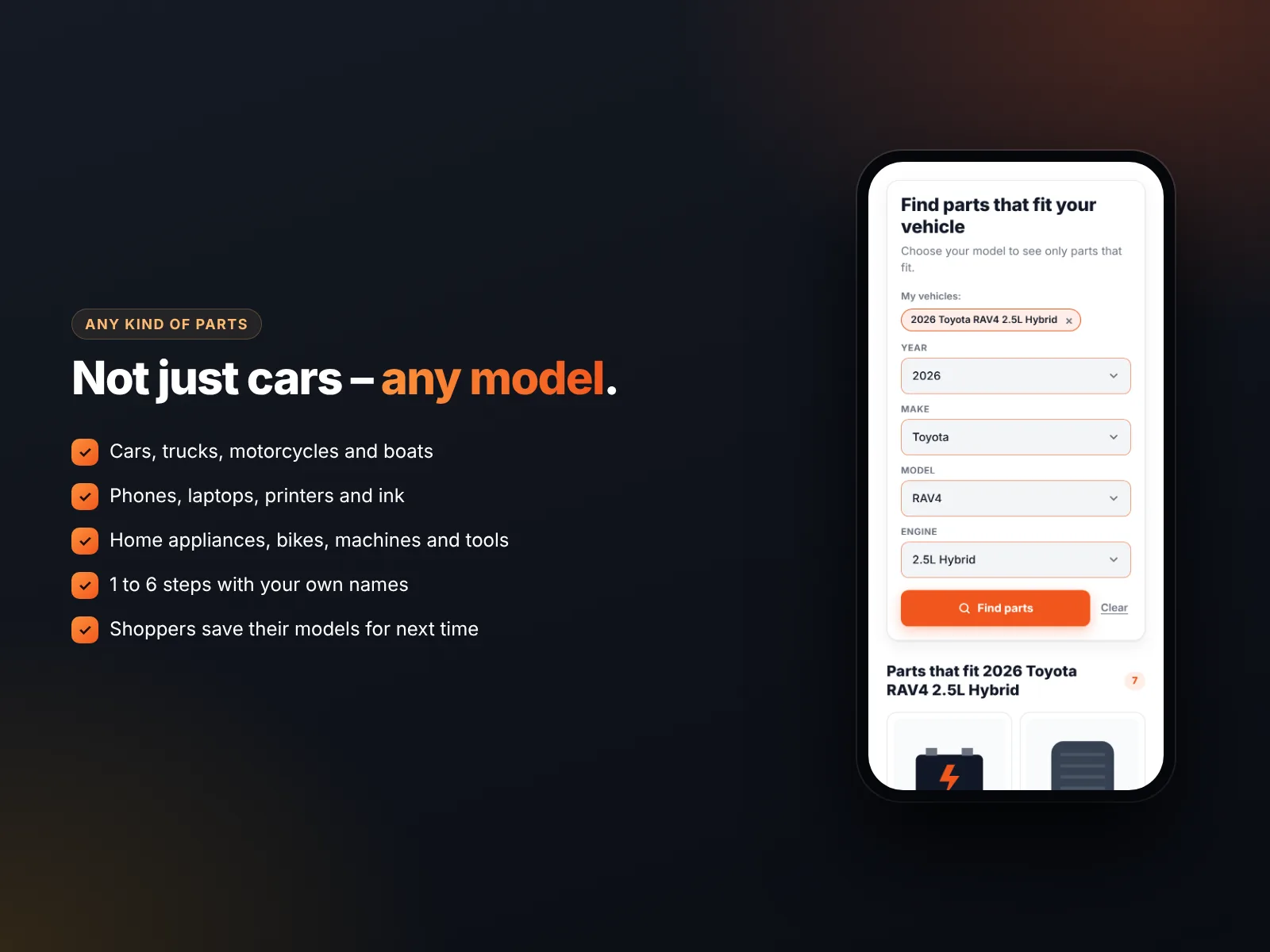
- YMM Parts Finder supports 1 to 6 custom steps and presets for phones, laptops, printers, appliances, bikes, machines and boats.
- A fit check on each product page confirms the fit and lists every compatible model.
- Search insights (Pro) show which models shoppers look for, including searches that found no parts.
In this guide
- Why compatibility search sells more
- Top store types that need a compatibility finder
- Choose the right model steps
- Build clean compatibility data
- Set it up on Wix
- Confirm the fit on every product page
- Use search insights to stock the right parts
- Top 10 tips for compatible parts stores
- Install and leave a review
- Frequently asked questions
Why compatibility search sells more
People buying a replacement part are not browsing for fun. They have a broken screen, an empty toner or a noisy dishwasher, and they want the right part fast. Every second of doubt is a chance to leave.
- Confidence: “Fits your HP OfficeJet Pro 9015” removes the doubt.
- Speed: three dropdowns are faster than reading 40 product descriptions.
- Fewer returns: wrong-model orders cost you shipping both ways.
- Bigger baskets: once the model is chosen, shoppers see every matching part and accessory.
- Loyalty: saved models bring shoppers back to “their” parts.
Top store types that need a compatibility finder
| Store type | Typical steps | Example parts |
|---|---|---|
| Phone and tablet repair | Brand → Series → Model | Screens, batteries, cases, charging ports |
| Laptop and computer | Brand → Series → Model | Chargers, batteries, keyboards, RAM |
| Printer and ink | Brand → Series → Model | Toner, ink, drums, rollers |
| Home appliances | Appliance → Brand → Model | Filters, belts, door seals, pumps |
| Bicycles and e-bikes | Brand → Model → Year | Brake pads, chains, batteries |
| Machines and garden tools | Brand → Machine type → Model | Chains, blades, carburettors |
| Boats and marine | Engine brand → Horsepower → Year | Impellers, filters, props |
| Vehicles | Year → Make → Model → Engine | Brakes, filters, lights |
Choose the right model steps
Steps are the dropdowns shoppers fill in. Good steps follow how customers describe their device:
- Start broad: brand or appliance type first.
- Use the names on the device: “Galaxy S” and “Galaxy S23 Ultra”, not internal codes.
- Stop when the fit is clear. Two or three steps are enough for most devices. Vehicles may need four.
- Use numbers where it helps: years or horsepower can be number steps, which allow ranges like 2018-2026.
In YMM Parts Finder you can rename steps, reorder them, mark number steps and change the placeholder text, then preview everything live. Preset steps are only a starting point.
Build clean compatibility data
Compatibility data links each product to the models it fits. Clean data is the difference between a finder people trust and one they ignore.
- Collect what you have: supplier sheets, manufacturer lists, your own notes.
- Use one spelling per model: “OfficeJet Pro 9015”, not also “Officejet 9015” and “OJ Pro 9015”.
- Use lists and ranges:
Galaxy S23, Galaxy S23+in one cell, or2016-2022for years. - Mark universal items: a USB-C cable may fit “everything” in its category; use
*to mark it universal. - Add notes where needed: “Black only”, “Front left”, “Requires adapter”.
- Import, then spot-check: open five random products and check their fit lists.
The app gives you a CSV template that matches your own steps. Match products by SKU for the most reliable import; if your SKUs are messy, fix them first in your Wix Stores product setup or with Bulk Product & Price Editor.
Set it up on Wix
- Install YMM Parts Finder from the Wix App Market (14-day free trial).
- Choose a preset such as Phones & tablets, Printers & ink or Home appliances, or create custom steps.
- Download the CSV template, fill it in and import it. Or add fits product by product, and copy fits between similar products.
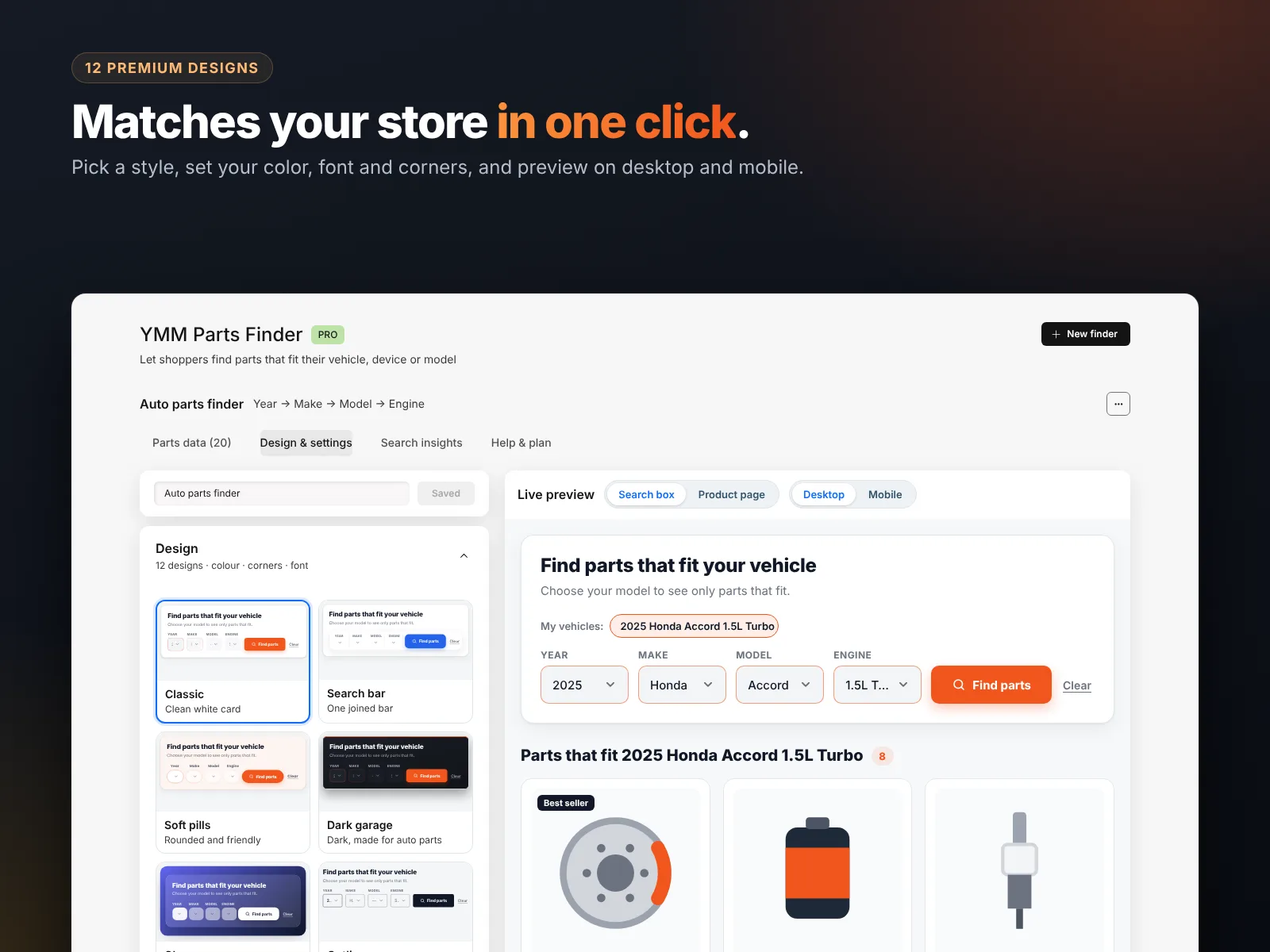
- Pick one of 12 designs and set your color, font and texts (for example “Find parts for your printer”).
- Add the widget to your homepage, shop page or a dedicated “Find my part” page.
- Publish and test with a few real models.
Confirm the fit on every product page
The fit check sits on your Wix Stores product pages. If the shopper has already chosen a model, it says at once whether the part fits it. If not, it offers a short form to check. A “Compatible with” list shows every model the product fits, with a filter for long lists. This alone answers most of the “will it fit?” emails you receive today.
Use search insights to stock the right parts
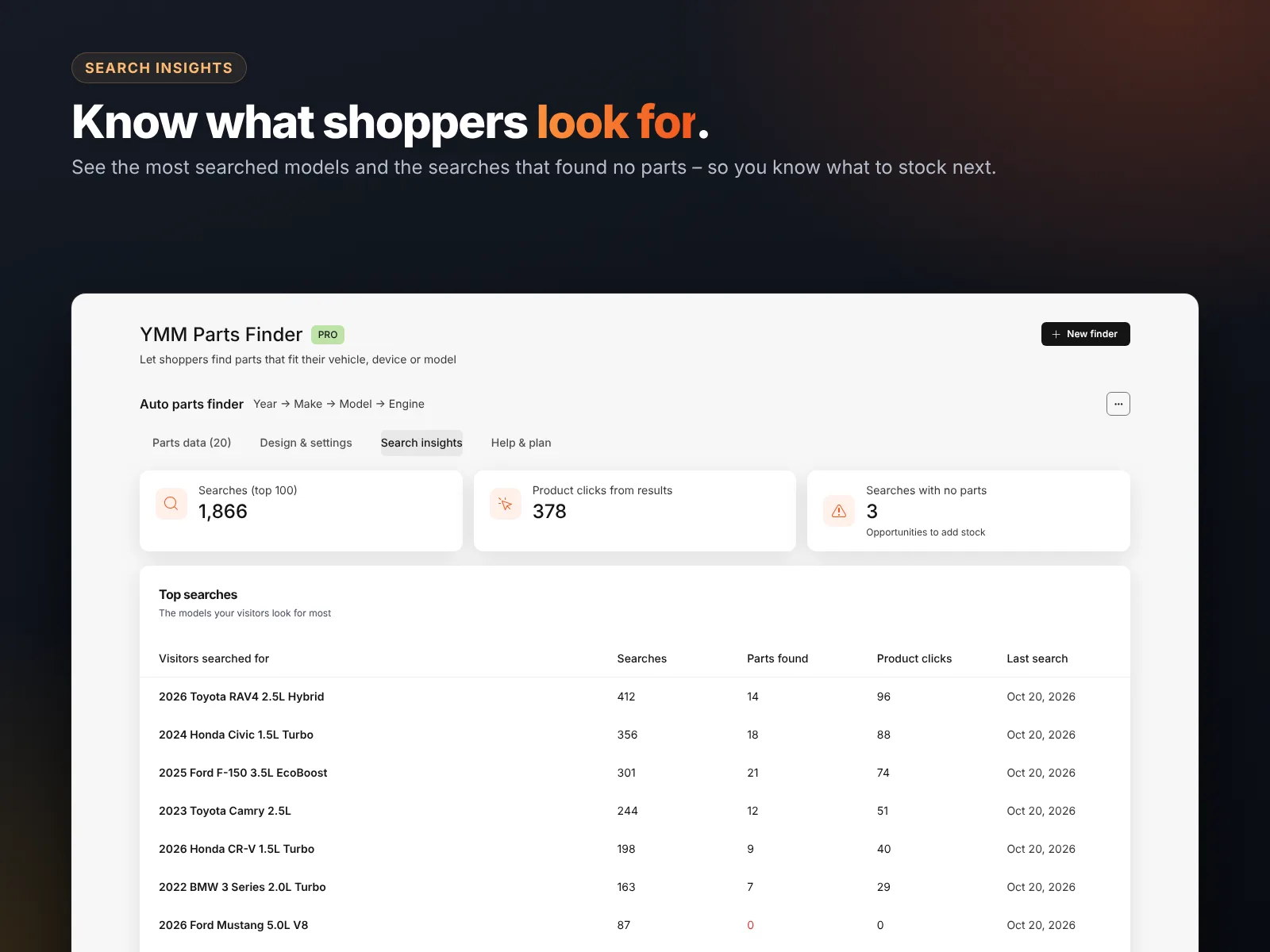
On the Pro plan, Search insights shows the models shoppers search for most, how many parts each search found, product clicks from the results, and the searches that found no parts. Those “no parts found” searches are a shopping list: real customers asked for parts you do not have yet.
Top 10 tips for compatible parts stores
- Put the finder above the fold on your homepage.
- Name products with the model: “Battery for Galaxy S23 – 3900 mAh”.
- Show the compatible list on the page so Google can read it too.
- Use clear photos with connectors and labels visible.
- Explain how to find the model number with a small guide image.
- Offer universal accessories next to model-specific parts.
- Keep stock accurate so the finder does not show sold-out items.
- Write strong product SEO titles in bulk. See our Wix product SEO tips.
- Review insights monthly and add missing parts.
- Ask happy customers for reviews that mention their model.
Plans
| Standard | Pro | |
|---|---|---|
| Price | $4.99/month, or $3.99/month billed yearly | $9.99/month, or $7.99/month billed yearly |
| Parts finders | Up to 3 | Unlimited |
| Products and fits | Unlimited | Unlimited |
| Search insights and CSV export | — | ✓ |
For a full tour of every feature, read our guide to the best Wix parts finder app.
How to install YMM Parts Finder and leave a review
- Open the YMM Parts Finder listing on the Wix App Market.
- Click Add to Site, choose your Wix site and approve the permissions.
- Set it up from your Wix dashboard or the Editor (the steps above take a few minutes).
- Once it is working for you, go back to the app page, scroll to Reviews and click Write a Review. Choose your stars and share one or two sentences about how you use it.
Reviews help other Wix users find tools that work, and they help us, a small team, decide what to build next. If something is not working the way you expect, please tell us first and we will fix it fast.
More top Wix apps from MIVAQ Apps
MIVAQ Apps is the app studio of MIVAQ Creative Solutions. Every app is made for Wix, priced fairly and supported by real people. You can see all of them on our MIVAQ Apps developer page on the Wix App Market and on our Wix apps page.
- News Ticker & Announcement Bar: a scrolling news ticker and announcement bar with countdowns and coupon codes.
- Bulk Product & Price Editor: bulk edit prices, sales, stock, ribbons and SEO for many products at once.
- Smart Booking & Payment: a booking calendar with online payments, deposits, Stripe and PayPal.
- Smart Price Table: 50 premium pricing table designs with built-in checkout.
Need help with your Wix site?
MIVAQ designs, builds and manages Wix websites and builds Wix apps. If you want help with building a parts store, cleaning model data or importing compatibility lists, we are happy to help. See our Wix solutions, then contact us:
- WhatsApp: message us
- Email: hello@mivaq.com
- Form: send your project details
Related Wix guides
- Best Wix parts finder app
- Wix auto parts store guide
- Wix product SEO tips
- Wix Stores product setup
- Wix eCommerce guide
Frequently asked questions
Can I add a phone model finder to my Wix store?
Yes. Use YMM Parts Finder with the Phones & tablets preset (Brand → Series → Model) and import your compatibility list.
Does it work for printer ink and toner?
Yes. The Printers & ink preset uses Brand → Series → Model, so shoppers find cartridges for their exact printer.
How many steps can I use?
From 1 to 6 steps, with your own names.
Can one product fit many models?
Yes. A product can fit many models, and you can use lists and ranges in your CSV to add them quickly.
What if a shopper’s model is missing?
They see that no parts were found. On Pro, these searches appear in Search insights so you can add the missing parts.
Is there a free trial?
Yes, 14 days. After the trial, Standard costs $4.99 a month and Pro $9.99 a month, less when billed yearly.