This article is part of our complete Wix guide and our list of best Wix apps.
Most of the time you never need to see the code behind a blog post. Then something goes wrong: a heading looks like normal text, a pasted paragraph brings strange spacing from Word, a link will not open in a new tab or a product description is one long block of text. That is when seeing and editing the HTML saves the day.
This guide explains how to edit HTML in Wix blog posts and product descriptions in plain language: which tags matter, how to structure headings for SEO, how to clean pasted text and how to format links, lists, tables and quotes. We use Classic Editor by MIVAQ Apps, which adds a Visual tab and a Text (HTML) tab to your Wix dashboard.
Key takeaways
- You only need a handful of HTML tags to write well-structured posts: headings, paragraphs, links, lists, quotes and tables.
- Use the title as the only H1, then H2 for sections and H3 for sub-sections. This helps readers and search engines.
- Pasted content often carries hidden formatting. Checking the HTML is the fastest way to clean it.
- Product descriptions benefit from the same structure: short paragraphs, lists of features and clear headings.
- Classic Editor gives you a Visual tab, a Text (HTML) tab with quick tag buttons and a classic product screen, for $3.99 a month with a 7-day free trial.
In this guide
- Why edit HTML at all?
- The HTML tags you actually need
- Headings for SEO
- Links that work the way you want
- Lists, quotes and tables
- Cleaning text pasted from Word or Google Docs
- Formatting product descriptions
- How to edit HTML with Classic Editor
- Common HTML mistakes
- Frequently asked questions
Why edit HTML at all?
- Precision. The visual editor shows how text looks. HTML shows what it actually is, such as whether a line is a real heading or just bold text.
- SEO. Search engines read the HTML. Correct headings, lists and link text help them understand your content.
- Clean formatting. You can remove leftover styles and empty lines that break your design.
- Faster fixes. Changing one attribute or tag is often quicker than clicking through menus.
- Reusing content. HTML from another site or document can be pasted, checked and adjusted.
The HTML tags you actually need
You do not need to learn coding. These tags cover almost every blog post and product description:
- <p> paragraph
- <h2>, <h3> section headings
- <strong> or <b> bold, <em> or <i> italic
- <a href=”…”> link
- <ul>, <ol>, <li> bulleted and numbered lists
- <blockquote> quote
- <img> image
- <table>, <tr>, <td> tables
- <del> and <ins> deleted and inserted text, useful for updates and price changes
- <code> code snippets
In Classic Editor’s Text tab, quick tag buttons insert most of these for you, and close any open tags with one click.
Headings for SEO
Headings are the single most important structure in a post. They act like a table of contents for readers and for Google.
- One H1: the post title. Do not add another H1 in the content.
- H2 for main sections: for example “How to choose”, “Step-by-step setup”, “FAQ”.
- H3 for sub-sections inside an H2.
- Never skip levels just for style, such as jumping from H2 to H5 because it looks smaller.
- Use real headings, not bold paragraphs. Bold text looks like a heading but search engines do not treat it as one.
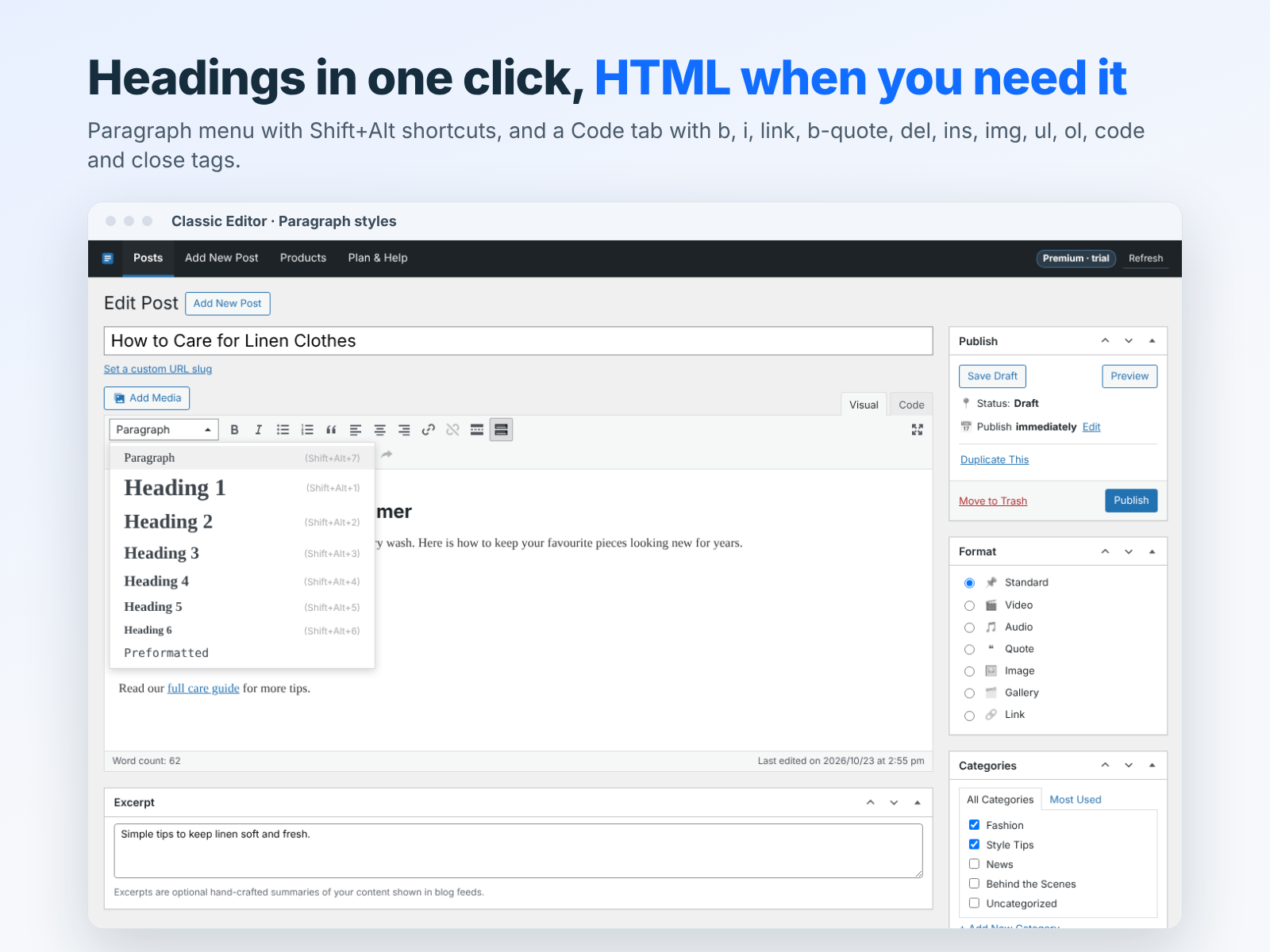
In the Visual tab, the paragraph menu and Shift+Alt shortcuts switch between Paragraph and Heading 1 to 6. In the Text tab you see the exact <h2> and <h3> tags.
Links that work the way you want
- Descriptive link text: “read our Wix SEO guide” is better than “click here”.
- Internal links: link to related posts and service pages to keep readers on your site.
- New tab for external sites: add target=”_blank” and rel=”noopener” to links that leave your site.
- Check every link after pasting content. Old links often point to a previous domain.
Example: <a href="https://example.com" target="_blank" rel="noopener">source</a>
Lists, quotes and tables
Lists make steps and features easy to scan. Use numbered lists (<ol>) for steps and bulleted lists (<ul>) for features. Each item goes in its own <li>.
Quotes (<blockquote>) highlight a customer testimonial or an important statement.
Tables are ideal for size charts, comparisons and specifications. Keep them small: a header row and a few columns read best on phones. The Visual tab includes a table tool, and the Text tab lets you adjust the cells directly.
Cleaning text pasted from Word or Google Docs
Text copied from documents often brings hidden extras: inline styles, font tags, empty paragraphs and odd line breaks. They can change fonts, add big gaps or break your layout.
- Paste the text in the Visual tab.
- Switch to the Text tab and look for long style=”…” attributes, <span> tags and empty <p></p> lines.
- Delete what you do not need, so only clean tags remain.
- Check headings: make sure they are real <h2> and <h3> tags.
- Switch back to Visual and preview the post.
Classic Editor also keeps a browser backup of unsaved changes, so you can restore your work if something goes wrong during editing.
Formatting product descriptions
Product descriptions follow the same rules as blog posts, in a shorter form:
- Start with one or two sentences about the main benefit.
- List key features and materials in a bulleted list.
- Add care instructions or size notes in a short paragraph or a small table.
- Use bold for one or two key facts, not whole paragraphs.
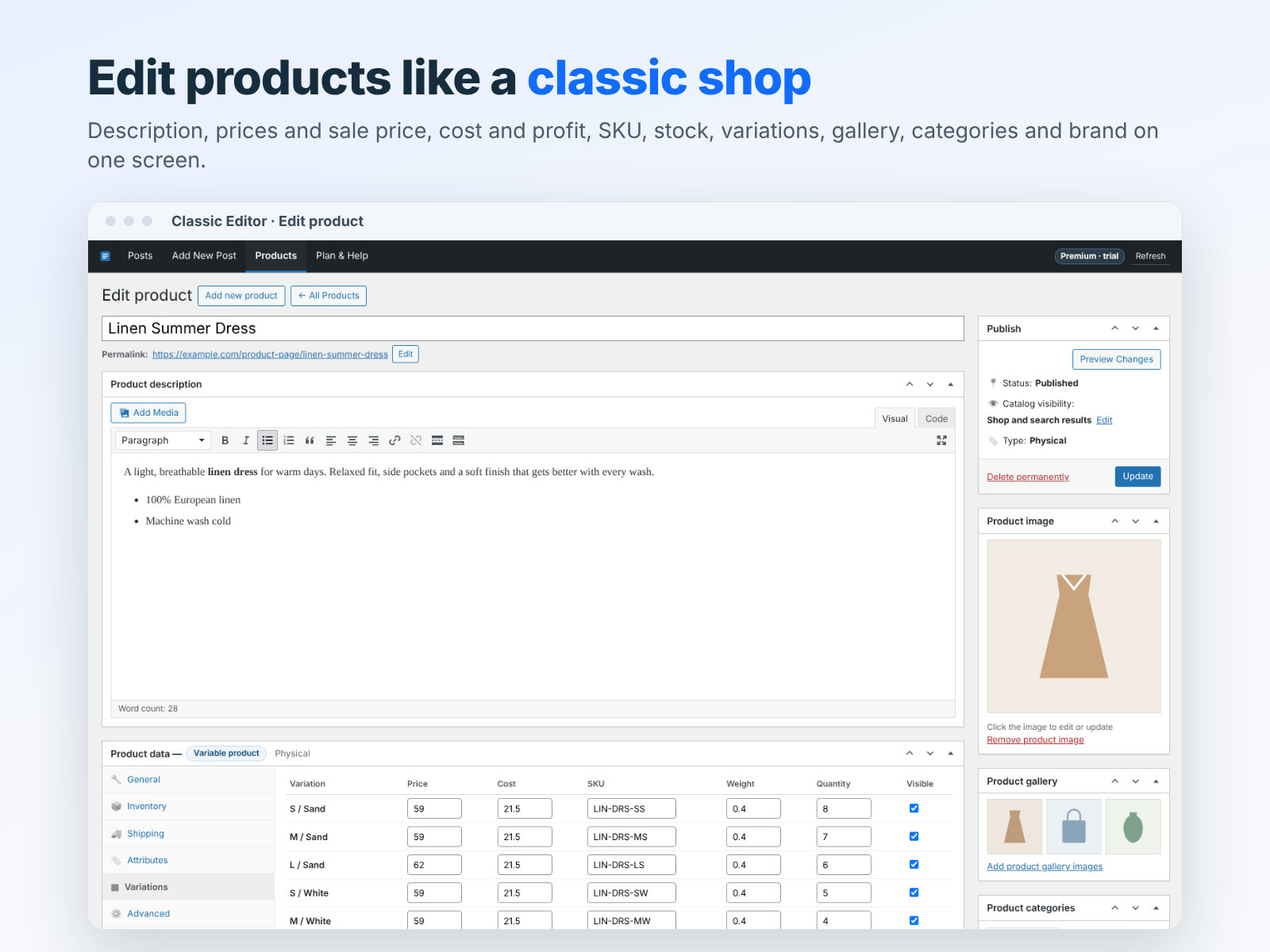
Classic Editor’s product screen uses the same Visual and Text editor for the description, next to prices, SKU, stock, attributes and variations. For SEO advice on product pages, see our Wix product SEO guide.
How to edit HTML with Classic Editor
- Install Classic Editor from the Wix App Market and start the 7-day free trial.
- Open a post from the posts list, or click Add New Post.
- Click the Text tab (shown as Code) to see the HTML.
- Edit tags directly or use the quick tag buttons.
- Switch back to Visual to check the result.
- Save a draft, preview, then publish or schedule.
New to the app? Our Classic Editor for Wix overview walks through every feature.
Common HTML mistakes
- Unclosed tags. A missing </strong> can make the rest of the post bold. Use the close-tags button.
- Several H1s. Keep the title as the only H1.
- Empty paragraphs for spacing. They create uneven gaps. Let your design control spacing.
- Images without alt text. Describe each image for accessibility and image search.
- Inline colors and fonts. They override your site design. Remove them.
- Broken links. Check links after editing, especially after a domain change. Our 404 redirect guide helps when old links break.
A quick HTML checklist before publishing
- One H1 (the title), H2 and H3 in order.
- Short paragraphs, each in its own <p>.
- Steps in numbered lists, features in bulleted lists.
- Descriptive link text, external links opening in a new tab.
- Alt text on every image.
- No leftover styles, spans or empty lines from pasted text.
- A clear excerpt and the right categories and tags.
Try Classic Editor
Classic Editor has one Premium plan with unlimited posts and product texts, Visual and HTML editing, scheduling, categories, tags, images and auto backup while you write, for $3.99 a month with a 7-day free trial. Install it from the Wix App Market. Want a team to write and format your blog for you? Contact MIVAQ.
Frequently asked questions
Can I edit HTML in the default Wix blog editor?
The default Wix blog editor is a visual, block-based editor. It supports HTML embeds, but it does not show the full HTML of a post for editing. Classic Editor adds a Text tab with the post’s HTML.
Will editing HTML break my site design?
No. You are only editing the content of the post or product description, not your site’s template.
Do I need to know how to code?
No. The few tags in this guide cover almost everything, and quick tag buttons insert them for you.
Can I edit product descriptions in HTML?
Yes. Classic Editor’s product screen uses the same Visual and Text editor.
Is there a free trial?
Yes. Classic Editor includes a 7-day free trial.