This article is part of our complete Wix guide and our list of best Wix apps.
Many people who move to Wix from WordPress miss one thing more than anything else: the classic editor. A simple writing area, a familiar toolbar, an Add Media button, and a Text tab where you can see and edit the HTML. No blocks, no drag and drop, just writing.
This guide introduces Classic Editor for Wix, an app by MIVAQ Apps that brings a familiar post and product editor into your Wix dashboard. We cover what it does, who it is for and how to set it up, so you can write blog posts and manage products the way you are used to.
Add Classic Editor to your Wix site →
Key takeaways
- Classic Editor gives Wix a clean writing area with a classic toolbar and no blocks or drag and drop.
- Switch between the Visual tab and the Text (HTML) tab with quick tag buttons.
- Add images from your Media Manager, set categories, tags, featured image and author, and save drafts, publish now or schedule.
- Products get a classic shop screen with simple or variable products, prices, cost and profit, SKU, stock, weight, dimensions and attributes that become variations.
- One Premium plan at $3.99 a month with unlimited use and a 7-day free trial.
In this guide
- Why some writers prefer a classic editor
- What Classic Editor adds to Wix
- The Visual tab
- The Text (HTML) tab
- Media, categories, tags and scheduling
- The classic product screen
- Posts and products in clear lists
- Show extra details on your live site
- How to get started
- Pricing
- Classic Editor vs the default Wix blog editor
- Who Classic Editor is for
- Frequently asked questions
Why some writers prefer a classic editor
- Familiarity. Millions of people learned to blog with the classic WordPress editor. They know where everything is.
- Focus. A plain writing area keeps attention on the words, not on layout.
- Control. The Text tab shows the exact HTML, so you can fix spacing, headings and links precisely.
- Speed. Keyboard shortcuts and a single toolbar are quick for long articles.
- Clean code. Writers who paste content from other tools can check and tidy the HTML before publishing.
- Easier migration. Teams moving from WordPress can keep their writing habits.
What Classic Editor adds to Wix
Classic Editor brings a simple, familiar post and product editor into your site dashboard. It has a familiar toolbar with an Add Media button, Visual and Text (HTML) modes, drafts, scheduling and publishing for blog posts, and a classic product screen with stock, attributes and variations.
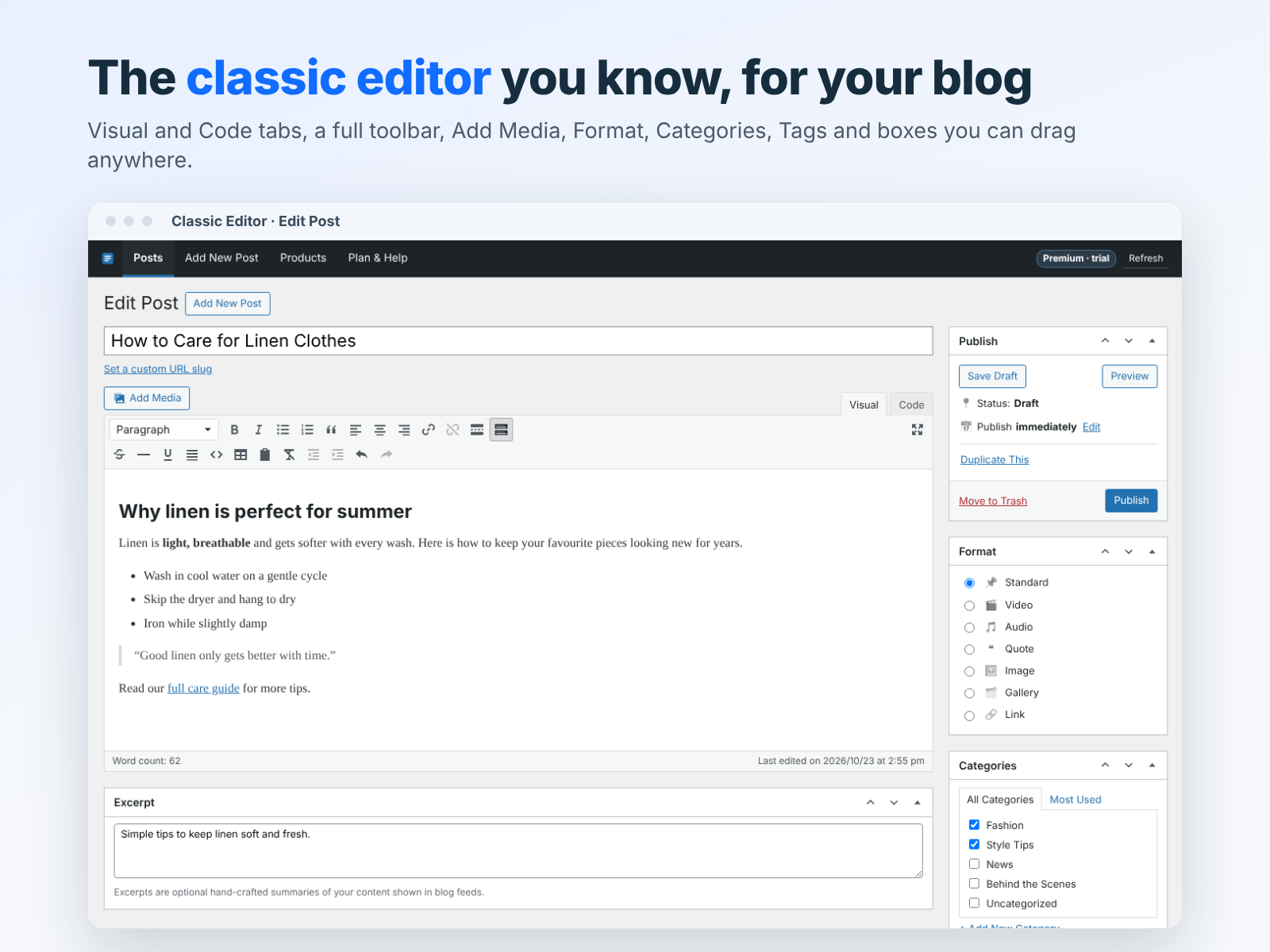
The screen layout will feel familiar: the title at the top, the editor in the middle, and boxes for Publish, Format, Categories, Tags, Featured image and Excerpt on the side and below. You can drag the boxes to arrange them, fold them away and the layout is remembered.
The Visual tab
The Visual tab is a what-you-see-is-what-you-get editor with a classic toolbar:
- Paragraph and heading styles (Heading 1 to 6, preformatted)
- Bold, italic, strikethrough and underline
- Bulleted and numbered lists
- Blockquotes
- Left, center and right alignment
- Links
- Tables
- Fullscreen mode for distraction-free writing
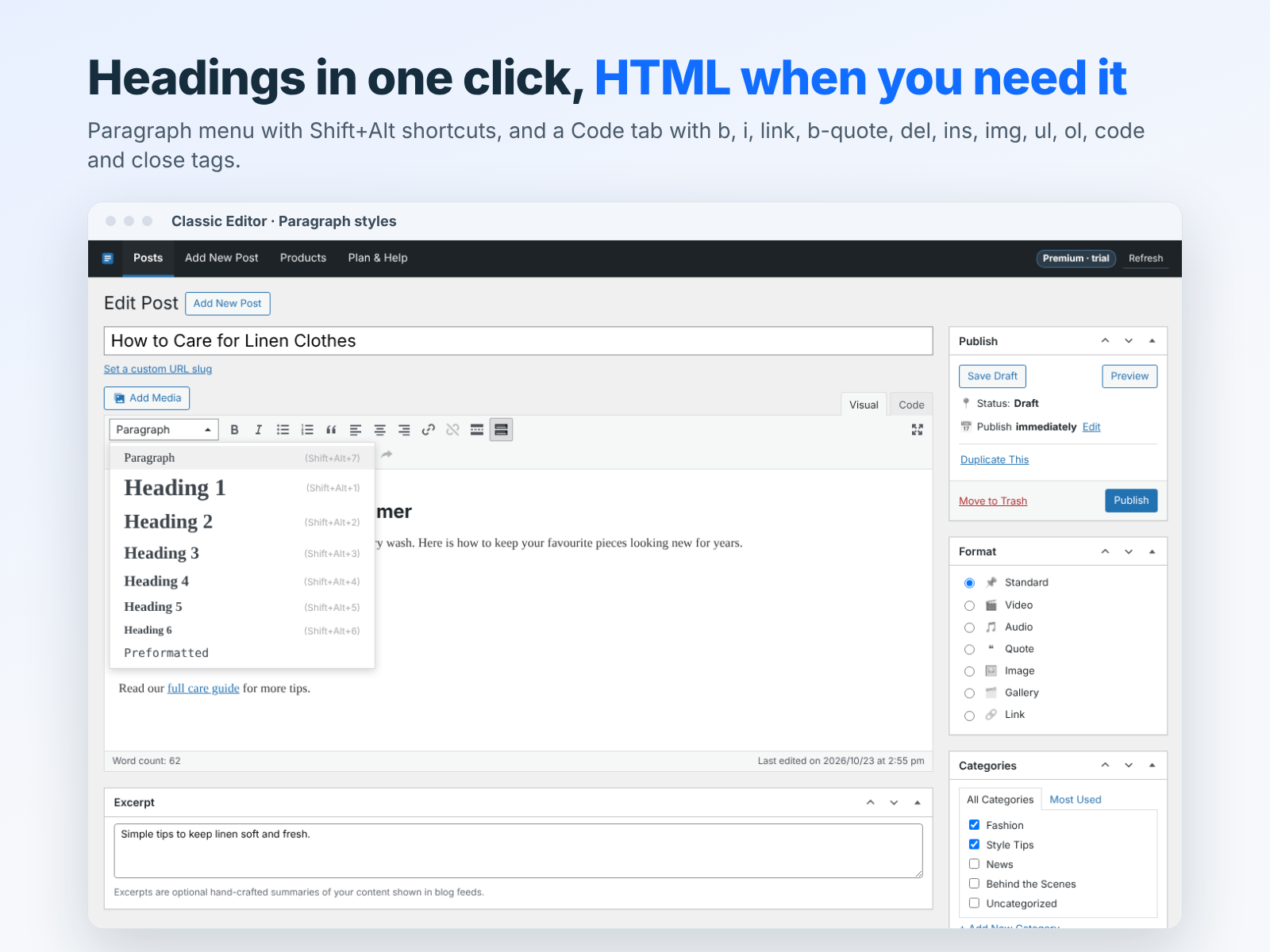
Keyboard shortcuts with Shift+Alt let you switch headings and paragraphs without touching the mouse.
The Text (HTML) tab
Switch to the Text tab to see and edit clean HTML. Quick tag buttons insert common tags such as b, i, link, b-quote, del, ins, img, ul, ol, li and code, and close open tags for you. It is ideal for:
- Fixing messy formatting pasted from Word or Google Docs
- Checking that headings are in the right order for SEO
- Adding attributes to links, such as opening in a new tab
- Editing lists and tables precisely
Learn more in our guide to editing HTML in Wix blog posts and products.
Media, categories, tags and scheduling
- Add Media: insert images from your Wix Media Manager.
- Categories and tags: organize posts with your existing blog categories and tags.
- Featured image and author: set them in their own boxes.
- Excerpt: write a short summary for listings and search.
- Publish options: save a draft, preview, publish now or schedule a date.
- Auto backup: a browser backup of unsaved changes lets you restore your work if something goes wrong while writing.
The classic product screen
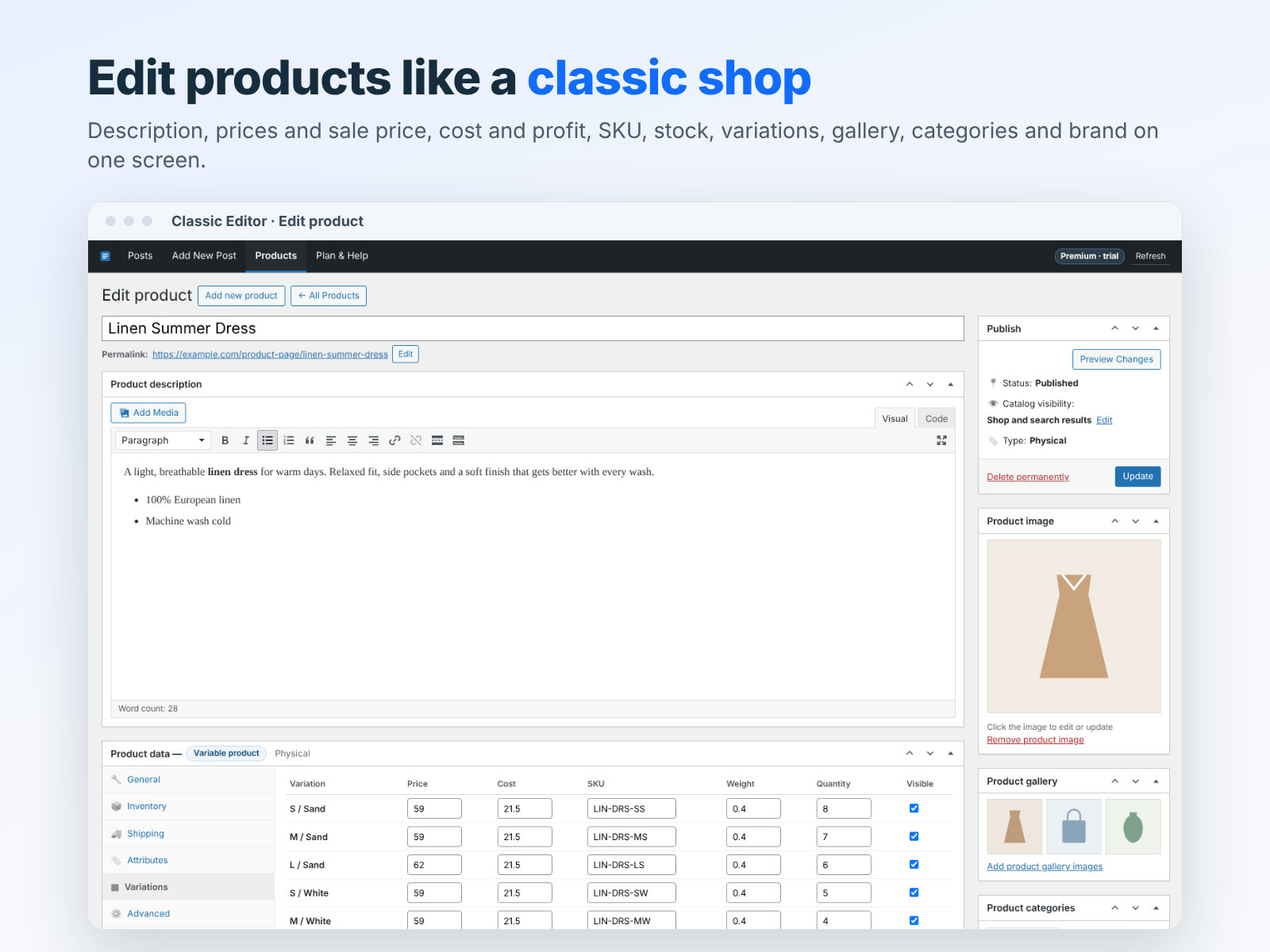
If you run a Wix store, products get a classic shop screen too:
- Choose a simple or variable product
- Set regular and sale prices, cost and profit
- Manage SKU and stock status, including pre-orders
- Add unit price, weight and dimensions
- Add attributes that become variations, each with its own price, stock and visibility
- Write the description in the same Visual and Text editor, and manage the product image and gallery
Posts and products in clear lists
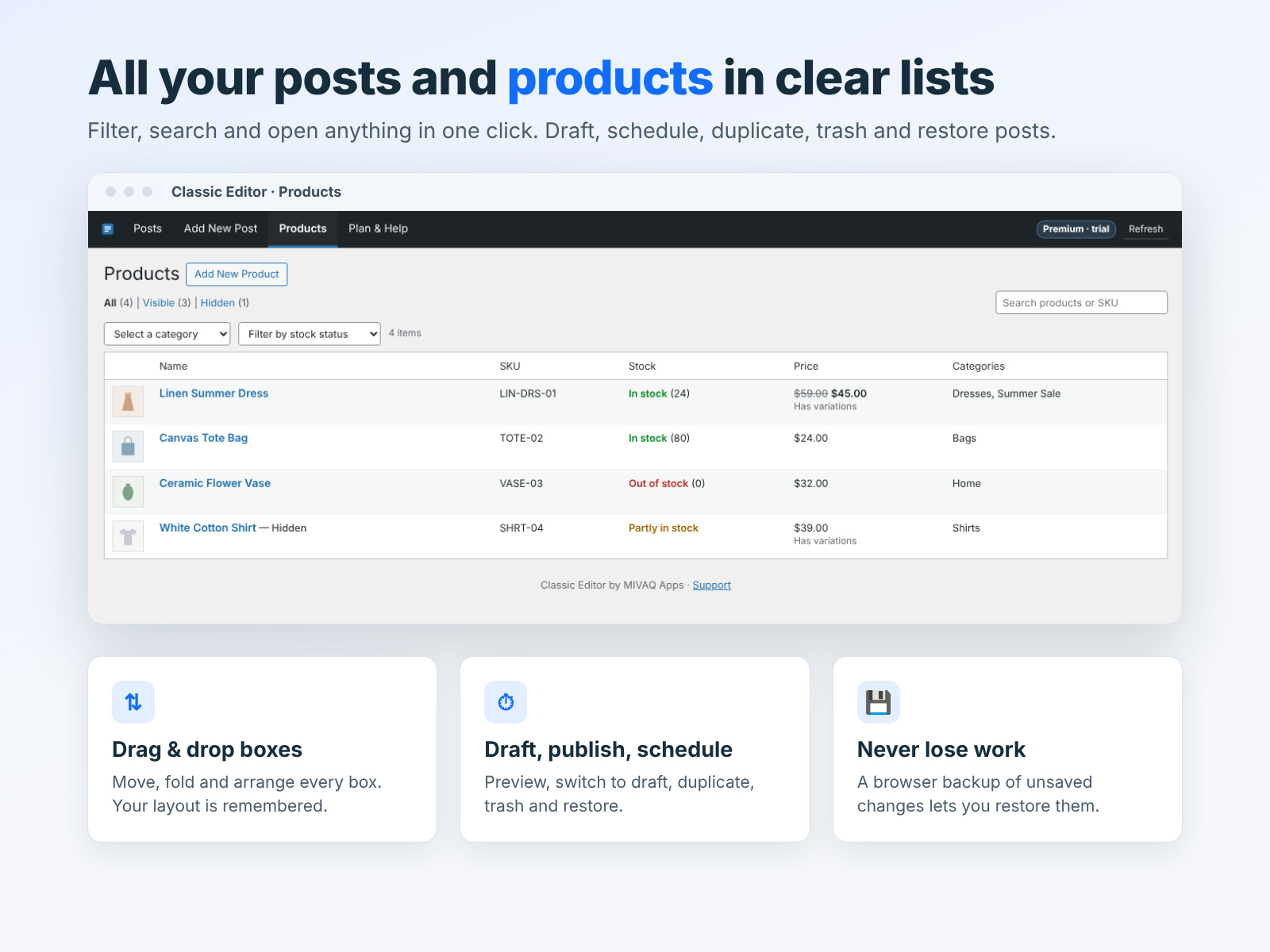
All your posts and products appear in clear lists. Filter, search and open anything in one click. Draft, schedule, duplicate, trash and restore posts, and sort and filter the product list by category or stock status. New posts and products are one click away from the top menu.
Show extra details on your live site
A Settings page lets you show extra details on your live site: the featured image under the post title, publish date, author, read time and visitor counts for posts, products and pages. Each item can be turned on or off.
Classic Editor vs the default Wix blog editor
The built-in Wix blog editor is a modern, block-style editor. It is great for visual posts with galleries, videos and embeds. Classic Editor is not a replacement for it; it is an alternative for people who prefer a different way of writing.
- Writing style: the default editor works with content blocks. Classic Editor gives you one continuous writing area with a toolbar.
- HTML access: Classic Editor has a full Text tab, so you can see and edit the HTML of the whole post.
- Familiar layout: Publish, Format, Categories, Tags, Featured image and Excerpt boxes in the places WordPress users expect.
- Products in the same style: a classic shop screen for store products, which the blog editor does not cover.
Many teams use both: the default editor for highly visual posts, and Classic Editor for long articles, guides and product texts.
Who Classic Editor is for
- Former WordPress users who moved their site to Wix and want their old workflow back.
- Bloggers and content writers who publish long articles and want a distraction-free writing area.
- SEO professionals who need to check headings, links and HTML structure.
- Store owners who edit many product descriptions and prefer a classic shop screen.
- Agencies whose writers already know the classic editor.
How to get started
- Install Classic Editor from the Wix App Market and start the 7-day free trial.
- Open it from your dashboard. You will see Posts, Add New Post, Products and Plan & Help in the top menu.
- Open an existing post to see it in the classic editor, or click Add New Post.
- Write in the Visual tab, switch to Text to check the HTML.
- Set categories, tags, featured image and excerpt.
- Save a draft, preview, then publish or schedule.
- Open Settings to choose which extra details appear on your live site.
Pricing
Classic Editor has one Premium plan with unlimited posts and product texts, Visual and HTML editing, scheduling, categories, tags, images and auto backup while you write. It costs $3.99 a month and comes with a 7-day free trial.
Tips for writing better Wix blog posts
- Use one H1 (the title) and organize the post with H2 and H3 headings.
- Keep paragraphs short and use lists for steps and features.
- Add descriptive alt text to images.
- Link to related posts and service pages.
- Write a clear excerpt for each post.
Need more blog ideas? See our Wix guide and our SEO guide for small businesses.
Install and leave a review
Install Classic Editor and write the way you like. If it helps, please leave a short review on the Wix App Market. Moving from WordPress to Wix? MIVAQ can migrate your content.
Frequently asked questions
Does Classic Editor replace the Wix editor?
No. Your site design is still built in the Wix editor. Classic Editor gives you a classic way to write blog posts and edit product texts and details from your dashboard.
Can I edit existing blog posts?
Yes. Your existing posts appear in the posts list and open in the classic editor.
Can I edit HTML?
Yes. Switch to the Text tab to edit clean HTML with quick tag buttons.
Can I schedule posts?
Yes. Save a draft, publish immediately or schedule a date.
Does it work for Wix Stores products?
Yes. Products get a classic shop screen with prices, stock, attributes and variations.
Is there a free trial?
Yes. The Premium plan includes a 7-day free trial.