This article is part of our complete Wix guide and our list of best Wix apps.
You changed your phone number. Or your shop moved. Or you noticed the same typo in forty blog posts. On most website builders you would open every page, every post and every product one by one, search for the old text and fix it by hand. On a Wix site with a blog, a store and a few CMS collections, that can mean hours of copy and paste, and you will still miss a few places.
This guide shows you how to find and replace text on a Wix site the fast way: search your whole site at once, preview every change, replace in bulk and undo if something looks wrong. We use Text Find & Replace: Bulk Edit, a Wix app by MIVAQ Apps, but the tips work for any bulk text update.
Add Text Find & Replace to your Wix site →
Key takeaways
- Wix does not include a site-wide find and replace for blog posts, store products and CMS collections together.
- A find and replace app searches all of them at once and shows each match with a before and after preview.
- Options such as match case, whole words only and link addresses help you change exactly what you want and nothing else.
- A backup is saved before every change, so you can undo a whole run with one click.
- The free plan includes 50 replacements every month. Pro costs $3.99/month ($2.99/month billed yearly) for unlimited replacements and regular expressions.
In this guide
- Why Wix site owners need find and replace
- Manual editing vs bulk find and replace
- Where your text lives on a Wix site
- Text Find & Replace for Wix
- How to find and replace text on Wix, step by step
- Search options explained
- History and one-click undo
- Free vs Pro
- Tips for safe bulk edits
- Install and leave a review
- Frequently asked questions
Why Wix site owners need find and replace
Text on a website gets old faster than you think. Every business has moments when the same words must change everywhere:
- New phone number or email. Your old number is written in blog posts, product descriptions and your branch or team collections.
- Rebrand or new company name. The old brand name is in hundreds of places, including posts you wrote years ago.
- New domain or moved pages. Links inside your content still point to the old address.
- Ended offers. “Free shipping over $50” or “Summer sale” sentences stay in product descriptions long after the promotion ends.
- Repeated typos. A wrong spelling of a product, a place or a person copied into many posts.
- Legal and policy wording. Warranty periods, return days or certification names that changed.
Old details are not only messy, they cost you. Customers call a number that no longer works, Google shows outdated information, and visitors lose trust when two pages say different things. Keeping your content consistent is also part of good Wix eCommerce SEO.
Manual editing vs bulk find and replace
| Editing by hand | Bulk find and replace | |
|---|---|---|
| Time for 100 posts and products | Hours | A few minutes |
| Chance of missing a page | High | Low: every item is searched |
| See all changes before saving | No | Yes, with a before and after preview |
| Undo if something goes wrong | Only by editing again | One click from History |
| Formatting kept | Depends on careful copy and paste | Yes, only the matching text changes |
Manual editing is fine for one or two pages. Once the same text sits in ten or more places, bulk find and replace is faster and safer.
Where your text lives on a Wix site
Before you search, it helps to know where text is stored on Wix:
- Wix Blog: post titles, excerpts and the post content (rich text with headings, lists, links and more).
- Wix Stores: product names and product descriptions.
- CMS collections: your own content, such as team members, branches, FAQs, portfolio items, recipes or listings. These can have text, rich text, rich content and URL fields.
- Site pages in the Editor: text boxes you place directly on pages.
Apps can reach the first three through official Wix APIs. Text typed directly into Editor text boxes is part of the page design, which apps cannot change, so update those few boxes in the Editor. On most sites the large amount of repeated text sits in the blog, the store and the CMS, which is exactly what a find and replace app covers.
Text Find & Replace for Wix
Text Find & Replace: Bulk Edit is published on the Wix App Market by MIVAQ Apps. It adds one simple page to your Wix dashboard where you can change any word, name, phone number or link across your blog, products and CMS in one go.
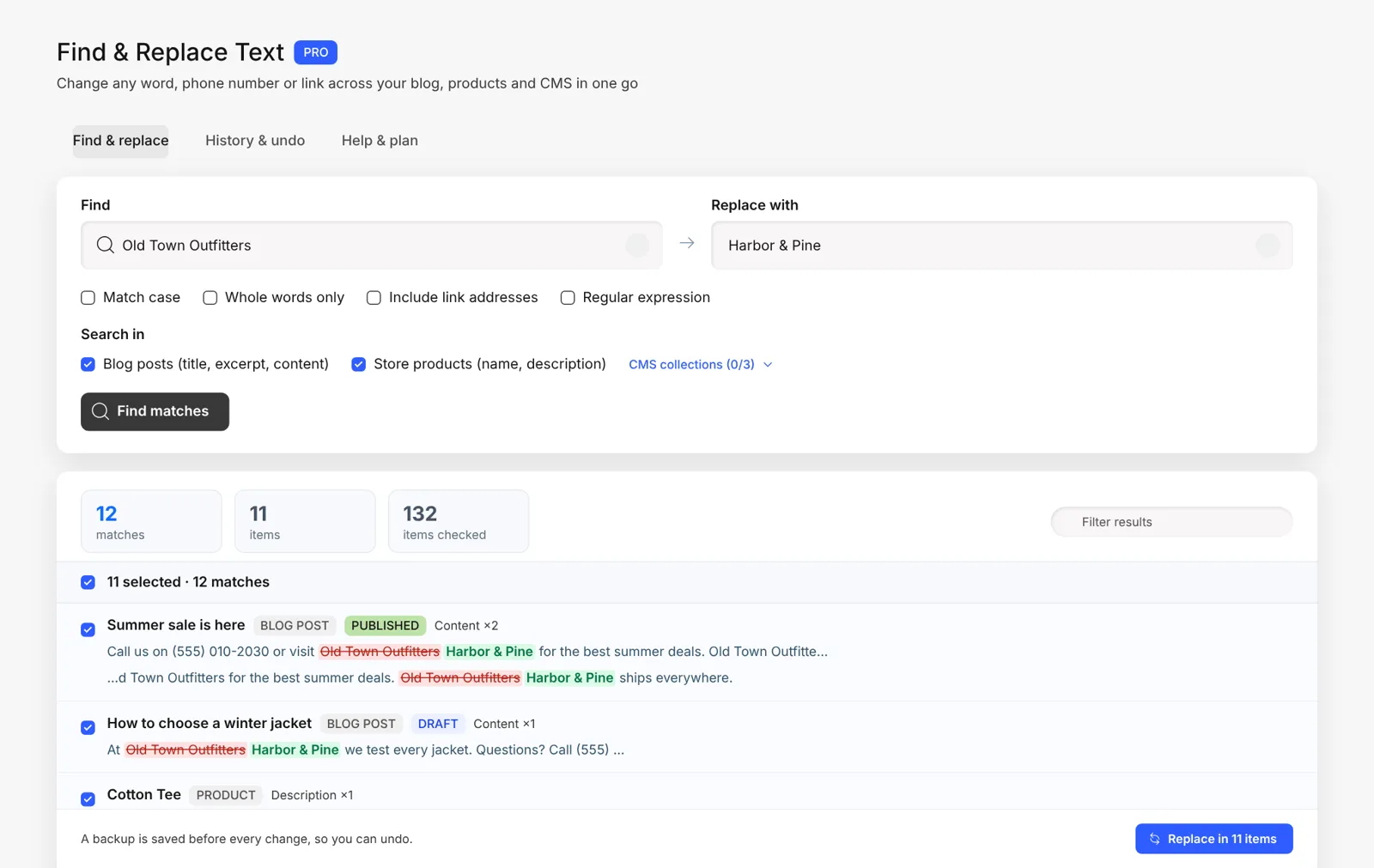
- One search for the whole site. Choose blog posts, store products and any of your CMS collections.
- Before and after preview. The old text is crossed out in red and the new text is shown in green, with the words around it.
- Pick what to change. Untick any item you want to keep and filter results by title or place.
- Formatting stays. Only visible text changes. Bold, links, headings and images stay as they are.
- Live right away. Published posts stay published and products update on your live site.
- Backup and undo. Every changed field is backed up first, and a whole run can be undone.
- Works with both Wix Stores catalogs, the older and the newer one.
How to find and replace text on Wix, step by step
- Install the app. Open Text Find & Replace on the Wix App Market, click Add to Site and approve the permissions.
- Open it from your dashboard. You will find it under Apps in the left menu of your Wix dashboard.
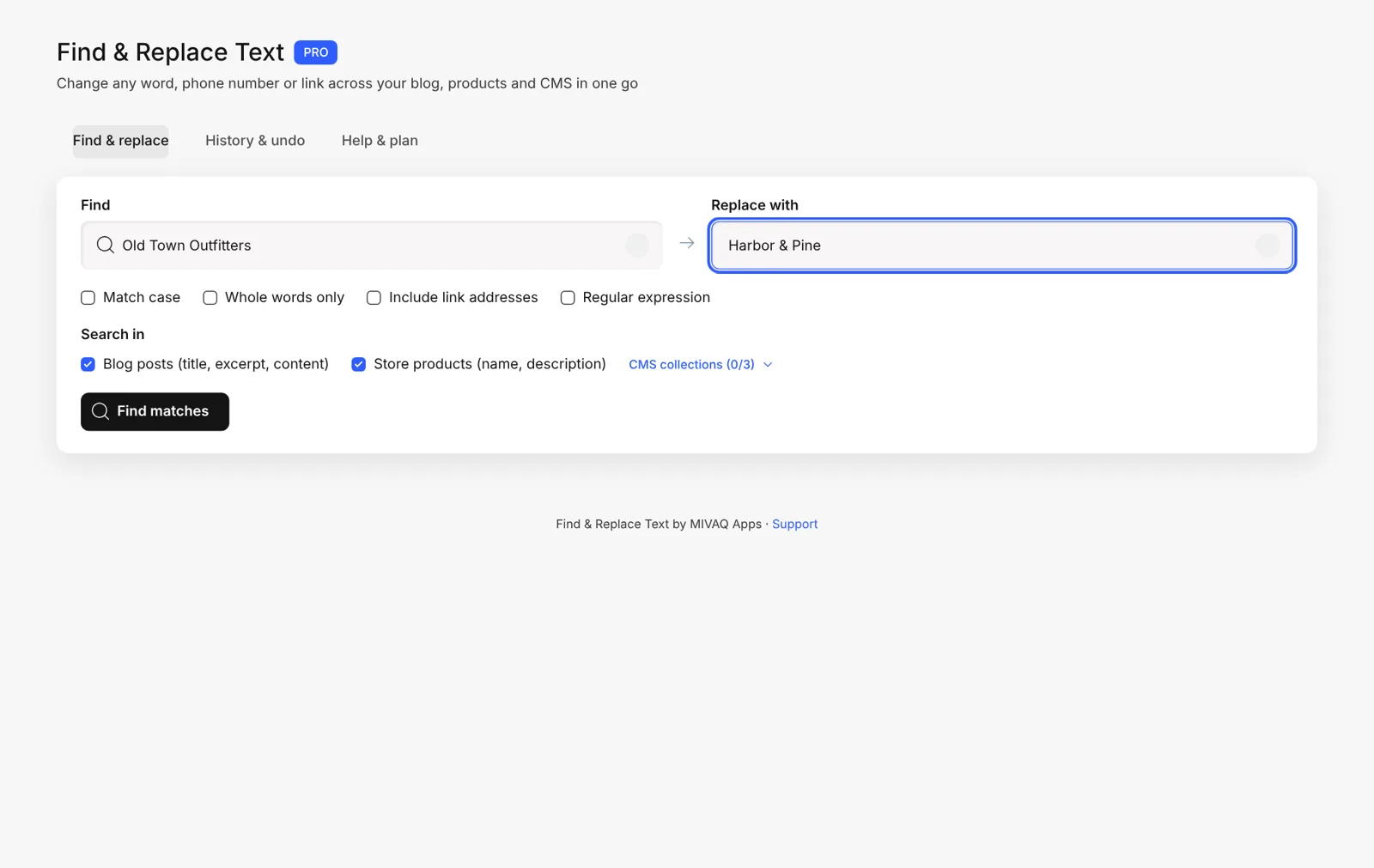
- Type what to find. For example your old phone number or the old brand name.
- Type the new text. Leave it empty if you want to delete the text.
- Choose where to search. Tick blog posts, store products and the CMS collections you want.
- Click Find matches. The app checks every item and shows how many matches it found and in how many items.
- Review the preview. Read the before and after lines and untick anything you do not want to change.
- Click Replace. Confirm, and the app updates the selected items and shows a summary when it is done.
Keep the page open while it works. Large sites are processed in small batches so nothing times out, and you can see the progress as it goes.
Search options explained
- Match case: only finds the text with the same capital letters. “Apple” will not match “apple”.
- Whole words only: only finds complete words. “art” will not match “start” or “party”. This works with every language, including non-English letters.
- Include link addresses: also changes the web address inside links, not only the visible text. Use it when you move to a new domain or rename a page.
- Regular expression (Pro): advanced patterns for power users. For example, find every phone number that starts with a certain code, or reorder words with groups such as
$1.
When you are not sure, start with Whole words only turned on. It is the safest way to avoid changing parts of other words.
History and one-click undo
Bulk edits are powerful, so safety comes first. Before the app changes a field, it saves a copy of the original text inside your own Wix site. Every replacement run is listed on the History & undo tab with the old text, the new text, the number of changes and the date.
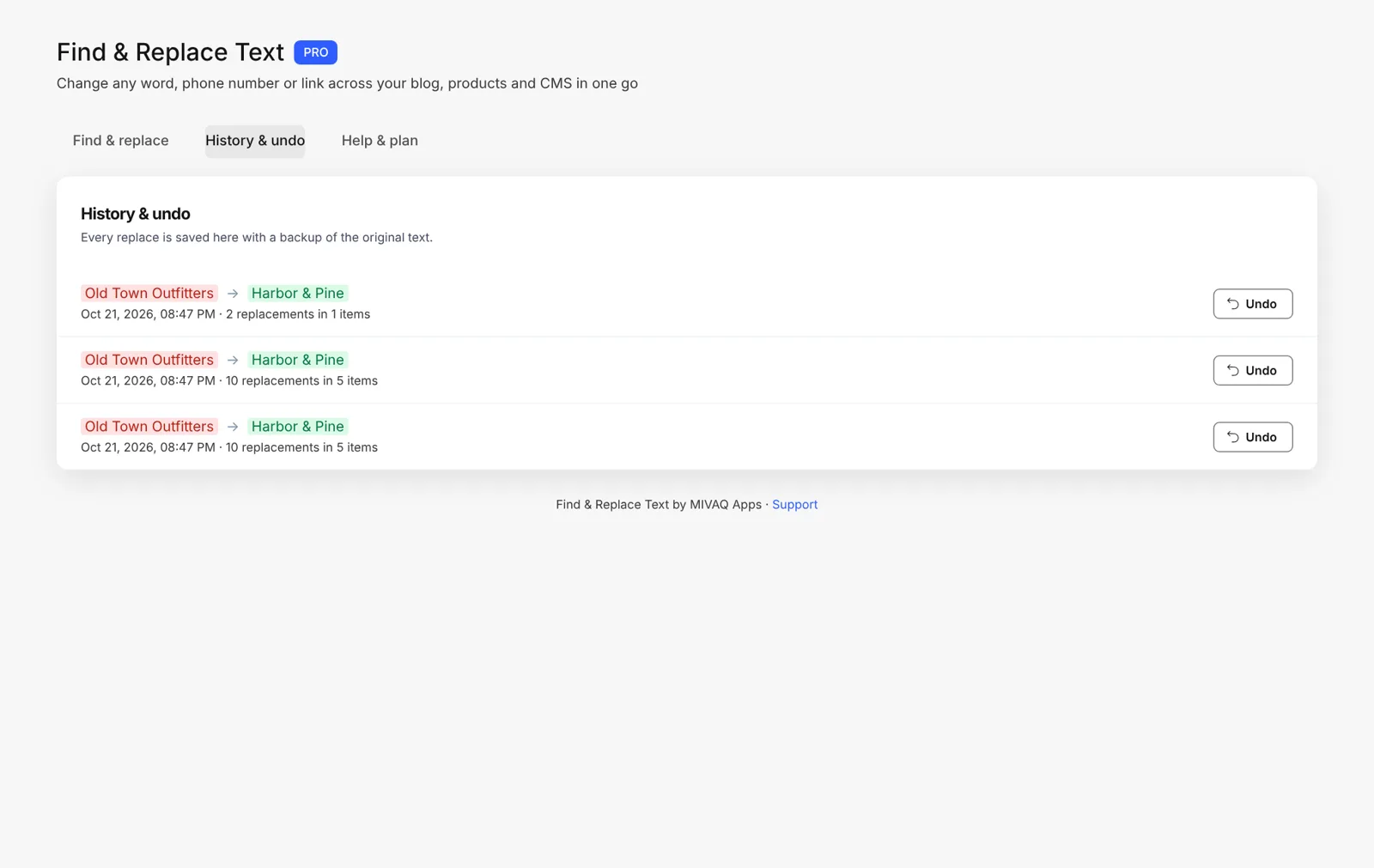
Changed your mind? Click Undo next to the run and the original text comes back in every item. You can also undo right from the result window after a replacement.
Free vs Pro
| Free | Pro | |
|---|---|---|
| Price | $0 | $3.99/month, or $2.99/month billed yearly |
| Replacements | 50 per month | Unlimited |
| Blog, products and CMS | ✓ | ✓ |
| Before and after preview | ✓ | ✓ |
| Match case, whole words, links | ✓ | ✓ |
| History and undo | ✓ | ✓ |
| Regular expressions | — | ✓ |
For a small fix such as one phone number on a few pages, the free plan is enough. For a rebrand, a domain move or a large store, Pro removes the limit.
Tips for safe bulk edits
- Search first, replace second. Look at the number of matches. If it is much higher than you expected, make the search more specific.
- Use longer phrases. “Call us on 0171” is safer than “0171”.
- Turn on whole words for short words and names.
- Test on one item. Untick everything except one item, replace, check the live page, then run the rest.
- Check the Editor too. Update text boxes that sit directly on pages, like the header or footer.
- Update SEO fields. If a product or page title changed, check its SEO title and description as well. Our Wix Stores product setup guide shows how.
How to install Text Find & Replace and leave a review
- Open the Text Find & Replace listing on the Wix App Market.
- Click Add to Site, choose your Wix site and approve the permissions.
- Run your first search from the Wix dashboard.
- Once it saves you time, go back to the app page, scroll to Reviews and click Write a Review.
Reviews help other Wix users find tools that work and help us, a small team, decide what to build next. If something does not work the way you expect, please tell us first and we will fix it fast.
More top Wix apps from MIVAQ Apps
MIVAQ Apps is the app studio of MIVAQ Creative Solutions. You can see all our apps on the MIVAQ Apps developer page and on our Wix apps page.
- Bulk Product & Price Editor: bulk edit prices, sales, stock, ribbons and SEO for many products at once.
- Variation Swatches & Options: color, image and button swatches for product options.
- News Ticker & Announcement Bar: a scrolling top bar with countdowns and coupon codes.
- Smart Booking & Payment: bookings with online payments for tours, classes and services.
- Smart Price Table: 50 premium pricing tables with built-in checkout.
- YMM Parts Finder: shoppers find the parts that fit their vehicle or device.
Need help with your Wix site?
MIVAQ designs, builds and manages Wix websites and builds Wix apps. If you need help with a rebrand, a domain move or cleaning up old content, we are happy to help. See our Wix solutions, then contact us:
- WhatsApp: message us
- Email: hello@mivaq.com
- Form: send your project details
Related Wix guides
- How to change your phone number, business name and links across your whole Wix site
- Complete Wix guide
- Wix eCommerce guide
- Wix eCommerce SEO
- Best Wix apps
Frequently asked questions
Does Wix have a find and replace feature?
Wix does not have a built-in tool that replaces text across blog posts, store products and CMS collections at once. Text Find & Replace by MIVAQ Apps adds this to your Wix dashboard.
Can I preview changes before replacing?
Yes. Every match is shown with the text around it, the old text crossed out and the new text in green. You choose which items to change.
Will it break my formatting?
No. Only visible text changes. Bold text, headings, lists, images and links stay as they are. Link addresses only change when you turn on “Include link addresses”.
Can I undo a replacement?
Yes. A backup is saved before every change, and you can undo a whole run from the History & undo tab.
Does it change text in the Wix Editor?
It changes text in the blog, Wix Stores products and CMS collections. Text boxes placed directly on pages in the Editor are part of the page design, so update those in the Editor.
Is it free?
Yes, the free plan includes 50 replacements every month. Pro is $3.99 a month, or $2.99 a month billed yearly, for unlimited replacements and regular expressions.