This article is part of our complete Wix guide. For the full tool walkthrough, read how to find and replace text on a Wix site.
Business details change. A new phone number, a new email address, a new business name, a new domain, a price that went up or a promotion that ended. Changing it on the homepage takes a minute. The hard part is everything else: the blog posts you wrote over the years, every product description in your store and the CMS collections behind your team, branch, FAQ or portfolio pages.
This guide gives you a practical checklist for changing text across your whole Wix site without missing a page, with real examples for phone numbers, emails, brand names, links, prices and policy text.
Bulk update text on Wix with Text Find & Replace →
Key takeaways
- Old phone numbers, names and links usually hide in blog posts, product descriptions and CMS collections, not only on the homepage.
- Make a list of every old detail first, then update them one search at a time.
- Use exact phrases and “whole words only” so you change only what you mean to change.
- Turn on “include link addresses” when you move to a new domain or rename pages.
- Preview every change, test on one item, and keep the undo option ready.
In this guide
- The site-wide update checklist
- Change your phone number and email everywhere
- Rebrand: change your business name
- Update links after a domain change
- Remove old prices and ended promotions
- Fix repeated typos and policy text
- Real examples by business type
- How to do it on Wix, step by step
- What to check after the update
- Frequently asked questions
The site-wide update checklist
Before you change anything, write down every version of the old text. People rarely write the same detail the same way twice. Your old phone number might appear as +44 20 7946 0000, 020 7946 0000 and 0207 946 0000. Your old name might be “Old Town Outfitters”, “Old Town” or “OTO”.
| What changed | Old versions to search | Where it usually hides |
|---|---|---|
| Phone number | All formats, with and without country code | Blog posts, product descriptions, branch and contact collections |
| Email address | Old address, old domain in emails | Blog calls to action, FAQ answers, team pages |
| Business name | Full name, short name, old slogan | Everywhere, especially older blog posts |
| Domain or page links | Old domain, old page paths | Links inside posts, products and CMS rich text |
| Prices and offers | “Free shipping over $50”, old sale text | Product descriptions, promo posts |
| Policy wording | “30-day returns”, old warranty terms | Product descriptions, FAQs |
Then work through the list one item at a time. One clear search per old detail is easier to check than one big change.
Change your phone number and email everywhere
A wrong phone number is the most expensive outdated detail: customers try to call, get no answer and buy somewhere else. To update it:
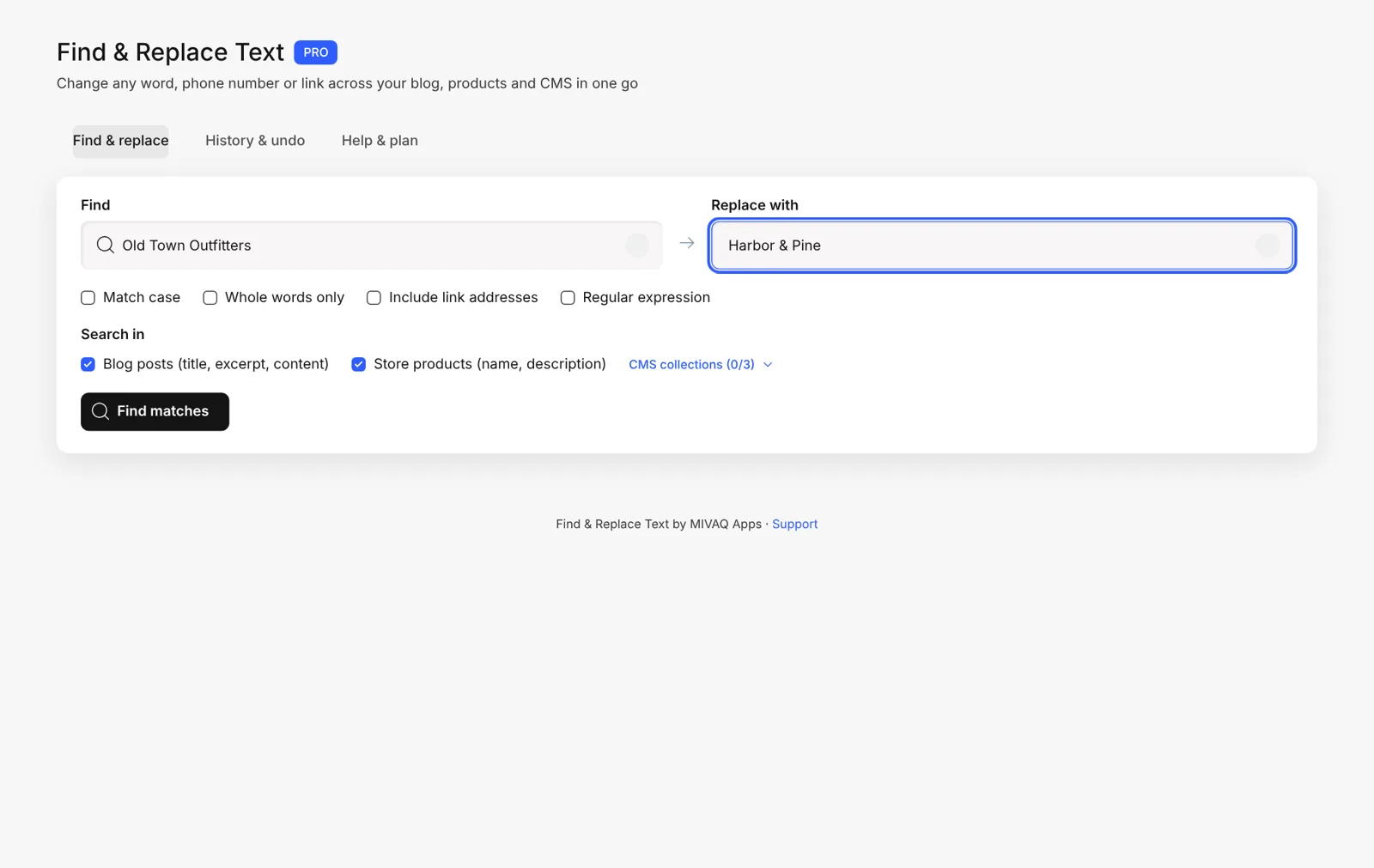
- Search for each format of the old number on its own.
- Replace it with the new number in the format you want to use from now on.
- If your number appears in “tel:” links, turn on Include link addresses so the clickable link changes too.
- Do the same for your email address, including
mailto:links.
Do not forget your Wix business info in the dashboard settings and your Google Business Profile, so search results show the same number as your site.
Rebrand: change your business name
A rebrand is the biggest site-wide text update. The new name must appear everywhere, and the old one should disappear from all customer-facing content.
- Use Match case so “Old Town” in your brand name is changed, but the words “old town” in a sentence about a city are not.
- Use Whole words only for short names, so a name like “Arc” does not change “search” or “archive”.
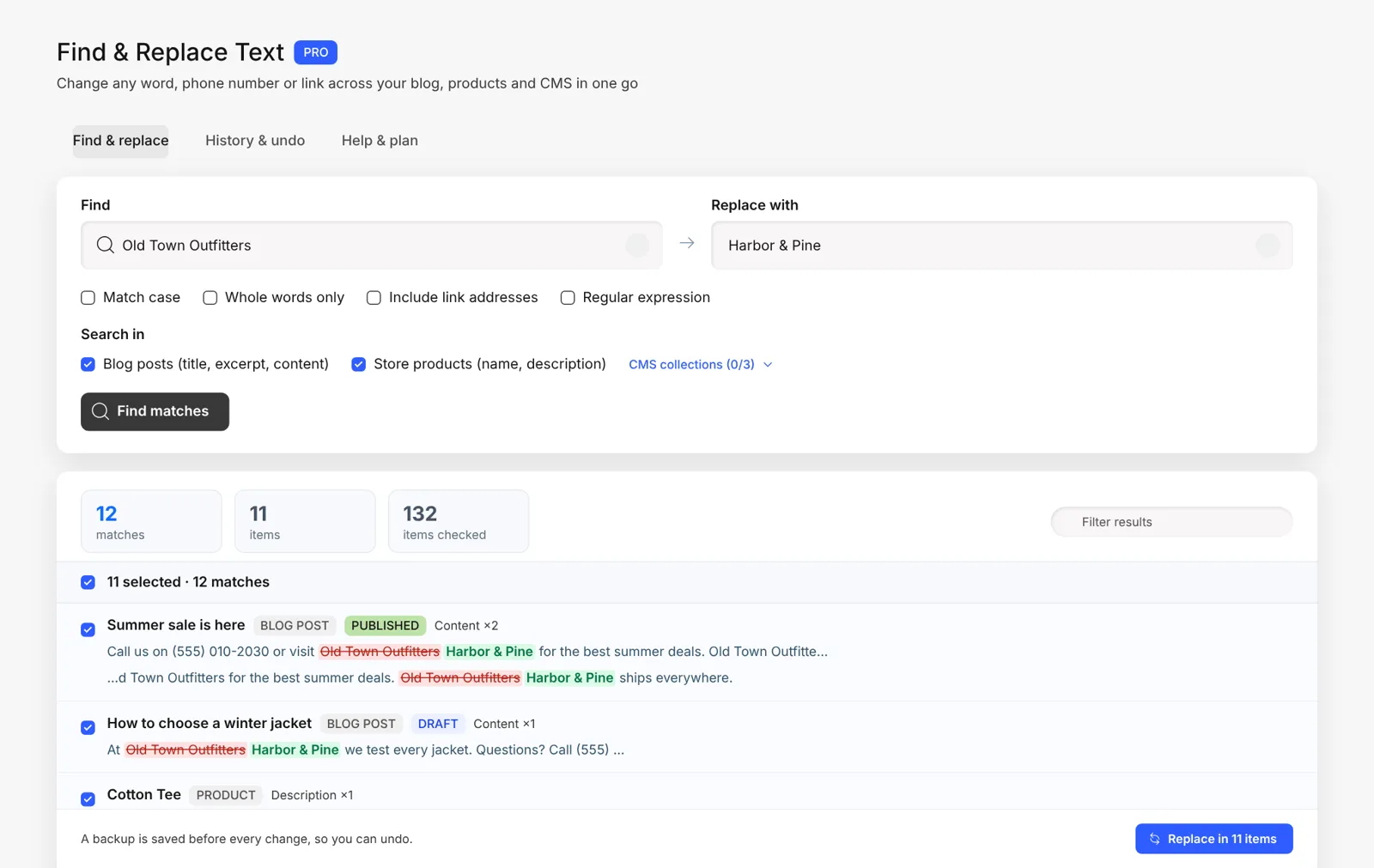
- Start with the longest form. Replace “Old Town Outfitters Ltd” first, then “Old Town Outfitters”, then the short name. This avoids half-replaced phrases.
- Read the preview. Some old mentions should stay, such as “formerly known as” sentences or a history page. Untick those items.
After the text update, change your logo, site title and SEO settings too. Our Wix eCommerce SEO guide covers the SEO side.
Update links after a domain change
When you move to a new domain or rename pages, links inside your content keep pointing to the old address. Redirects help, but every redirect adds a small delay and old links look unprofessional when people copy them.
- Search for the old domain, for example
old-shop.com. - Replace it with the new domain, for example
newshop.com. - Turn on Include link addresses so the address inside every link changes, not only the visible text.
- For renamed pages, search for the old path, such as
/our-team, and replace it with the new one.
Keep 301 redirects from the old addresses in your Wix SEO settings as well, so old links shared on other websites still work.
Remove old prices and ended promotions
Sale text copied into product descriptions is easy to forget. Weeks later the store still says “20% off this week only” or “free shipping over $50” when the offer changed. Search for the promotion text and replace it with the new offer, or leave the replacement empty to remove the sentence. If you need to change the actual product prices, discounts or stock in bulk, use Bulk Product & Price Editor, which edits those fields directly. Our Wix Stores product setup guide explains how to keep product data clean.
Fix repeated typos and policy text
Spelling mistakes travel. One wrong product name or a misspelled city gets copied into many posts. The same goes for policy wording such as “14-day returns” when you now offer 30 days. A bulk search finds every copy in seconds, and the preview shows the sentence around each match so you can check the meaning before you change it.
Tip for advanced users: with regular expressions on Pro, you can find patterns rather than exact text, such as every phone number that starts with a certain area code, and reuse parts of the match in the new text with $1.
Real examples by business type
- Online store: a supplier changed, so “Made by Old Brand” in 300 product descriptions must become “Made by New Brand”. One search on store products, whole words on, and it is done in minutes.
- Restaurant or café: new opening hours or a new delivery partner mentioned in menu items stored in a CMS collection and in old blog posts.
- Agency or consultant: a service was renamed, for example “SEO audit” became “Website health check”, across portfolio items, case studies and posts.
- Tour or booking business: the meeting point moved, and the old address appears in every tour description and FAQ answer.
- Multi-branch business: one branch closed, and its phone number and address sit in the branches collection, blog posts and product pages.
- Blogger or publisher: an affiliate program changed its link format, so hundreds of links inside posts must point to the new address.
In each case the change is the same simple pattern: find the old text, preview, replace, check. What changes is only where you search and which options you turn on.
How to do it on Wix, step by step
- Install Text Find & Replace: Bulk Edit from the Wix App Market.
- Open it from Apps in your Wix dashboard.
- Type the old text and the new text.
- Pick the options you need: Match case, Whole words only and Include link addresses.
- Choose where to search: blog posts, store products and your CMS collections.
- Click Find matches and read the before and after preview.
- Untick anything you want to keep, then click Replace and confirm.
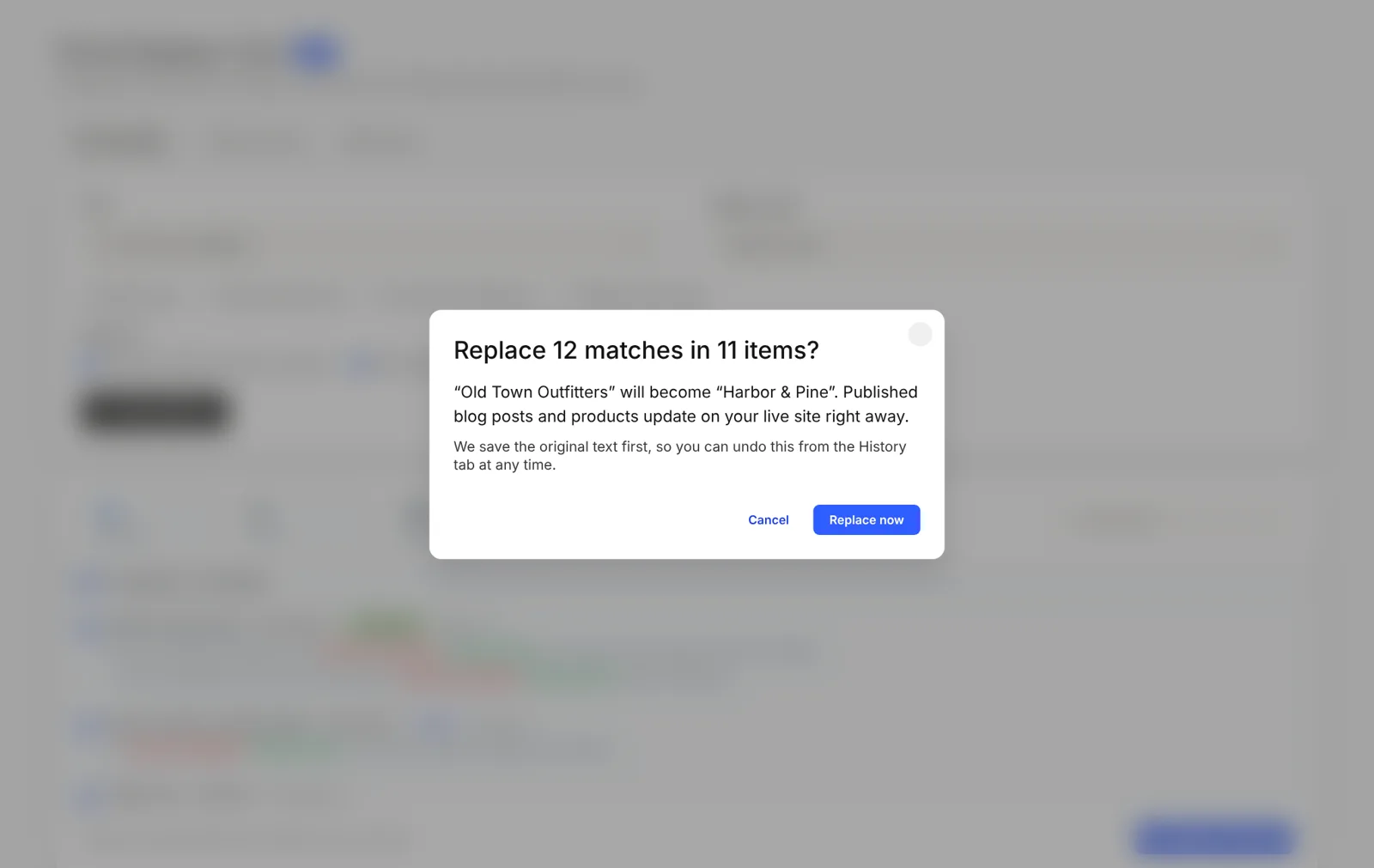
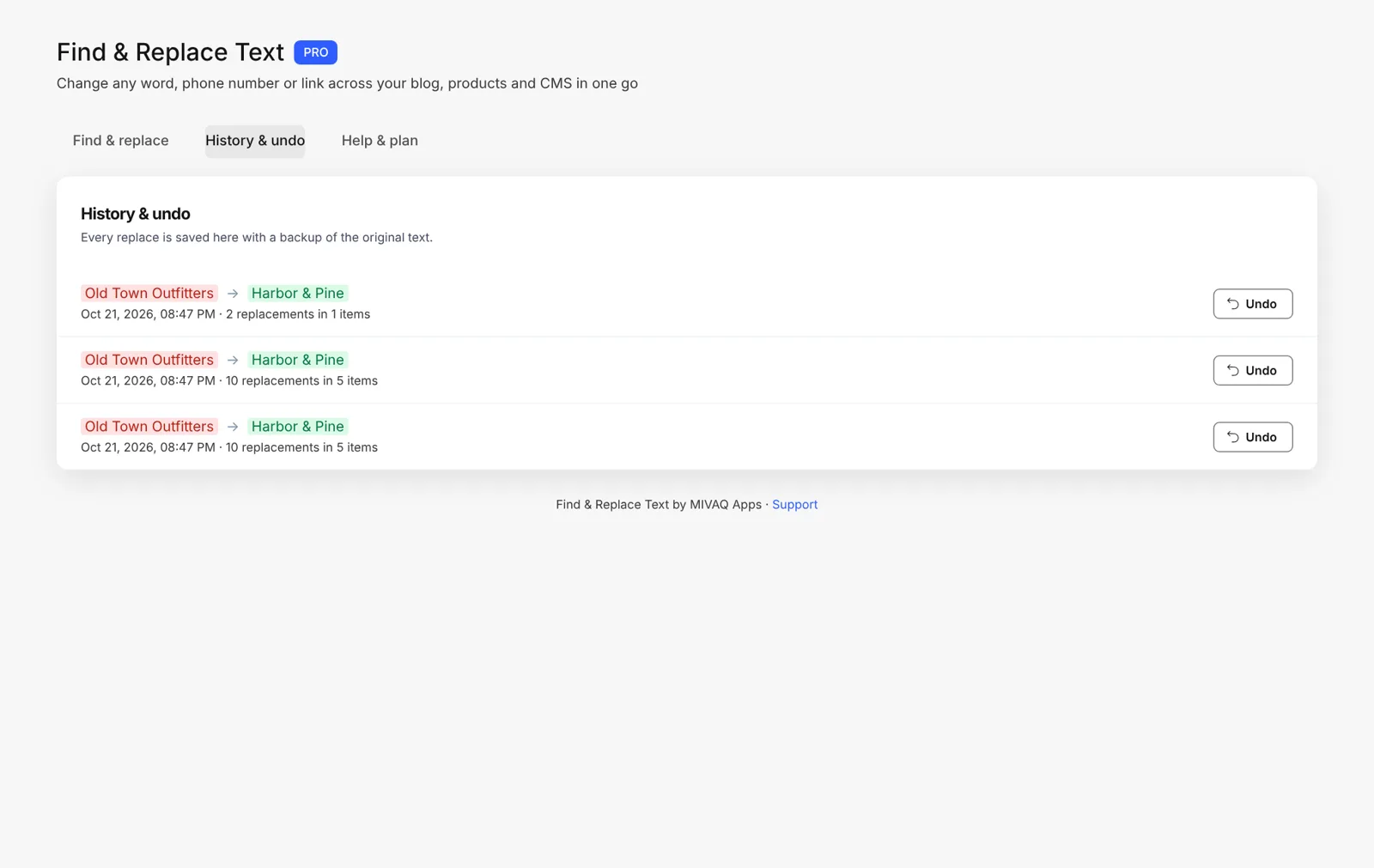
The free plan includes 50 replacements every month, which is enough for a small update. For a full rebrand or a domain move, Pro gives unlimited replacements for $3.99 a month ($2.99 a month billed yearly). Every run is saved in History, so you can undo it with one click.
What to check after the update
- Run the search again. Zero matches means the old text is gone from your blog, store and CMS.
- Check the Editor. Update text boxes placed directly on pages, such as your header, footer and contact page.
- Check SEO titles and descriptions of your pages, posts and products.
- Update outside listings: Google Business Profile, social media profiles, directories and email signatures.
- Click a few links to make sure they open the right pages on the new domain.
Install and leave a review
Open the Text Find & Replace listing, click Add to Site and run your first search. If it saved you time, please scroll to Reviews on the app page and leave a short review. It helps other Wix users find the app and helps us decide what to build next. If something is not working, contact us first and we will fix it fast.
Need help with a rebrand or domain move?
MIVAQ designs, builds and manages Wix websites and builds Wix apps. If you are rebranding, moving domain or cleaning up an older site, we can do the whole update for you. See our Wix solutions and our Wix apps, then contact us:
- WhatsApp: message us
- Email: hello@mivaq.com
- Form: send your project details
Related Wix guides
- How to find and replace text on a Wix site
- Complete Wix guide
- Wix eCommerce SEO
- Wix Stores product setup
- Best Wix apps
Frequently asked questions
How do I change my phone number on every page of my Wix site?
Search for each format of the old number with a find and replace app such as Text Find & Replace, replace it with the new number and turn on “Include link addresses” for clickable tel: links. Then update the Editor text boxes and your Wix business info.
How do I change my business name on Wix?
Replace the longest form of the old name first, use Match case and Whole words only, and read the preview before replacing. Then update your logo, site title and SEO settings.
Can I update links after moving to a new domain?
Yes. Search for the old domain, replace it with the new one and turn on “Include link addresses”. Keep 301 redirects for links on other websites.
Will bulk changes affect my published blog posts?
Published posts are updated and stay published, so the change appears on your live site right away. Drafts stay drafts.
What if I replace something by mistake?
Text Find & Replace saves a backup before every change. Open History & undo and click Undo to restore the original text.
How many replacements can I make for free?
The free plan includes 50 replacements every month. Pro is $3.99 a month, or $2.99 a month billed yearly, for unlimited replacements.