This article is part of our complete Wix guide and our list of best Wix apps.
Every booking that needs a phone call, an email or a WhatsApp chat is a booking that might not happen. Customers want to see what is free, pick a time, pay and get confirmed right away, often from a phone at 11 pm. The best Wix booking app makes that possible in under a minute.
In this guide we list the top features to look for in a Wix booking app, explain the payment options that matter (site checkout, Stripe, PayPal, deposits and pay on arrival), and show how Smart Booking & Payment by MIVAQ Apps handles tours, appointments, classes, rentals and stays with one simple calendar.
Add Smart Booking & Payment to your Wix site →
Key takeaways
- Online booking with instant payment reduces no-shows and saves hours of messages every week.
- Look for: mobile-first calendar, live places left, per-person or per-booking prices, deposits, extras, closed dates and an easy dashboard.
- Smart Booking & Payment works for tours, activities, appointments, classes, rentals and multi-night stays.
- Customers can pay through your site checkout, your own Stripe or PayPal, bank transfer, pay on arrival, or a deposit now and the rest later.
- The Free plan includes 1 service and 20 online bookings a month. Pro costs $3.99 a month, or $2.99 a month billed yearly.
In this guide
- Why online booking matters for small businesses
- Top 12 features of the best Wix booking apps
- Smart Booking & Payment: the booking app we built for Wix
- Payment options compared
- Who it is best for
- Free vs Pro pricing
- How to set up online booking on Wix
- Top tips to get more bookings
- Install and leave a review
- Frequently asked questions
Why online booking matters for small businesses
- Bookings while you sleep. Many people book in the evening. A calendar takes their booking instantly.
- Fewer no-shows. A paid booking or a deposit means customers turn up.
- Less admin. No more “is Tuesday free?” messages back and forth.
- Better cash flow. Money arrives at booking time, not weeks later.
- A professional image. A clean booking page builds trust before the first meeting.
Wix has its own booking product, and it is powerful. Many small businesses, though, want something simpler: one widget on any page, a quick setup, and the freedom to be paid through their own Stripe or PayPal account. For a full overview of the built-in option, read our Wix Bookings guide.
Top 12 features of the best Wix booking apps
- Mobile-first booking flow. Big calendar, clear time buttons and the total always visible.
- Live availability. Show places left per time slot so customers can decide quickly.
- Capacity control. Limit how many people or bookings each slot can take.
- Flexible prices: per person, per booking or free.
- Ticket types such as adult, child and senior.
- Paid extras like hotel pickup, equipment or lunch.
- Custom questions such as hotel name, allergies or experience level.
- Opening rules: weekly days, start times, closed dates, minimum notice and how far ahead people can book.
- Payment choice: full payment, deposit, bank transfer or pay on arrival.
- Your own payment accounts. Stripe and PayPal paid straight to you.
- Simple dashboard: today, upcoming, payment status, manual bookings and CSV export.
- Brand match: themes, colors and fonts that fit your site.
Smart Booking & Payment: the booking app we built for Wix
We built Smart Booking & Payment after creating custom booking systems for tour operators and local businesses. The goal: a booking calendar any owner can set up in an afternoon, that customers can complete in three steps.
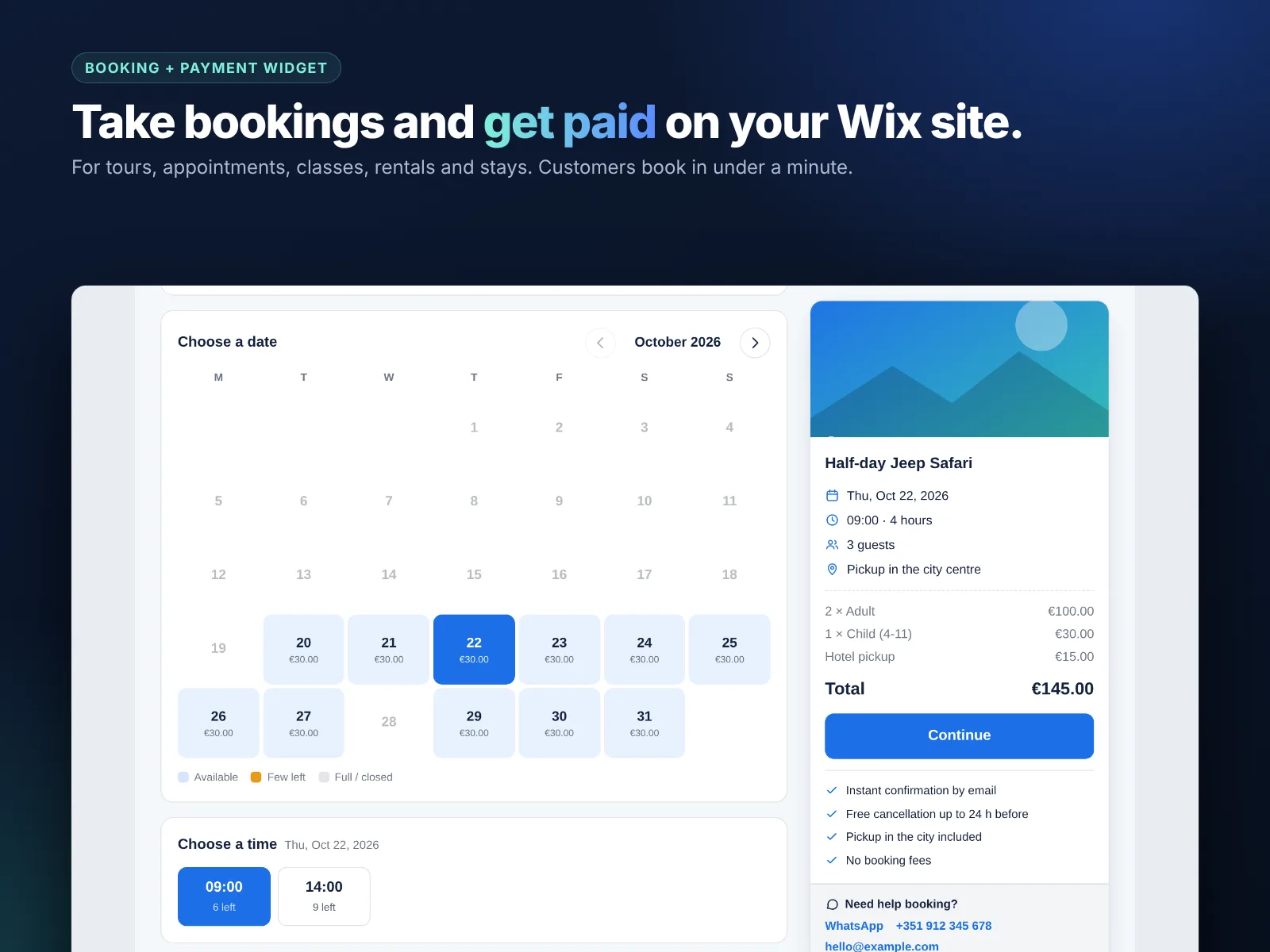
- Date & time: the customer picks a service, a date, a time and the number of guests. Slots show how many places are left.
- Details: name, email, phone, ticket types, extras and your custom questions.
- Payment: the total is shown and the customer pays the way you allow.
Three kinds of services cover almost every business:
| Service type | How it works | Examples |
|---|---|---|
| Time slots | Date plus start times, with capacity per time | Tours, classes, appointments, workshops |
| Full day | One booking per day or per date | Boat hire, day trips, equipment rental |
| Date range | Check-in to check-out, priced per night | Rooms, cabins, multi-day rentals |
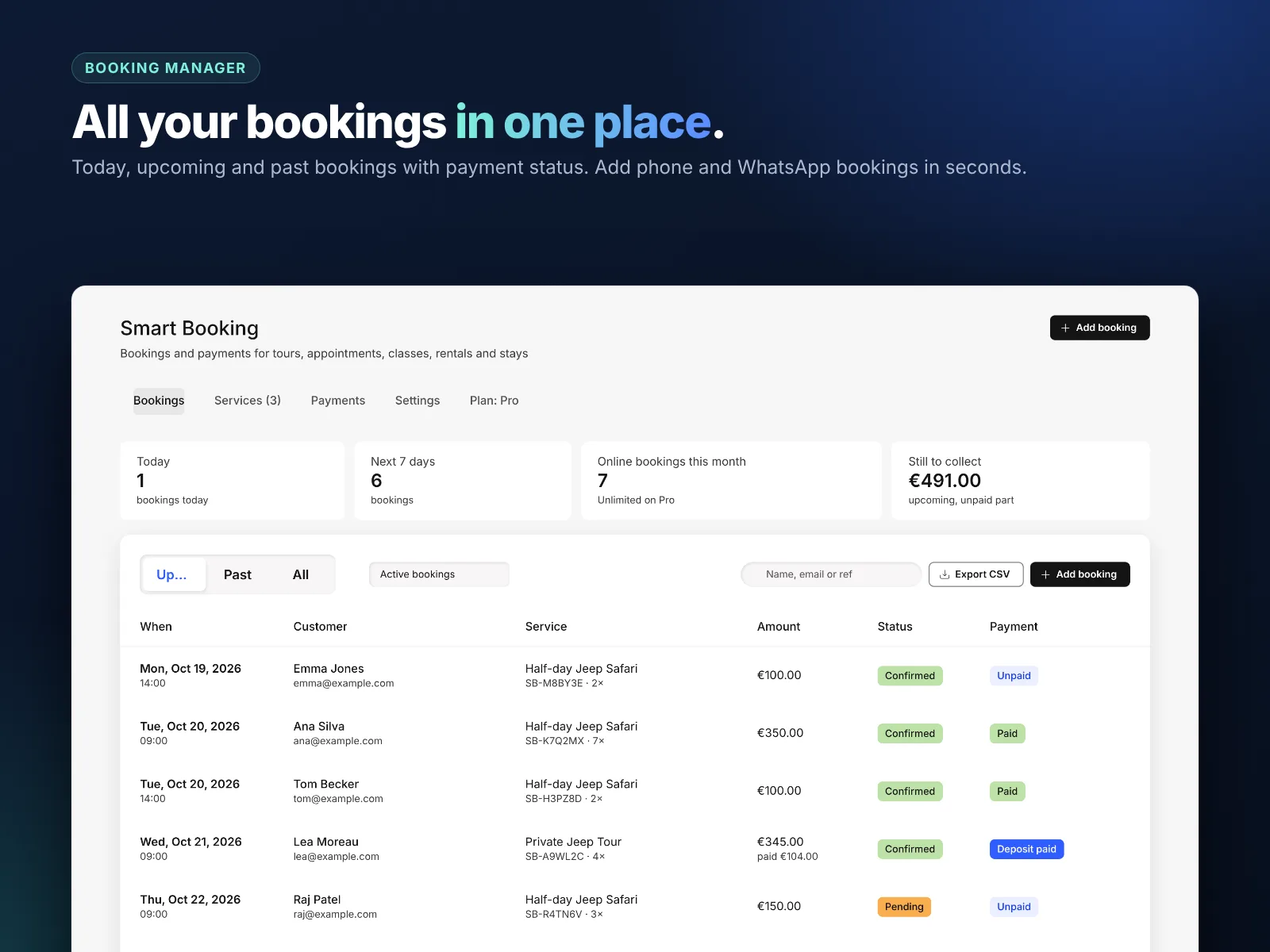
Every booking appears in your Wix dashboard with its payment status. You can add phone and WhatsApp bookings by hand so the calendar always shows the true availability, and export everything to CSV. Customers are saved as Wix contacts with a “Smart Booking” label, so you can send reminders or follow-ups with Wix Automations. Learn more in our Wix CRM and automations guide.
Payment options compared
| Option | How customers pay | Best for | Plan |
|---|---|---|---|
| Site checkout | Through your Wix checkout with the methods you already accept | Most businesses | Free and Pro |
| Bank transfer | Booking is saved, customer pays by transfer | Groups, B2B | Free and Pro |
| Pay on arrival | Booking is saved, payment at the venue | Local services, regulars | Free and Pro |
| Your own Stripe | Card payment on Stripe Checkout, paid to your account | Businesses that already use Stripe | Pro |
| Your own PayPal | PayPal payment, paid to your account | International customers | Pro |
| Deposit | Part now, the rest later | Tours, rentals, events | Pro |
For tours and rentals, a deposit of 20 to 30% is a good balance: it stops no-shows without scaring customers away. Read more in our guide to booking payments and deposits on Wix.
Who it is best for
- Tour and activity operators: jeep tours, boat trips, walking tours, diving, surfing. See our tour booking system guide.
- Appointment businesses: consultants, photographers, salons, tutors.
- Classes and workshops: yoga, cooking, art, fitness.
- Rentals: bikes, kayaks, cameras, event equipment.
- Small stays: guest rooms, cabins and holiday homes. See also our hotels and vacation rentals guide.
Free vs Pro pricing
| Free | Pro | |
|---|---|---|
| Price | $0 | $3.99/month, or $2.99/month billed yearly |
| Bookable services | 1 | Unlimited |
| Online bookings | 20 per month | Unlimited |
| Site checkout, bank transfer, pay on arrival | ✓ | ✓ |
| Own Stripe and PayPal | — | ✓ |
| Deposits | — | ✓ |
| Ticket types and extras | — | ✓ |
| Custom questions | — | ✓ |
| CSV export | — | ✓ |
There is no branding from us on your booking widget, on any plan.
How to set up online booking on Wix
- Install Smart Booking & Payment from the Wix App Market.
- In your Wix dashboard, open the app and go to Services. Pick a preset (tour, appointment, class, rental or stay) and adjust the name, price, duration and capacity.
- Set your opening days, start times, closed dates, minimum notice and how far ahead people can book.
- Open Payments and choose how customers can pay. On Pro, connect your Stripe or PayPal account and set a deposit.
- In the Editor, add the booking widget to a page, then match colors and fonts in the Design tab.
- Make a test booking, then publish.
Questions to ask before you choose any booking app
- Can customers book and pay on a phone in under a minute?
- Can I be paid into my own Stripe or PayPal account, or only through one provider?
- Can I take a deposit instead of the full price?
- Can I add phone bookings so I never double-book?
- What happens on the free plan, and what does the paid plan cost per year?
- Does the app add its own branding to my site?
If an app cannot answer these clearly, keep looking. Booking is the moment a visitor becomes a customer, so it is worth choosing well.
Top tips to get more bookings
- Put “Book now” everywhere: header, homepage, service pages and your Google Business Profile.
- Show the price up front. Surprises at checkout lose bookings.
- Use great photos of the real experience.
- Answer questions on the page: what to bring, how to get there, cancellation rules.
- Create urgency honestly: “Only 3 places left in July” with a countdown bar.
- Ask for reviews after each booking and show them on your site.
How to install Smart Booking & Payment and leave a review
- Open the Smart Booking & Payment listing on the Wix App Market.
- Click Add to Site, choose your Wix site and approve the permissions.
- Set it up from your Wix dashboard or the Editor (the steps above take a few minutes).
- Once it is working for you, go back to the app page, scroll to Reviews and click Write a Review. Choose your stars and share one or two sentences about how you use it.
Reviews help other Wix users find tools that work, and they help us, a small team, decide what to build next. If something is not working the way you expect, please tell us first and we will fix it fast.
More top Wix apps from MIVAQ Apps
MIVAQ Apps is the app studio of MIVAQ Creative Solutions. Every app is made for Wix, priced fairly and supported by real people. You can see all of them on our MIVAQ Apps developer page on the Wix App Market and on our Wix apps page.
- News Ticker & Announcement Bar: a scrolling news ticker and announcement bar with countdowns and coupon codes.
- Bulk Product & Price Editor: bulk edit prices, sales, stock, ribbons and SEO for many products at once.
- Smart Price Table: 50 premium pricing table designs with built-in checkout.
- YMM Parts Finder: a Year / Make / Model parts finder and fit check for any kind of parts store.
Need help with your Wix site?
MIVAQ designs, builds and manages Wix websites and builds Wix apps. If you want help with a booking website, payments or a custom booking flow, we are happy to help. See our Wix solutions, then contact us:
- WhatsApp: message us
- Email: hello@mivaq.com
- Form: send your project details
Install Smart Booking & Payment →
Related Wix guides
- Best tour booking system for Wix
- Wix Bookings guide
- Booking payments and deposits on Wix
- Wix payments setup
- Is Wix good for small business?
Frequently asked questions
What is the best booking app for Wix?
It depends on your business. If you want a simple booking calendar with online payment, deposits and your own Stripe or PayPal, Smart Booking & Payment by MIVAQ Apps is a strong choice with a free plan.
Can I take deposits for bookings on Wix?
Yes. On the Pro plan of Smart Booking & Payment you can charge a deposit online and collect the rest later.
Can customers pay with PayPal or Stripe?
Yes. On Pro you connect your own Stripe and PayPal accounts. On every plan customers can pay through your site checkout.
Can I add bookings I take by phone?
Yes. Add manual bookings in the dashboard so availability stays correct.
Does it work for multi-night stays?
Yes. Date-range services are priced per night from check-in to check-out.
Is there a free plan?
Yes. The Free plan includes 1 service and 20 online bookings per month.