This article is part of our complete Wix guide and our list of best Wix apps.
Most Wix sites start with one person. Then the business grows. A shop assistant updates stock, a freelancer writes blog posts, a marketing agency runs discounts and the owner still edits prices late at night. Everyone means well, but with several people in one dashboard, mistakes happen and nobody is sure who did what.
This guide shows how to run a Wix site with a team, client or agency without losing control: how to give the right access, how to track every change, what to review each week and how to settle questions quickly. We use Activity & Audit Log by MIVAQ Apps for the tracking part.
Track your team’s changes with Activity & Audit Log →
Key takeaways
- Give each person their own Wix account and the smallest role they need. Never share one login.
- Track changes with names, times and old and new values, so mistakes can be traced and fixed in seconds.
- Review a short overview every week: changes, deletions and the busiest areas.
- Use the log to settle disputes with facts and to show clients what work was done.
- Activity & Audit Log has plans for 3 people, 7 people or unlimited teams, with a 5-day free trial.
In this guide
- The risks of many people in one dashboard
- Step 1: Give everyone the right access
- Step 2: Name every person in the log
- Step 3: Track the areas that matter
- Step 4: Review the weekly overview
- Step 5: Watch deletions closely
- Working with an agency or freelancer
- Settling questions and disputes
- Best practices for team sites
- Onboarding new team members
- Example: a small store with four people
- Frequently asked questions
The risks of many people in one dashboard
- Silent mistakes. A wrong price, a hidden product or an expired coupon can cost sales for days before anyone notices.
- Overwritten work. Two people edit the same product description and one version disappears.
- Accidental deletions. A coupon, blog post or product is removed by mistake.
- Unclear responsibility. When nobody knows who changed something, it is hard to fix the cause or train the person.
- Trust problems. Clients and agencies sometimes disagree about what was changed and when.
The solution is not to stop sharing access. It is to share it carefully and keep a clear record.
Step 1: Give everyone the right access
Wix lets you invite collaborators with different roles, such as admin, website manager, back office manager, store manager or blog writer, and you can create custom roles on many plans. Use them:
- One account per person. Shared logins make every change anonymous and are a security risk.
- Smallest role possible. A blog writer does not need access to orders. A store assistant does not need site settings.
- Remove access when work ends. Review your collaborators list after every project.
- Keep owner access with the business. Agencies should be collaborators, not owners.
Step 2: Name every person in the log
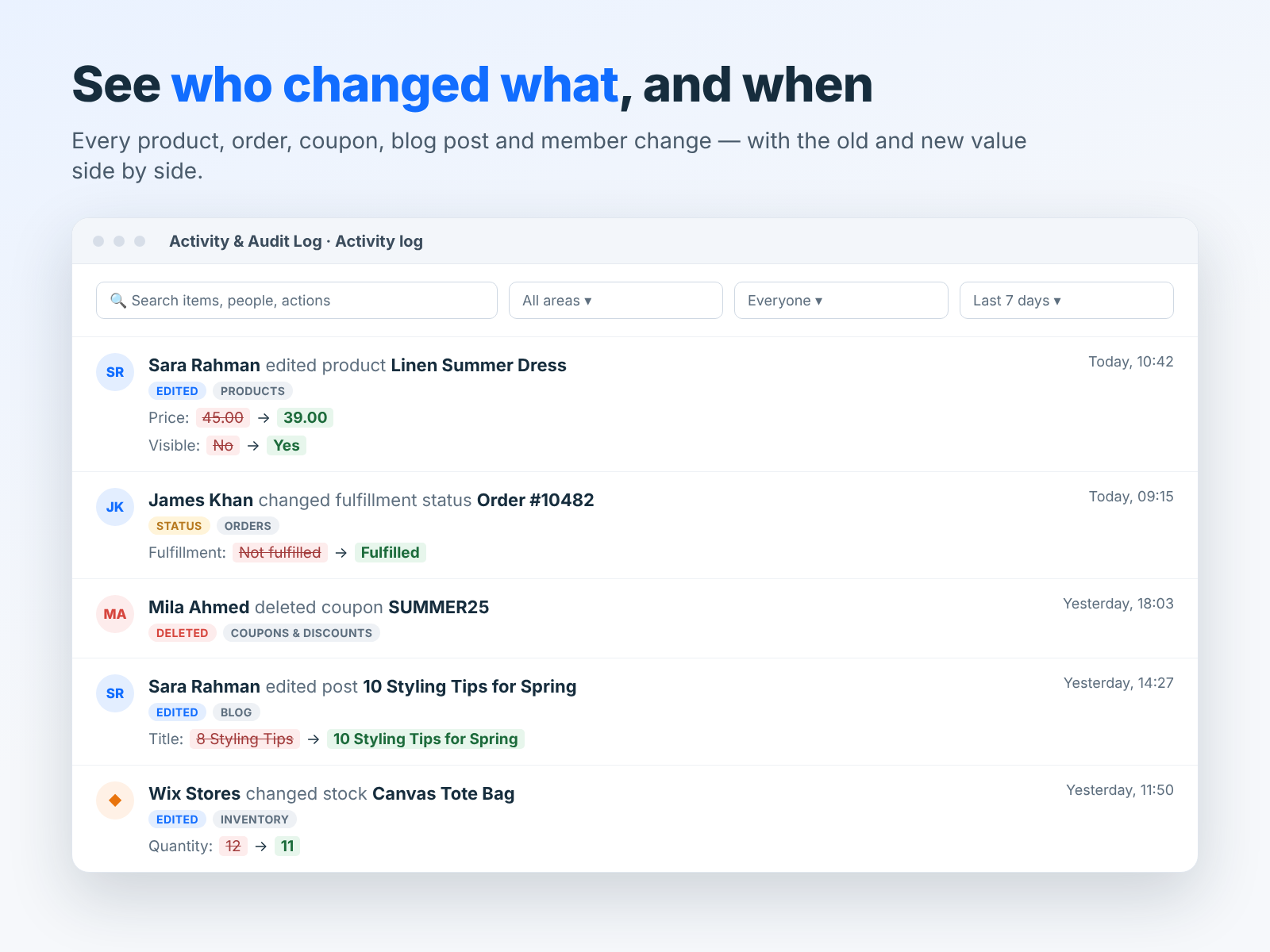
Technical IDs are hard to read. In Activity & Audit Log each team member can add their name, so the log reads “Sara Rahman edited product Linen Summer Dress” or “James Khan changed fulfillment status Order #10482”. Changes made by site members, visitors, other apps and automatic system updates are labelled separately, and you can hide them to focus on your team.
Step 3: Track the areas that matter
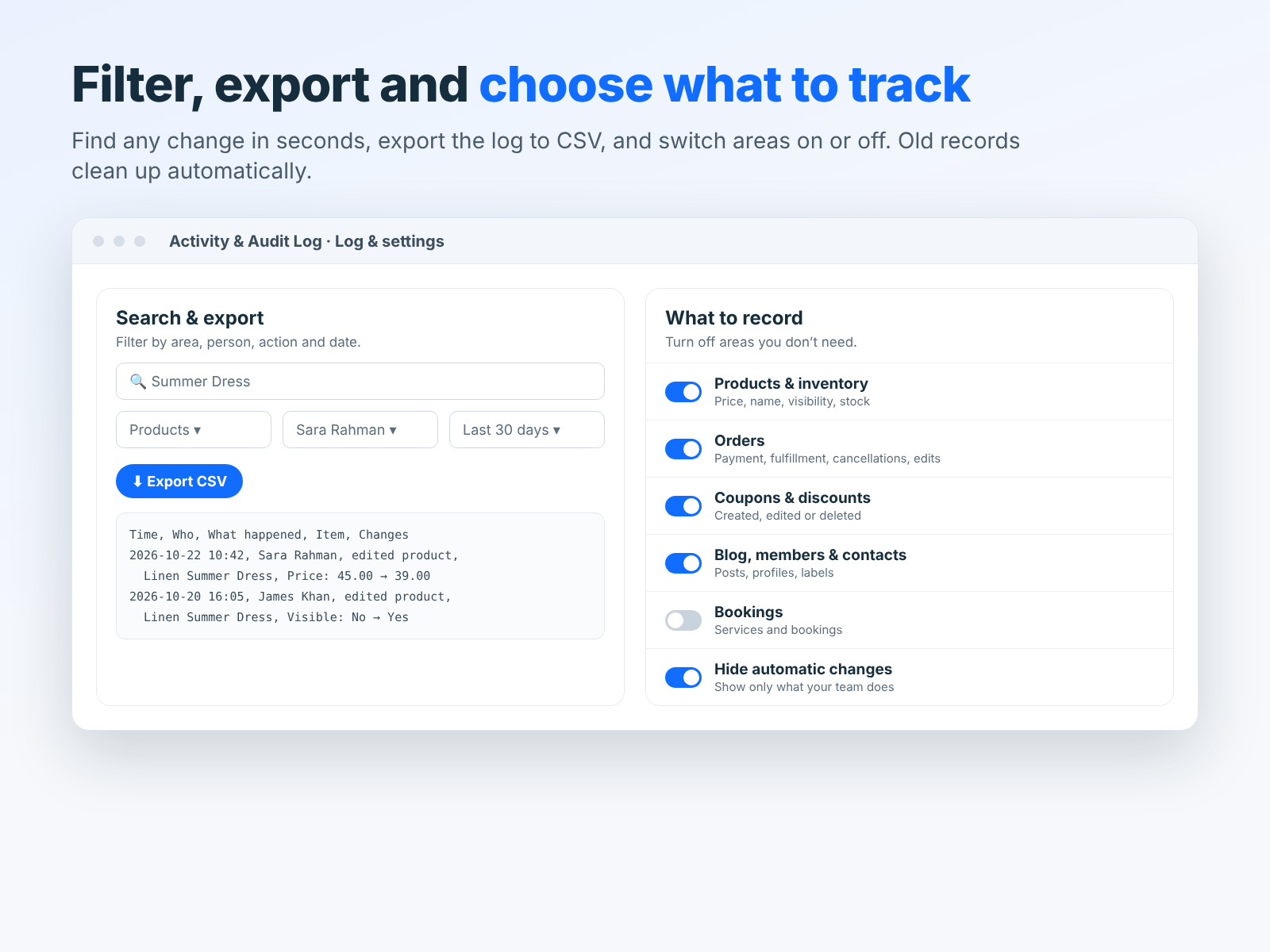
Turn on tracking for the parts of the site your team touches:
- Products and inventory: prices, sale prices, stock, visibility and descriptions.
- Categories and collections: what appears where in your store.
- Orders: payments, fulfillment, cancellations and edits.
- Coupons and automatic discounts: created, edited and deleted.
- Blog posts: titles, content and publishing.
- Members and contacts: changes to customer records.
- Bookings, pricing plans and business info if you use them.
Every entry shows the old and new value side by side, such as Price: 45.00 to 39.00, so fixing a mistake is a matter of copying back the old value.
Step 4: Review the weekly overview
You do not need to read every log entry. Spend five minutes a week on the overview: changes today and in the last 7 days, deletions, active people, a 14-day activity chart, the most active team members and the busiest areas.
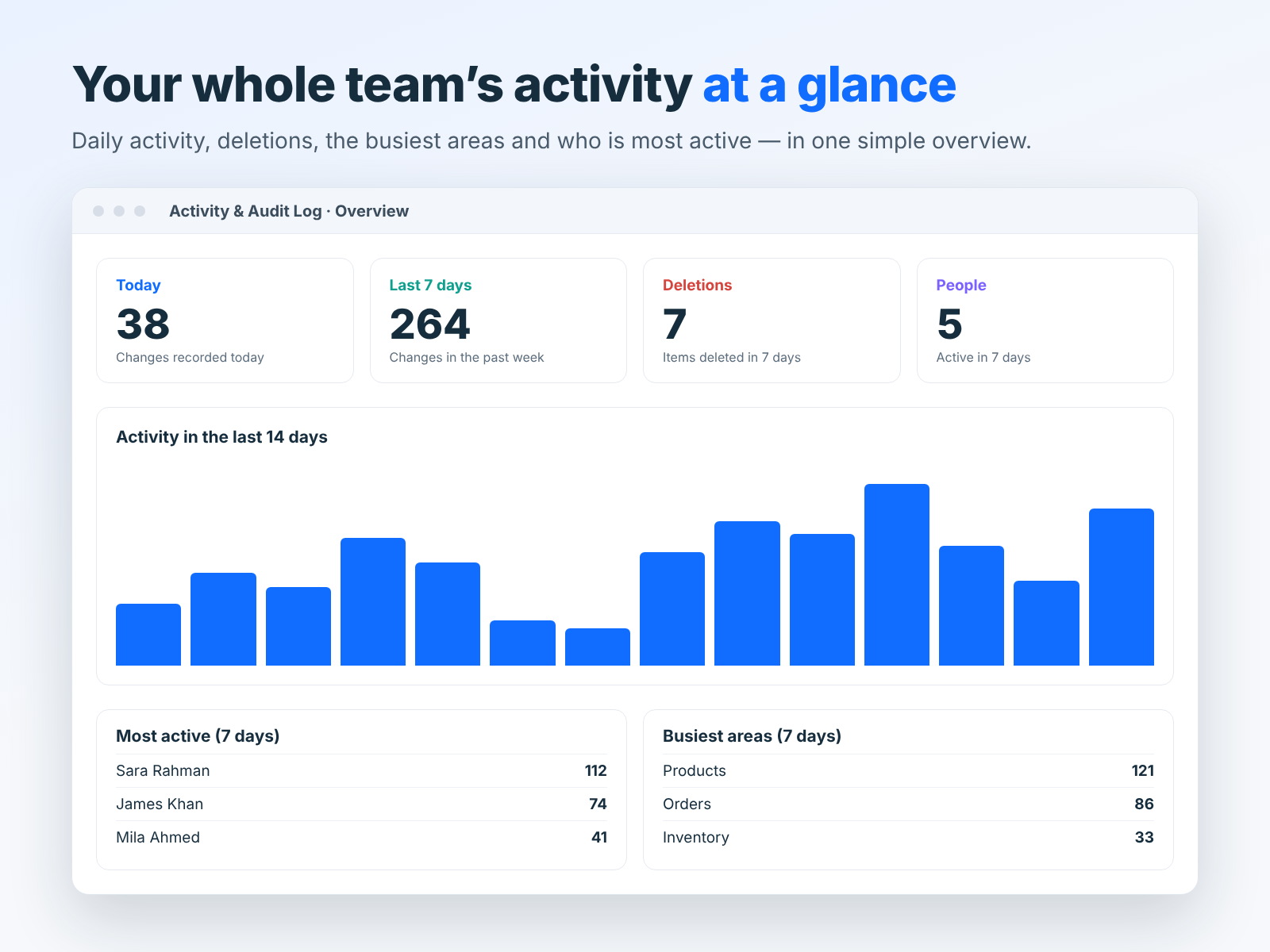
Look for anything unusual: a spike in deletions, activity at odd hours or changes in areas a person does not normally work in.
Step 5: Watch deletions closely
Edits can be reversed easily when you know the old value. Deletions are harder. Filter the log by Deleted every week to see which products, coupons or posts were removed and by whom. If something was deleted by mistake, the log tells you exactly what it contained so you can recreate it.
Working with an agency or freelancer
For business owners, an activity log brings peace of mind: you can see exactly what your agency changed. For agencies and freelancers, it is a reporting tool and a shield:
- Monthly reports: filter by person and date, export to CSV and attach it to your invoice or report.
- Proof of work: show clients the products, posts and settings you updated.
- Protection: if a client says you broke something, the log shows who actually changed it.
- Handover: when a project ends, the log documents what was done.
The Unlimited plan is designed for agencies and bigger teams.
Settling questions and disputes
Common questions and how the log answers them:
- “Why is this product hidden?” Search the product name. The log shows Visible: Yes to No, who changed it and when.
- “Who gave this customer a discount?” Filter Coupons and look for the code.
- “Was this order edited after payment?” Open the order history to see every change.
- “Who rewrote this blog post?” Filter Blog and the post title.
Facts end discussions quickly and keep relationships friendly.
Best practices for team sites
- Write a short “how we work” note: who handles prices, who handles discounts, who publishes posts.
- Agree that big changes, such as a store-wide price update, are announced first.
- Use a staging approach for big design changes: duplicate a page and work on the copy.
- Check the activity overview every Monday.
- Keep records for at least 90 days, longer if you need them for accounting.
- Remove collaborators who no longer work on the site.
- Keep regular backups for design and content alongside the log. See our Wix security and backups guide.
New to audit logs? Start with our guide to the Wix activity log and how to see who changed what.
Onboarding new team members
The first weeks of a new hire or freelancer are when most mistakes happen. A simple onboarding routine reduces them:
- Invite them with the right role and their own email address.
- Ask them to add their name in Activity & Audit Log on day one.
- Give them a small first task, such as updating stock for ten products.
- Review their changes by filtering the log by their name. Check prices, visibility and descriptions.
- Give quick feedback with concrete examples from the log, such as “this sale price should end on Sunday”.
- Widen access gradually once you trust their work.
This turns the log into a training tool rather than a control tool, and new people learn your standards faster.
Example: a small store with four people
Imagine a gift shop on Wix. The owner sets prices, a shop assistant updates stock after deliveries, a freelancer writes two blog posts a month and an agency runs seasonal campaigns. One Monday, a best-selling candle shows a price of 2.50 instead of 25.00 and has sold out at a loss over the weekend.
With the log, the owner searches the product name and sees: “Agency user edited product Lavender Candle, Price: 25.00 to 2.50, Friday 18:42”, made while setting up a weekend discount. The fix takes seconds, the agency adds a review step for price changes and the problem does not happen again. Without the log, the same situation could take hours of questions and still end without an answer.
Plans
Activity & Audit Log includes before and after values, filters, search and CSV export on every plan. Choose by team size: Starter for up to 3 team members at $2.99 a month, Team for up to 7 at $5.99 a month and Unlimited for agencies and big teams at $9.99 a month. Try it free for 5 days. Install it from the Wix App Market. Prefer to hand site management to experts? See our Wix maintenance service.
Frequently asked questions
Can I see which collaborator made a change?
Yes. Each change shows who made it, and team members can add their names so the log is easy to read.
Does it record changes by apps and automations?
Yes. They are labelled separately, and you can hide them.
Can agencies use one plan for a client site?
Plans apply per site. Agencies managing many people on one site usually choose Unlimited.
How long are records kept?
You choose from 30 days to 1 year. Older records are removed automatically.